https://github.com/0x6f677548/podshell
PodShell synchronizes your favorite terminal with your running docker containers, or ssh configurations.
https://github.com/0x6f677548/podshell
docker iterm2 macos shell ssh terminal windows windowster
Last synced: about 1 year ago
JSON representation
PodShell synchronizes your favorite terminal with your running docker containers, or ssh configurations.
- Host: GitHub
- URL: https://github.com/0x6f677548/podshell
- Owner: 0x6f677548
- License: mit
- Created: 2023-08-27T19:04:09.000Z (almost 3 years ago)
- Default Branch: main
- Last Pushed: 2024-01-06T15:12:07.000Z (over 2 years ago)
- Last Synced: 2024-05-20T21:13:37.989Z (about 2 years ago)
- Topics: docker, iterm2, macos, shell, ssh, terminal, windows, windowster
- Language: Python
- Homepage:
- Size: 2.43 MB
- Stars: 4
- Watchers: 1
- Forks: 0
- Open Issues: 6
-
Metadata Files:
- Readme: readme.md
- License: LICENSE
Awesome Lists containing this project
README
[](https://go.hugobatista.com/gh/podshell/actions/workflows/lint-quick.yml)
# PodShell
PodShell sychronizes your favorite terminal with your running docker containers or ssh configurations.
Just spin up your containers, and PodShell will automatically add them to your terminal.
## Supported terminals
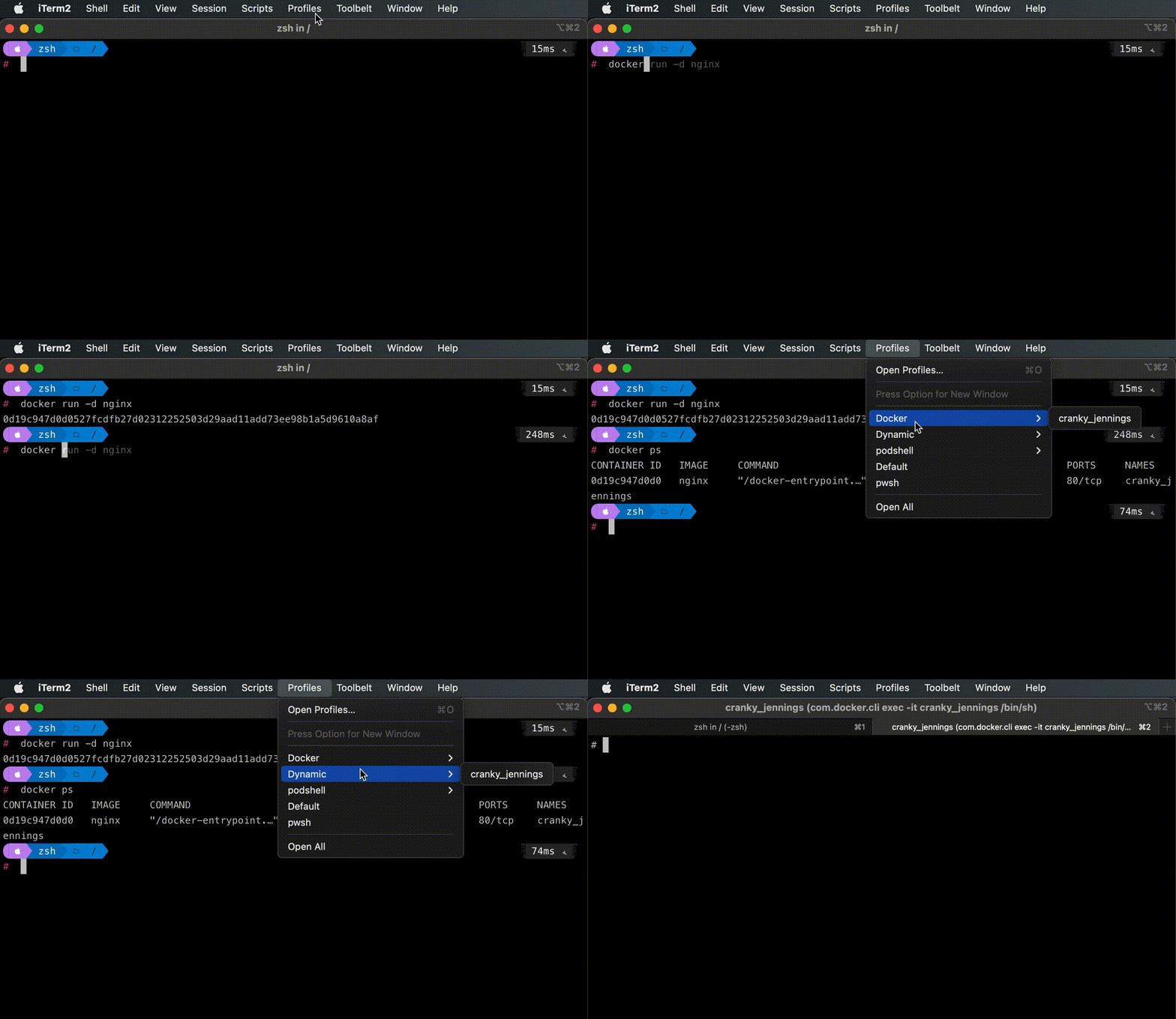
### iTerm2 Dynamic Profiles
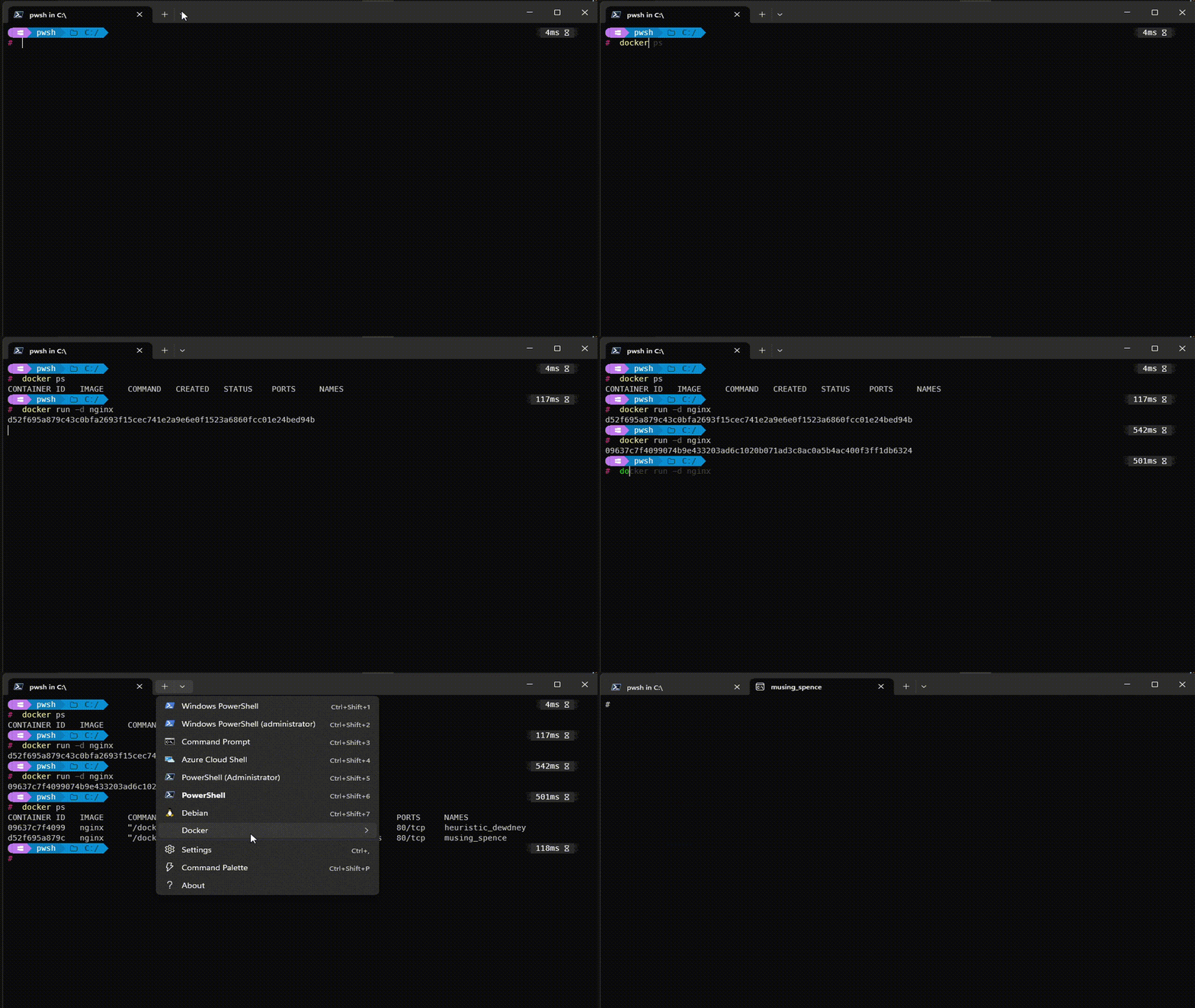
### Windows Terminal Profiles
## Supported pod sources
### Docker (local)
PodShell monitors your docker events and creates profiles for any running container.
### SSH (config)
PodShell monitors your ssh config file and creates profiles based on Host config.
## Installation and usage
### Windows
1. Download [latest release](https://go.hugobatista.com/gh/podshell/releases/latest/download/podshell-windows.zip)
2. Extract the zip file
3. Run `podshell.exe` to start the application
If you prefer, a console version is also available. You can run it with `podshell-console.exe`.
If you get prompted by Windows Defender, click on "More info" and then "Run anyway" (this is because the application is not signed)
### MacOS
1. Download [latest release](https://go.hugobatista.com/gh/podshell/releases/latest/download/podshell-macos.zip)
2. Extract the zip file
3. Run `podshell` to start the application
If you prefer, a console version is also available. You can run it with `podshell-console`.
This application is not signed, so you will have to allow it in your security settings. To do so, go to "System Preferences" > "Security & Privacy" > "General" and click on "Open Anyway". You will have to do this only once. Alternatively, you can right click on the application and click on "Open".
### Run from source
You can also run the application from source. To do so, you will need to have [Python >=3.7 installed](https://www.python.org/downloads/). Then, you can run the following commands:
```bash
git clone https://go.hugobatista.com/gh/podshell
cd podshell
python -m pip install -r requirements.txt
```
To run the gui version, run:
```bash
python main.py
```
To run the console version, run:
```bash
python console.py
```
### Build binaries for your platform
You can build binaries for your platform by running the following commands:
```bash
git clone https://go.hugobatista.com/gh/podshell
cd podshell
python -m pip install -r requirements.txt
pip install pyinstaller
pip install pillow
pyinstaller podshell.spec
pyinstaller podshell-console.spec
```
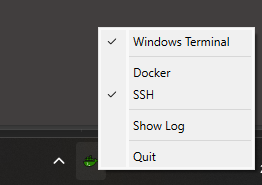
### Gui Version
When running on Gui, a tray icon is shown where you can activate or deactivate sources and terminals. When starting, the app detects sources and terminals installed. You can toggle on/off the sources and terminal integration. A single terminal is supported per platform (win32/MacOS) but more terminals will be integrated in the future.