https://github.com/3urobeat/steam-idler
🎮 Headless cross-platform Steam game idler with multi account support!
https://github.com/3urobeat/steam-idler
bot nodejs steam steam-bot steam-hour-booster steam-idler steam-user steambot
Last synced: 9 months ago
JSON representation
🎮 Headless cross-platform Steam game idler with multi account support!
- Host: GitHub
- URL: https://github.com/3urobeat/steam-idler
- Owner: 3urobeat
- License: gpl-3.0
- Created: 2021-03-31T20:34:20.000Z (over 5 years ago)
- Default Branch: main
- Last Pushed: 2025-10-03T18:36:02.000Z (9 months ago)
- Last Synced: 2025-10-03T20:33:54.616Z (9 months ago)
- Topics: bot, nodejs, steam, steam-bot, steam-hour-booster, steam-idler, steam-user, steambot
- Language: JavaScript
- Homepage:
- Size: 335 KB
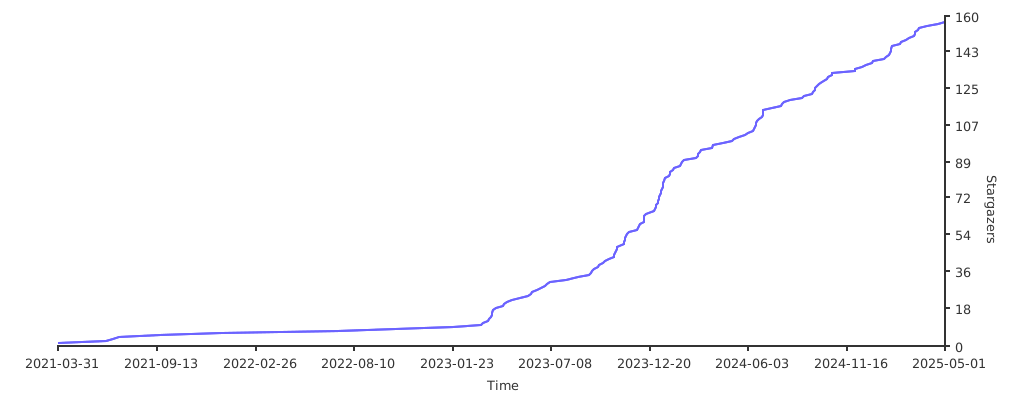
- Stars: 177
- Watchers: 3
- Forks: 24
- Open Issues: 3
-
Metadata Files:
- Readme: README.md
- Funding: .github/FUNDING.yml
- License: LICENSE
Awesome Lists containing this project
README
steam-idler
Simple cross-platform Steam game idler with multi account support.

## ✨ Introduction
This is a simple cross-platform Steam game idling bot, supporting multiple accounts.
It handles the connection management for all accounts for you, sends afk messages if enabled and of course idles the configured games.
This project is a slimmed down version of my [steam-comment-service-bot](https://github.com/3urobeat/steam-comment-service-bot), for users only interested in game idling.
If you need more features, please check it out instead.
It does way more besides supporting commenting etc, has more advanced connection management features than present here and is updated more regularly.
Please continue reading to learn how to set this bot up.
## 🚀 Install
Make sure to have [node.js](https://nodejs.org/) installed.
Download this repository as `.zip`, extract the folder and open a Terminal/Power Shell/Console in the folder.
Type `npm install` to install all dependencies.
## 👤 Accounts
Open the `accounts.txt` file and put an account in each line in this format:
`username:password:shared_secret`
`shared_secret` is optional. Only provide `username:password` if you don't want to use it.
**Login using QR-Code**:
You want to login an account by scanning a QR-Code using your Steam Mobile App? Easy!
Instead of providing a password for that account in `accounts.txt`, set the password to "qrcode".
On startup, the bot will display a QR-Code in the log which you can scan using your Steam Mobile App.
Example:
`myaccount1:qrcode`
The username you provide for that account does not need to be correct, it just needs to stay the same.
It is only used to store a token in the database to re-use the existing session when starting the bot the next time (so you don't need to scan the QR-Code on every startup).
## 📡 Proxies
If you are using many accounts it might make sense to add proxies so you don't have tons of sessions from the same IP.
To do this, open the `proxies.txt` file and put as many HTTP proxies as you wish, line per line.
The bot will spread all accounts equally on all available proxies, including your local IP.
Your proxies must follow this format: `http://user:pass@1.2.3.4:8081`
Please note that Steam might block some proxy providers.
## 📝 Config
Open the `config.json` in a text editor and put the games you wan't to idle inside the `playingGames` brackets.
You can set a custom game by passing a String as the first argument.
The other numbers define the games the script will start playing. You can add more by adding a comma and the app id.
The bot will automatically request licenses for free-to-play games which are set here but your accounts do not own yet. This is limited to 50 games per hour.
If you want to set specific games for specific accounts, pass an object containing `"accountName": []` for every account as the first argument.
Everything that follows will represent the "general" settings, which all accounts will use that are not included in the object.
See the 4th example below for a visual representation.
Examples:
- Display "In non-Steam game: Minecraft" and idle TF2 & CS:GO: `"playingGames": ["Minecraft", 440, 730],`
- Display "Currently In-Game: Team Fortress 2" and idle TF2 & CS:GO: `"playingGames": [440, 730],`
- Only appear as online and don't idle anything: `"playingGames": [],`
- Display "Specific Game" game & idle CSGO only for account "myacc1". Idle nothing for account "myacc25". Display "General Game" & idle TF2 for all other accounts: `"playingGames": [{ "myacc1": ["Specific Game", 730], "myacc25": [] }, "General Game", 440],`
- Idle CS:GO & Dota on "myacc1" and idle Dota on "myacc2". Play TF2 on every other account: `"playingGames". [{ "myacc1": [730, 570], "myacc2": [570] }, 440],`
You don't have to keep `playingGames` on one line, this is done here for documentation purposes. I recommend spreading the array over multiple lines, especially when setting lots of different games for lots of different accounts.
To set a different online status you can choose a number from [this list](https://github.com/DoctorMcKay/node-steam-user/blob/master/enums/EPersonaState.js) and provide it at `onlinestatus`.
If set to `null` the bot will not change your online status.
To set a message that will be send on a recieved message while idling, set a message as `afkMessage`.
Leave the brackets empty (like this: `""`) to not send any message back.
The loginDelay and relogDelay values control the time waited between logging in multiple accounts and the time waited before a relog is attempted after an account lost connection.
I recommend not touching them as they have good defaults to avoid cooldowns, however if you know what you are doing - they are there.
**Important:**
Make sure that you don't forget any commas, the script will otherwise not start and throw a Syntax Error.
Take a look at the default `config.json` if you are unsure what you are missing.
## 🚀 Start
Then just type `node idler.js` to start the script.
The script will try to log in and ask you for your Steam Guard code if it needs one. When it is logged in a logged in message will be displayed.
Every time an account loses connection it will print a session summary to a text file "playtime.txt" (will be created automatically).
This also applies to when you stop the bot manually. To turn this whole feature off, set `logPlaytimeToFile` in the config to `false`.
Thats it. A simple cross-platform Steam game idling script powered by [DoctorMcKay's steam-user library](https://github.com/DoctorMcKay/node-steam-user).
[](https://starchart.cc/3urobeat/steam-idler)