https://github.com/4ms/stm32mp1-baremetal
Baremetal framework and example projects for the STM32MP15x Cortex-A7 based MPU
https://github.com/4ms/stm32mp1-baremetal
bare-metal baremetal cortex-a cortex-a7 stm32 stm32mp1
Last synced: 4 months ago
JSON representation
Baremetal framework and example projects for the STM32MP15x Cortex-A7 based MPU
- Host: GitHub
- URL: https://github.com/4ms/stm32mp1-baremetal
- Owner: 4ms
- License: other
- Created: 2020-12-09T19:56:52.000Z (over 5 years ago)
- Default Branch: master
- Last Pushed: 2025-09-19T23:51:54.000Z (8 months ago)
- Last Synced: 2025-09-20T00:59:39.056Z (8 months ago)
- Topics: bare-metal, baremetal, cortex-a, cortex-a7, stm32, stm32mp1
- Language: C++
- Homepage:
- Size: 84.7 MB
- Stars: 187
- Watchers: 13
- Forks: 28
- Open Issues: 8
-
Metadata Files:
- Readme: README.md
- License: LICENSE
Awesome Lists containing this project
README
[](https://github.com/4ms/stm32mp1-baremetal/actions/workflows/c-cpp.yml)
# STM32MP1 Cortex-A7 bare-metal example projects
This is a set of example and template projects for bare-metal applications on
the STM32MP15x Cortex-A7 microprocessor. I use "bare-metal" to mean no OS, so
unlike most STM32MP1 or Cortex-A tutorials, there is no Linux or RTOS. Basic
systems such as handling interrupts, setting up a stack, memory management,
etc. are handled in these projects, as well as more advanced featues like
parallel processing (multiple cores) and coprocessor control.
The target audience is the developer who is already familiar with the Cortex-M
series. Rather than give a ground-up introduction to
microcontrollers/processors, these projects assume you are familiar with MCUs
such as the Cortex-M0/M3/M4/M7 or perhaps AVR (ATMEGA) chips. Requirements:
* You should be comfortable with the concepts of interrupts, stacks, HAL,
etc.
* You should be able to build a Makefile project from the command line, or be
fluent in some IDE such that you can convert a Makefile project to your
preferred format.
* You should be able to understand simple C++ code, at least at a basic
level.
If not, you'll need to brush up on microcontroller and command-line
fundamentals before proceeding.
I am actively refining and adding new example projects to this. If you want to
see something, please ask! (open a github issue)
Here's a list of the example projects:
* **[Minimal Boot](examples/minimal_boot)**: Hello World project to prove the
bootloader and your hardware is working.
* **[Ctest](examples/ctest)**: Demonstrates the startup code for a C/C++
project: setting up the stack, initializing globals, etc.
* **[Basic IRQ](examples/basic_irq)**: Basic interrupt handling with the A7's
Generic Interrupt Controller.
* **[Nested IRQ](examples/nested_irq)**: More sophisticed interrupt handling:
interrupts interrupting interrupts! (and using lambdas as handlers!)
* **[Multicore_a7](examples/multicore_a7)**: Demonstrates running both A7
cores in parallel.
* **[Copro_rproc](examples/copro_rproc)**: Using the rproc feature of U-Boot
to load and run firmware on the M4 core in parallel with the A7 core.
* **[Copro_embedded](examples/copro_embedded)**: Embedding the M4 firmware
binary into the A7's firmware binary, and loading it on demand. Wacky, but
cool.
* **[Audio Processor](examples/audio_processor)**: A fun practical project
that lets you select one of several audio synths to play. Requires STM32MP1
Discovery board. Uses STM32-HAL, some DaisySP example projects, and some
Faust algorithms. TODO: use multi-core A7.
* **[USB MSC Device](examples/usb_msc_device)**:
Simple example that creates a USB Mass Storage Class device (aka "USB thumb
drive").
* **[USB MIDI Host](examples/usb_midi_host)**:
Demonstrates USB host functionality using a MIDI keyboard, sequencer or
controller.
To run an application on the STM32MP1, a bootloader must load it. There are two
bootloaders to choose from:
* **[U-Boot](third-party/u-boot/u-boot-stm32mp1-baremetal)**: the standard
bootloader, officially supported by ST. Lots of features and support for
many platforms.
* **[MP1-Boot](bootloaders/mp1-boot)**: a lightweight, fast and minimal
featured bootloader.
## Overview
The STM32MP157 is a powerful chip, with two Cortex-A7 cores running at 650MHz
or 800MHz, L1 and L2 caches, up to 1GB of external 533MHz RAM, a Cortex-M4 core
and a suite of peripherals. The peripherals are familiar to anyone having used
the STM32F7 or STM32H7 series (and sometimes STM32 HAL-based F7/H7 code can be
used as-is in the MP1 A7).
Each project in the `examples/` directory is meant to demonstrate a simple idea
with as few dependencies as possible. The CMSIS device header for the
STM32MP157 chip is used to access the hardware registers, and in some cases
I've written a simple driver class that lives in `examples/shared/drivers/`.
There also is some shared initialization code in `examples/shared/system/`,
such as setting up the MMU and the caches. For the most part you can use these
as-is, although you will need to modify the MMU setup if your project needs
areas of RAM to be non-cacheable in order to use a DMA, for example.
## Bootloader Overview
The bootloader is responsible for initializing the system and loading the
application from the SD Card (or other boot medium) into RAM, and then running
the application. Unlike a Cortex-M, where there is internal Flash memory to
store your application, the Cortex-A series typically runs the application on
an external RAM chip. The STM32MP1 has an internal ROM bootloader (called
BOOTROM) which automatically copies your bootloader from the SD Card into
internal SYSRAM, and then executes it. The bootloader is then responsible to
enable the external RAM, and load and start the application.
The application ultimately needs to live on the SD card as well, but it can be
flashed into RAM using an SWD/JTAG flasher, making debugging much easier than
having to copy files to an SD card each time the code is changed.
There are two bootloader choices in this repo: U-Boot and MP1-Boot. Either one
is complelely optional, however you must use one.
**U-Boot** is a third-party tool that is the standard bootloader supported by ST.
It's quite common to see an embedded Linux project using U-Boot. Pre-built
U-Boot images are included in this repo, so all you have to do is load them
onto an SD card and never think about it again unless you start using custom
hardware or need to change the boot command (as is optionally done in
the `corpo_rproc` example project).
U-Boot is a two-stage bootloader: the first stage loads the second stage, which
then loads the application.
I've also provided a script to build U-Boot, too. If you're familiar with Linux
kernel and device driver code, you'll notice some similarities.
U-Boot has lots of features and is quite powerful. With great power, however,
comes great complexity. A more simple bootloader is also included in this repo:
**MP1-Boot** is a lightweight bootloader written by me. It does the minimum tasks
necessary to boot an application, with no extra features. MP1-Boot is a single-stage
bootloader.
## Requirements
You need:
- Any [STM32MP15x Discovery board](https://www.st.com/en/evaluation-tools/stm32mp157d-dk1.html), or an
[OSD32MP1-BRK](https://octavosystems.com/octavo_products/osd32mp1-brk/)
board
- A computer with the
[arm-none-eabi-gcc](https://developer.arm.com/tools-and-software/open-source-software/developer-tools/gnu-toolchain/downloads)
toolchain installed (v8 or later)
- See [Setup](./docs/Setup.md) for details on installing the required software on your computer.
- Various common USB cables, depending on which board you select
- A micro SD card
- A USB-to-serial cable (only if you use the OSD32 board) such as the [FTDI cable](https://www.digikey.com/en/products/detail/ftdi-future-technology-devices-international-ltd/TTL-232R-3V3/1836393)
- Optionally, a J-Link or ST-LINK debugger (only if you use the OSD32 board -- the Discovery board has an ST-LINK on-board)

*STM32MP157A-DK1 Discovery board*
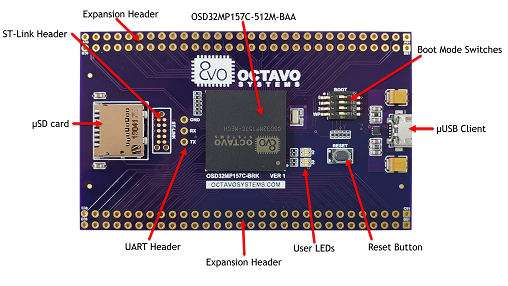
*Octavo OSD32MP1-BRK board*
#### Details:
These projects will build and run on any of the [STM32MP15x Discovery boards](https://www.st.com/en/evaluation-tools/stm32mp157d-dk1.html),
or the [OSD32MP1-BRK](https://octavosystems.com/octavo_products/osd32mp1-brk/) board.
The OSD32MP1-BRK is simply a breakout board for the [OSD32MP15x SiP](https://octavosystems.com/octavo_products/osd32mp15x/),
which is an [STM32MP157 chip](https://www.st.com/en/microcontrollers-microprocessors/stm32mp1-series.html)
plus DDR3 RAM and PMIC and other stuff in a BGA package.
These example projects work the same on either board (you may need to select your board
type at the top of main.cc). Each board requires a bootloader compiled for it.
The Discovery boards have a built-in USB/UART and a built-in ST-LINK, so you
just need a USB cable to debug and view UART output on the console. However,
AFAIK you can only use gdb to debug (not JLinkGdbServer/Ozone or TRACE32) since there is no
direct access to the SWD or JTAG pins (not even a good place to solder some
on). These boards also have a lot more external hardware on the PCB (codec,
buttons, ethernet jack, HDMI, an option for a DSI screen,...), but have far
fewer pins brought out to headers than the OSD32MP1 board.
The OSD32MP1-BRK board has an SWD/JTAG header so you can use a programmer like
the SEGGER J-Link or an ST-LINK to debug with a variety of tools (gdb/OpenOCD,
Ozone, TRACE32). The board has a 10 exposed pads designed to fit a
10-pin pogo adaptor, such as [this one](https://www.tag-connect.com/product/tc2050-idc-nl-10-pin-no-legs-cable-with-ribbon-connector)
from Tag-Connect [or Digikey](https://www.digikey.com/en/products/detail/tag-connect-llc/TC2050-IDC-NL/2605367).
While you're shopping, pick up these helpful accessories too: [retaining clip](https://www.tag-connect.com/product/tc2050-clip-3pack-retaining-clip)
, and [20-to-10-pin-adaptor](https://www.tag-connect.com/product/tc2050-arm2010-arm-20-pin-to-tc2050-adapter).
If you use the OSD32MP1-BRK board, you'll need a USB-to-UART cable to view the
UART output on the console. The OSD32 board has UART pins exposed, and you can
solder 0.1" pitch header pins and connect such a cable. FTDI makes the
TTL-232R-3V3, available from
[Digikey](https://www.digikey.com/en/products/detail/ftdi-future-technology-devices-international-ltd/TTL-232R-3V3/1836393),
or there are other options like a host adaptor such as the [Binho
Nova](https://binho.io/#shopify-section-1550985341560).
You also can use custom hardware, it will be as easy as creating a board configuration header file to define things like
which pins the UART uses, etc. See examples of these files [here](examples/shared/osd32brk_conf.hh) and [here](stm32disco_conf.hh).
## 1) Setup:
Clone the repo:
```
git clone https://github.com/4ms/stm32mp1-baremetal
```
On macOS, if you intend to compile U-Boot, you may need to install gsed and set
your PATH to use it instead of sed. This is only needed for building U-Boot.
See Caveats section in `brew info gnu-sed` for details.
```
# MacOS only, if you intend to build U-Boot:
brew install gnu-sed
export PATH="/usr/local/opt/gnu-sed/libexec/gnubin:$PATH"` ##or add it to your .zshrc/.bashrc
```
## 2) Build a bootloader:
I've added some pre-built images for U-Boot, so you can get up and running more quickly.
If you want to use the pre-built images, skip to step 3).
If you want to compile U-Boot yourself, see the next step 2a).
If you want to use MP1-Boot, go to step 2b).
### 2a) Building U-Boot (optional)
Build U-Boot using the script. The output will be in `third-party/u-boot/build/`:
```
cd stm32mp1-baremetal
scripts/build-u-boot.sh
```
The script will prompt you to enter the board you selected. Depending on your
selection, the script will set a value for DEVICE_TREE when building U-Boot.
*Note: Ignore warnings about "format string is not a string literal", it happens with some arm-none-eabi-gcc versions*
Verify the output files were created:
```
ls -l third-party/u-boot/build/u-boot-spl.stm32
ls -l third-party/u-boot/build/u-boot.img
```
### 2b) Build MP1-Boot (optional)
From the mp1-boot directory, edit main.cc and uncomment the line for your board (OSD32 or STM32Disco). Then run make:
```
cd bootloaders/mp1-boot
vi main.cc # uncomment the correct line to select your board
make
```
Verify the output file:
```
ls -l build/fsbl.stm32
```
## 3) Loading the bootloader onto your SD card
Now you need to format and partition an SD card. Insert a card and do:
```
scripts/partition-sdcard.sh /dev/XXX
```
Where /dev/XXX is the actual device name, such as /dev/sdc or /dev/disk3.
Take care to get the device name right because the script will FULLY ERASE
whatever device you tell it!
This script will create four partitions, and format the fourth to FAT32.
_If you need to find out what the device is, you can type `ls -l /dev/sd` or
`ls -l /dev/disk` and then hit Tab. Or, on macOS you can type `mount` instead
of `ls -l /dev/disk` Take note of what it lists. Then remove (or insert)
the SD card, and repeat the command. Whatever changed is the SD card's device
name(s). Use the base name, e.g. /dev/sdc, not /dev/sdc3._
I recommend you eject and re-insert the card at this point (you might get some
cryptic errors if you don't).
Then run the script to copy the bootloader to the first two or three partitions:
```
# To use pre-built U-Boot images for OSD32MP1 board:
scripts/copy-bootloader.sh /dev/diskX bootloaders/u-boot-images/osd32mp1-brk/
# To use pre-built U-Boot images for STM32MP157A-DK1 Discovery board:
scripts/copy-bootloader.sh /dev/diskX bootloaders/u-boot-images/stm32mp157a-dk1-disco/
# To use U-Boot images that you built yourself:
scripts/copy-bootloader.sh /dev/diskX third-party/u-boot/build/
# To use MP1-Boot:
cd bootloaders/mp1-boot
make load SD_DISK_DEV=/dev/diskX
# Where /dev/diskX is something like /dev/disk2 or /dev/sdc1
```
## 4) Power up the board
This is a good moment to test your hardware setup. You can skip this step if
you've done this before. Remove the SD card from the computer and insert into
the OSD32 or STM32MP1 Discovery board. Attach a USB-to-UART device to the UART
pins on the OSD32 board, or a micro-USB cable to the Discovery board's ST-LINK
jack. Start a terminal session that connects to the USB driver (I use minicom;
there are many fine alternatives). The baud rate is 115200, 8N1 (which you
might have to set up, so read the minicom help file if you don't know how).
Example:
```
minicom -D /dev/cu.usbmodemXXXXX
```
Insert the card into the board and power it on. You should see boot
messages, and then finally an error when it can't find the application. Now it's
time to build that file.
## 5) Build the application
```
cd examples/minimal_boot
make
ls -l build/main.elf
ls -l build/a7-main.uimg
```
You should see the elf and the uimg files. Each of these is the compiled
application, and either one must be loaded into DDR RAM at 0xC2000040. There
are two ways to load the application to RAM. One way is to load the elf
file by using a debugger/programmer (ST-LINK or J-Link). The other way is to
copy the uimg file to the SD card. With U-Boot, it gets copied to the fourth
partition the same way you would copy any file with your OS. With MP1-Boot,
it gets copied to the third paritition the same way we copied to bootloaders
to the SD Card (using `dd`).
The direct loading with a debugger method requires a debugger to be attached,
and the code will not persist after power down. However, it's much more
convenient so it's preferred for Debug builds. That said, not everything gets
reset/cleared when you do it this way, so sometimes you need to do a cold boot
and run your firmware from the SD card.
With the copy-to-SD-card method, the application firmware is stored on the SD
card, so this is the method for production or long-term testing. With this
method, the bootloader will automatically load the application into 0xC2000040
on boot.
I recommend using the copy-to-SD-card method for your first try, since it's
more robust and has fewer moving parts (no debugger or host computer software).
## 6) Copy the application to the SD card
There are two ways to do this if you have U-Boot, and one way if you have MP1-Boot:
##### The Simple Way (when U-Boot is the bootloader):
Physically remove the SD card from the OSD32 or Discovery board and insert it into your computer. Then do:
```
cp build/a7-main.uimg /Volumes/BAREAPP/
```
Of course, adjust the command above to use the actual path to the mounted SD
card. Or you can use drag-and-drop within your OS's GUI.
##### The Convenient Way (when U-Boot is the bootloader):
The more convenient way (if it works) is to use the USB gadget function. If you
have the UART and USB cable connected (and your particular OS happens to be
compatible with usb-gadget) then you might be able to mount the SD card
directly over the USB connection without having to physically touch the card.
It works for me on macOS and an Ubuntu box, but YMMV.
Do this:
1) When the board is booting, up look for the message `Hit any key to stop autoboot`, and press a key.
2) You will see a UBOOT> prompt. Type the command: `ums 0 mmc 0`
3) In another terminal window, look to see that there's a new device, e.g.
/dev/sdX or /dev/disk#. The 4th partition might automatically mount on your
computer, if not you can mount it manually.
Copy it like a normal file to a normal USB stick:
```
cp build/a7-main.uimg /Volumes/BAREAPP/
```
Of course, adjust the command above to use the actual path to the mounted SD
card. Or you can use drag-and-drop within your OS's GUI.
If your OS didn't automatically mount the drive, do: `sudo mount -o user
/dev/sdX /tmp/sdcard_root` or use some other path where you mount things. Then
copy the file as above.
**Make sure the file is named `a7-main.uimg` on the SD card. U-Boot looks for a
file with this exact name, in the root dir of a FAT32 filesystem on partition
4.**
There's also a script to copy the file.
Really, it's worthless except it shows you the before/after file sizes:
```
../../scripts/copy-app-to-sdcard.sh build/a7-main.uimg /Volumes/BAREAPP/
```
The example projects have a `make install` target, so you can just type that.
The path to the SD card is hard-coded into the Makefile, so you can either edit
`examples/shared/makefile-common.mk` or do this:
```
SDCARD_MOUNT_PATH=/path/to/SDCARD make install
```
##### The MP1-Boot Way:
For MP1-Boot, insert the SD Card into your computer and run this command:
```
sudo dd if=path/to/app/a7-main.uimg of=/dev/diskX3
```
where `/dev/diskX3` is the 3rd partition, like `/dev/disk4s3` or `/dev/sdb3`
Or from the project directory, you can use the `make install-mp1-boot` target:
```
SD_DISK_DEV=/dev/diskX3 make install-mp1-boot
```
## 7) Debug application
This is completely optional, but is very convenient when developing. You must
have a working bootloader (at least SPL) which is responsible for initializing
the DDR3 RAM. Once that's established, you can use a J-Link or ST-LINK
programmer as well as debugger software on your host computer to load a new
application image into RAM and debug it.
This README isn't a tutorial on using gdb or debuggers or SEGGER Ozone and
J-Link, so I won't go into detail here. I experience some quirks and odd
behavior, which is common when debugging remote targets with software from
SEGGER, or OpenOCD. The process is no different than debugging on any other
STM32 device: you have an elf file and you use gdb (or Ozone or TRACE32) to
load it and then set breakpoints, step through code, inspect variables and
memory, etc.
#### Debugging with Segger Ozone (OSD32 board only)
This requires an SWD connection, which is only found on the OSD32MP1-BRK board.
It also requires a J-Link debugger. Within Ozone, create a new project for the
STM32MP15xx Core A7, and load the elf file created back in step 4.
You can load a new elf file after re-compiling, and debug as normal.
With TRACE32, the process is similar (Lauterbach supplies some helper scripts).
I found that often the unit requires a hard reset before I can load new firmware.
My recommendation is to have an SD Card with the U-Boot and the `minimal_boot`
application loaded on it. Press the reset button on the board and wait until
the UART console shows that it's done booting. At this point, you can use Ozone
or TRACE32 to load new firmware.
An even more streamlined technique is to omit U-Boot proper entirely and just
load U-Boot SPL onto partitions 1 and 2 of the SD Card. Leave partitions 3 and
4 empty. The unit will boot up and quickly display "Trying to boot from MMC1"
and then hang. At this point, you can load the elf file with your debugging
software. The reason this works is that SPL initializes the DDR3 RAM, which is
all we need to copy our firmware onto the board.
#### Debugging with gdb and OpenOCD or JLinkGDBServer (all boards)
If you use OpenOCD with a USB cable connected to the ST-LINK micro-USB jack of the Discovery board,
run this command in one terminal window:
```
openocd -f board/stm32mp15x_dk2.cfg
```
Alternatively, you can run JLinkGDBServer and then select the STM32MP15x Core A7 as the target.
In another terminal window, run this command (from the project directory):
```
arm-none-eabi-gdb -f build/main.elf
```
From the gdb prompt, type:
```
target extended-remote localhost:3333
load
```
The port number (3333) may be different for you, check the output of openocd or JLinkGDBServer
to see what port it's listening on. There may be a different port for each core.
Remember, any file you load using a debugger will only get loaded into RAM. As
soon as you power down, it will be lost.
# Resources:
[The ARM Cortex-A Programmer's Guide](https://developer.arm.com/documentation/den0013/d).
Don't expect anything to make sense until you at least skim this!
[Bare-metal ARM E-book](http://umanovskis.se/files/arm-baremetal-ebook.pdf)
Very helpful, well written and easy to read. Geared for a different platform,
but valuable information. The Ctest and Minimal Boot projects are loosely based
on this. U-Boot is also used here.
## Motivation
There are plenty of resources for using a Cortex-A with Linux. Why am I using it
for a bare-metal project? The answer is simple: real-time audio processing.
Lots of fast RAM and two fast processors (plus an M4 coprocessor) make
this a great platform for real-time processing.
Everything I've read about Cortex-A series chips say they're not for real-time
systems. Why not? I wanted to find out... And what I've discovered is that
they can be used for real-time systems!
Interrupt response is a little slower (in the order of 100's
of nanoseconds slower) but that's made up for by all the other speed
improvements (cache, faster RAM, faster clock speed), and the M4 coprocessor is
there if you really do need those few 100ns.
Of course you don't get all the awesome benefits of having Linux. But many
embedded applications don't need Linux.
If you just need raw processing power and fast RAM and caches, then
hopefully these example projects can be a good foundation for your first
Cortex-A bare-metal project.
Or, if you're writing your own OS or RTOS, or porting an existing framework such
as Zephyr or FreeRTOS to the STM32MP1, then hopefully this project will be of
some assistance (please let me know about it, if you do port a RTOS or custom OS!).
The STM32MP157 is a powerful chip, with two Cortex-A7 cores running at 650MHz or
800MHz, L1 and L2 caches, up to 1GB of 533MHz RAM, a Cortex-M4 core and a suite
of peripherals. There's a large gap between this and the next chip down in ST's
lineup: the STM32H755, which has two cores (480MHz M7 + 240MHz M4) but can
only use SDRAM at 143MHz, which can be painfully slow for algorithms that
perform a lot of reads and writes to memory (e.g. reverb).
The peripherals on the STM32MP1 are often identical to the peripherals on ST's
Cortex-M7 chips such as the STM32H750 or H743. That means once you have the
basic bare-metal framework up and running on the Cortex-A7, you may be able to
just run your M7 project and all the I2C, SPI, SAI, UART, GPIO, etc will "just work".
For a real-life example, I ported a very complex project (~1MSLOC) involving
three SPI buses, two I2C buses, a 240x240 RGB565 display, external ADCs and DAC
chips, a full-duplex 48kHz/24-bit codec, an external PWM LED driver, and a few
other goodies. A few peripherals needed some minor tweaks that were well
documented in the datasheet, but for the most part the project just ported over
seamlessly -- with tons more free cycles for processing the audio stream!
## Feedback
I welcome any issues, questions, bug reports or pull requests, high-fives, or
even just a "Hi I'm curious about this, kthxbye!" I've found almost no support
or example projects for using this powerful chip in a baremetal (or even RTOS)
context, so I'm figuring this out as I go along and would appreciate knowing if
anyone else finds this interesting too!
## TODO
[ ] Try TFA (trusted firmware), make sure we start app in secure mode
[ ] Try latest U-Boot from STM32MP1 Ecosystem v4.0
[ ] MMU tutorial
[ ] Split this README into logical sections. Use github wiki? github pages?