https://github.com/JohnCiubuc/Bookro
Quick macro's reminescent with vim's mark system
https://github.com/JohnCiubuc/Bookro
bookmark hotkeys linux macros qt script vim wayland workflow
Last synced: over 1 year ago
JSON representation
Quick macro's reminescent with vim's mark system
- Host: GitHub
- URL: https://github.com/JohnCiubuc/Bookro
- Owner: JohnCiubuc
- Created: 2022-05-05T00:27:49.000Z (about 4 years ago)
- Default Branch: master
- Last Pushed: 2022-05-14T04:18:30.000Z (about 4 years ago)
- Last Synced: 2024-10-24T08:29:54.019Z (over 1 year ago)
- Topics: bookmark, hotkeys, linux, macros, qt, script, vim, wayland, workflow
- Language: C++
- Homepage:
- Size: 5.95 MB
- Stars: 0
- Watchers: 2
- Forks: 0
- Open Issues: 0
-
Metadata Files:
- Readme: README.md
Awesome Lists containing this project
README
          # Bookro

Open source project to combine Vim's quickmark / bookmark system with macros (bookmark + macro = bookro).

Ideal functionality is for a user to press a key string that indicates a mark, such as `'A`. This will prompt the user if they want to save a macro to that keystroke. If a macro is saved, it'll auto-run that macro.

Macros will be transient, much like the quickmark system. The idea is to simplify workflow when working on a current document, like an email, rather than being permanent. However, will probably write a feature for permanent marks too if it becomes prudent.

**Submodule broken atm**, will fix later. But it's the **wayland-autotype** branch that's needed. Cloning submodules might fail, but just go into keepassx and `git checkout wayland-autotype` and it'll be good enough

# Usage

On launch, set the device to hook the keyboard on the first lineedit. Typing `evtest` in terminal will give you a list of devices. Enter the one you want Bookro to listen to. Will make this a dropdown in the future. Press enter or click 'save macro' to update keyboard.

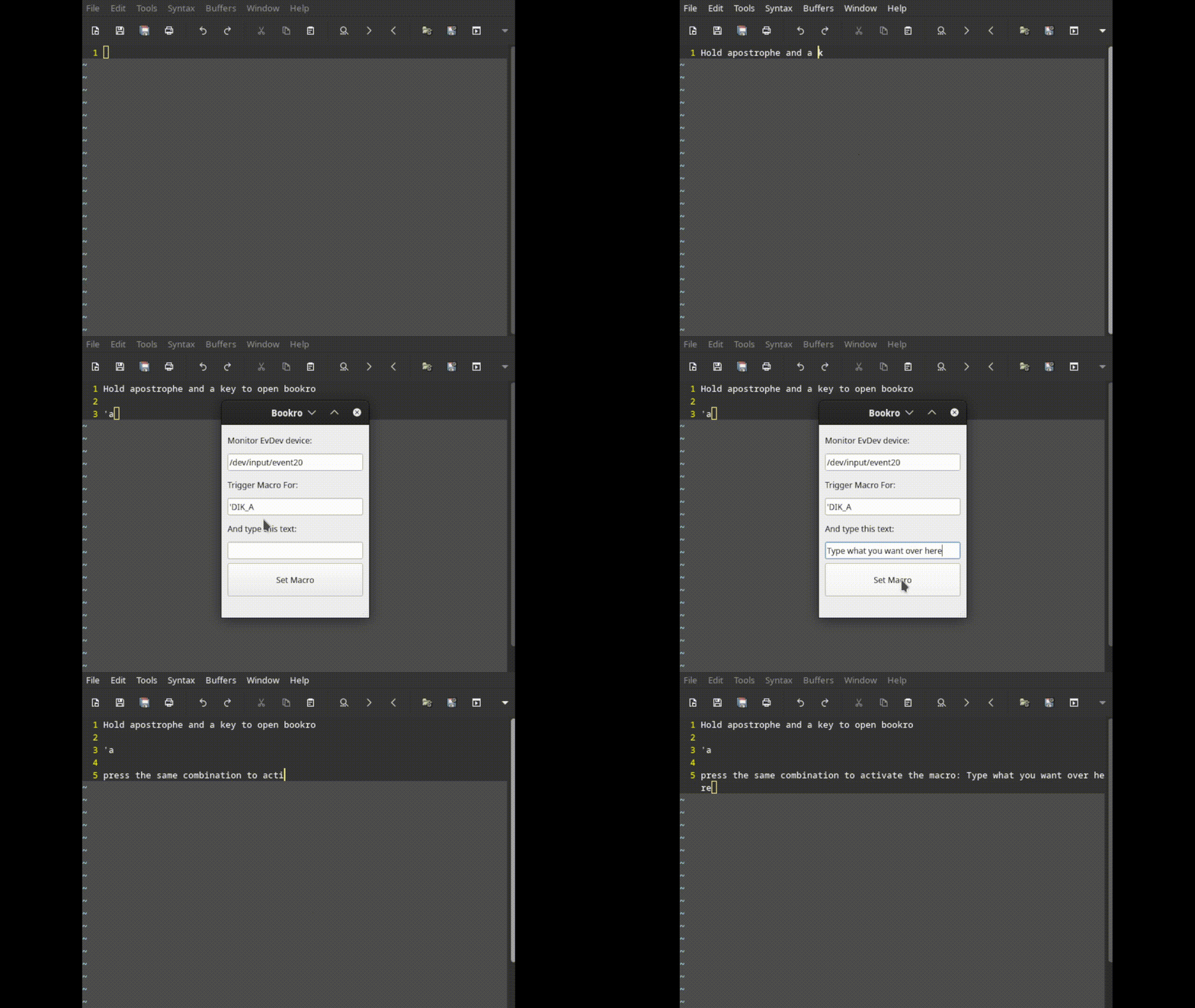
while typing, at any time, press and hold apostrophe `'` and press any desired letter. I.e. `'+A`. This will prompt Bookro for a macro. If no macro is available, simply enter the desired text in the spot that opens up in Bookro. The next time you press that same combination, it'll run that text macro instead.

If you wish to change the text in a macro, simply run your key combination, go to Bookro, and change the text there.

# Bookro in action