https://github.com/Manawyrm/FMBerry
Build an open source fm radio station with your raspberry pi
https://github.com/Manawyrm/FMBerry
c hardware raspberry transmitter
Last synced: 8 months ago
JSON representation
Build an open source fm radio station with your raspberry pi
- Host: GitHub
- URL: https://github.com/Manawyrm/FMBerry
- Owner: Manawyrm
- License: gpl-3.0
- Created: 2013-04-14T16:21:26.000Z (over 13 years ago)
- Default Branch: master
- Last Pushed: 2024-06-19T08:37:43.000Z (about 2 years ago)
- Last Synced: 2024-06-24T10:32:26.324Z (about 2 years ago)
- Topics: c, hardware, raspberry, transmitter
- Language: C
- Size: 91.8 KB
- Stars: 146
- Watchers: 24
- Forks: 23
- Open Issues: 0
-
Metadata Files:
- Readme: README.md
- License: LICENSE
Awesome Lists containing this project
- awesome-raspberry-pi - FMberry
README
FMBerry
=======
What is this?
-------------
FMBerry is a piece of software that allows you to transmit FM radio with your Raspberry Pi.
[YouTube-Video](http://youtu.be/NJRADd7C6rs)
How does it work?
-------------
It uses the Sony-Ericsson MMR-70 transmitter, which was originally intended for use with Sonys Walkman cellphones from early 2000s.
What do I need to build this?
-------------
* MMR-70 transmitter
* Raspberry Pi (compatible & tested with every Pi, Model Beta, A, B, B+, 2, Zero, 3)
* Soldering equipment (soldering iron and some solder)
* Cable for connecting to your Raspberry Pis GPIO port (old IDE cable does work fine!)
The hardware is explained here:
[HARDWARE.md](https://github.com/Manawyrm/FMBerry/blob/master/HARDWARE.md#fmberry---hardware)
Installation
-------------
This software was developed under Raspbian Wheezy 2013-02-09.
## Arch Linux users: [AUR - fmberry-rpi-git](https://aur.archlinux.org/packages/fmberry-rpi-git/)
### Step 1: Enabling I²C
Open raspi-blacklist.conf:
``sudo nano /etc/modprobe.d/raspi-blacklist.conf``
Comment out the Line "``blacklist i2c-bcm2708``" with a #.
Save with Ctrl+O and close nano with Ctrl+X
To make sure I²C Support is loaded at boottime open /etc/modules.
``sudo nano /etc/modules``
Add the following lines:
``i2c-dev``
Then again, Save with Ctrl+O and then close nano with Ctrl+X.
Please reboot your Raspberry after this step.
### Step 2: Installing I²C tools and dependencies for the build
First update your local package repository with
``sudo apt-get update``
then install all needed software with the following command:
``sudo apt-get install i2c-tools build-essential git libconfuse-dev``
### Step 3: Finding out your hardware revision
Run
``cat /proc/cpuinfo | grep "CPU revision"``
in your terminal.
All Raspberry Pi's with a revision newer than rev. 2 have their i2c port connected up to /dev/i2c-1.
Older devices (beta, alpha, early 256MB Model B's) have it connected up to /dev/i2c-0.
### Step 4: Checking the hardware
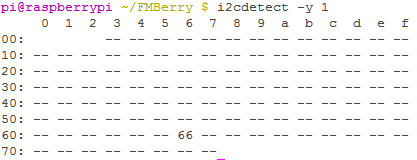
You can check your wiring with the following command:
``i2cdetect -y 1``
Please remember that you need to run the command on another port on older revisions!
``i2cdetect -y 0``
You should then see your transmitter at 0x66.
If you are not able to see your transmitter please double check your wiring!
If you connect you MMR-70 to I²C bus 0 on Raspberry Pi rev2 make sure that header P5 pins are configured as [I²C pins](http://www.raspberrypi.org/phpBB3/viewtopic.php?p=355638#p355638)!
### Step 5: Building the software
To build the software execute the following commands (in your homefolder):
```
git clone https://github.com/Manawyrm/FMBerry/
cd FMBerry
```
If you have got an old revision board, please open fmberryd.c and change the RPI_REVISION definition to ``RPI_REV1``!
``make``
Compiling the software will take a couple of seconds.
### Step 6: Installing the software
FMBerry is essentially a daemon called fmberryd.
To install it into your system path type
```sudo make install```.
You can start it by typing ``sudo /etc/init.d/fmberry start``.
To control the daemon you have to use ctlfmberry.
It currently allows the following commands:
* ``ctlfmberry set freq 99000`` - Frequency in kHz (76000 - 108000)
* ``ctlfmberry poweron``
* ``ctlfmberry poweroff``
* ``ctlfmberry set rdsid DEADBEEF`` (8 chars! Longer strings will be truncated, shorter - padded with spaces)
* ``ctlfmberry set rdstext Mike Oldfield - Pictures in the Dark`` (max. 64 chars. Longer strings will be truncated)
* ``ctlfmberry set txpwr 0`` - 0.5 mW Outputpower
* ``ctlfmberry set txpwr 1`` - 0.8 mW Outputpower
* ``ctlfmberry set txpwr 2`` - 1.0 mW Outputpower
* ``ctlfmberry set txpwr 3`` - 2.0 mW Outputpower (Default.)
* ``ctlfmberry stereo on`` - Enables stereo signal (Default)
* ``ctlfmberry stereo off`` - Disables stereo signal
* ``ctlfmberry muteon`` - Mute audio
* ``ctlfmberry muteoff`` - Unmute audio
* ``ctlfmberry gainlow`` - Audio gain -9dB
* ``ctlfmberry gainoff`` - Audio gain 0dB"
* ``ctlfmberry set volume 0-6`` Audio volume level 0 to 6, equal -9dB to +9db, 3dB step
* ``ctlfmberry status`` - Print current status
* ``ctlfmberry stop`` - Stop FMBerry daemon
That's it! :)
### Step 7: Debugging
FMBerry writes debugging output to /var/log/syslog.
You can watch the information by running ``ctlfmberry log``. It's essentially just a ```cat /var/log/syslog | grep fmberryd```
It will tell you what's wrong.
### Updating the software
Please check for new dependencies. You can safely just run the ```apt-get install``` command again. It will only install new dependencies if necessary.
First stop the daemon by typing ```/etc/init.d/fmberry stop```.
Then run ```git pull``` followed by a ```make``` and a ```sudo make install```.
You can then start FMBerry again with ```/etc/init.d/fmberry start```.
## Notes
* The Daemon itself is essentially a simple TCP server. It is listening to Port 42516. (set in fmberry.conf) You can control it by sending the exact same commands you would give to ctlfmberry.
* For information on How to control the Daemon have a look into ctlfmberry. It's a simple shell script.
## Projects using FMBerry
https://github.com/Manawyrm/FMBerryRDSMPD (streaming of MPD title data via RDS)
https://github.com/akkinitsch/FMBerryRemote (streaming of internet radio streams, controllable via Webinterface)
http://achilikin.blogspot.de/2013/06/sony-ericsson-mmr-70-transmitter-led.html (enabling the LED on the transmitter to be software controllable)
## Common problems
__The daemon does not show anything.__
That's normal. You have to use ./ctlfmberry to control the daemon.
__I can't seem to hear music.__
Turn up the volume/unmute your raspi with alsamixer.
__I am getting compile errors.__
Did you install all dependencies? (All lines with apt-get)
__The transmission dies after a couple of minutes.__
You didn't disable the internal processor of the MMR70. Do this by connecting TP18 to GND.
__The power supply of the raspberry pi shorts out/there are no lights anymore___
There is a short circuit. Probably caused by a wiring fault or by using an 80pin IDE cable for connecting the FMBerry.
__Alternative linux distributions don't detect the I2C bus (ArchLinux, OpenWRT, OSMC)__
Linux 3.18 introduced a new feature called Device Tree support. To get the I²C Bus working, you need to put this configuration at the end of /boot/config.txt (change the first parameter according to the RPi you have):
```
device_tree=bcm2708-rpi-b-plus.dtb
device_tree_param=i2c1=on
device_tree_param=spi=on
```
Thanks to Daniel for the solution to that problem!