https://github.com/a-chacon/awesome-jekyll-theme
A clean, versatile Jekyll theme with minimalist design and robust features.
https://github.com/a-chacon/awesome-jekyll-theme
List: awesome-jekyll-theme
cv github-pages jekyll jekyll-blog jekyll-theme jekyll-themes portfolio portfolio-template portfolio-theme resume
Last synced: 3 months ago
JSON representation
A clean, versatile Jekyll theme with minimalist design and robust features.
- Host: GitHub
- URL: https://github.com/a-chacon/awesome-jekyll-theme
- Owner: a-chacon
- License: mit
- Created: 2024-07-06T01:01:30.000Z (almost 2 years ago)
- Default Branch: main
- Last Pushed: 2026-01-20T20:50:31.000Z (5 months ago)
- Last Synced: 2026-03-27T14:58:33.049Z (3 months ago)
- Topics: cv, github-pages, jekyll, jekyll-blog, jekyll-theme, jekyll-themes, portfolio, portfolio-template, portfolio-theme, resume
- Language: HTML
- Homepage: https://a-chacon.com/awesome-jekyll-theme/
- Size: 1.98 MB
- Stars: 34
- Watchers: 1
- Forks: 10
- Open Issues: 1
-
Metadata Files:
- Readme: README.md
- Changelog: CHANGELOG.md
- License: LICENSE.txt
Awesome Lists containing this project
README





# Awesome Jekyll Theme 🎉
A clean, versatile Jekyll theme with minimalist design and robust features.
Ideal for portfolios, blogs, and project showcases with responsive layouts and easy customization.
## Screenshots
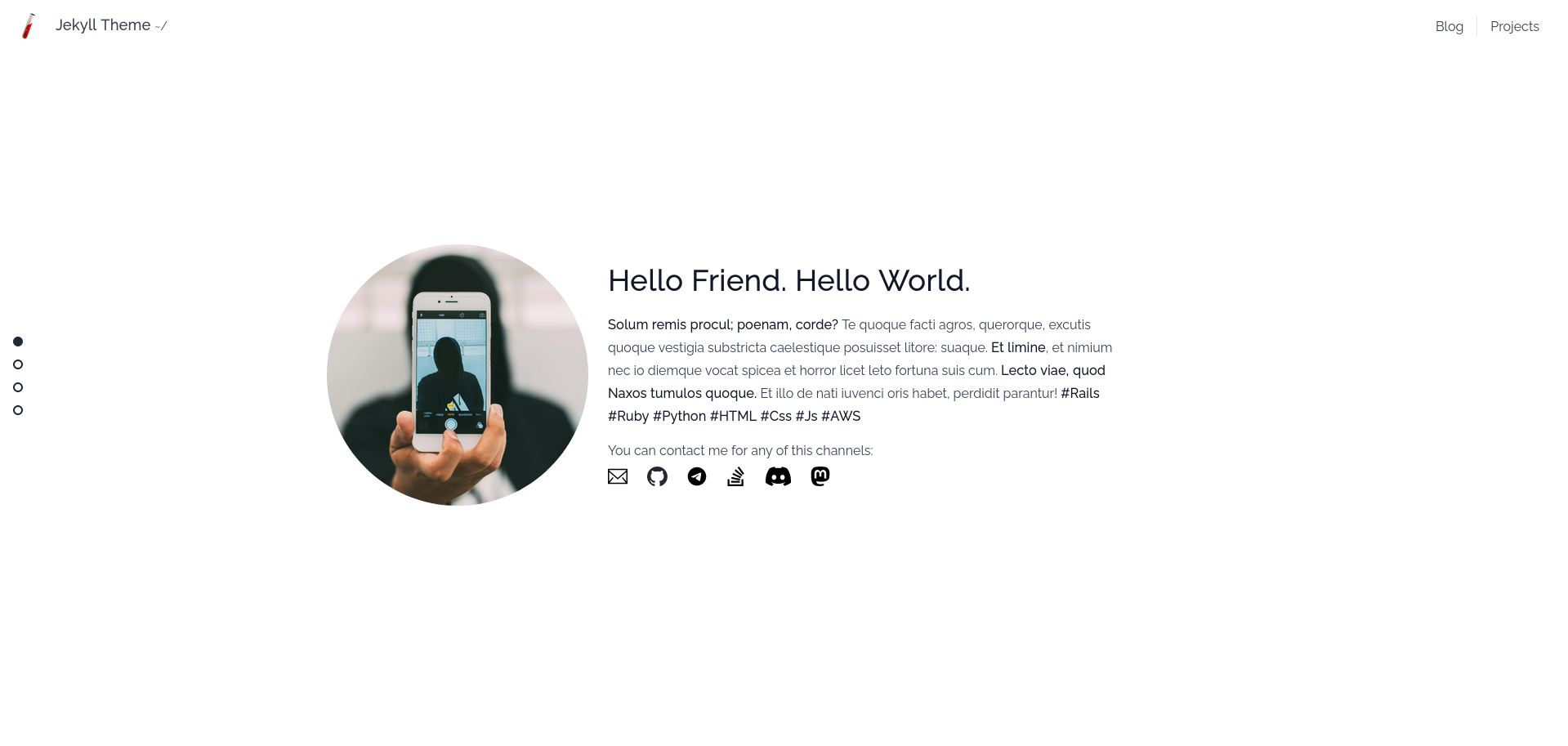
### Home Layout
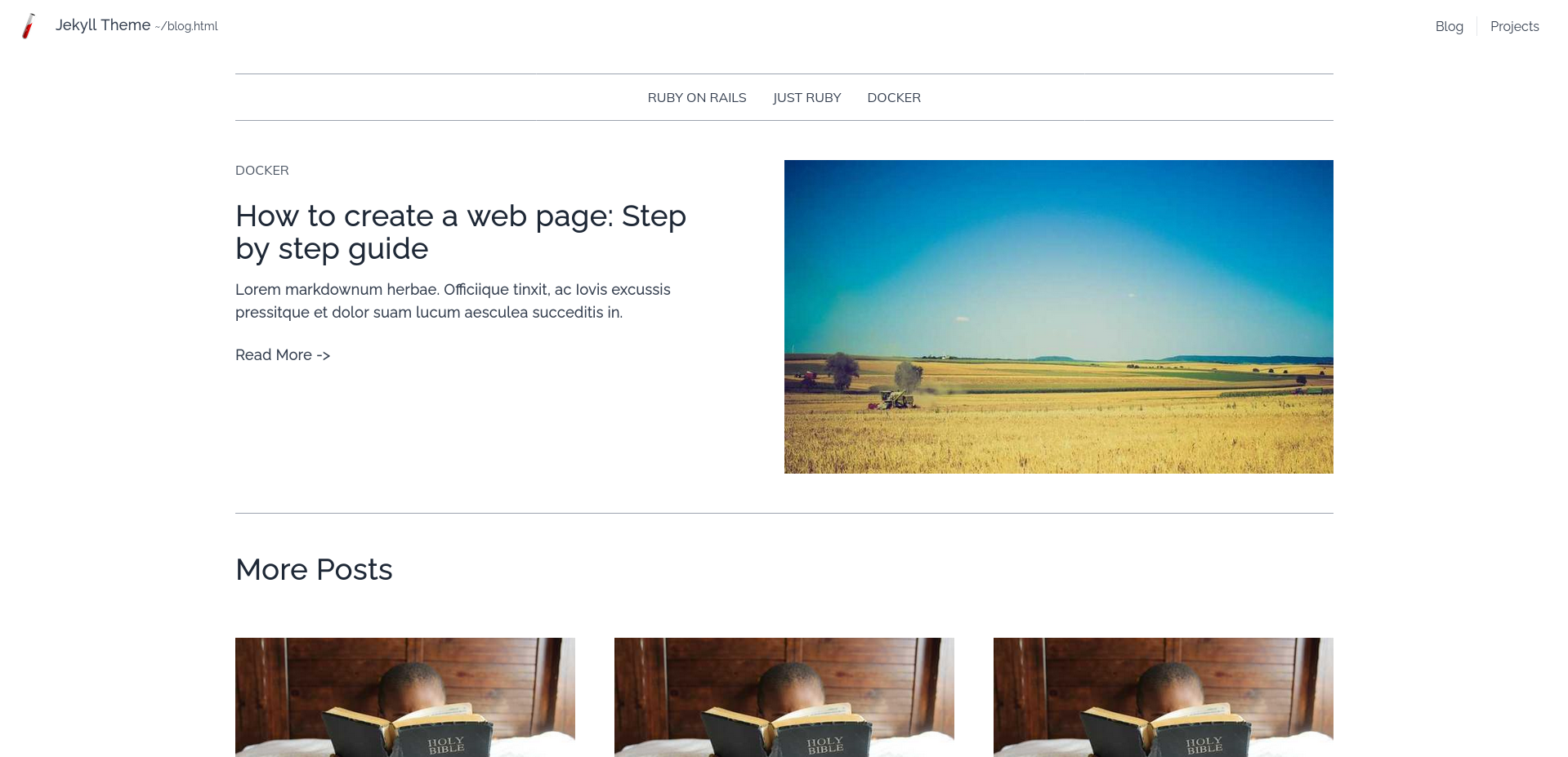
### Blog Layout
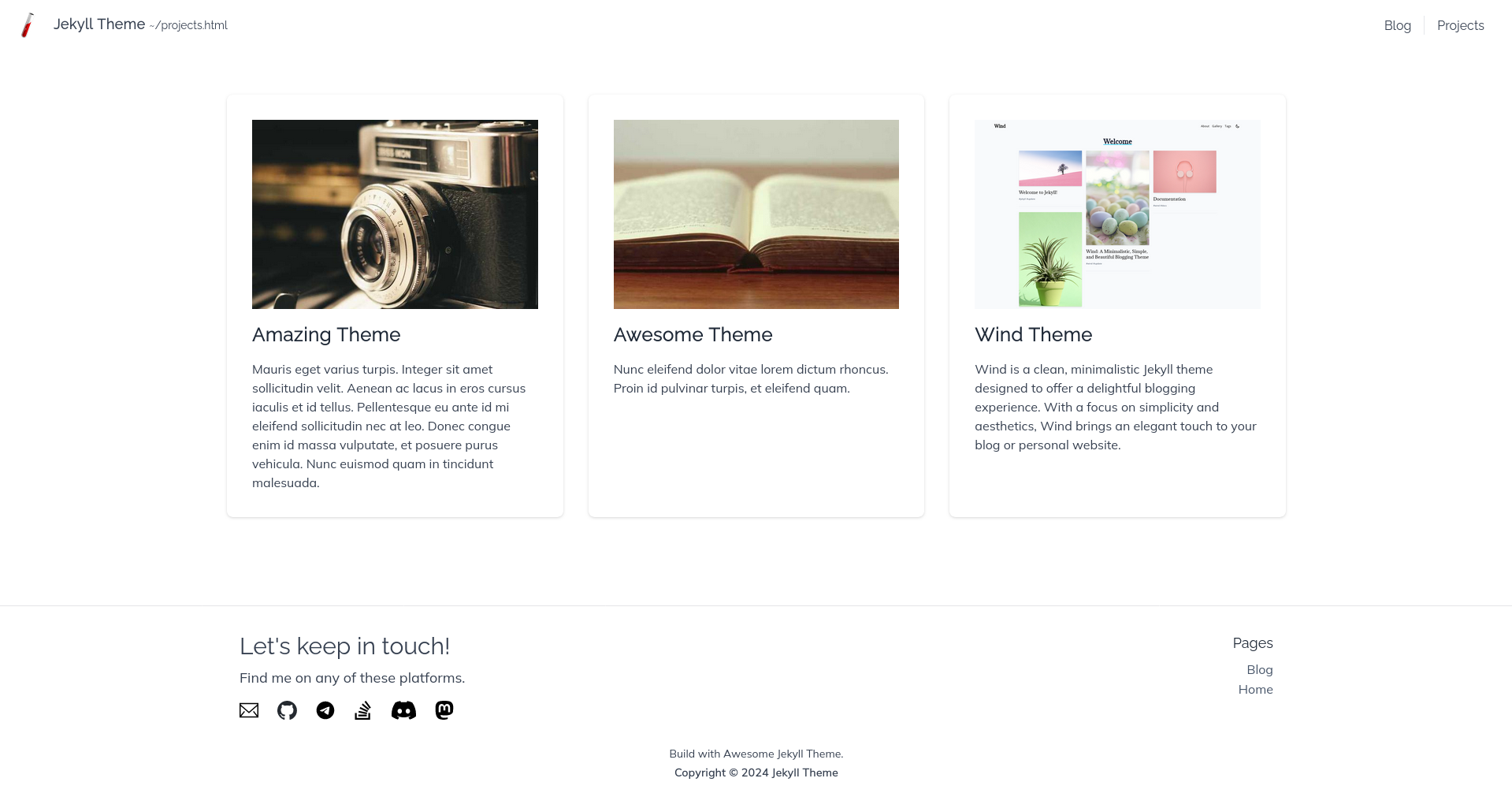
### Projects Layout
## Features
1. **Clean and minimalist design** with ample white space, focusing on content readability and visual appeal.
2. Versatile layout options including a **grid-style projects page**, a **blog listing with featured posts**, and a simple yet elegant **home page** with a circular profile image.
3. **Consistent navigation** with a header menu and social media integration in the footer, providing a **cohesive user experience** across different page types.
4. **Responsive design** that appears to adapt well to different screen sizes, ensuring a good viewing experience on various devices.
5. **Category-based organization** for blog posts, allowing for easy content discovery and improved site structure.
## Installation: The Easy Way to Have Your Site on GitHub Pages (Recommended!) 😄
1. **Navigate to the Main Page of the Repository**
On GitHub.com, go to the main page of the repository at [awesome-jekyll-theme](https://github.com/a-chacon/awesome-jekyll-theme).
2. **Click 'Use this Template'**
Click the "Use this template" button above the file list and select "Create a new repository."
3. **Set Repository Details**
- Select the owner of the repository.
- Type a name for your repository. If you want the site to be available at `https://YOURUSERNAME.github.io`, name it `YOURUSERNAME.github.io` (replace `YOURUSERNAME` with your GitHub username). Otherwise, you can choose any name you prefer, and the site will be available at `https://YOURUSERNAME.github.io/REPOSITORYNAME`.
- Add an optional description.
- Choose repository visibility.
4. **Create Repository from Template**
Click "Create repository from template."
5. **Enable GitHub Pages**
To deploy the site on GitHub Pages, enable it in your repository settings. Go to **Settings -> Pages -> Source** and select `GitHub Actions`.
6. **Customize Your Website Settings**
Edit the `_config.yml` file to change any settings you want. The settings in the file are self-explanatory, and there are comments inside to help you understand what each setting does. After making changes, click the "Commit changes" button to save them.
7. **Congratulations! You Have a Website!**
If you named the repository `YOURUSERNAME.github.io`, your website should be ready in a minute or two at `https://YOURUSERNAME.github.io`. If you used a different name, your website will be available at `https://YOURUSERNAME.github.io/REPOSITORYNAME`. Every time you make a change to any file, your website will be rebuilt and updated in about a minute.
## Advanced Installation (Optional) ⚙️
1. **Create a New Jekyll Site**
If you don’t already have a Jekyll site, create one with:
```bash
jekyll new my-site
```
Then, navigate into your new site’s directory:
```bash
cd my-site
```
2. **Add the Theme to Your Gemfile**
Open your `Gemfile` and add this line:
```ruby
gem "awesome-jekyll-theme"
```
3. **Update Your `_config.yml`**
In your `_config.yml` file, add this line:
```yaml
theme: awesome-jekyll-theme
```
4. **Install the Theme**
Run the following command to install the theme and its dependencies:
```bash
bundle
```
5. **Run Your Site**
Start your Jekyll site with:
```bash
bundle exec jekyll serve
```
## Usage
This theme provides several **layouts** for different types of pages. Each layout has specific front matter variables to customize the content and appearance.
- **Home Layout**: Main landing page layout. Displays a profile image, main content area, and reference to blog and project section.
- **Projects Layout**: Used to **list a collection of projects**. Requires collection configuration in your `_config.yml`.
- **Blog Layout**: Builds a **blog page with posts**. Displays posts sorted by date with optional category filtering.
- **Post Layout**: Used for **individual blog posts**. Supports various metadata like categories, excerpts, and author information.
- **Project Layout**: Designed for **individual project pages**. Includes project image, description, and tags.
**I will be describing each layout on a near future, if you have a question just ask.**
## Configuration
### Navbar and Footer
The navbar filters pages to be displayed based on a front matter called `nav`. These pages will appear in the navbar listed by the front matter `title`. If there is no `title`, then the filename is used. So, if you want to add a page to the navbar, **don't forget to add `nav: true`**.
Similarly, the same applies to footer pages. For example, if you add a `privacy-policy.markdown` page, you may want to add it to the footer but not to the navbar. The front matter will look like this:
```yaml
---
nav: false
footer: true
....
---
```
**Posts and Projects not count like pages.**
### Contact Channels
Contact channels are displayed in the home layout and the footer. To configure this, please add each one to your `_config.yml` file like this:
```yaml
contact_channels:
email: "andres.ch@protonmail.com"
github: "https://github.com/a-chacon"
gitlab: "https://gitlab.com/example"
telegram: "https://t.me/a_chacon"
stackoverflow: "https://stackoverflow.com/users/16847024/andr%c3%a9s"
discord: "https://discord.com/users/673943171369140252"
mastodon: "https://lile.cl/@achacon"
linkedin: "https://www.linkedin.com/in/example"
```
**If you need to add a new one, just ask or send a PR**
### Favicon and other head element customizations
If you want to have a custom [favicon](https://en.wikipedia.org/wiki/Favicon) for your site, or in any other way add more to the `` element for all pages, then you can simply create a new file `custom_head.html` in the `_includes` directory and put in any such customization. For example, if you want to add a favicon that is location at (say) `assets/images/logo.avif`, then you simply need to create a new file `_include/custom_head.html` and put the following in it.
```html
```
_Note: This theme already contains a file `assets/images/logo.avif`, and so if you create a new one in your site, then it will overwrite the theme file._
## Plugins
The Awesome Jekyll theme comes with the [`jekyll-seo-tag`](https://github.com/jekyll/jekyll-seo-tag) plugin preinstalled to ensure your website gets the most useful meta tags. See [usage](https://github.com/jekyll/jekyll-seo-tag#usage) to learn how to set it up.
It also includes [`jekyll-archives`](https://github.com/jekyll/jekyll-archives) to generate category web pages.
This theme is built with **multi-language support** by default, based on the excellent gem [`jekyll-polyglot`](https://github.com/untra/polyglot). It is also included as a plugin. The default site language is English, but if you want to **use this in Spanish, simply set this in your config file**: `default_lang: es`. And if you want to set a different language other than English or Spanish, please create a file in `_data/[your lang]/strings.yml`, using an existing file as template.
## Contributing
Bug reports and pull requests are welcome on GitHub at . This project is intended to be a safe, welcoming space for collaboration, and contributors are expected to adhere to the [Contributor Covenant](https://www.contributor-covenant.org/) code of conduct.
## Development
To set up your environment to develop this theme, run `bundle install`.
Your theme is setup just like a normal Jekyll site! To test your theme, run `bundle exec jekyll serve` and open your browser at `http://localhost:4000`. This starts a Jekyll server using your theme. Add pages, documents, data, etc. like normal to test your theme's contents. As you make modifications to your theme and to your content, your site will regenerate and you should see the changes in the browser after a refresh, just like normal.
When your theme is released, only the files in `_layouts`, `_includes`, `_sass` and `assets` tracked with Git will be bundled.
To add a custom directory to your theme-gem, please edit the regexp in `awesome-jekyll-theme.gemspec` accordingly.
## License
The theme is available as open source under the terms of the [MIT License](https://opensource.org/licenses/MIT).