https://github.com/ajaxbarcelonacruyff/ga4_batch_properties
Streamlining GA4 Setup: Create Accounts, Properties & Custom Dimensions in Google Sheets
https://github.com/ajaxbarcelonacruyff/ga4_batch_properties
Last synced: 5 months ago
JSON representation
Streamlining GA4 Setup: Create Accounts, Properties & Custom Dimensions in Google Sheets
- Host: GitHub
- URL: https://github.com/ajaxbarcelonacruyff/ga4_batch_properties
- Owner: ajaxbarcelonacruyff
- Created: 2025-01-30T11:00:06.000Z (10 months ago)
- Default Branch: main
- Last Pushed: 2025-01-30T11:24:36.000Z (10 months ago)
- Last Synced: 2025-03-30T21:43:47.282Z (8 months ago)
- Size: 6.84 KB
- Stars: 1
- Watchers: 1
- Forks: 0
- Open Issues: 0
-
Metadata Files:
- Readme: README.md
Awesome Lists containing this project
README
# Streamlining GA4 Setup: Create Accounts, Properties & Custom Dimensions in Google Sheets
# GA4 Configuration is Very Confusing
When creating a GA4 account or property, accessing the GA4 admin panel every time and configuring each setting individually can be cumbersome.
Therefore, this time, I have made it possible to perform basic settings such as GA4 account and property creation, user registration, custom dimension, and key event registration using Google Sheets.
This guide introduces how to create it using [Google Sheets](https://docs.google.com/spreadsheets/d/1ed1CLddQKgZ8JjzPb1LRpRbUFkI1xTNk668-TWTWBDk/edit?usp=sharing).
# Copy the Google Sheet
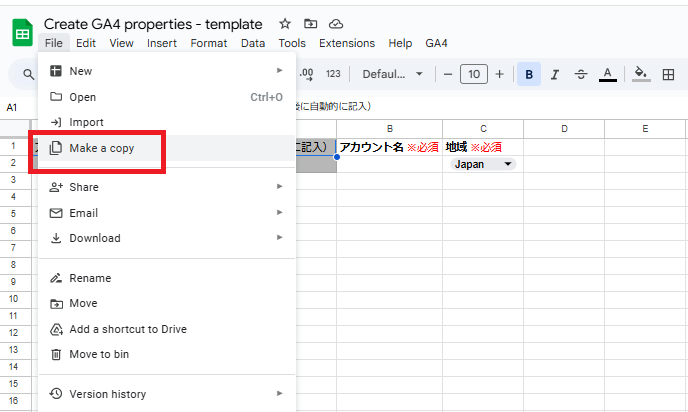
First, copy the [Google Sheet Create GA4 properties - template](https://docs.google.com/spreadsheets/d/1ed1CLddQKgZ8JjzPb1LRpRbUFkI1xTNk668-TWTWBDk/edit?usp=sharing) to your Google Drive.
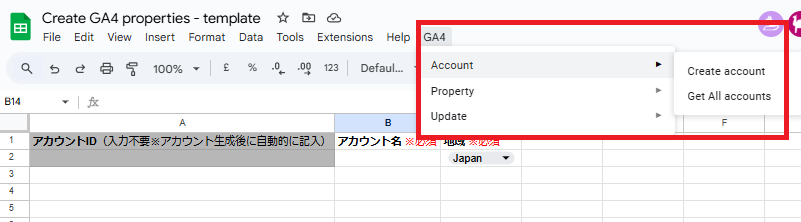
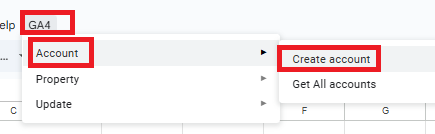
Open the copied Google Sheet and confirm that "GA4" is displayed in the menu and that "Account" and "Property" appear underneath.
## If the Menu is Not Displayed
If the menu does not appear, you need to edit the Google Apps Script.
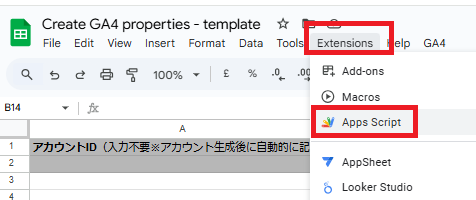
1. Select Extensions > Apps Script to open Apps Script.
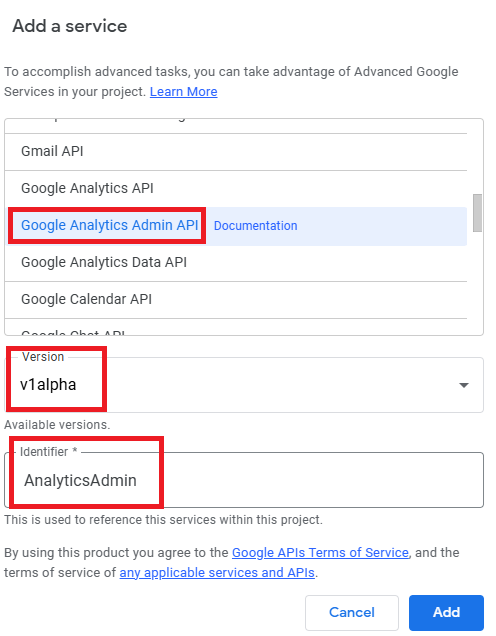
2. Confirm that "AnalyticsAdmin" is available in the services.
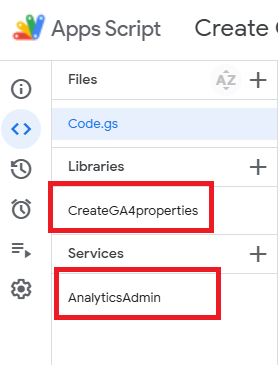
If it is not added, manually add it. Click the "+" button on the right side of the services, select "Google Analytics Admin API," set the version to "v1alpha," and add it as "AnalyticsAdmin."
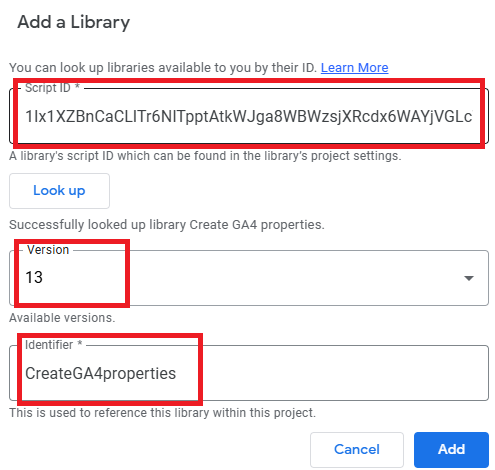
3. Confirm that "CreateGA4Properties" is available in the library.
If it is not added, manually add it. Click the "+" button on the right side of the library and enter the script ID "1Ix1XZBnCaCLlTr6NITpptAtkWJga8WBWzsjXRcdx6WAYjVGLcWnqfcVf" to search. When the result appears, select the latest version and add it as "CreateGA4Properties."
4. Add a function to display the menu by pasting the following code:
```javascript
function onOpen() {
onMenu();
}
function onMenu() {
const ui = SpreadsheetApp.getUi();
const locale = Session.getActiveUserLocale();
const isJapanese = locale.startsWith('ja');
const menu = ui.createMenu(isJapanese ? 'GA4 Menu' : 'GA4 Menu');
if (isJapanese) {
const accountMenu = ui.createMenu('Account')
.addItem('Create Account', 'CreateGA4properties.runCreateAccounts')
.addItem('Get All Accounts', 'updateAccountsSheet');
const propertyMenu = ui.createMenu('Property')
.addItem('Create Property', 'CreateGA4properties.runCreateProperties')
.addItem('Create Data Stream', 'CreateGA4properties.runCreateDataStreams')
.addItem('Add Users & Change Roles', 'CreateGA4properties.runCreateUsers')
.addItem('Add Key Events', 'CreateGA4properties.runCreateKeyEvents')
.addItem('Add Custom Dimensions', 'CreateGA4properties.runCreateCustomDimensions')
.addItem('Add Custom Metrics', 'CreateGA4properties.runCreateCustomMetrics');
const settingsMenu = ui.createMenu('Settings')
.addItem('Update Data Retention', 'CreateGA4properties.runUpdateDataRetentionSettings')
.addItem('Update Attribution Settings', 'CreateGA4properties.runUpdateAttributionSettings')
.addItem('Update Google Signals', 'CreateGA4properties.runUpdateGoogleSignalsSettings');
ui.createMenu('GA4')
.addSubMenu(accountMenu)
.addSubMenu(propertyMenu)
.addSubMenu(settingsMenu)
.addToUi();
}
}
```
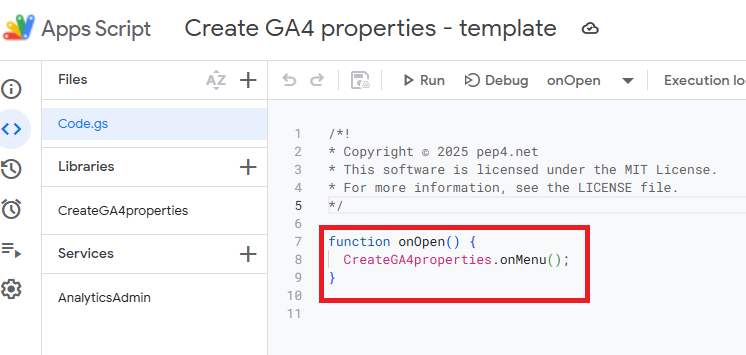
Once completed, save the Apps Script and reload the copied Google Sheet. If "GA4" appears in the menu, the setup is complete.
# Creating a GA4 Account
1. Fill in columns B and C in the account sheet. Both are required:
- Column B: Account Name
- Column C: Region (select from the list)
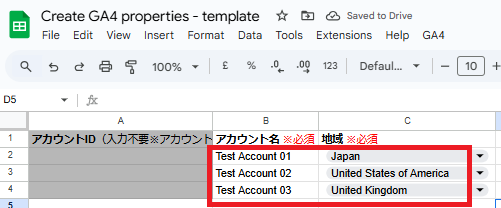
2. From the menu, select "GA4" > "Account" > "Create Account."
# Creating a GA4 Property
Fill in the property sheet. You can select the accounts listed in the account sheet. If the account you want to create a property for is not in the account sheet, you can just manually enter the account ID.
Fill in all required fields. If you are unsure about data retention settings (Column G and beyond), you can leave them as they are. To create multiple properties, list them in additional rows.

After filling in the details, select "GA4" > "Property" > "Create Property" from the menu.

If successful, a popup will appear, and the property ID will be inserted into column A of the "property" sheet.