https://github.com/ajaxbarcelonacruyff/update_googleshopping_datafeed_gas
Automating Google Shopping Data Feed Updates Using Google Apps Script
https://github.com/ajaxbarcelonacruyff/update_googleshopping_datafeed_gas
Last synced: 9 months ago
JSON representation
Automating Google Shopping Data Feed Updates Using Google Apps Script
- Host: GitHub
- URL: https://github.com/ajaxbarcelonacruyff/update_googleshopping_datafeed_gas
- Owner: ajaxbarcelonacruyff
- Created: 2024-12-23T04:22:39.000Z (12 months ago)
- Default Branch: main
- Last Pushed: 2024-12-23T04:27:48.000Z (12 months ago)
- Last Synced: 2025-01-02T18:36:27.251Z (11 months ago)
- Language: JavaScript
- Size: 11.7 KB
- Stars: 0
- Watchers: 1
- Forks: 0
- Open Issues: 0
-
Metadata Files:
- Readme: README.md
Awesome Lists containing this project
README
> [!NOTE]
> This article is current as of March 2021. For the latest information, please check the official website.
# Automating Google Shopping Data Feed Updates Using Google Apps Script
Google Shopping has become an essential advertising tool in e-commerce. However, keeping product listings updated regularly can be a hassle.
In this article, I'll explain how to use Google Sheets to scrape product data from your e-commerce website and automatically update your product feed in Google Merchant Center periodically.
## Overview
1. Register the product feed in Google Merchant Center.
2. Modify the Google Sheet.
3. Scrape product data to create the data feed.
4. Schedule the scraping process.
## Registering the Feed in Google Merchant Center
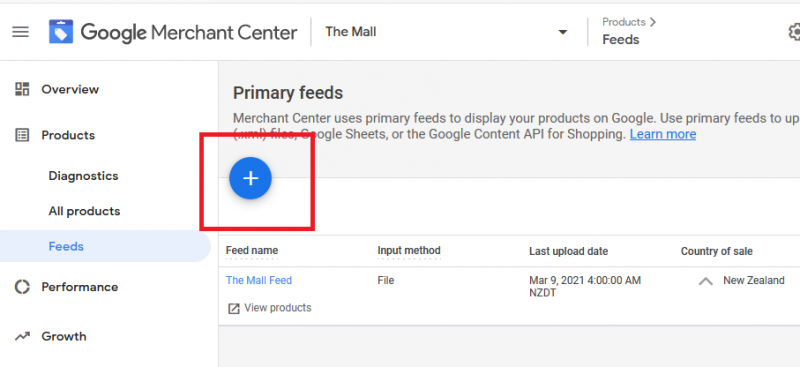
First, register the product feed in [Google Merchant Center](https://www.google.com/retail/solutions/merchant-center/). From the left menu, select "Products" → "Feeds," then click the "+" button on the right to add a new feed.
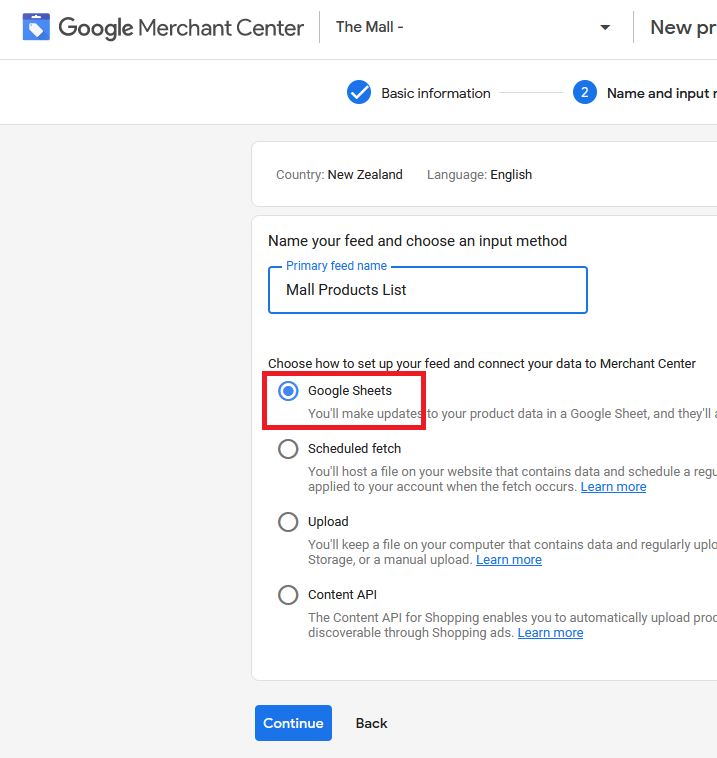
After entering your address and other information, provide a feed name and select "Google Sheets" as the feed type.
Next, select "Create a new Google Sheets spreadsheet" and specify the update frequency. While there is no strict rule, setting it to update daily in the morning is recommended (delaying the update slightly avoids conflicts with scraping schedules).
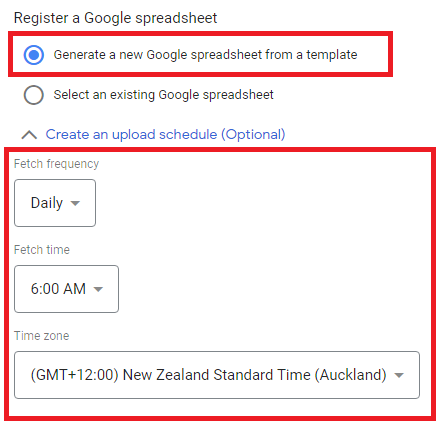
This will create a new Google Sheets file.
## Modifying the Google Sheet
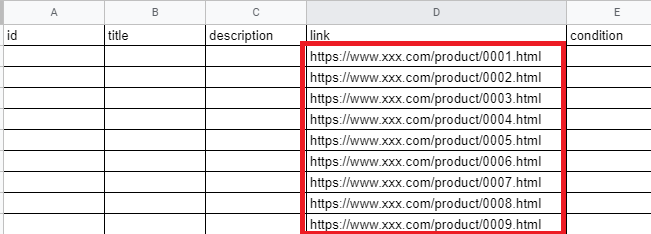
Open the newly created Google Sheets file. Paste the product page URLs into column D ("link") of the "Sheet1" tab.
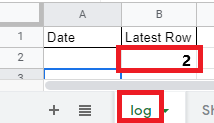
Next, create a new sheet called "log." Add "Date" and "Latest Row" in the first row, and enter "2" in cell B2.
## Scraping Product Data to Create the Data Feed
Now, we'll scrape product data from your website to populate the Google Sheets file. Google Merchant Center requires the following product data:
- **id**: Unique product ID (e.g., SKU)
- **title**: Product name
- **description**: Product description
- **link**: Product page URL
- **condition**: One of "new" (new), "used" (used), or "refurbished" (refurbished)
- **price**: Product price
- **availability**: Stock status ("in stock," "out of stock," "preorder")
- **image_link**: Main product image URL
- **gtin**: Global Trade Item Number (optional)
- **mpn**: Manufacturer Part Number (optional)
- **brand**: Brand name
- **google_product_category**: Google-defined product category (optional)
### Specifying Data Location Using JS Path
To scrape specific data (e.g., price, product name) from a webpage, you must identify its location. In Chrome, right-click the desired element (e.g., product name) and select "Inspect."
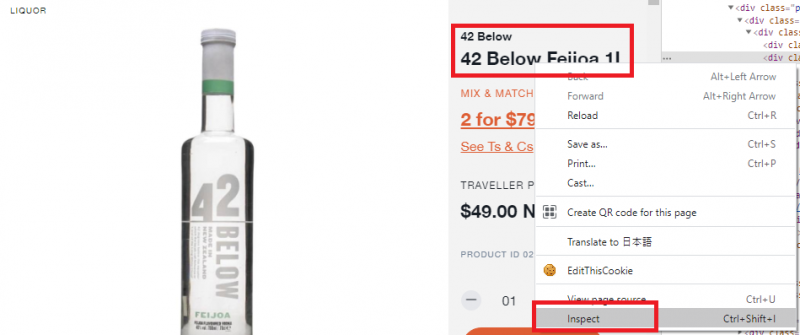
Right-click the highlighted element in the Elements tab, select "Copy" → "Copy JS path," and paste it into a text editor. For example, it might look like `document.querySelector(".maincontent > div > div.page-title-wrapper.product > h1 > span")`. Use the unique part of the path that avoids conflicts with other elements (e.g., "h1 > span").
### Writing the Scraping Script in Google Apps Script
Now, we'll create the script to scrape the data. Open the script editor by navigating to "Extensions" → "Apps Script" in Google Sheets.
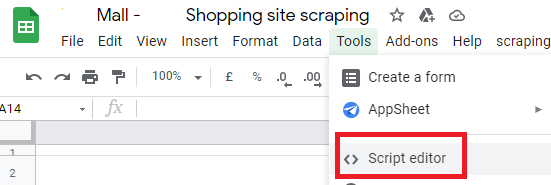
Replace the default function with the following code:
```javascript
// Add your JavaScript code here
```
## Automating Scraping with Triggers
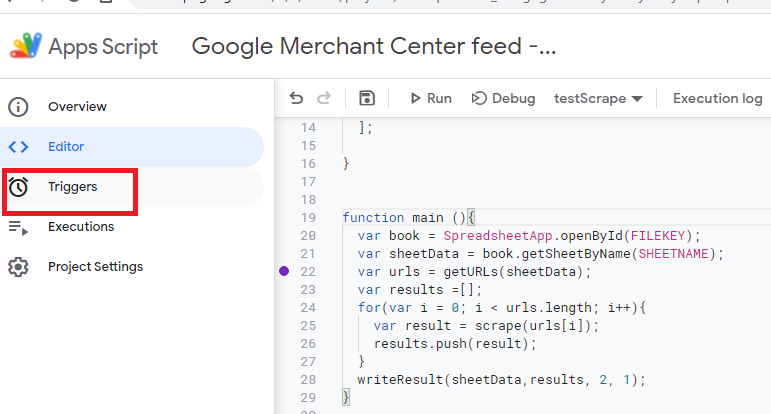
To automate the scraping process, set up a trigger to run the script periodically. Go to "Triggers" → "Add Trigger" and set the main function to execute hourly or at specific intervals.
## Conclusion
This guide demonstrates how to scrape product data from your e-commerce website and update your Google Shopping data feed using Google Apps Script. While Apps Script might not be widely known, its seamless integration with Google services like Sheets, Gmail, and Analytics makes it incredibly powerful for automation.