https://github.com/ajcrites/gilt
:computer: Command Line tool for easy git navigation
https://github.com/ajcrites/gilt
cli git
Last synced: 3 months ago
JSON representation
:computer: Command Line tool for easy git navigation
- Host: GitHub
- URL: https://github.com/ajcrites/gilt
- Owner: ajcrites
- License: mit
- Created: 2018-01-24T02:22:29.000Z (over 8 years ago)
- Default Branch: master
- Last Pushed: 2019-04-30T01:18:09.000Z (about 7 years ago)
- Last Synced: 2026-03-18T08:14:43.989Z (4 months ago)
- Topics: cli, git
- Language: TypeScript
- Homepage:
- Size: 1.72 MB
- Stars: 1
- Watchers: 0
- Forks: 0
- Open Issues: 0
-
Metadata Files:
- Readme: README.md
- License: LICENSE
Awesome Lists containing this project
README
# gilt (pre alpha)
`gilt` is an interactive command line UI for working with `git`.
[](https://travis-ci.org/ajcrites/gilt)
[](https://codecov.io/github/ajcrites/gilt)
[](https://www.npmjs.com/package/gilt)
[](https://github.com/ajcrites/gilt/blob/master/LICENSE)
[](http://makeapullrequest.com)
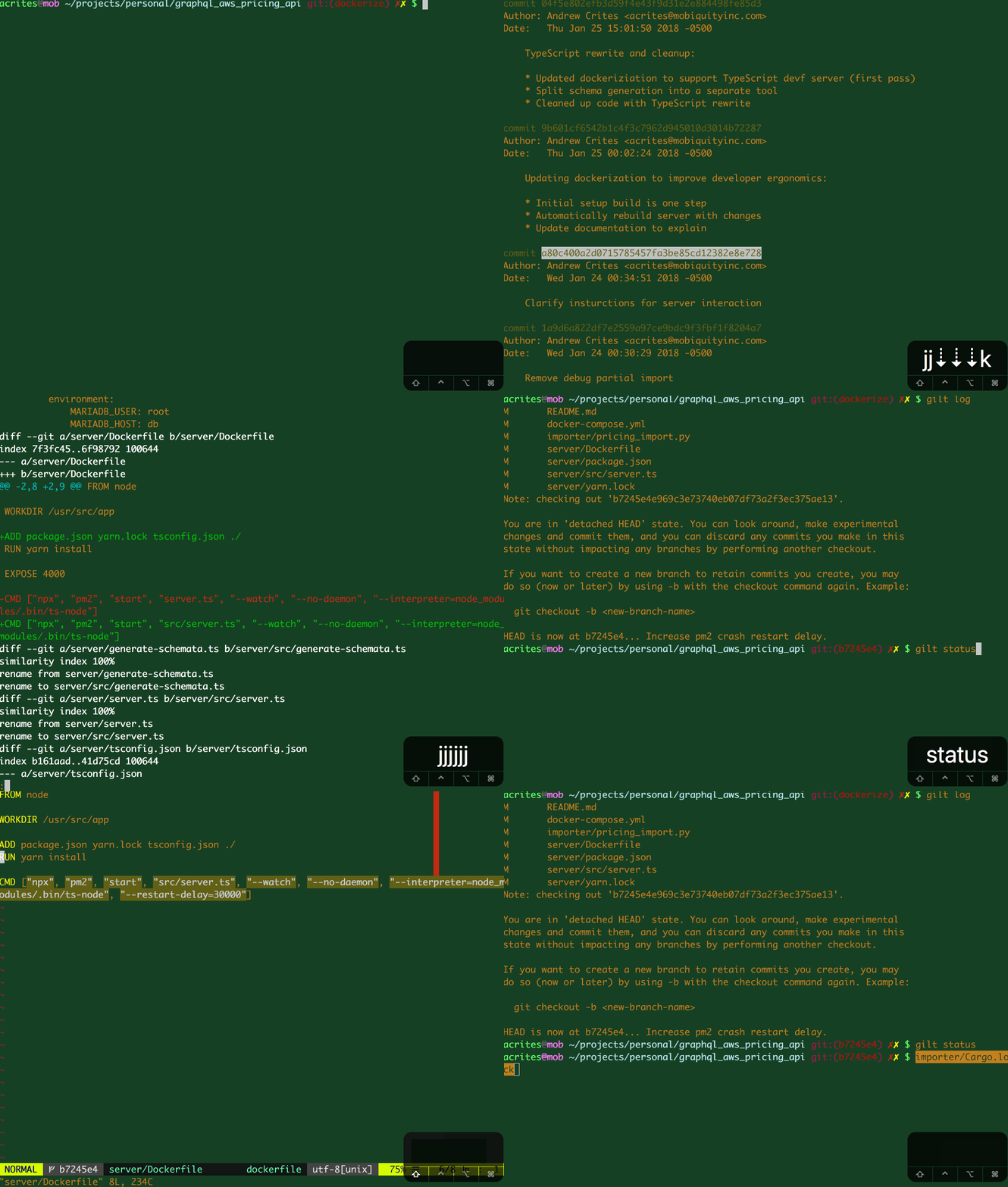
I generally work in the terminal and use `git` on the command line. This does
most of what I need it to do, but I always felt a little guilty watching some
of my peers use cool `git` GUIs and be able to do some nice things like view
diffs or checkout commits with a single click whereas I would have to copy some
output into new commands to do this as an extra step.
I haven't found an equivalent command line interactive git tool that has all
the functionality I wanted, so I decided to create one. I bring you `gilt`,
built using [blessed](https://www.npmjs.com/package/blessed).
Don't feel _guilty_ about using the command line for version control!
Feel `gilt`y.
## Purpose
`gilt` was created as a command line alternative for interactive git GUIs. It
attempts to simplify navigating and working with git in common ways while not
losing any git command line functionality or flexibility at all.
Essentially what `gilt` does is run your intended git command, parse its
output, and lay over an interactive TUI (terminal user interface).
`gilt` is _not_ currently intended to a full wrapper for `git` and passes
commands through as a convenience. Please continue to use `git` as your command
for your normal workflows and use `gilt` when you want its special
functionality.
## Usage
```
gilt [git-command]
```
For example, use `gilt log --pretty=oneline` or `gilt status -s`.
See below for a list of available gilt commands.
Most commands allow scrolling through selected blocks (commit hashes, files,
etc.) using j/down and k/up.
Default interaction is done through Enter.
You may quit `gilt` at any time using any of q Esc, or
Ctrlc.
## Installation
You will need Node.js to run gilt. _It's only been tested on 9.4 at this point,
but it should work with most newer versions_.
```
yarn global add gilt
```
...or equivalent should be all you need to get going.
### Copying to Clipboard
If you are using OS X, you'll have to install `reattach-to-user-namespace`
which you can do with homebrew.
This is currently not supported on other OSen.
## Available Commands
`gilt` is in active development and new commands may be added or the
functionality of existing commands may be changed or removed. If gilt is not
able to parse the output of a command, it will simply attempt to pass it
through to the user.
Currently, `gilt` does not page output of passed through commands. This means
that if you want to use your built-in git pager, you're better off just using
`git unsupported-command` rather than using `gilt`.
`gilt` also attempts to guess the base git command that is being used by
git aliases. For example, if you have `[alias] lg = log --color --graph
--abbrev-commit`, `gilt lg` will be able to determine that this is the output of a
`git log` command and parse and treat it as such so it should work similar to
if you had just used `git log` or the same as `git log --color --graph
--abrev-commit`.
_*Note:* due to the complexity and variability of git aliases, the intended
command may not be properly determined by `gilt`. In this case, it will just
pass the output through_.
### `log`
`gilt log` will parse output to find commit hashes and allow you to scroll
through these hashes and interact with them using the following key commands:
* j, down - select next hash.
* k, up - select previous hash.
* u, Page Up - move up 5 hashes
* d, Page Down - move down 5 hashes
* enter, f - view diff of selected hash.
* specifically, this runs `git -c core.pager='less -+F' show -w `.
* c - checkout the selected hash.
* r - perform an interactive rebase from this commit.
* y - copy the selected hash to the clipboard.
### `status`
`gilt status` will parse output to find filenames and allow you to scroll
through these files and interact with them using the following key commands:
* j, down - select next file.
* k, up - select previous file.
* u, Page Up - move up 5 files
* d, Page Down - move down 5 files
* enter, e - runs `$EDITOR `.
* f - view diff of the current file
* specifically, this runs `git -c core.pager='less -+F' diff -w `.
* x - remove the selected file (you are prompted for y/n first).
* y - copy the selected filename to the clipboard.
*Note:* You must set your `$EDITOR` environment variable to use the editor
functionality.
*Note:* Due to the wide variety of ways that `git status` can be used to
format output as well as the seemingly infinite number of ways filenames can
be specified, it's very easy for `gilt` to recieve some false positives or
miss some actual filenames in the output. It should do a decent job of getting
filenames for `gilt status` or `gilt status -s`.
## Known Issues
* Pass through commands are not paged.
* The mouse doesn't interact with `gilt` command output at all.
* The user's pager is not used for git output from within gilt. Instead,
`less -+F` is used because if the output were less than one page the process
would exit immediately and return to `gilt` without displaying anything.
* Copying to clipboard requires `reattach-to-user-namespace` on OS X and is not
supported on any other OS.
## Upcoming Additions
* [ ] Search + highlight and select functionality
* [ ] for `log`
* [ ] for `status`
* [ ] Add parsing of sub-blocks such as authors, branch names, and more.
* [ ] for `log`
* [ ] for `status`
* [ ] Add ability to select more than one block
* [ ] toggle
* [ ] shift
* [ ] Add more commands
* [x] Automated testing of some kind
* [ ] Mouse interactions
* [ ] Page pass through output
* [ ] Retain original `git` output
* [ ] Use user defined pager for `diff` of `git log`.
* [ ] Add API docs
* [ ] Create a website
## Development
To get set up for development, simply clone the repo and `yarn install` and
you should be good to go.
`yarn prepublishOnly` will create the output command in `lib/index.js` which you
can run as an executable.
I recommend running `yarn link` to link the repository for local development
which should allow you use `gilt` on the command line. Then run `npx tsc-watch`
and any changes you make to the source should update `gilt`.
### Adding Custom Parsers
If you're not satisfied with an existing parser or you want to add a new parser
for yourself, you can write your own command using gilt.
Gilt offers a bit of flexibility in terms of how you set up handling for
commands. You can use the built in `gilt` API to determine what command the
user is trying, run the command, and use the built-in gilt functionality.
For example, you may want to parse the output of a git subcommand and you may
want to set up navigation and key/mouse bindings for a subcommand or both.
```node
#!/usr/bin/env node
// better-gilt
// implement parser for git lg
import { parseArgs, run } from 'gilt';
import { Gilt } from 'gilt/Gilt';
import { betterParser, BetterCommand } from './better-gilt';
// Get the git subcommand the user is trying to run
const fullCommand = parseArgs();
// The git subcommand itself, e.g. `'log'`, `'status'`
const gitCommand = fullCommand[0];
class BetterGilt extends Gilt {
run(fullCommand) {
// Sets up blessed / command line interface
this.start(fullCommand);
// Set the content for the command line interface.
// The imaginary `betterParser` parses the output to create Blocks
this.navigator.setContent(this.content, betterParser(this.content));
// BetterCommand extends Command and implements the `run` method which
// sets up key bindings and other interface functionality
const command = new BetterCommand(this.program, this.navigator);
command.run();
}
}
const betterGilt = new BetterGilt;
if ('lg' === gitCommand) {
betterGilt.run();
} else {
// Fall back to the default gilt functionality for all other commands
run();
}
```
You must run the `Navigator.setContent` method with parameters of the content to
display and an array of "data blocks" which are representations of the key list
elements of the output of the command -- for example, commit hashes and
filenames. See [`Block`](./src/command/Block.ts) for the interface. A block has
a `block` property which is a string of the acutual element (the hash or
filename) and an `offset` which is its position in output used by navigation.
You can make the `content` and `blocks` anything you want, but these are
usually the output of the git subcommand and the blocks representing the
navigation elements of that content.
You can also extend [`Command`](./src/command/Command.ts) to create a command
that sets up key bindings and interacts with the display. You must inject a
[`Program`](./src/command/Program.ts) and [`Navigator`](./src/command/Navigator.ts)
into the constructor of your command. This will give you access to blessed
operators on the program/navigator allowing you to set up key bindings, etc.
while using the program and navigator APIs.