https://github.com/alertis/vue-barcodes-generator
multiple barcode generator component for vue.js
https://github.com/alertis/vue-barcodes-generator
Last synced: 10 months ago
JSON representation
multiple barcode generator component for vue.js
- Host: GitHub
- URL: https://github.com/alertis/vue-barcodes-generator
- Owner: Alertis
- License: mit
- Created: 2023-01-07T20:02:24.000Z (over 3 years ago)
- Default Branch: main
- Last Pushed: 2023-02-21T12:15:11.000Z (over 3 years ago)
- Last Synced: 2025-07-30T18:37:34.909Z (11 months ago)
- Language: Vue
- Size: 345 KB
- Stars: 4
- Watchers: 1
- Forks: 1
- Open Issues: 0
-
Metadata Files:
- Readme: README.md
- License: LICENSE
Awesome Lists containing this project
README
# vue-barcodes-generator
[](https://www.npmjs.com/package/vue-barcodes-generator)
[](https://www.npmjs.com/package/vue-barcodes-generator)
[](https://www.npmjs.com/package/vue-barcodes-generator)
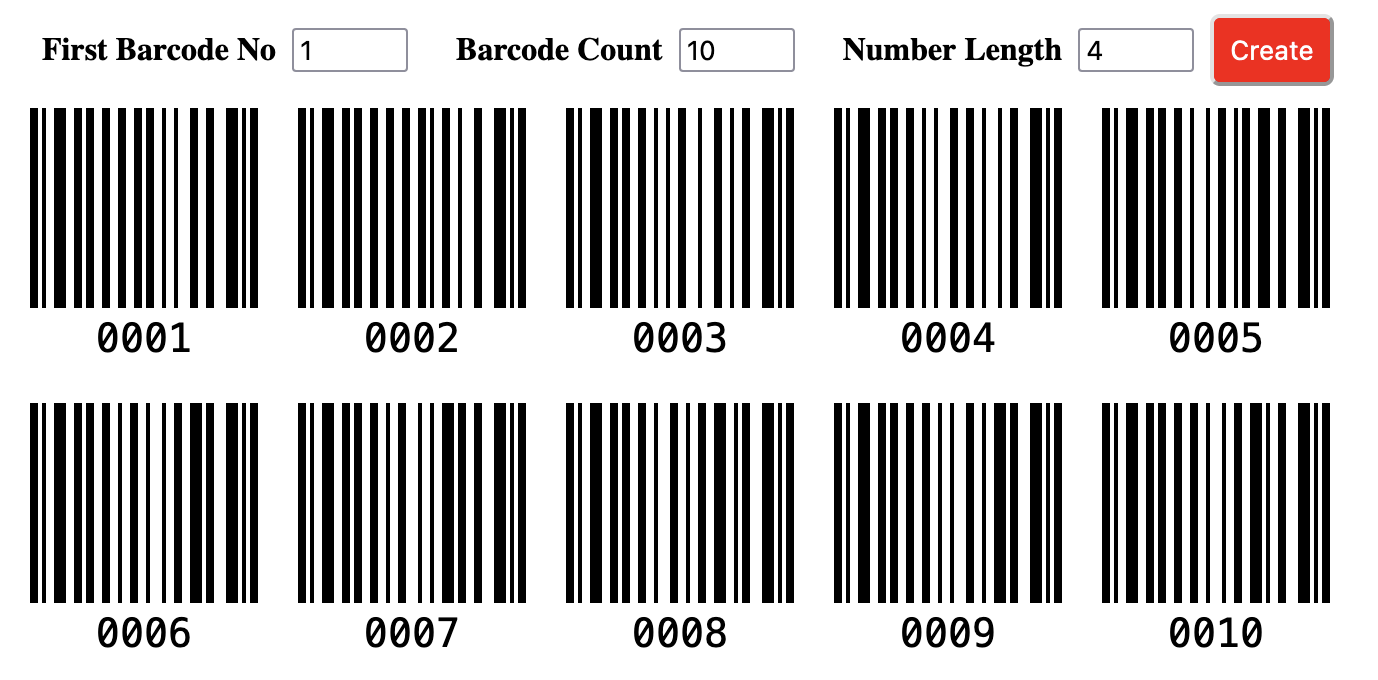
This component creates a form to generate barcodes. The form includes three required inputs (start number, barcode count, and barcode number length). Also, you can add some additional inputs to take into account while generating the barcode. After you have specified the related options, you can submit the form to generate barcodes.
## Install
```bash
npm install vue-barcodes-generator
```
## Usage
You can use the `vue-barcode-generator` package easily by following the three steps below:
#### 1. Add the `VueBarcodes` as a component
```javascript
import VueBarcodes from 'vue-barcodes-generator'
new Vue({
components: {
'VueBarcodes': VueBarcodes
}
})
```
#### 2. Specify the barcode options
```javascript
data: function(){
return{
inputs: [
{
name: 'start',
title: 'First Barcode No',
val: 1
},
{
name: 'count',
title: 'Barcode Count',
val: 10
},
{
name: 'length',
title: 'Number Length',
val: 2
},
],
buttonText: 'Create',
}
}
```
#### 3. Use the `VueBarcodes` component
```html
```
## Props
|Props|Description|Required|Type|Default|
|-----|-----------|--------|----|-------|
|inputs|Components use this props for generate form|true|Array|`[{name: 'start', title: 'Start Number', val:1},{name: 'count', title: 'Barcode Count', val: 10}, {name: 'length', title: 'Number Length', val: 4}]`|
|buttonText|Title for button|true|String|`'Generate'`|
|buttonClass|Class name for button|false|String|-|
|barcodeConfig|Settings for barcode|false|Object|-|
### Inputs
This props type is `Array` and includes an element per form input. It has three required property and if you dont pass these elements, the component generates the default value. You can generate unlimited inputs.
```javascript
[
{
name: 'start',
title: 'Start Number',
val:1
},
{
name: 'count',
title: 'Barcode Count',
val: 10
},
{
name: 'length',
title: 'Number Length',
val: 4
}
]
```
If you want to edit three required elements, you should add the element with the same name (start, count, length) as below:
name: unique name for input
title: caption for input
val: value for input
### barcodeConfig
This props type is `Object` and includes settings for generating barcodes. This package uses the [JsBarcode](https://github.com/lindell/JsBarcode) library to generate barcodes and you can inspect to [JsBarcode Documentation](https://github.com/lindell/JsBarcode/wiki/Options) for barcodeConfig props.