https://github.com/amiralimollaei/pybud-gui
A python library for creating beautiful GUIs in console, optimized with a Rust backend, with tons of different modules, such as Drawer, Session, Windows, Widgets, and many more!
https://github.com/amiralimollaei/pybud-gui
ansi console console-application console-framework library pip python python3 rust terminal terminal-app terminal-based
Last synced: 9 months ago
JSON representation
A python library for creating beautiful GUIs in console, optimized with a Rust backend, with tons of different modules, such as Drawer, Session, Windows, Widgets, and many more!
- Host: GitHub
- URL: https://github.com/amiralimollaei/pybud-gui
- Owner: amiralimollaei
- Created: 2024-04-12T09:21:43.000Z (about 2 years ago)
- Default Branch: main
- Last Pushed: 2025-07-30T21:03:16.000Z (11 months ago)
- Last Synced: 2025-09-18T04:54:31.043Z (10 months ago)
- Topics: ansi, console, console-application, console-framework, library, pip, python, python3, rust, terminal, terminal-app, terminal-based
- Language: Python
- Homepage:
- Size: 716 KB
- Stars: 1
- Watchers: 1
- Forks: 0
- Open Issues: 0
-
Metadata Files:
- Readme: README.md
Awesome Lists containing this project
README
# PyBUD: Python Beauty
[](https://www.codefactor.io/repository/github/amiralimollaei/pybud-gui) [](https://pypi.org/project/pybud-gui/)
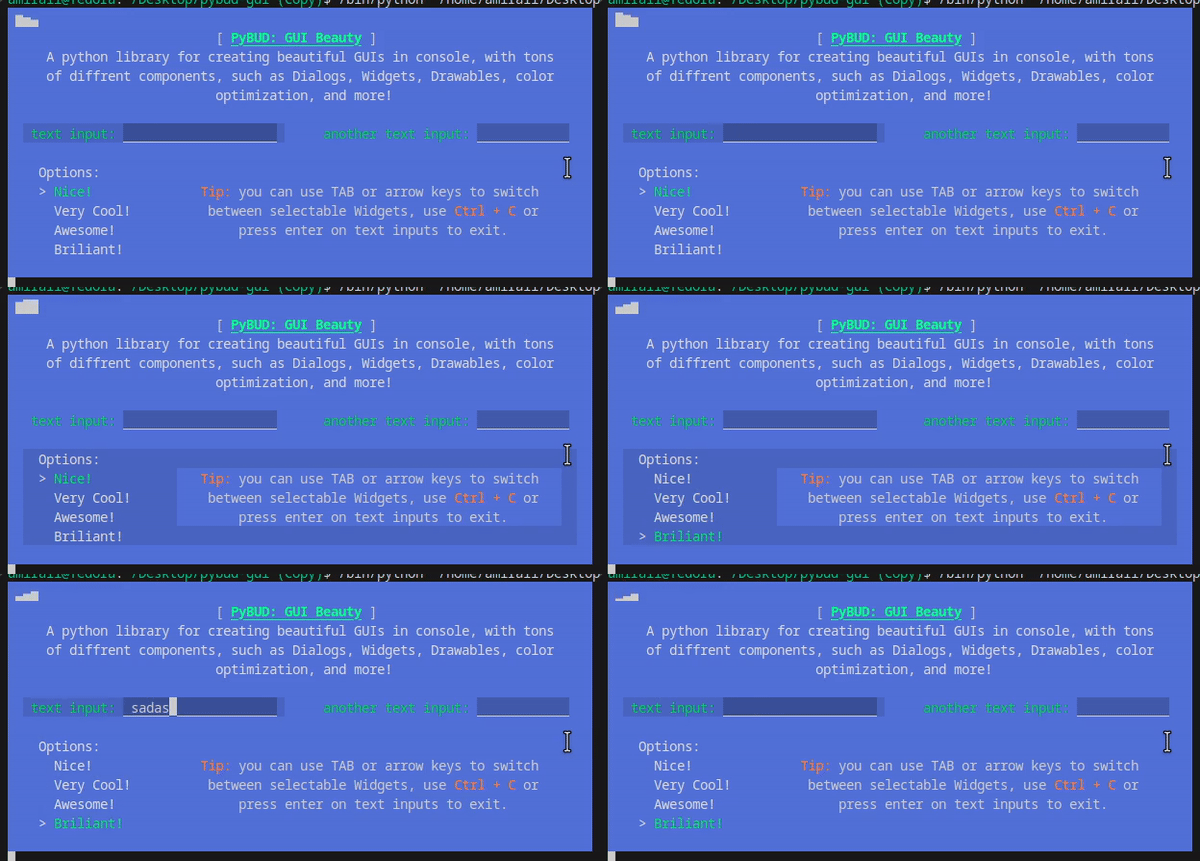
**A python library for creating beautiful GUIs in console, optimized with a Rust backend, with tons of different modules, such as `Drawer`, `Session`, `Window`s, `Widget`s, and many more!**
---
## Installation
to install using pip:
```bash
pip install pybud-gui -U
```
or if you want to install from source:
```bash
pip install git+https://github.com/amiralimollaei/pybud-gui.git
```
## Documentation
### Table of Contents
- [Build Your First Window](#build-your-first-window)
- [Add Your First Widget](#add-your-first-widget)
- [ComboBox Example](#combobox-example)
- [TextBox Example](#textbox-example)
- [Advanced Example 1](#advanced-example-1)
- [Advanced Example 2](#advanced-example-2)
---
### Build Your First Window
First import modules:
```python
from pybud.session import Session
from pybud.window import Window
```
You can think of `Session` as a display monitor, the display has a refresh rate (`session.TPS`) and size (`datatypes.Size`), and can show multiple `Window`s on it.
Next, build the main class:
```python
class Main(Window):
def __init__(self):
super().__init__(
size = (100, 10),
position = (0, 0),
title = "Window Example",
)
```
And finally, show the window:
```python
# only for windows users
import pybud.drawer.ansi as ansi
ansi.init()
# add `Main` to session and show
s = Session((100, 10), background=(100, 100, 250))
s.add_window(Main())
s.show()
```
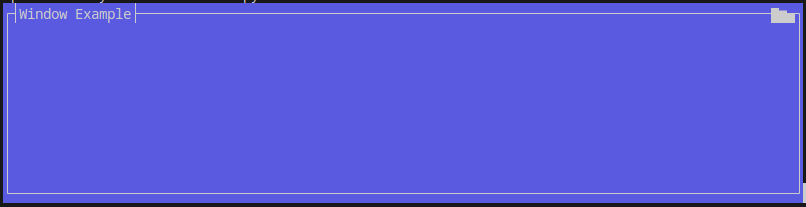
Output:
> 
### Add Your First Widget
First import modules:
```python
from pybud.session import Session
from pybud.window import Window
from pybud.widgets import Label
# using `ansi` module you can define colored text with graphics
from pybud.drawer import ansi
```
Next, build the Main class just like above, but add a `Label` widget.
```python
# build the main window
class Main(Window):
def __init__(self):
super().__init__(
size = (50, 9),
position = (0, 0),
title = "Colored Text Example",
)
# add a label widget, set text, width and position
self.add_widget(Label(
# define a ansi.AnsiString object that renders text with colors
# you can set both forecolor and backcolor
text = ansi.AnsiString("Hello world!", fore = (90, 250, 90)),
position = (19, 4),
size = (60, 1)
)
)
```
And finally, show the window:
```python
# only for windows users
import pybud.drawer.ansi as ansi
ansi.init()
# add `Main` to session and show
s = Session((50, 9), background=(100, 100, 250))
s.add_window(Main())
s.show()
```
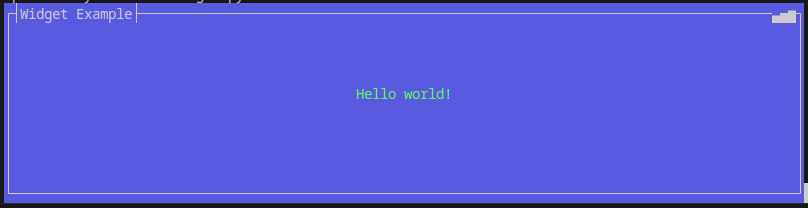
Output:
>
### ComboBox Example
First import modules:
```python
from pybud.session import Session
from pybud.window import Window
from pybud.widgets import ComboBox
```
Next, build the Main class and add a `ComboBox` widget.
```python
class Main(Window):
def __init__(self):
super().__init__(
size = (50, 9),
position = (0, 0),
title = "ComboBox Example",
)
self.add_widget(ComboBox(
text = "Choose an option: ",
options = {
"Option 1": self.option1,
"Option 2": self.option2,
"Option 3": self.option3,
},
size = (40, 1),
position = (5, 4),
))
def option1(self):
print("Option 1 selected")
def option2(self):
print("Option 2 selected")
def option3(self):
print("Option 3 selected")
```
And finally, show the window:
```python
# only for windows users
import pybud.drawer.ansi as ansi
ansi.init()
# add `Main` to session and show
s = Session((50, 9), background=(100, 100, 250))
s.add_window(Main())
s.show()
```
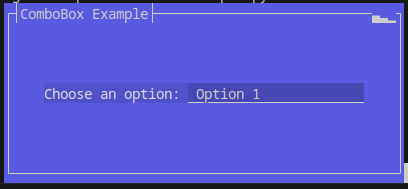
Output:
>
### Advanced Example 1
First import modules:
```python
from pybud.session import Session
from pybud.window import Window
from pybud.widgets import VerticalMultipleChoice
from pybud.drawer import ansi
```
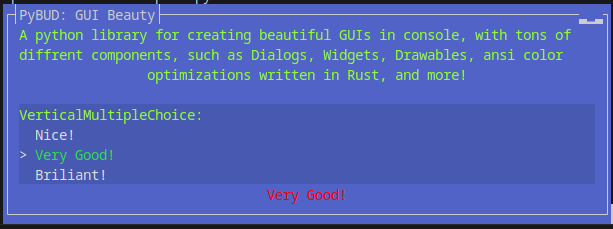
Next, build the Main class and add a `VerticalMultipleChoice` widget.
```python
class Main(Window):
def __init__(self):
super().__init__(
size = (76, 11),
position = (0, 0),
title = "Vertical Multiple Choice Example"
)
self.add_widget(VerticalMultipleChoice(
text = ansi.AnsiString("Choose an option: ", fore=(150, 250, 50)),
options = {
"Nice!": self.nice_option,
"Very Good!": self.verygood_option,
"Brilliant!": self.brilliant_option,
},
default_option = 2,
size = (self.size.width - 4, 1),
position = (2, 5),
))
self.lbl_result = Label(
"",
centered = True,
size = (self.size.width - 2, 1),
position = (1, 9),
)
self.add_widget(self.lbl_result)
def brilliant_option(self):
self.lbl_result.text = ansi.AnsiString("Brilliant!", fore=(0, 255, 0))
def verygood_option(self):
self.lbl_result.text = ansi.AnsiString("Very Good!", fore=(255, 0, 0))
def nice_option(self):
self.lbl_result.text = ansi.AnsiString("Nice!", fore=(0, 0, 255))
```
And finally, show the window:
```python
# only for windows users
import pybud.drawer.ansi as ansi
ansi.init()
# add `Main` to session and show
s = Session((76, 11), background=(90, 110, 220))
s.add_window(Main())
s.show()
```
Output:
>
### TextBox Example
First import modules:
```python
from pybud.session import Session
from pybud.window import Window
from pybud.widgets import TextBox
```
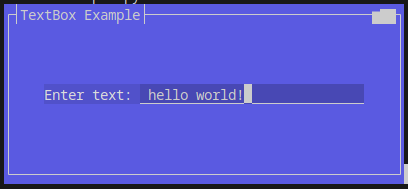
Next, build the Main class and add a `TextBox` widget.
```python
class Main(Window):
def __init__(self):
super().__init__(
size = (50, 9),
position = (0, 0),
title = "TextBox Example",
)
self.add_widget(TextBox(
text = "Enter text: ",
size = (40, 1),
position = (5, 4),
))
```
And finally, show the window:
```python
# only for windows users
import pybud.drawer.ansi as ansi
ansi.init()
# add `Main` to session and show
s = Session((50, 9), background=(100, 100, 250))
s.add_window(Main())
s.show()
```
Output:
>
### Advanced Example 2
First import modules:
```python
from pybud.drawer import ansi
from pybud.session import Session
from pybud.window import Window
from pybud.widgets import TextBox, Label, ComboBox, VerticalMultipleChoice
```
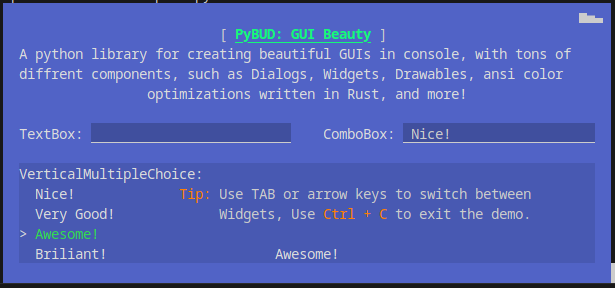
Next, build the Main class and add multiple widgets.
```python
class Main(Window):
def __init__(self):
super().__init__(
size = (76, 14),
position = (0, 0),
has_border = False,
opacity = 1.0,
title = "PyBUD: GUI Beauty"
)
title = ansi.AnsiString("PyBUD: GUI Beauty", fore = (20, 250, 120))
title.add_graphics(ansi.AnsiGraphicMode.BOLD | ansi.AnsiGraphicMode.UNDERLINE)
title = ansi.AnsiString("[ ") + title + ansi.AnsiString(" ]")
self.add_widget(Label(
title,
centered = True,
size = (self.size.width - 4, 1),
position = (2, 1),
))
caption = "A python library for creating beautiful GUIs in console, with tons of different components, such as Dialogs, Widgets, Drawables, ansi color optimizations written in Rust, and more!"
self.add_widget(Label(
caption,
centered = True,
size = (self.size.width - 4, 1),
position = (2, 2),
))
self.add_widget(TextBox(
"TextBox: ",
size = (self.size.width//2 - 4, 1),
position = (2, 6),
))
self.add_widget(ComboBox(
"ComboBox: ",
options = {
"Nice!": self.nice_option,
"Very Good!": self.verygood_option,
"Awesome!": self.awesome_option,
"Brilliant!": self.brilliant_option,
},
size = (self.size.width//2 - 4, 1),
position = (self.size.width//2 + 2, 6),
))
self.add_widget(VerticalMultipleChoice(
"VerticalMultipleChoice:",
options = {
"Nice!": self.nice_option,
"Very Good!": self.verygood_option,
"Awesome!": self.awesome_option,
"Brilliant!": self.brilliant_option,
},
size = (self.size.width-4, 1),
position = (2, 8),
))
self.add_widget(Label(
ansi.AnsiString("Tip: ", fore = (255, 128, 0)) +
ansi.AnsiString("Use TAB or arrow keys to switch between Widgets, Use ") +
ansi.AnsiString("Ctrl + C", fore = (255, 128, 0)) + ansi.AnsiString(" to exit the demo."),
centered = True,
size = (self.size.width - 26, 1),
position = (22, 9),
name = "tip-label"
))
self.lbl_result = Label(
"",
centered = True,
size = (self.size.width - 4, 1),
position = (2, 12),
name = "result-label"
)
self.add_widget(self.lbl_result)
def brilliant_option(self):
self.lbl_result.text = "Brilliant!"
def verygood_option(self):
self.lbl_result.text = "Very Good!"
def nice_option(self):
self.lbl_result.text = "Nice!"
def awesome_option(self):
self.lbl_result.text = "Awesome!"
```
And finally, show the window:
```python
# only for windows users
import pybud.drawer.ansi as ansi
ansi.init()
# add `Main` to session and show
main_window = Main()
s = Session((76, 14), background=(90, 110, 220))
s.add_window(main_window)
s.show()
print(f"Session Closed! Widget Data:\n")
for i, w in enumerate(main_window._widgets):
print(w.name + ":")
if isinstance(w, TextBox):
print(f"- text=\"{w.text}\", input=\"{w.input}\"")
elif isinstance(w, (VerticalMultipleChoice, ComboBox)):
print(f"- selected_option_id={w.selected_option_id}")
print(f"- selected option text=\"{list(w.options)[w.selected_option_id]}\"")
if isinstance(w, Label):
print(f"- text=\"{w.text}\"")
else:
print("- no data")
print("")
```
Output:
>
---
License: `BSD 4-clause License`