https://github.com/anas-shakeel/pinsy
A Python Package to speed up the workflow of creating command-line applications.
https://github.com/anas-shakeel/pinsy
cli pinsy python-library python3 terminal-ui
Last synced: 4 months ago
JSON representation
A Python Package to speed up the workflow of creating command-line applications.
- Host: GitHub
- URL: https://github.com/anas-shakeel/pinsy
- Owner: Anas-Shakeel
- License: mit
- Created: 2024-10-14T20:12:02.000Z (over 1 year ago)
- Default Branch: main
- Last Pushed: 2024-11-30T18:53:45.000Z (over 1 year ago)
- Last Synced: 2024-11-30T19:32:31.392Z (over 1 year ago)
- Topics: cli, pinsy, python-library, python3, terminal-ui
- Language: Python
- Homepage:
- Size: 1.52 MB
- Stars: 0
- Watchers: 1
- Forks: 0
- Open Issues: 0
-
Metadata Files:
- Readme: README.md
- License: LICENSE
Awesome Lists containing this project
README

[](https://github.com/anas-shakeel/pinsy)
[](https://pypi.python.org/pypi/pinsy)
[](https://pypi.python.org/pypi/pinsy)
[](LICENSE)
[](black)
[](https://github.com/anas-shakeel/pinsy/actions/workflows/test.yml?query=branch%3Amain)
[](https://pypi.python.org/pypi/pinsy)
`pinsy` (pronounced **pin-si**) _formerly `pins`_, is a powerful lightweight python package that helps speed up the workflow of creating visually apealing command-line applications.
## Table of contents
- [Features](#features)
- [Dependencies](#dependencies)
- [Installation](#installation)
- [Basic Usage](#basic-usage)
- [how to color text](#how-to-color-text)
- [how to color a regex match](#how-to-color-a-regex-match)
- [how to print status messages](#how-to-print-status-messages)
- [how to align text](#how-to-align-text)
- [how to indent text](#how-to-indent-text)
- [how to wrap text](#how-to-wrap-text)
- [how to create lists](#how-to-create-lists)
- [how to take inputs of various types](#how-to-take-inputs-of-various-types)
- [how to create hrs (horizontal rules)](#how-to-create-hrs-horizontal-rules)
- [how to create box around text](#how-to-create-box-around-text)
- [how to create a calendar](#how-to-create-a-calendar)
- [how to pretty-print json](#how-to-pretty-print-json)
- [how to print lengthy text for user to read easily](#how-to-print-lengthy-text-for-user-to-read-easily)
- [how to print multiline text as pages](#how-to-print-multiline-text-as-pages)
- [how to print info about your program](#how-to-print-info-about-your-program)
- [how to print text with typewriter effect](#how-to-print-text-with-typewriter-effect)
- [how to print text with reveal effect](#how-to-print-text-with-reveal-effect)
- [Pinsy CLI](#pinsy-cli)
## Features
- Ability to create a **box** around text
- Ability to print colorful calendars
- Ability **align**, **indent** and **wrap** text
- Ability to create nested **ordered** and **unordered** lists
- Ability to create dynamic **HRs** (_Horizontal Rules_)
- Syntax Highlight for **Json**
- Text effects like _typewriter_ and _reveal text_ effect.
- Text coloring and styling
- Supports 3 color modes (`4-bit`, `8-bit`, `24-bit`)
- Prompting and validation
- Basic cursor manipulation functions using `ansi sequences`
- Highly optimized
- And much more!
- And pretty lightweight\* too (under `160kb`)
## Dependencies
`pinsy` has four small dependencies.
- `colorama` (_to fix windows console for color output_)
- `cursor` (to show/hide cursor in terminal)
- `ansy` (_which i wrote specifically for `pinsy` for color support)_
- `readchar` (_to read keystrokes)_
## Installation
Open terminal and run below command:
```python
pip install pinsy
```
## Basic Usage
There is a `class` in _pinsy_ which is the heart of it, called `Pins`. Most of the time, you'll be using this class for all sorts of stuff. Rest of the package is just built around it or to extend it.
```py
from pinsy import Pins
# Create an instance of Pins and pins is ready to be used or abused.
pins = Pins()
```
### How to color text
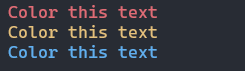
Use `pins.colorize()` method to color text using any of the three color modes.
```py
text = "Color this text"
red_text = pins.colorize(text, fgcolor="red")
yellow_text = pins.colorize(text, fgcolor="yellow")
blue_text = pins.colorize(text, fgcolor="blue")
print(red_text)
print(yellow_text)
print(blue_text)
```
### How to color a regex match
You can color only specific parts of text that match a regular expression, using `pins.colorize_regex()`.
```py
text = "Thi5 t3xt c0ntain5 a l0t 0f number5."
highlights = pins.colorize_regex(text, pattern="\d", fgcolor="red")
print(highlights)
```

`pattern` can also be a `re` compiled pattern.
```py
pattern = re.compile(r"\d")
pins.colorize_regex(text, pattern=pattern, fgcolor="red")
```
### How to print status messages
Status messages include **info**, **warning**, **success**, and **error** messages. There are four built-in methods for printing these messages.
```py
pins.print_info("This is an info message.")
pins.print_warning("This is a warning message.")
pins.print_success("This is a success message.")
pins.print_error("This is an error message.")
```
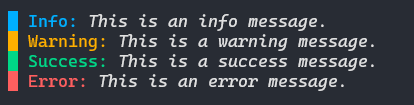
Colors are set by default for these built-in messages. But you can also create custom status messages for more control, using `pins.create_status()`.
```py
message = "This is a hint message"
hint = pins.create_status("Hint", message, label_fg="green", text_fg="blue")
print(hint)
```

### How to align text
You can easily align text in the terminal using `pins.textalign_x()` (_for horizontal alignment_) or `pins.textalign_y` (_for vertical alignment_).
```py
# Horizontal Alignment
text = "Align this text"
print(pins.textalign_x(text, align="left"))
print(pins.textalign_x(text, align="center"))
print(pins.textalign_x(text, align="right"))
```

### How to indent text
Use `pins.indent_text()` to indent text, **Duh!**
```py
text = "Indent this 4 spaces"
print("|", pins.indent_text(text, indent=4))
```

### How to wrap text
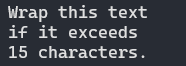
You can wrap text using `pins.wrap_text()`. This method is merely a wrapper around the `fill()` method from `textwrap` module.
```py
text = "Wrap this text if it exceeds 15 characters."
print(pins.wrap_text(text, 15))
```
### How to create lists
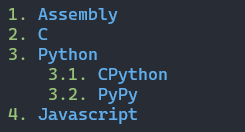
There are two types of lists that you can create, **ordered** and **unordered**, using `pins.create_list_ordered()` and `pins.create_list_unordered()` respectively.
```py
# Ordered List
items = ["Assembly", "C", "Python", ["CPython", "PyPy"], "Javascript"]
ordered_list = pins.create_list_ordered(items, num_color="green", item_color="blue")
print(ordered_list)
```
```py
# Unordered List
items = ["Assembly", "C", "Python", ["CPython", "PyPy"], "Javascript"]
unordered_list = pins.create_list_unordered(items, bullet_color="green", item_color="blue")
print(unordered_list)
```
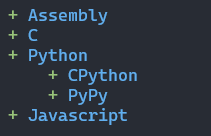
You can further tweak these lists using other arguments of both of these methods.
### How to take inputs of various types
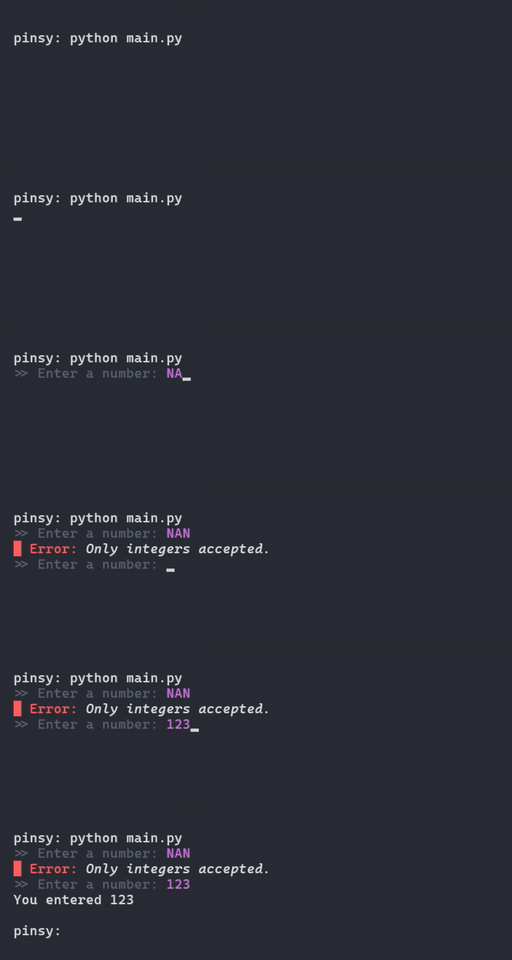
There are 13 input methods that can be used take all sorts of inputs from users. almost all of them support colors.
```python
# Taking integer input
number = pins.input_int(prompt="Enter a number: ",
prompt_color="dark_grey",
input_color="magenta")
print(f"You entered {number}")
```
```python
# Taking y/n (yes or no)
answer = pins.input_question(prompt="Accept terms & conditions? (y/N) ", prompt_color="light_green")
if answer:
print("Good boy. You may use Windows now.")
else:
print("No? create Windows yourself then.")
```
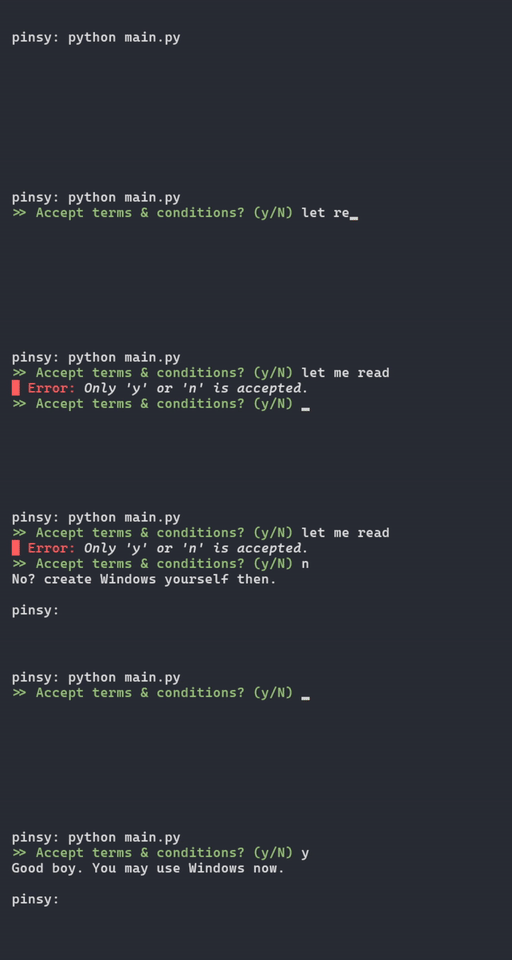
There are other similar input functions for **floats**, **strings**, **ip addresses**, **emails**, **passwords**, **urls**, **filepaths**, and **directory paths**.
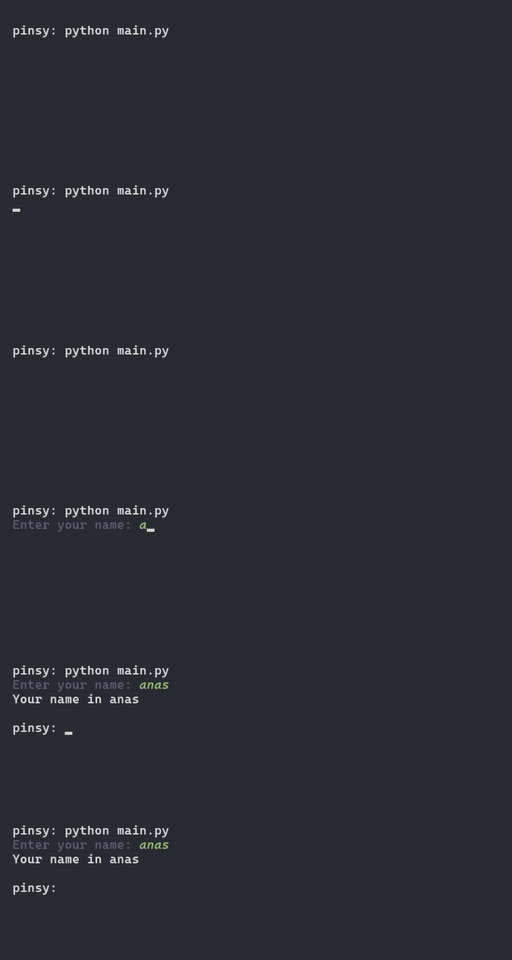
You can also use `pins.inputc()` to create your own input functions similar to the ones `pinsy` provides.
```python
name = pins.inputc("Enter your name: ",
prompt_fg="dark_grey",
input_fg="light_green",
input_attrs=["italic"])
print("Your name in %s" % name)
```
You can also take multiline input using `pins.input_multiline()`.
```python
text = pins.input_multiline(prompt="Tell me about yourself: ", input_fg="green")
print(text)
```
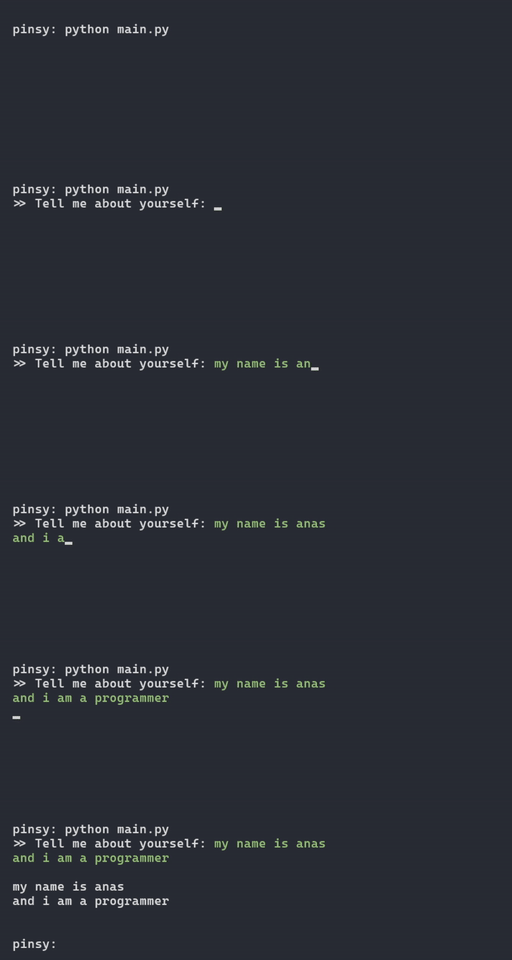
Pressing `enter` twice submits the input.
There is another input function `pins.input_menu()`, which prints a menu in the terminal and lets user choose an option with up/down arrow keys.
```python
menu = ["Login", "Signup", "Exit"]
choice = pins.input_menu(menu, bullet="■", bullet_fg="light_green",
selected_fg="green", normal_fg="dark_grey")
print("\nYou chose option %d" % choice)
```
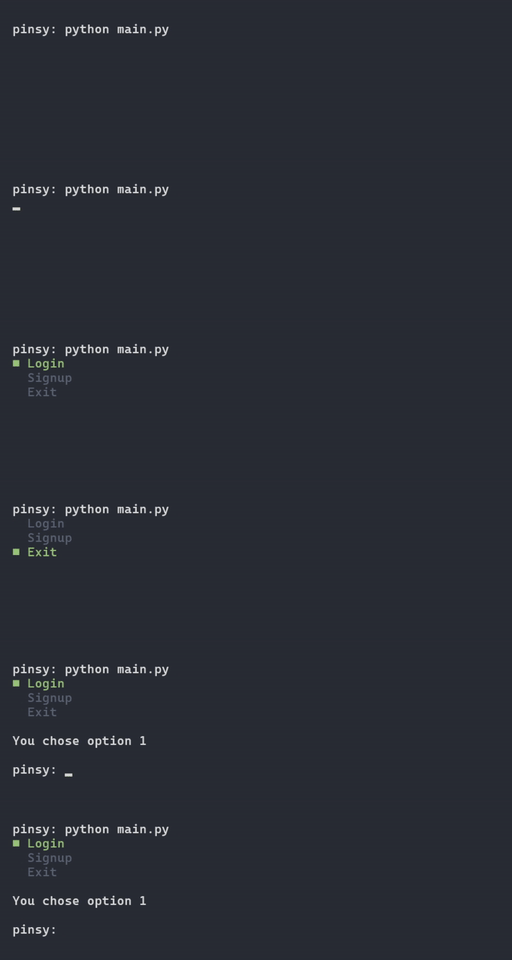
It returns the index of choice that was selected. _(starting from 1)_
### How to create HRs _(horizontal rules)_
Use `pins.create_hr()` to create a horizontal line, or `pins.print_hr()` to create and then print the line.
```py
line = pins.create_hr(width=50, color="yellow")
print(line)
```

You can also use `pins.print_hr()` to just print the line, it takes the same arguments as `pins.create_hr()`.
```python
pins.print_hr(width=50, color="magenta", fill_char="▼")
pins.print_hr(width=50, color="blue", fill_char="▒")
pins.print_hr(width=50, color="green", fill_char="▲")
```

### How to create box around text
You can easily create a box around text using `pins.boxify().`
```python
text = "Create a box around me"
print(pins.boxify(text, width=50))
print(pins.boxify(text, width=50, x_align="center", charset="ascii", text_color="blue"))
print(pins.boxify(text, width=50, x_align="right", charset="box", border_color="red"))
```
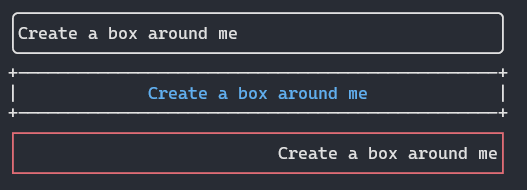
This method use the `Box` class under the hood. You can use it too.
```python
from pinsy import Box
box = Box(width=50, x_align="center", y_align="center",
charset="box_round", pad_y=1,
border_color="dark_grey", text_color="yellow")
print(box.create("Create a box\naround this\nmultiline text."))
```
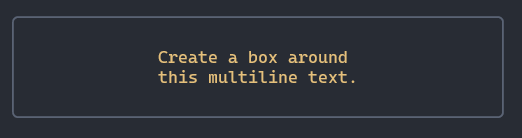
### How to create a calendar
Use `pins.get_calendar()` to get a calendar of any month of any year.
```python
print(pins.get_calendar())
```
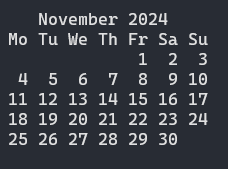
You can also use `pins.print_calendar()` to print the calendar.
```py
pins.print_calendar(month_color="red", date_color="blue")
```
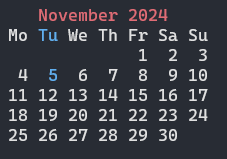
It's November 05, 2024 today.
### How to pretty-print json
You can use `pins.print_json()` to pretty-print json.
```python
import json
with open("person.json") as jfile:
data = json.load(jfile)
pins.print_json(data)
```
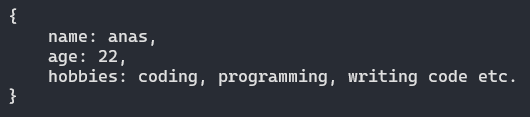
This method uses `JsonHighlight` class under the hood. and so can you!
```python
from pinsy import JsonHighlight
data = {
"name": "anas",
"age": "22",
"hobbies": "coding, programming, writing code etc."
}
jsh = JsonHighlight(quotes=False,
str_color="light_green",
number_color="light_yellow",
key_color="red",
symbol_color="dark_grey")
print(jsh.highlight(data))
```
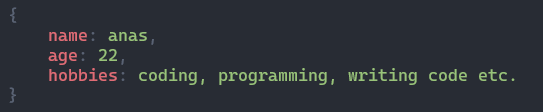
There's a similar method called `print_markdown`, which highlights markdown syntax.
### How to print lengthy text for user to read easily
You can use `pins.print_more()` to print a lengthy multiline text in the terminal.
```python
with open("temp.md") as md:
text = md.read()
pins.print_more(text, prompt_fg="magenta")
```
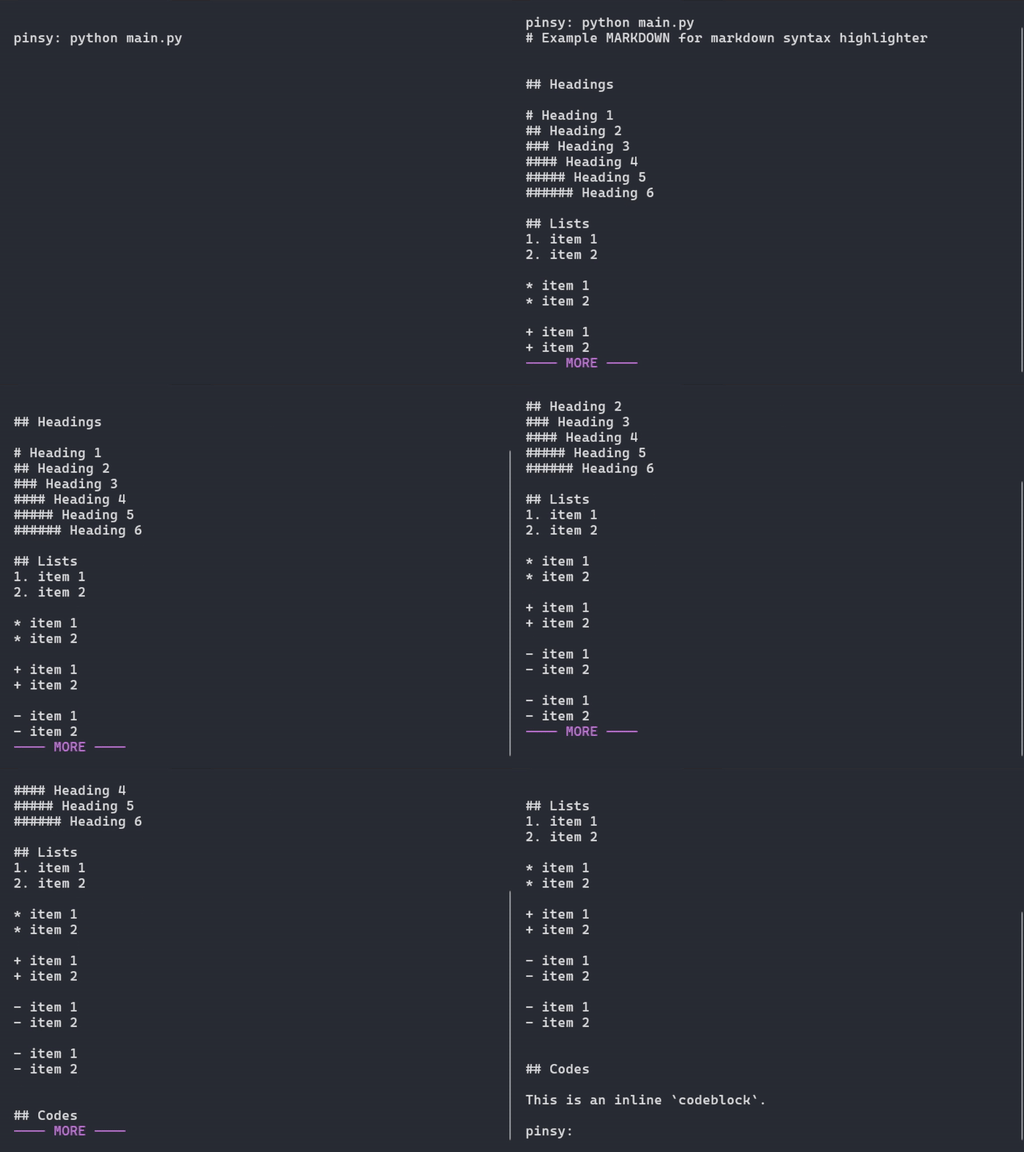
It let's user read the text easily.
### How to print multiline text as pages
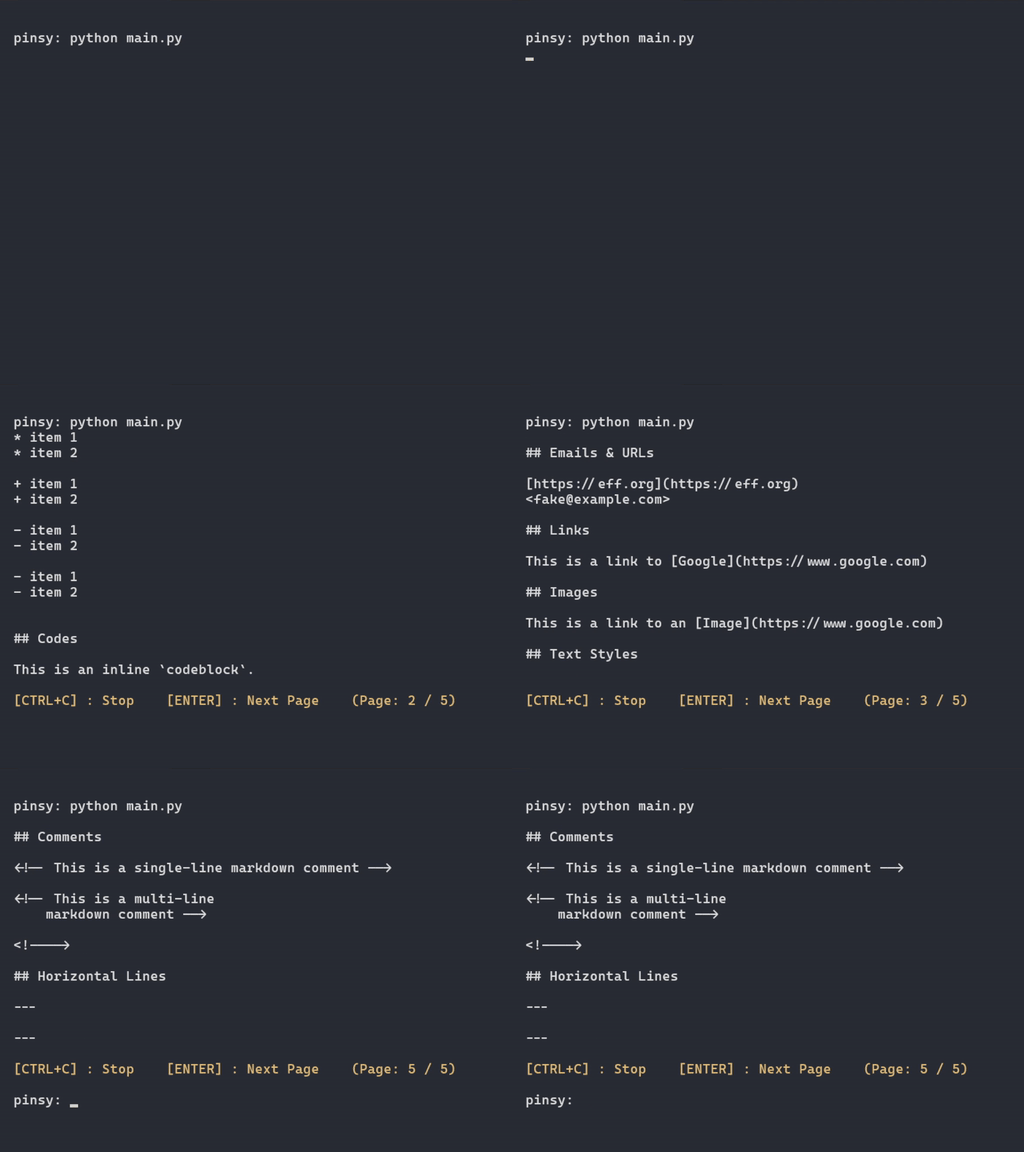
Use `pins.print_pages()` to print a length multiline text as pages. somewhat similar to paginations in websites.
```python
with open("temp.md") as md:
text = md.read()
pins.print_pages(text, lines_per_page=16, statusbar_fg="yellow")
```
### How to print info about your program
Similar to softwares and webapps, you can print info about your program/application using `pins.print_about()`.
```python
pins.print_about(name="pinsy",
version="1.0",
author="Anas Shakeel",
source_url="https://github.com/anas-shakeel/pinsy",
license="MIT",
platforms=["Windows", "Mac", "Linux"],
border_color="dark_grey",
heading_fg="dark_grey",
heading_bg="light_blue",
heading_attrs=["dark", "reverse"],
keys_color="dark_grey",
values_color="light_blue")
```
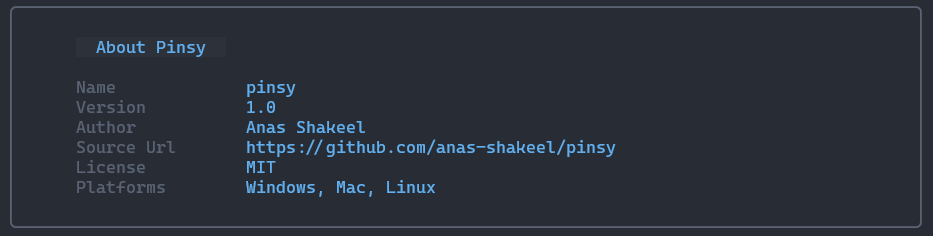
A bit verbose i know.
### How to print text with typewriter effect
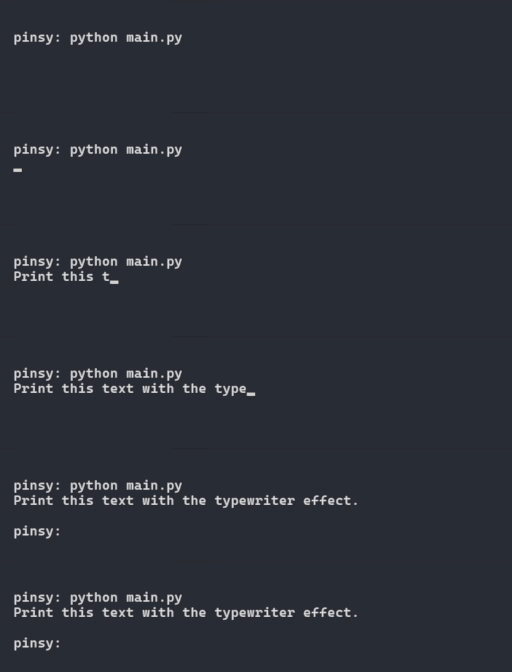
You can use the typewriter effect in two ways: using `pins.typewrite()` or using `Typewrite` class (which `pins.typewrite`() uses under the hood).
```python
# Using pins.typewrite
text = "Print this text with the typewriter effect."
pins.typewrite(text, interval=0.04, hide_cursor=False)
```
```python
# Using Typewrite class
writer = Typewriter(0.04)
writer.write(text)
```
Output is exactly the same.
### How to print text with reveal effect
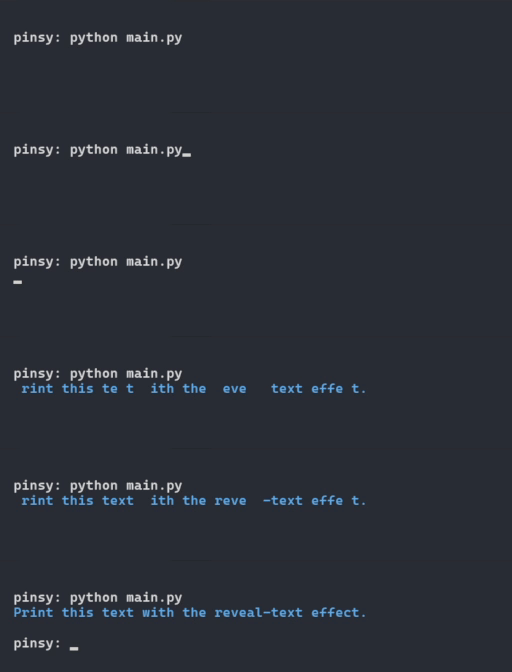
You can use the `pins.reveal_text()` or `RevealText` class to print text with reveal effect.
```python
# Using pins.reveal_text
text = "Print this text with the reveal-text effect."
pins.reveal_text(text, initial_color="black", final_color="blue")
```
```python
# Using RevealText class
revealer = RevealText(initial_color="black", final_color="blue")
revealer.reveal(text)
```
Output will be somewhat similar to previous output. "somewhat" because there is randomness added to the effect. each time it outputs a slightly different result.
This is not a True-Reveal Effect. It's just an illusion _(sort of)_. let's see this effect in slow-motion with a different `initial_color`.
```python
pins.reveal_text(text, interval=0.1, max_seconds=3, initial_color="red", final_color="blue")
```
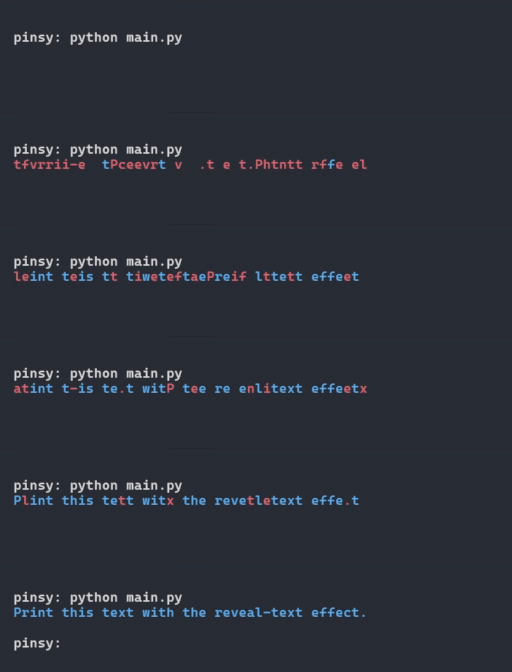
It scrambles the text and then solves each letter using bruteforce method. `max_seconds` is the number of maximum seconds to let this effect run, and prints the original text afterwards.
And there's much more that you can do...
## Compatibility
`pinsy` has been well-tested on **Windows**, **Mac**, and **Linux** _(ubuntu)_ with python version `3.9` upto `3.13`.
## Pinsy CLI
#### Coming soon!