https://github.com/anasselkadii/reactflowcanvasview-
A native Android custom View for creating interactive, node-based flow charts and diagrams with panning, zooming, connections, and customization. Mimics concepts from libraries like React Flow/n8n DM on insta @alkadianass
https://github.com/anasselkadii/reactflowcanvasview-
anass-elkadi android androidstudio canvas java kotlin n8n-nodes node-based react-flow workflow-automation
Last synced: 3 months ago
JSON representation
A native Android custom View for creating interactive, node-based flow charts and diagrams with panning, zooming, connections, and customization. Mimics concepts from libraries like React Flow/n8n DM on insta @alkadianass
- Host: GitHub
- URL: https://github.com/anasselkadii/reactflowcanvasview-
- Owner: anasselkadii
- License: mit
- Created: 2025-03-29T12:07:37.000Z (over 1 year ago)
- Default Branch: main
- Last Pushed: 2025-11-19T16:46:45.000Z (7 months ago)
- Last Synced: 2025-11-19T18:22:24.728Z (7 months ago)
- Topics: anass-elkadi, android, androidstudio, canvas, java, kotlin, n8n-nodes, node-based, react-flow, workflow-automation
- Language: Java
- Homepage:
- Size: 5.93 MB
- Stars: 0
- Watchers: 1
- Forks: 1
- Open Issues: 0
-
Metadata Files:
- Readme: README.md
- License: LICENSE
Awesome Lists containing this project
README
# ReactFlowCanvasView ✨ - Native Android Flow Chart UI
[](https://opensource.org/licenses/MIT)
A custom Android `View` written in Java that mimics the look and feel of popular node-based UI libraries like React Flow or n8n, allowing you to create interactive flow charts, diagrams, or workflow editors natively on Android.
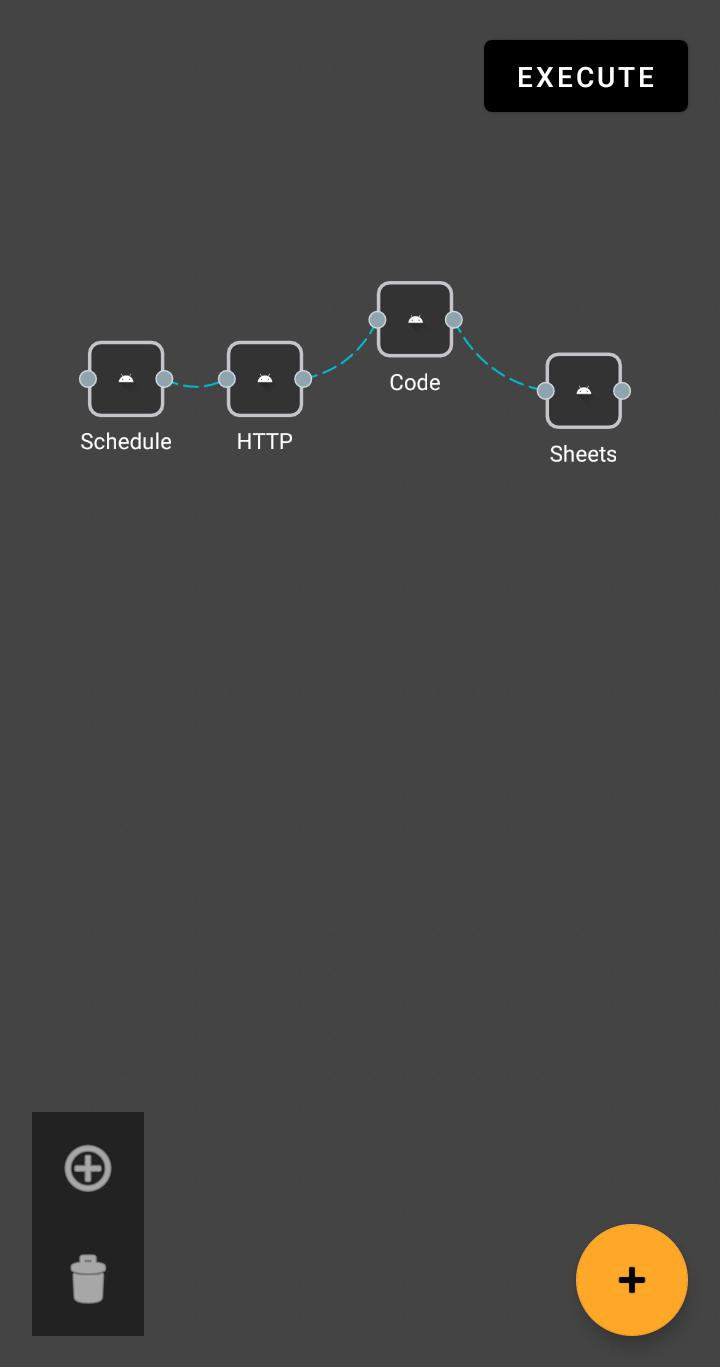
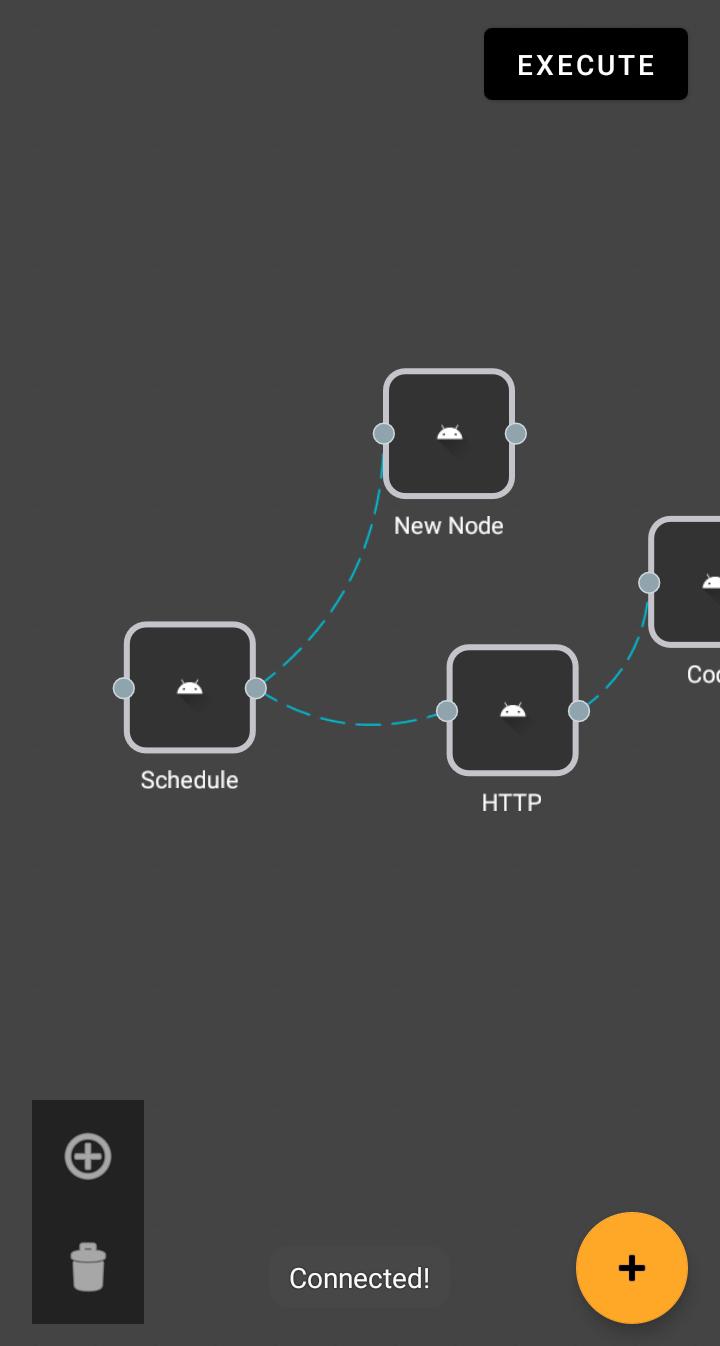
This view provides a smooth, interactive canvas with panning, button-controlled zooming, node dragging, handle-based connections, and various customization options.
---
## 🚀 Features
* **Infinite Canvas:** Pan around freely using single-finger drag.
* **Button Zooming:** Dedicated buttons for smooth zooming in/out, centered on the view. (Pinch-to-zoom disabled by default).
* **Node Management:**
* Add nodes programmatically with custom icons, labels, sizes, and backgrounds.
* Support for different node shapes (Rectangle, Custom Drawable).
* Drag and drop nodes to reposition them.
* **Connection System:**
* Define input/output handles (connection points) on nodes.
* Create connections by dragging from one handle to another valid handle.
* Visual feedback (temporary line) during connection drawing.
* "Snap-to-handle" connection finalization based on hit radius.
* **Edge Styling:**
* Smooth, curved connection lines (Quadratic Bezier).
* Optional arrowheads at the end of connections.
* Optional dashed line effect for "animated" edges.
* **Customization API:**
* Configure colors (grid, nodes, edges, handles, text, etc.).
* Set sizes (nodes, text, arrowheads).
* Adjust spacing (grid) and radii (nodes, handles).
* Toggle features like arrowheads.
* **Event Listener:** Get notified when connections are successfully made or attempted.
* **Data Access:** Retrieve the current list of nodes and edges.
* **Theming:** Dark background with dotted grid by default, easily customizable.
---
## ⚙️ Setup & Integration
1. **Add the View:** Include `ReactFlowCanvasView` in your XML layout file:
```xml
```
2. **Reference in Activity:** Get a reference to the view in your Activity's `onCreate`:
```java
// In YourActivity.java
import com.anass.halak.reactflow.ReactFlowCanvasView;
// ... other imports
public class YourActivity extends AppCompatActivity {
private ReactFlowCanvasView flowCanvasView;
// ... references for buttons ...
@Override
protected void onCreate(Bundle savedInstanceState) {
super.onCreate(savedInstanceState);
setContentView(R.layout.your_activity_layout);
flowCanvasView = findViewById(R.id.flowCanvasView);
// ... find other buttons ...
// Setup button listeners and listener for the view
setupListeners();
applyInitialCustomizations(); // Optional
}
private void setupListeners() {
// ... (See Event Handling section below) ...
}
private void applyInitialCustomizations() {
// ... (See Customization section below) ...
}
}
```
---
## 💡 Core Concepts (Data Classes)
The view relies on these simple data classes (defined as static inner classes or separate files):
* **`Node`**: Represents a visual block on the canvas. Contains `id`, `position` (center PointF), `size` (RectF width/height), `label`, `shape` (enum), `customDrawableResId` (for icon), `backgroundDrawableResId` (optional), and lists of `inputHandles` and `outputHandles`.
* **`Edge`**: Represents a connection line. Contains `id`, `sourceNodeId`, `sourceHandleId`, `targetNodeId`, `targetHandleId`, and a boolean `animated` flag.
* **`Handle`**: Represents an input or output connection point on a Node. Contains `id`, `nodeId`, `type` (enum INPUT/OUTPUT), `relativeOffset` (PointF from node top-left), `radius` (for hit detection), and calculated `worldPosition` (PointF).
* **`NodeShape`**: An `enum` to differentiate node types (`RECTANGLE`, `CUBE`, `CUSTOM_DRAWABLE`).
---
## 🛠️ Key Public Methods
### Adding Nodes
* `addNode(PointF worldPosition, float width, float height, String label, @DrawableRes Integer iconResId, @DrawableRes Integer backgroundResId, int inputCount, int outputCount)`: The most flexible way to add a node with full control over its properties.
* `addNodeAtCenter(String label, @DrawableRes Integer iconResId, @DrawableRes Integer backgroundResId, int inputCount, int outputCount)`: Adds a node with specified properties at the current center of the view, using default DP sizes.
* `addNewCustomNodeWithOutputs(@DrawableRes int iconResId, String label, int outputCount)`: Convenience method similar to the FAB example, adds a node at the center with a specific background shape (`R.drawable.node_background_shape`) and specified output handles.
* `addNewCustomNode(@DrawableRes int iconResId, String label)`: Simplest way to add a custom node (like the FAB example) at the center with 1 input and 1 output handle.
### Zooming
* `zoomIn()`: Zooms in by one step (`ZOOM_STEP`), keeping the view center stationary.
* `zoomOut()`: Zooms out by one step (`1.0f / ZOOM_STEP`), keeping the view center stationary.
### Data Retrieval
* `List getNodes()`: Returns a *copy* of the current list of nodes.
* `List getEdges()`: Returns a *copy* of the current list of edges.
### Event Handling
* `setConnectionListener(ConnectionListener listener)`: Sets a listener to receive callbacks for connection events.
---
## 🎨 Customization (Parameters)
You can customize the appearance and behavior using various public `set...` methods. Call these after getting the view reference in your Activity.
```java
// In YourActivity.java
flowCanvasView = findViewById(R.id.flowCanvasView);
// Grid
flowCanvasView.setGridSpacing(60f);
flowCanvasView.setGridDotColor(Color.parseColor("#616161"));
flowCanvasView.setGridDotBaseRadius(1.0f);
// Nodes (Defaults)
flowCanvasView.setDefaultNodeBgColor(Color.parseColor("#37474F")); // Bluish Gray
flowCanvasView.setDefaultNodeBorderColor(Color.parseColor("#546E7A"));
flowCanvasView.setDefaultNodeTextColor(Color.parseColor("#ECEFF1"));
flowCanvasView.setDefaultNodeTextSize(14 * getResources().getDisplayMetrics().scaledDensity); // Set text size in SP
flowCanvasView.setDefaultNodeCornerRadiusDp(8f);
// Edges
flowCanvasView.setEdgeColor(Color.parseColor("#78909C"));
flowCanvasView.setEdgeStrokeWidth(2.5f);
flowCanvasView.setDrawArrowheads(true);
flowCanvasView.setArrowheadSize(9f);
flowCanvasView.setArrowheadColor(Color.parseColor("#78909C"));
// Handles
flowCanvasView.setHandleInputColor(Color.parseColor("#81C784")); // Lighter Green
flowCanvasView.setHandleOutputColor(Color.parseColor("#64B5F6")); // Lighter Blue
flowCanvasView.setHandleBorderColor(Color.parseColor("#455A64"));
flowCanvasView.setHandleHitRadiusWorld(18f); // Slightly larger hit area
// Temp Connection Line
flowCanvasView.setTempConnectionColor(Color.parseColor("#FFCA28")); // Amber
🔌 Event Handling (Connection Listener)
Implement the ConnectionListener interface in your Activity to react when edges are connected or connection attempts are made.
// In YourActivity.java
private void setupConnectionListener() {
flowCanvasView.setConnectionListener(new ReactFlowCanvasView.ConnectionListener() {
@Override
public void onEdgeConnected(ReactFlowCanvasView.Edge newEdge) {
// Called when a valid connection is successfully made
Log.i(TAG, "Listener: Edge Connected - " + newEdge.id);
// You could update your backend/data model here
Toast.makeText(YourActivity.this, "Connected!", Toast.LENGTH_SHORT).show();
}
@Override
public void onConnectionAttempted(ReactFlowCanvasView.Handle startHandle, @Nullable ReactFlowCanvasView.Handle endHandle) {
// Called when the user releases the finger after dragging from a handle
Log.d(TAG, "Listener: Connection Attempted from " + startHandle.id + " to " + (endHandle != null ? endHandle.id : "null"));
if (endHandle == null || !flowCanvasView.isValidConnectionTarget(startHandle, endHandle)) {
// Optional feedback for invalid/missed connection
Toast.makeText(YourActivity.this, "Connection failed", Toast.LENGTH_SHORT).show();
}
}
});
}
```
⚠️ Limitations & Future Enhancements
Edge Routing: Edges are currently drawn as simple quadratic Bezier curves. They do not automatically avoid overlapping nodes (requires complex pathfinding algorithms).
Animation: Edge animation is currently a static dashed line. True "marching ants" animation requires more complex drawing loop management. Pan/Zoom/Drag animations (fling, smooth zoom) are not implemented (requires OverScroller/ValueAnimator).
Complex Node Layouts: The view draws basic shapes/icons/text. Creating nodes with intricate internal layouts (like form fields within a node) is not supported directly by this custom View.
Handle Constraints: No built-in limit on how many edges can connect to a single handle. This logic would need to be added in createEdge.
Performance: Performance with a very large number of nodes/edges (> hundreds) might degrade, as no view/data virtualization is implemented.
🤝 Contributing
Contributions are welcome! Feel free to fork the repository, make improvements, and submit pull requests. Please adhere to standard coding practices and provide clear descriptions for your changes.
📜 License
This project is licensed under the MIT License - see the LICENSE.md file for details (assuming you add one).