https://github.com/apimatic/static-portal-sdk
https://github.com/apimatic/static-portal-sdk
Last synced: about 1 year ago
JSON representation
- Host: GitHub
- URL: https://github.com/apimatic/static-portal-sdk
- Owner: apimatic
- License: other
- Created: 2022-02-08T18:39:03.000Z (over 4 years ago)
- Default Branch: master
- Last Pushed: 2022-08-04T06:08:40.000Z (almost 4 years ago)
- Last Synced: 2025-02-10T14:53:16.952Z (over 1 year ago)
- Language: Java
- Size: 71.3 KB
- Stars: 0
- Watchers: 2
- Forks: 0
- Open Issues: 0
-
Metadata Files:
- Readme: README.md
- License: LICENSE
Awesome Lists containing this project
README
# Getting Started with APIMATIC Calculator-test
## Introduction
Simple calculator API hosted on APIMATIC for demo purposes
## Building
The generated code uses a few Maven dependencies e.g., Jackson, OkHttp,
and Apache HttpClient. The reference to these dependencies is already
added in the pom.xml file will be installed automatically. Therefore,
you will need internet access for a successful build.
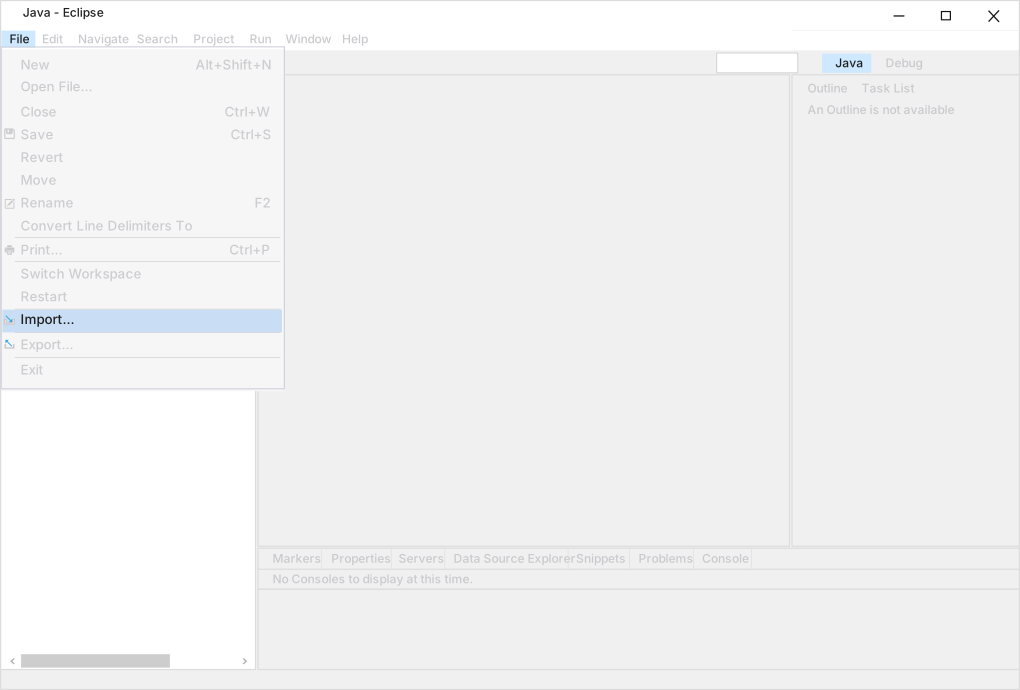
* In order to open the client library in Eclipse click on `File -> Import`.
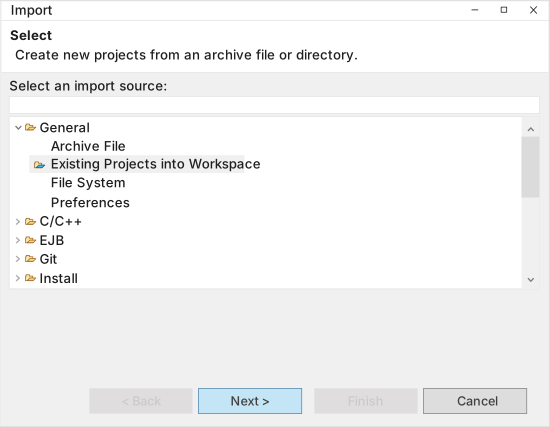
* In the import dialog, select `Existing Java Project` and click `Next`.
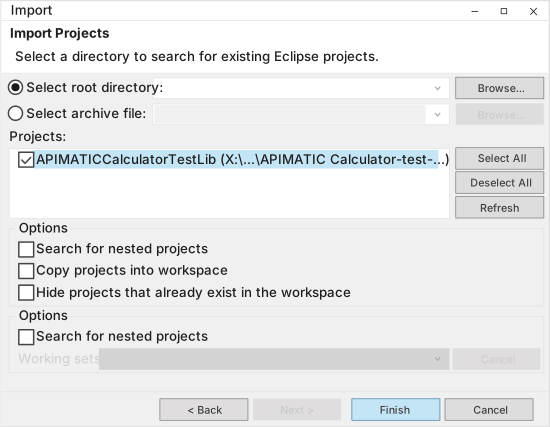
* Browse to locate the folder containing the source code. Select the detected location of the project and click `Finish`.
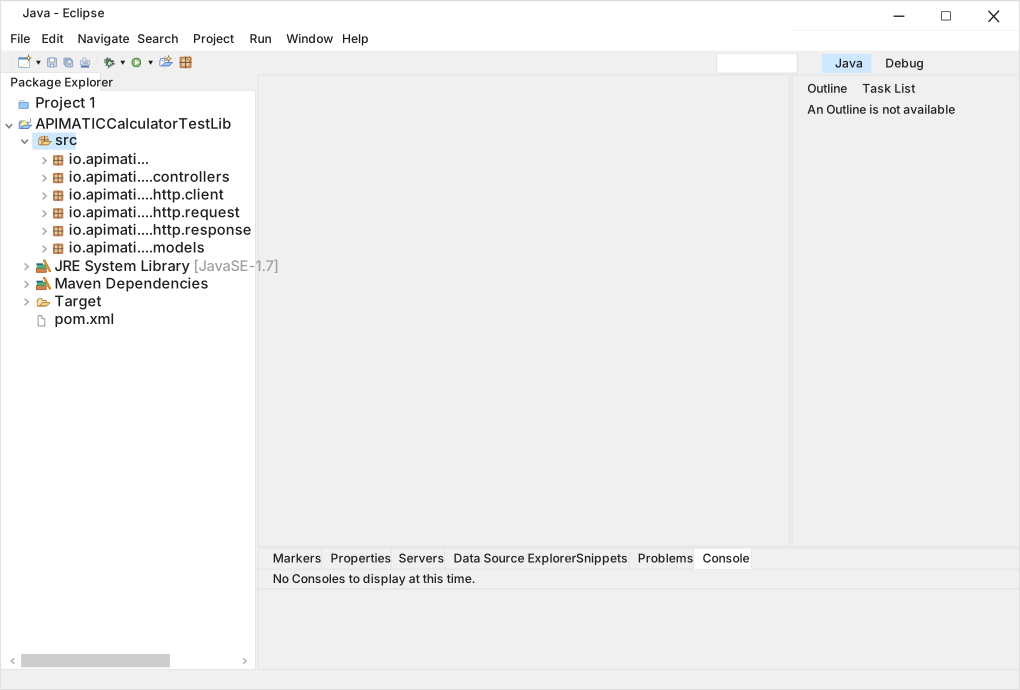
* Upon successful import, the project will be automatically built by Eclipse after automatically resolving the dependencies.
## Installation
The following section explains how to use the APIMATICCalculatorTestLib library in a new project.
### 1. Starting a new project
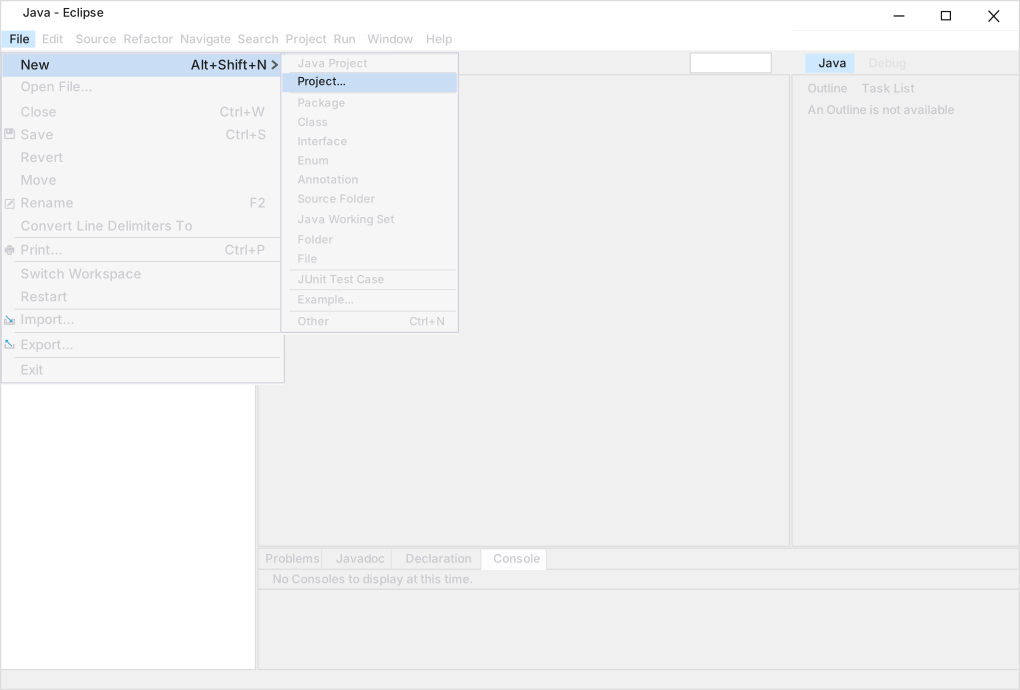
For starting a new project, click the menu command `File > New > Project`.
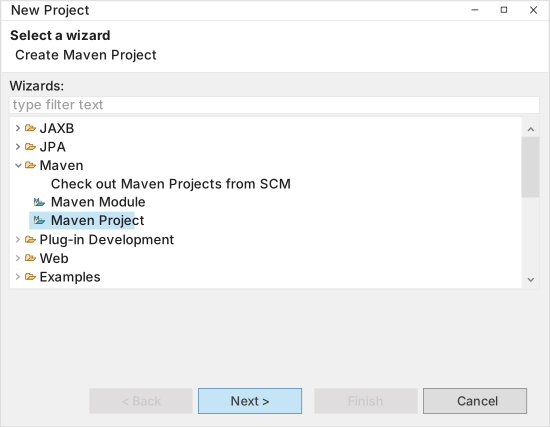
Next, choose `Maven > Maven Project` and click `Next`.
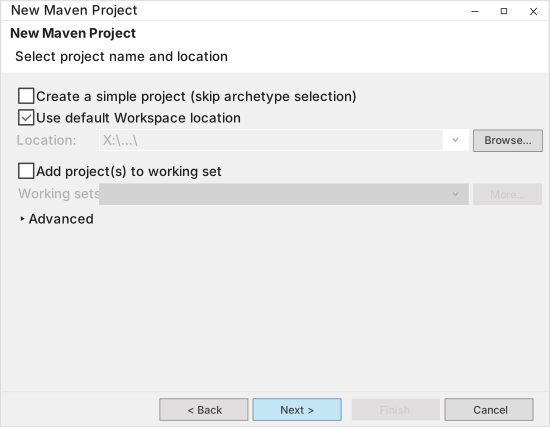
Here, make sure to use the current workspace by choosing `Use default Workspace location`, as shown in the picture below and click `Next`.
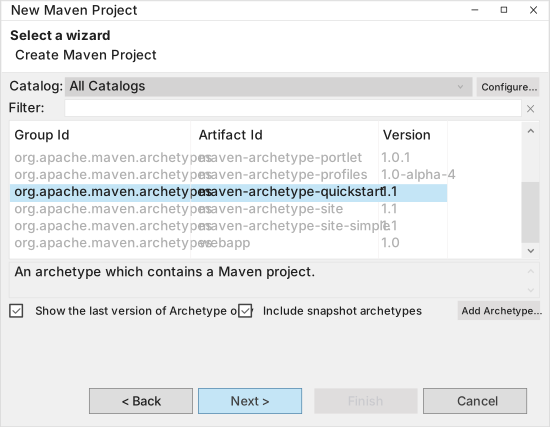
Following this, select the *quick start* project type to create a simple project with an existing class and a `main` method. To do this, choose `maven-archetype-quickstart` item from the list and click `Next`.
In the last step, provide a `Group Id` and `Artifact Id` as shown in the picture below and click `Finish`.
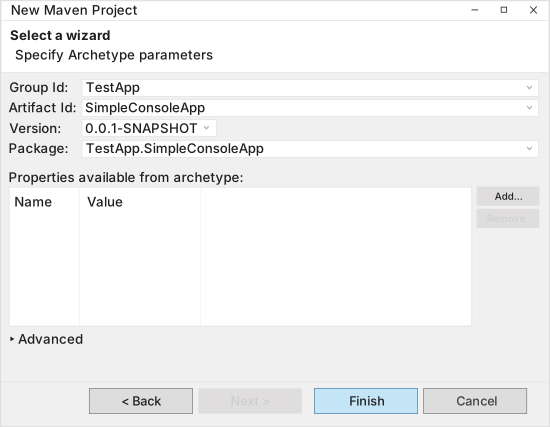
### 2. Add reference of the library project
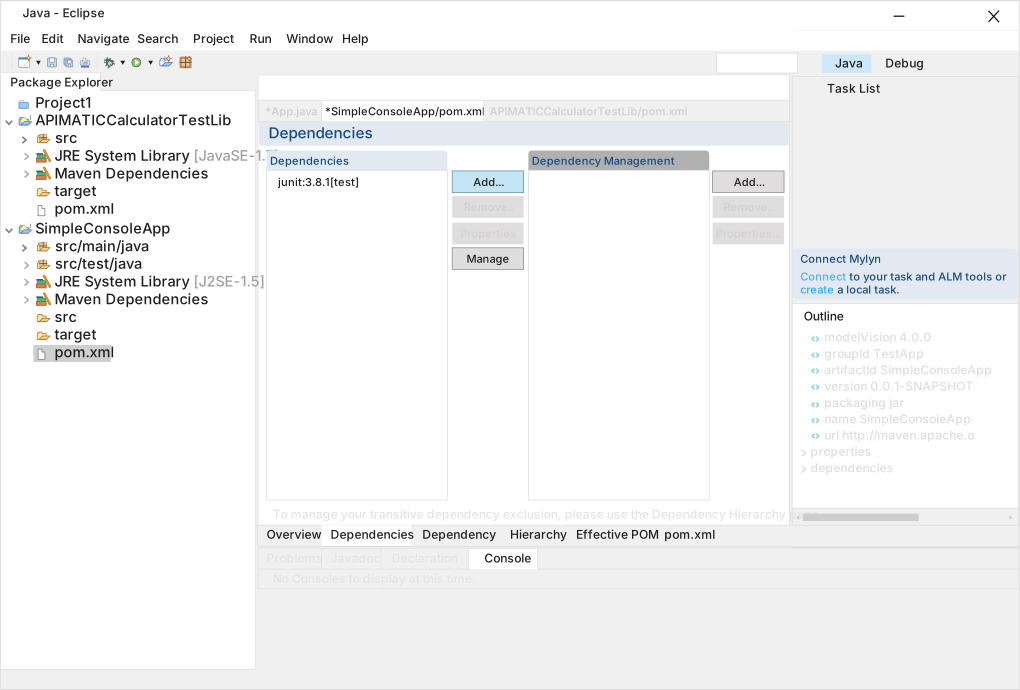
The created Maven project manages its dependencies using its `pom.xml` file. In order to add a dependency on the *APIMATICCalculatorTestLib* client library, double click on the `pom.xml` file in the `Package Explorer`. Opening the `pom.xml` file will render a graphical view on the canvas. Here, switch to the `Dependencies` tab and click the `Add` button as shown in the picture below.
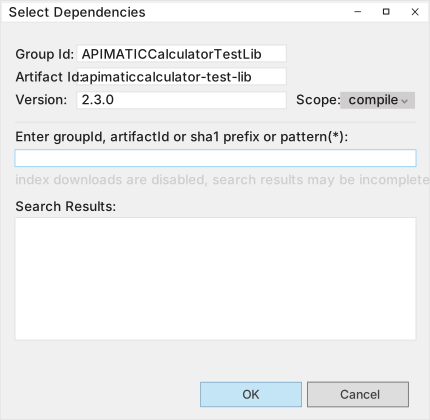
Clicking the `Add` button will open a dialog where you need to specify APIMATICCalculatorTestLib in `Group Id`, apimaticcalculator-test-lib in `Artifact Id` and 2.3.0 in the `Version` fields. Once added click `OK`. Save the `pom.xml` file.
### 3. Write sample code
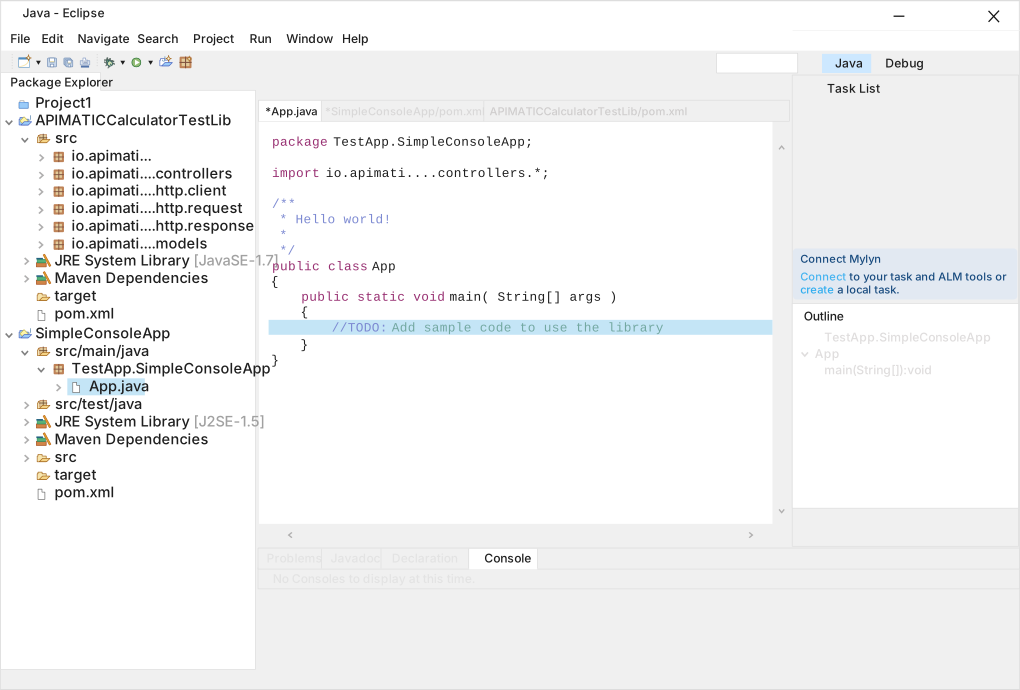
Once the `SimpleConsoleApp` is created, a file named `App.java` will be visible in the *Package Explorer* with a `main` method. This is the entry point for the execution of the created project.
Here, you can add code to initialize the client library and instantiate a *Controller* class. Sample code to initialize the client library and using controller methods is given in the subsequent sections.
## Initialize the API Client
**_Note:_** Documentation for the client can be found [here.](doc/client.md)
The following parameters are configurable for the API Client:
| Parameter | Type | Description |
| --- | --- | --- |
| `httpClientConfig` | `ReadonlyHttpClientConfiguration` | Http Client Configuration instance. |
The API client can be initialized as follows:
```java
APIMATICCalculatorTestClient client = new APIMATICCalculatorTestClient.Builder()
.httpClientConfig(configBuilder -> configBuilder
.timeout(0))
.build();
```
## List of APIs
* [Simple Calculator](doc/controllers/simple-calculator.md)
## Classes Documentation
* [Utility Classes](doc/utility-classes.md)
* [HttpRequest](doc/http-request.md)
* [HttpResponse](doc/http-response.md)
* [HttpStringResponse](doc/http-string-response.md)
* [HttpContext](doc/http-context.md)
* [HttpBodyRequest](doc/http-body-request.md)
* [Headers](doc/headers.md)
* [ApiException](doc/api-exception.md)
* [Configuration Interface](doc/configuration-interface.md)
* [HttpClientConfiguration](doc/http-client-configuration.md)
* [HttpClientConfiguration.Builder](doc/http-client-configuration-builder.md)