https://github.com/app-generator/sample-django-all-auth-graphql
Django Dashboard - Open-Source Seed Project | AppSeed
https://github.com/app-generator/sample-django-all-auth-graphql
appseed appseed-sample django
Last synced: about 1 year ago
JSON representation
Django Dashboard - Open-Source Seed Project | AppSeed
- Host: GitHub
- URL: https://github.com/app-generator/sample-django-all-auth-graphql
- Owner: app-generator
- License: mit
- Created: 2020-12-01T14:10:17.000Z (over 5 years ago)
- Default Branch: master
- Last Pushed: 2022-10-11T10:18:32.000Z (over 3 years ago)
- Last Synced: 2025-03-11T05:55:54.483Z (over 1 year ago)
- Topics: appseed, appseed-sample, django
- Language: CSS
- Homepage: https://appseed.us/admin-dashboards/django
- Size: 6.56 MB
- Stars: 5
- Watchers: 3
- Forks: 5
- Open Issues: 2
-
Metadata Files:
- Readme: README.md
- License: LICENSE.md
Awesome Lists containing this project
README
# Django Seed Project
> **Open-Source Admin Dashboard** coded in **Django Framework** by **AppSeed** [App Generator](https://appseed.us/app-generator) - Features:
- REST API
- GraphQL API
- Charts Samples - Bar chart, Line chart
- DataTables - pagination, search, inline edit (via Ajax)
- Social Login via AllAuth (Google and Github)
- Unitary Tests
- Documentation (this file) - Full docs are WIP.
> 🚀 `PROMO`: **[Junior Developers Starter KIT](https://www.creative-tim.com/product/buy/bundle/junior-bundle?AFFILIATE=128200)** `85%OFF`
The package includes a `rock-solid collection of premium assets` (**Kits & Dashboards**) that can be used to build eye-catching portfolios and web apps in no time.
[](https://www.creative-tim.com/product/buy/bundle/junior-bundle?AFFILIATE=128200)
## Base Requirements
- Install `django-import-export` package to import data form csv, xls and etc file to table.
```bash
$ pip install django-import-export
```
> Then add this package to INSTALLED_APPS in settings.py. Now you can change the admin section of each model and add this feature. so you can easily import the data to your table.
> Please add this package in requirements.txt
## REST API
> How to use it
To use REST in Django, install `djangorestframework`:
```bash
$ pip install djangorestframework djangorestframework-simplejwt
```
In **[settings.py](https://github.com/app-generator/django-dashboard-eps/blob/master/core/settings.py)** add `rest_framework` in INSTALLED_APPS
```python
INSTALLED_APPS = [
...
'rest_framework',
]
```
Then add django rest framework config in **[settings.py](https://github.com/app-generator/django-dashboard-eps/blob/master/core/settings.py)**:
```python
REST_FRAMEWORK = {
'PAGE_SIZE': 5,
'DEFAULT_PAGINATION_CLASS': 'rest_framework.pagination.LimitOffsetPagination',
'COERCE_DECIMAL_TO_STRING': False,
}
```
> Please add this package in requirements.txt
**Database/table structure**
Create two models to display the information in REST API, which includes `Visit` & `Traffic`:
```python
from django.db import models
class Visit(models.Model):
BOUNCE_RATE_TYPE_UP = 1
BOUNCE_RATE_TYPE_DOWN = 2
BOUNCE_RATE_TYPE_CHOICES = [
(BOUNCE_RATE_TYPE_UP, 'up'),
(BOUNCE_RATE_TYPE_DOWN, 'down')
]
page_name = models.CharField(max_length=255)
visitors = models.PositiveIntegerField()
unique_users = models.PositiveIntegerField()
bounce_rate = models.FloatField()
bounce_rate_type = models.SmallIntegerField(choices=BOUNCE_RATE_TYPE_CHOICES)
created_time = models.DateTimeField(db_index=True)
updated_time = models.DateTimeField(auto_now=True)
class Meta:
verbose_name = 'visit'
verbose_name_plural = 'visits'
class Traffic(models.Model):
RATE_TYPE_UP = 1
RATE_TYPE_DOWN = 2
RATE_TYPE_CHOICES = [
(RATE_TYPE_UP, 'up'),
(RATE_TYPE_DOWN, 'down')
]
referral = models.CharField(max_length=50)
visitors = models.PositiveIntegerField()
rate = models.FloatField()
rate_type = models.SmallIntegerField(choices=RATE_TYPE_CHOICES)
created_time = models.DateTimeField(db_index=True)
updated_time = models.DateTimeField(auto_now=True)
class Meta:
verbose_name = 'traffic'
verbose_name_plural = 'traffics'
```
**Files** (that implements the feature)
- Create **[serializers.py](https://github.com/app-generator/django-dashboard-eps/blob/master/app/serializers.py)** file. Then add serializers `TrafficSerializer` and `VisitSerializer` as follows:
```python
from rest_framework import serializers
from app.models import Traffic, Visit
class TrafficSerializer(serializers.ModelSerializer):
class Meta:
model = Traffic
fields = '__all__'
class VisitSerializer(serializers.ModelSerializer):
class Meta:
model = Visit
fields = '__all__'
```
- In file **[views.py](https://github.com/app-generator/django-dashboard-eps/blob/master/app/views.py)** add the `TrafficViewSet` and `VisitViewSet` ViewSets.
```python
from rest_framework.viewsets import ModelViewSet
from app.models import Traffic, Visit
from app.serializers import TrafficSerializer, VisitSerializer
class TrafficViewSet(ModelViewSet):
serializer_class = TrafficSerializer
queryset = Traffic.objects.all()
http_method_names = ['get']
class VisitViewSet(ModelViewSet):
serializer_class = VisitSerializer
queryset = Visit.objects.all()
http_method_names = ['get']
```
- In file **[urls.py](https://github.com/app-generator/django-dashboard-eps/blob/master/app/urls.py)**, add the following urls:
```python
from rest_framework import routers
from app.views import TrafficViewSet, VisitViewSet
router = routers.SimpleRouter()
router.register(r'api/v1/traffics', TrafficViewSet, basename="traffics")
router.register(r'api/v1/visits', VisitViewSet, basename="visits")
urlpatterns = router.urls + [
...
]
```
Now your REST APIs is ready. And you can use it.
**API structure**
The `traffics` and `visits` APIs structure follow the Django REST framework:
```json
{
"count": "Total Item count",
"next": "Next Link",
"previous": "Previous Link",
"results": "Serialized information in the form of a list"
}
```
**How to add data**
In Django admin, you can import data for the **Visits** and **Traffics** sections.
To do this just click on ```IMPORT``` button in each section, then select your csv, xls or etc file and submit it.

> Download **[Visits](https://github.com/app-generator/django-dashboard-eps/blob/master/media/sample_data/visits.csv)** and **[Traffics](https://github.com/app-generator/django-dashboard-eps/blob/master/media/sample_data/traffics.csv)** Sample data
**How to consume API**
* To use AIPs, you can import the sample **[POSTMAN](https://github.com/app-generator/django-dashboard-eps/blob/master/media/postman/postman.json)**
## GraphQL API
> How to use it
To use GraphQL in Django install `graphene-django`:
```bash
$ pip install graphene-django
```
In **[settings.py](https://github.com/app-generator/django-dashboard-eps/blob/master/core/settings.py)** add `graphene-django` in INSTALLED_APPS
```python
INSTALLED_APPS = [
...
'graphene_django',
]
```
> Please add this package in requirements.txt
**Database/table structure**
We created two models to display the information in GraphQL API, which includes `Order` & `Sale`:
```python
from django.db import models
class Order(models.Model):
count = models.PositiveIntegerField()
amount = models.FloatField(db_index=True)
product_name = models.CharField(max_length=40, db_index=True)
created_time = models.DateTimeField(db_index=True)
updated_time = models.DateTimeField(auto_now=True)
class Meta:
verbose_name = 'order'
verbose_name_plural = 'orders'
class Sale(models.Model):
amount = models.FloatField(db_index=True)
product_name = models.CharField(max_length=40, db_index=True)
created_time = models.DateTimeField(db_index=True)
updated_time = models.DateTimeField(auto_now=True)
class Meta:
verbose_name = 'sale'
verbose_name_plural = 'sales'
```
**Files** (that implements the feature)
- Create the **[schema.py](https://github.com/app-generator/django-dashboard-eps/blob/master/app/schema.py)** file in your app. Then add the following classes to make your own schema:
> These classes include monthly reports on sales and orders.
```python
import graphene
from django.db.models import Count, Sum
from django.db.models.functions import TruncMonth
from app.models import Order, Sale
class OrderMonthReportType(graphene.ObjectType):
month = graphene.Int()
total = graphene.Int(name='total')
class SalesMonthReportType(graphene.ObjectType):
month = graphene.Int()
total_amount = graphene.Float(name='total_amount')
class Query(graphene.ObjectType):
orders_month_report = graphene.List(
OrderMonthReportType,
name='orders_month_report'
)
sales_month_report = graphene.List(
SalesMonthReportType,
name='sales_month_report'
)
def resolve_orders_month_report(self, info, **kwargs):
queryset = Order.objects.annotate(
date=TruncMonth('created_time')
).values('date').annotate(total=Count('id')).values('date', 'total').order_by('date')
report = {month: 0 for month in range(1, 13)}
for order_month in queryset:
report[order_month['date'].month] += order_month['total']
report = sorted(report.items())
res = []
for month, total in report:
res.append({'month': month, 'total': total})
return res
def resolve_sales_month_report(self, info, **kwargs):
queryset = Sale.objects.annotate(
date=TruncMonth('created_time')
).values('date').annotate(total_amount=Sum('amount')).values('date', 'total_amount').order_by('date')
report = {month: 0 for month in range(1, 13)}
for order_month in queryset:
report[order_month['date'].month] += round(order_month['total_amount'], 2)
report = sorted(report.items())
res = []
for month, total_amount in report:
res.append({'month': month, 'total_amount': total_amount})
return res
```
- To receive data through any app, you need to create a [schema.py](https://github.com/app-generator/django-dashboard-eps/blob/master/core/schema.py) file in the main app. In this project, the name of the main app is `core`. So in this part, I created a scheam.py:
```python
import graphene
from app.schema import Query as app_query
class Query(app_query):
pass
schema = graphene.Schema(query=Query)
```
- Then add the url in [urls.py](https://github.com/app-generator/django-dashboard-eps/blob/master/core/urls.py) in `main` app:
```python
from django.contrib import admin
from django.urls import path
from django.views.decorators.csrf import csrf_exempt
from graphene_django.views import GraphQLView
from core.schema import schema
urlpatterns = [
path('admin/', admin.site.urls),
# This is our GraphQL URL
path('graphql/', csrf_exempt(GraphQLView.as_view(graphiql=True, schema=schema))),
]
```
> We enabled `graphiql` to run queries with `graphiql=True`
- Now you can open `http://localhost:8000/graphql/` in your browser and run your queries.
Sample Query:
```text
{
orders_month_report{
total
month
}
sales_month_report{
total_amount
month
}
}
```
**API structure**
The `orders` and `sales` APIs structure follow the Django GraphQL:
```json
{
"data": {
"orders_month_report": [],
"sales_month_report": []
}
}
```
**How to add data**
In Django admin, you can import data for the **Orders** and **Sales** sections.
To do this just click on ```IMPORT``` button in each section, then select your csv, xls or etc file and submit it.

> Download **[Orders](https://github.com/app-generator/django-dashboard-eps/blob/master/media/sample_data/orders.csv)** and **[Sales](https://github.com/app-generator/django-dashboard-eps/blob/master/media/sample_data/sales.csv)** Sample data
**How to consume API**
* To use AIPs, you can import the sample **[POSTMAN](https://github.com/app-generator/django-dashboard-eps/blob/master/media/postman/postman.json)**
## Charts Samples
For this part, we use GraphQL API and Jquery (AJAX) to fetch data and show.
**Database/table structure**
* In this section, we use the previous models, ie `Order` and `Sale`.
**Files** (that implements the feature)
- Create a new js file (anywhere you want). named [dashboard.js](https://github.com/app-generator/django-dashboard-eps/blob/master/core/static/assets/js/dashboard.js) and add it in the page you want to fetch and show.
- Run AJAX when the page loaded. for doing this I made a function then I call it anywhere:
```js
function GraghQLAjax(params) {
var query = JSON.stringify({
query: `query {
orders_month_report {
month
total
}
sales_month_report {
month
total_amount
}
}`
});
$.ajax({
method: 'POST',
url: '/graphql/',
data: query,
contentType: 'application/json',
success: function (data) {
var months = ['Jan', 'Feb', 'Mar', 'Apr', 'May', 'Jun', 'Jul', 'Aug', 'Sep', 'Oct', 'Nov', 'Dec'];
// sales chart
var sales_chart_data = [];
$.each(data.data.sales_month_report, function (index, obj) {
sales_chart_data.push(obj.total_amount);
});
SalesChart(sales_chart_data, months);
// orders chart
var orders_chart_data = [];
$.each(data.data.orders_month_report, function (index, obj) {
orders_chart_data.push(obj.total);
});
OrderChart(orders_chart_data, months);
},
error: function () {
alert('Error occurred');
}
});
}
// charts function
// Line chart
function SalesChart(data, labels) {
// Variables
var $chart = $('#chartSales');
var salesChart = new Chart($chart, {
type: 'line',
options: {
scales: {
yAxes: [{
gridLines: {
lineWidth: 1,
color: Charts.colors.gray[900],
zeroLineColor: Charts.colors.gray[900]
},
ticks: {
callback: function (value) {
if (!(value % 10)) {
return '$' + value;
}
}
}
}]
},
tooltips: {
callbacks: {
label: function (item, data) {
var label = data.datasets[item.datasetIndex].label || '';
var yLabel = item.yLabel;
var content = '';
if (data.datasets.length > 1) {
content += '' + label + '';
}
content += '$' + yLabel + '';
return content;
}
}
}
},
data: {
labels: labels,
datasets: [{
label: 'Performance',
data: data
}]
}
});
// Save to jQuery object
$chart.data('chart', salesChart);
}
// Bar chart
function OrderChart(data, labels) {
var $chart = $('#chartOrders');
var ordersChart = new Chart($chart, {
type: 'bar',
options: {
scales: {
yAxes: [{
gridLines: {
lineWidth: 1,
color: '#dfe2e6',
zeroLineColor: '#dfe2e6'
},
ticks: {
callback: function (value) {
if (!(value % 10)) {
//return '$' + value + 'k'
return value
}
}
}
}]
},
tooltips: {
callbacks: {
label: function (item, data) {
var label = data.datasets[item.datasetIndex].label || '';
var yLabel = item.yLabel;
var content = '';
if (data.datasets.length > 1) {
content += '' + label + '';
}
content += '' + yLabel + '';
return content;
}
}
}
},
data: {
labels: labels,
datasets: [{
label: 'Sales',
data: data
}]
}
});
// Save to jQuery object
$chart.data('chart', ordersChart);
}
```
> Now call `GraghQLAjax` function whatever you want. In this example, after fetching data from GraphQL, the required params sent to the related function to show the data on charts.
## DataTables (paginated information)
In this section, you can `search`, `edit` and `delete` the transactions. The added features of this `datatable` are:
- Paginated information (transaction page) with usable controls: PREV, 1,2,3., NEXT
- Search box to filter
- Delete row control
- edit cel data on double click and ENTER on confirm.
**Database/table structure**
Create the `Transaction` model to show data in the datatable:
```python
from django.db import models
class Transaction(models.Model):
bill_for = models.CharField(max_length=100)
issue_date = models.DateField()
due_date = models.DateField()
total = models.DecimalField(max_digits=10, decimal_places=2)
status = models.CharField(max_length=10)
created_time = models.DateTimeField(auto_now_add=True)
updated_time = models.DateTimeField(auto_now=True)
class Meta:
verbose_name = 'transaction'
verbose_name_plural = 'transactions'
```
**How to add data**
In Django admin, you can import data for the **Transaction** sections.
To do this just click on ```IMPORT``` button in each section, then select your csv, xls or etc file and submit it.

> Download **[Transactions](https://github.com/app-generator/django-dashboard-eps/blob/master/media/sample_data/transactions.csv)** Sample data
**Files** (that implements the feature)
- In this section, create a view in [view.py](https://github.com/app-generator/django-dashboard-eps/blob/master/app/views.py) to implement CRUD (`Create`, `Read`, `Update`, `Delete`):
```python
from django.views import View
class TransactionView(View):
def get(self, request):
pass
def post(self, request):
pass
def put(self, request):
pass
def delete(self, request):
pass
```
> We use `get` to display items and forms, `post` to store a new item, `put` to update an item, and `delete` to remove an item.
- jQuery (AJAX) has been used to make changes in the datatable. Which is located in the [app_js.js](https://github.com/app-generator/django-dashboard-eps/blob/master/app/static/app_assets/js/app_js.js).
## Social Login
**Requirements**
There is a convenient package to an integrated set of Django applications addressing authentication, registration, account management as well as 3rd party (social) account authentication that is very easy to use.
The package is `django-allauth` and you can read its [doc](https://django-allauth.readthedocs.io/en/latest/index.html) to use it. and also recommend a [youtube video](https://www.youtube.com/watch?v=56w8p0goIfs) for easier implementation.
**Files** (that implements the feature)
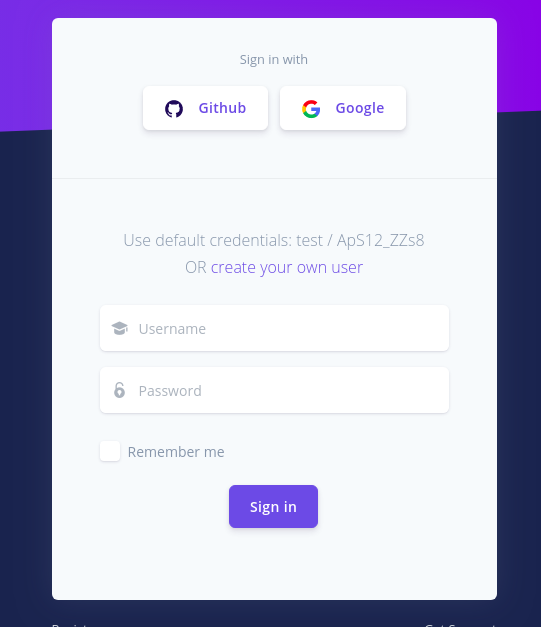
In this section, we selected Google and Github to implement.
- Added buttons in [login.html](https://github.com/app-generator/django-dashboard-eps/blob/master/core/templates/accounts/login.html) and [register.html](https://github.com/app-generator/django-dashboard-eps/blob/master/core/templates/accounts/register.html).
## Unitary Tests
- **REST APIs test:**
```bash
$ python manage.py test app.tests.RESTAPIsTest
```
- **GraphQL test:**
```bash
$ python manage.py test app.tests.GraphQLAPIsTest
```
## Full Documentation (WIP)
This section will point users to https://docs.appseed.us (WIP)
---
Django Seed Project - Provided by **AppSeed** [App Generator](https://appseed.us/app-generator).