https://github.com/aprysesdk/uwp-cordova-sample
A sample UWP app in Cordova/Ionic.
https://github.com/aprysesdk/uwp-cordova-sample
cordova ionic ionic-framework
Last synced: about 2 months ago
JSON representation
A sample UWP app in Cordova/Ionic.
- Host: GitHub
- URL: https://github.com/aprysesdk/uwp-cordova-sample
- Owner: ApryseSDK
- License: other
- Created: 2019-09-23T20:06:36.000Z (over 6 years ago)
- Default Branch: master
- Last Pushed: 2019-09-23T20:17:47.000Z (over 6 years ago)
- Last Synced: 2024-07-30T20:00:18.585Z (almost 2 years ago)
- Topics: cordova, ionic, ionic-framework
- Language: C#
- Homepage:
- Size: 188 KB
- Stars: 1
- Watchers: 8
- Forks: 1
- Open Issues: 0
-
Metadata Files:
- Readme: README.md
- Contributing: CONTRIBUTING.md
- License: LICENSE.md
Awesome Lists containing this project
README
# UWP Cordova sample
[PDFTron's PDF SDK for UWP](https://www.pdftron.com/documentation/uwp) ships with a simple to use C# API for bringing document viewing, creation, searching, annotation, and editing capabilities to UWP apps. PDFTron’s fully supported SDK is trusted by thousands of innovative start-ups, governments, and Fortune 500 businesses. PDFTron technology is built from the ground up and is not dependent on any external third-party open-source software.
This is a UWP sample to show how you can create an app that can host Cordova generated files (from `www` directory that contains the web-based source code, including the `index.html` home page) within a `WebView` control and simultaneously open PDF files in the `PDFViewCtrl`. Thus, providing you with a way to host and integrate your Cordova project source code and PDFTron's native UWP SDK within a single app.

## Install
Step 1: The first step is to generate Cordova files. If you are new to Cordova and want to start with a Cordova Windows sample app then please try the following:
1) Download and install Node.js.
2) Bring up the Command Prompt and goto the folder where you want to generate Cordova project. Let us assume that folder is `CordovaTest` on `C` drive.
3) Enter and run the following commands.
```
C:\CordovaTest> npm install -g cordova
C:\CordovaTest> cordova create pdftron com.example.pdftron PDFTronIntegration
C:\CordovaTest> cd pdftron
C:\CordovaTest\pdftron> cordova platform add windows
C:\CordovaTest\pdftron> cordova build windows
C:\CordovaTest\pdftron> platforms\windows
```
Step 2: Copy the `www` folder from `pdftron\platforms\windows`
Now that you have generated the Cordova files we can go to the second step i.e. to create an integrated host UWP app for Cordova and PDFTron SDK.
1) In Visual Studio create a Blank App (Universal Windows) and call it `UWPHostApp`.
2) Set the Minimum version to `Windows 10 (10.0; Build 17763)`. In case if you want to keep the minimum version to an older version, you will need to add the following to MainPage.xaml.
```
xmlns:Windows10FallCreatorsUpdate="http://schemas.microsoft.com/winfx/2006/xaml/presentation?IsApiContractPresent(Windows.Foundation.UniversalApiContract, 5)"
xmlns:Windows10version1809="http://schemas.microsoft.com/winfx/2006/xaml/presentation?IsApiContractPresent(Windows.Foundation.UniversalApiContract, 7)"
```
3) Copy the `www` folder from `C:\CordovaTest\pdftron\platforms\windows` folder to the folder where your project file is located.
4) Right click on the project in Solution Explorer and click on Add->New Item. From the Window that shows up add a Blank Page. Let us call this `CordovaPage`.
5) Right click on the project in Solution Explorer and click on Add->New Item. Add another Blank Page and call it `PDFTronPage`.
6) Right click on the project in Solution Explorer and click on Add->Existing Item. Add a PDF file to the project and set its Build Action property to Content and Copy to Output Directory property to Copy if newer.
7) In Solution Explorer from the options/icons at the top select `Show All Files`.
8) Now right click on `www` that shows up in your project tree and select `Include In Project`.
9) Now de-select `Show All Files` from the options/icons at the top of Solution Explorer.
10) Right click on `References` in the Solution Explorer and from the context menu select `Manage NuGet Packages...`. Click on `Browse` tab and in the search bar enter `PDFTron.UWP`. Search will show `PDFTron.UWP by PDFTron Systems Inc`. Install this NuGet package.
11) Now in the App() constructor in App.xaml.cs add `pdftron.PDFNet.Initialize("your_key");`
```
public App()
{
this.InitializeComponent();
this.Suspending += OnSuspending;
pdftron.PDFNet.Initialize("your_key");
}
```
12) In CordovaPage.xaml replace the xaml code with the following.
```
```
13) In CordovaPage.xaml.cs replace the CordovaPage() constructor with the following.
```
public CordovaPage()
{
this.InitializeComponent();
MyWebView.Navigate(new Uri("ms-appx-web:///www/index.html"));
}
```
14) In PDFTronPage.xaml replace the xaml code with the following.
```
```
15) In PDFTronPage.xaml.cs add `using System.IO;` if it is missing and replace the PDFTronPage() constructor with the following.
```
public PDFTronPage()
{
this.InitializeComponent();
pdftron.PDF.PDFViewCtrl myPDFViewCtrl = new pdftron.PDF.PDFViewCtrl();
myPDFViewCtrl.SetupThumbnails(false, true, false, 250, 100 * 1024 * 1024, 0.1);
myPDFViewCtrl.SetPagePresentationMode(pdftron.PDF.PDFViewCtrlPagePresentationMode.e_single_page);
myPDFViewCtrl.SetBackgroundColor(Windows.UI.Colors.DarkGray);
myPDFViewCtrl.SetPageSpacing(3, 3, 1, 1);
myPDFViewCtrl.SetRelativeZoomLimits(pdftron.PDF.PDFViewCtrlPageViewMode.e_fit_page, 0.7, 5);
myPDFViewCtrl.SetPageRefViewMode(pdftron.PDF.PDFViewCtrlPageViewMode.e_zoom);
PDFViewBorder.Child = myPDFViewCtrl;
var document = new pdftron.PDF.PDFDoc(Path.Combine(Windows.ApplicationModel.Package.Current.InstalledLocation.Path, "tiger.pdf"));
myPDFViewCtrl.SetDoc(document);
}
```
16) Now in MainPage.xaml we will add a `NavigationView` control. Please replace the xaml code with the following.
```
```
17) In MainPage.xaml.cs add the following event handlers to enable navigation to `CordovaPage` and `PDFTronPage`.
```
private void NavigationView_Loaded(object sender, RoutedEventArgs e)
{
// set the initial SelectedItem
foreach (NavigationViewItemBase item in NavigationView.MenuItems)
{
if (item is NavigationViewItem && item.Tag.ToString() == "cordova")
{
NavigationView.SelectedItem = item;
ContentFrame.Navigate(typeof(CordovaPage));
break;
}
}
}
private void NavigationView_ItemInvoked(NavigationView sender, NavigationViewItemInvokedEventArgs args)
{
// find NavigationViewItem with Content that equals InvokedItem
var item = sender.MenuItems.OfType().First(x => (string)x.Content == (string)args.InvokedItem);
NavigationView_Navigate(item as NavigationViewItem);
}
private void NavigationView_Navigate(NavigationViewItem item)
{
switch (item.Tag)
{
case "cordova":
ContentFrame.Navigate(typeof(CordovaPage));
break;
case "pdftron":
ContentFrame.Navigate(typeof(PDFTronPage));
break;
}
}
```
## Run
- Select either x86 or x64 configuration.
- Right click on the project and from the context menu select `Build`.
- After the `Build` is successful run the project by pressing `F5` or clicking the `Run` icon.
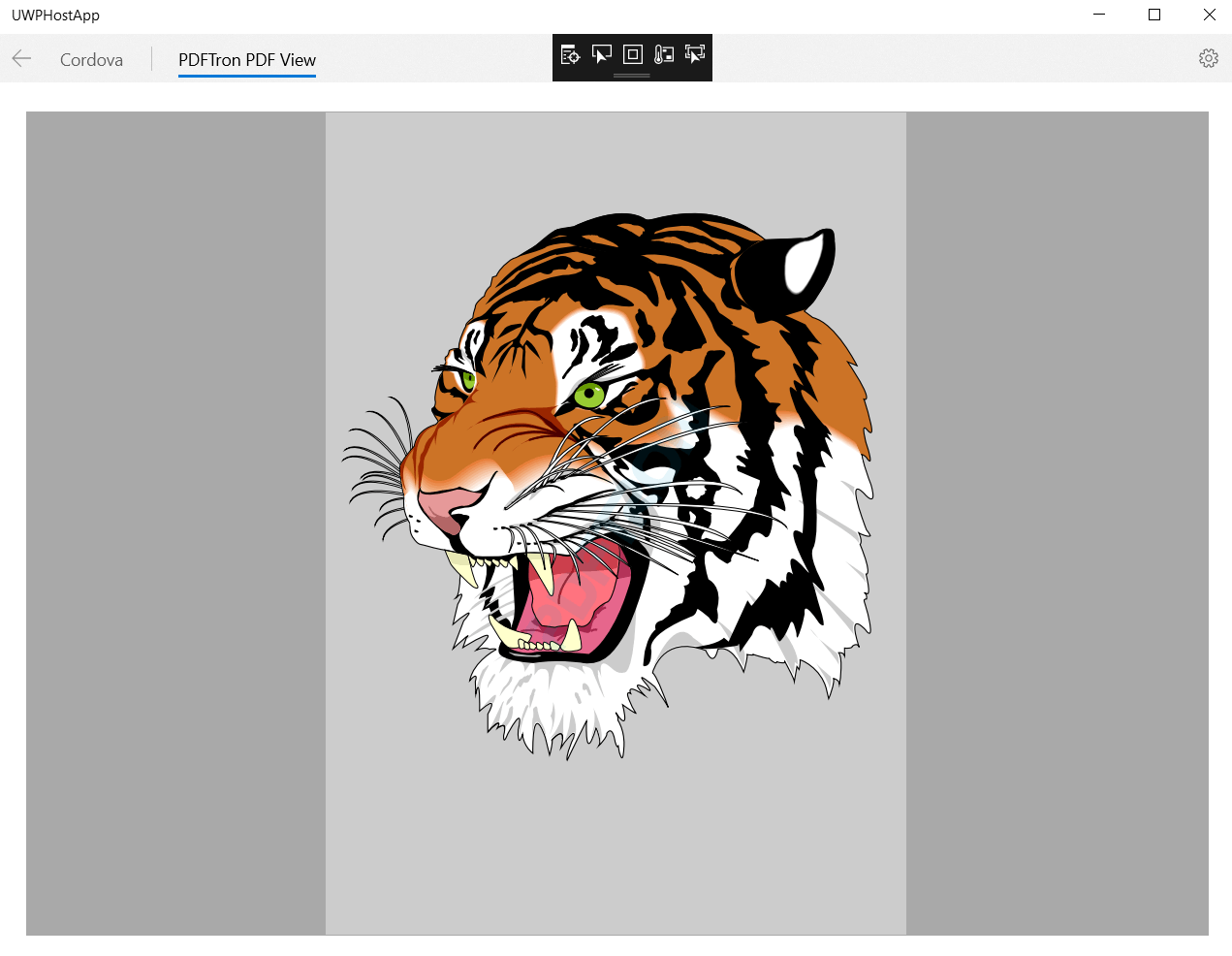
- You should now see the app Window with a NavigationView. The default tab shows Cordova files in a WebView and the other tab shows the PDF file loaded in the PDFViewCtrl.
## Contributing
See [contributing](./CONTRIBUTING.md).
## License
See [license](./LICENSE.md).