https://github.com/artstorm/ios-app-icon-appearance
Adds support in Unity for Light, Dark, & Tinted iOS App Icon variants, introduced with Xcode 16.
https://github.com/artstorm/ios-app-icon-appearance
appicon appiconset game-development gamedev ios unity unity3d
Last synced: 5 months ago
JSON representation
Adds support in Unity for Light, Dark, & Tinted iOS App Icon variants, introduced with Xcode 16.
- Host: GitHub
- URL: https://github.com/artstorm/ios-app-icon-appearance
- Owner: artstorm
- License: mit
- Created: 2025-05-22T07:35:08.000Z (about 1 year ago)
- Default Branch: main
- Last Pushed: 2025-05-28T03:02:27.000Z (about 1 year ago)
- Last Synced: 2025-06-06T05:30:47.818Z (about 1 year ago)
- Topics: appicon, appiconset, game-development, gamedev, ios, unity, unity3d
- Language: C#
- Homepage:
- Size: 968 KB
- Stars: 3
- Watchers: 1
- Forks: 0
- Open Issues: 0
-
Metadata Files:
- Readme: README.md
- License: LICENSE
Awesome Lists containing this project
README
# iOS App Icon Appearance for Unity




## About
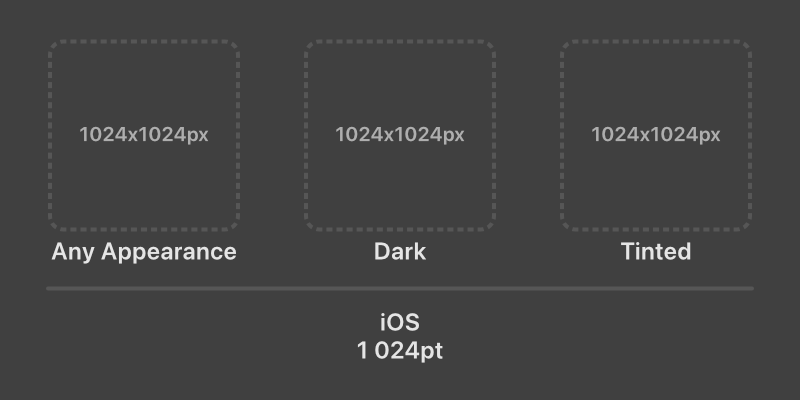
This Unity package enables support for Apple's iOS app icon system, allowing you to specify Light (Any Appearance), Dark, and Tinted variants for your app icon. This streamlined approach, utilizing a single 1024x1024px source icon for each variant, was introduced with Xcode 16.
Upon installation, an **`iOS App Icon`** section is added to Unity's `Project Settings`. The icons configured here will override the default iOS icons (specified in `Player Settings`) during the iOS build process.
> [!IMPORTANT]
> Requires building with Xcode 16 or newer.
## Icon Design Considerations
It's important to design your icon variants according to Apple's Human Interface Guidelines to ensure they look great across the system.
**Key Points from Apple's Guidelines:**
| Variant | Size | Background | Notes |
| --------------- | ----------- | ----------- | --------------------------------------------------------------------------------- |
| **Light Mode** | 1024x1024px | Opaque | This is your standard "Any Appearance" icon. Design with its own background. |
| **Dark Mode** | 1024x1024px | Transparent | Design the foreground elements. The system provides the dark gradient background. |
| **Tinted Mode** | 1024x1024px | Opaque | Design a grayscale version of icon. The system applies the tint. |
For complete details, please refer to Apple's official documentation:
[App Icons - Human Interface Guidelines (iOS & iPadOS)](https://developer.apple.com/design/human-interface-guidelines/app-icons#iOS-iPadOS)
# Usage
Using this package is simple:
1. **Configure Icons in Project Settings:**
- After installing the package, navigate to `Edit` → `Project Settings...` in the Unity Editor.
- Select the `iOS App Icon` tab.
- Assign your 1024x1024px icons to the desired Any Appearance, Dark, and/or Tinted slots.
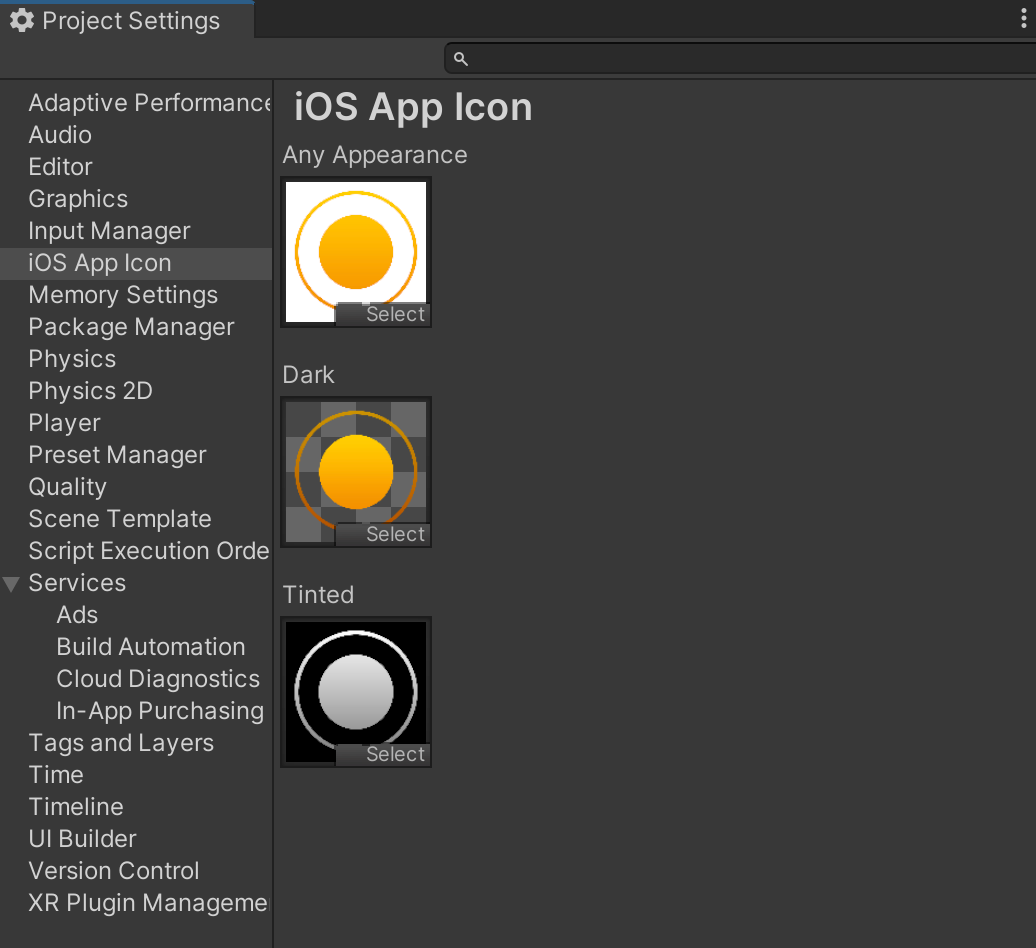
_Caption: Example of icons assigned in Project Settings._
2. **Build for iOS:**
- Open `File` → `Build Settings...`.
- Select `iOS` as the platform and click `Build` (or `Build And Run`).
- **Important:** This package modifies the Xcode project to use app icon features introduced with Xcode 16. Ensure your build will be opened and archived with Xcode 16 or newer.
3. **Verify in Xcode (Xcode 16+):**
- Open your generated `.xcodeproj` file in Xcode.
- Navigate to the `Unity-iPhone` folder in the Project Navigator (left sidebar).
- Open the `Images` asset catalog.
- In the list of assets within the catalog, select `AppIcon`.
- You should directly see the editor for `AppIcon` now showing the **"Any Appearance"**, **"Dark"**, and **"Tinted"** wells as the primary input method.
- Verify that these wells are populated with the respective icons you assigned in Unity.
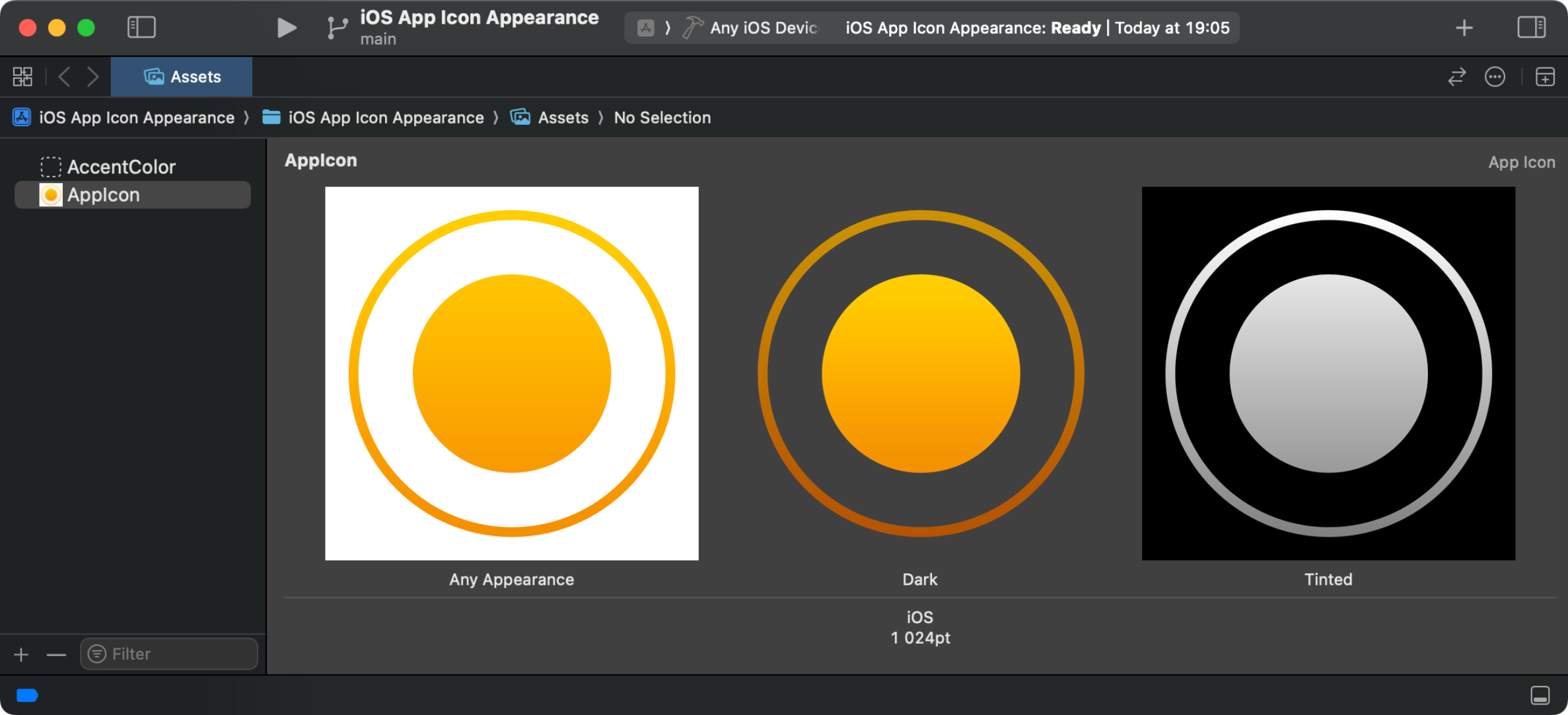
_Caption: Example of the AppIcon set in Xcode, showing the variants._
## Installation
Requires Unity 2021.3 LTS or higher.
### OpenUPM
The package is available on the [OpenUPM registry](https://openupm.com). It's recommended to install it via [openupm-cli](https://github.com/openupm/openupm-cli).
```sh
openupm add com.bitbebop.ios-app-icon-appearance
```
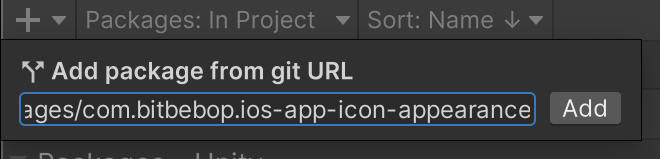
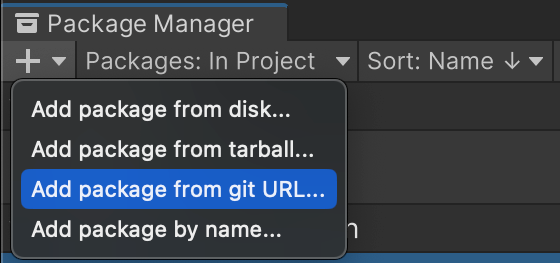
### Unity Package Manager and Git URL
Install the package directly in Unity Package Manger using this URL:
```
https://github.com/artstorm/ios-app-icon-appearance.git?path=/Packages/com.bitbebop.ios-app-icon-appearance
```
Open Unity Package Manager → + → Add package from git URL:
Paste URL: