https://github.com/ashita-agarwal/meanstack-blogpost-app
A Blog Post Application using Angular and Node where users can see list of blog posts, add new post, view the details of the blog post, edit the blog post and can delete the blog post.For Database , MongoDB Atlas is used.
https://github.com/ashita-agarwal/meanstack-blogpost-app
angular components cors env interpolation node-js npm pipes routing service
Last synced: about 2 months ago
JSON representation
A Blog Post Application using Angular and Node where users can see list of blog posts, add new post, view the details of the blog post, edit the blog post and can delete the blog post.For Database , MongoDB Atlas is used.
- Host: GitHub
- URL: https://github.com/ashita-agarwal/meanstack-blogpost-app
- Owner: ashita-agarwal
- Created: 2022-01-15T09:41:47.000Z (over 4 years ago)
- Default Branch: main
- Last Pushed: 2022-01-15T10:37:59.000Z (over 4 years ago)
- Last Synced: 2025-10-10T09:05:35.571Z (9 months ago)
- Topics: angular, components, cors, env, interpolation, node-js, npm, pipes, routing, service
- Language: TypeScript
- Homepage:
- Size: 189 KB
- Stars: 0
- Watchers: 1
- Forks: 0
- Open Issues: 0
-
Metadata Files:
- Readme: README.md
Awesome Lists containing this project
README
# BLOGsy
BLOGsy is a Blog Post Application using Angular and Node where Users can see list of blog posts, add new post, view the details , edit and can delete the blog post.
# Setup Guide
## Database
1. Signin/up to https://www.mongodb.com/cloud/atlas/register
2. Create a cluster and connect it to your application.
3. Refer to : https://www.section.io/engineering-education/nodejs-mongoosejs-mongodb/
4. Create a ".env" file in "NodeApp" Folder and write
" DB_CONNECT = <----Paste_Your_Connection_String_Here----> "
6. Do edit your password and desired database name in the connection string copied to .env file.
## Backend
1. Open project in VS Code.
2. Right click on "NodeApp" folder --> Open in integrated terminal
3. Run "npm install" in terminal
4. Now to run backend --> Run "node app.js" in terminal.
## Frontend
1. Right click on "AngularApp" folder --> Open in integrated terminal
2. Run "npm install" in terminal
3. Now to run frontend --> Run "ng serve AngularApp" in terminal.
4. Open URL "http://localhost:4200" in browser
# ScreenShots
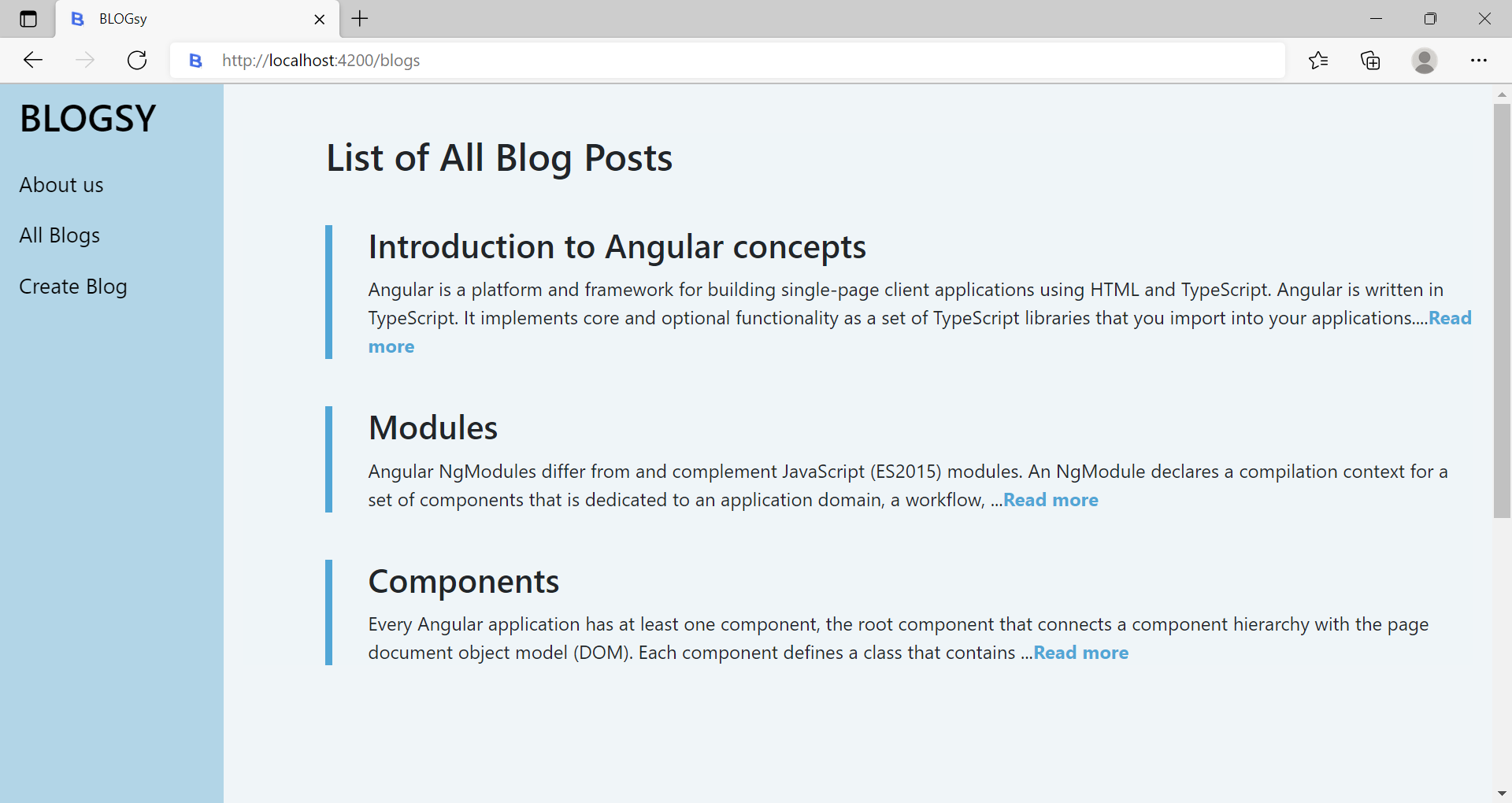
## Homepage (All blog posts)
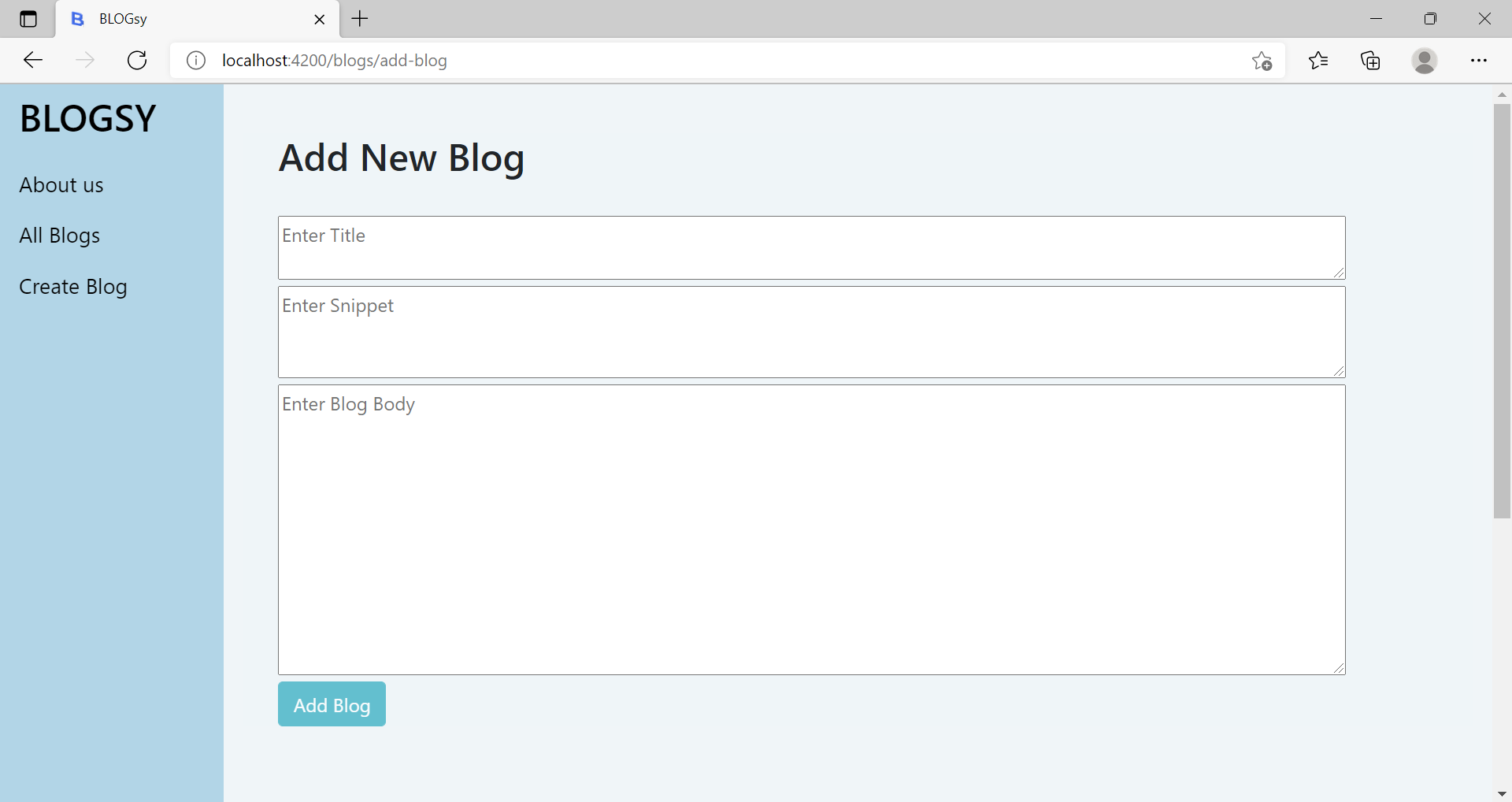
## Add blog post page
## Edit Blog Post

## About us page

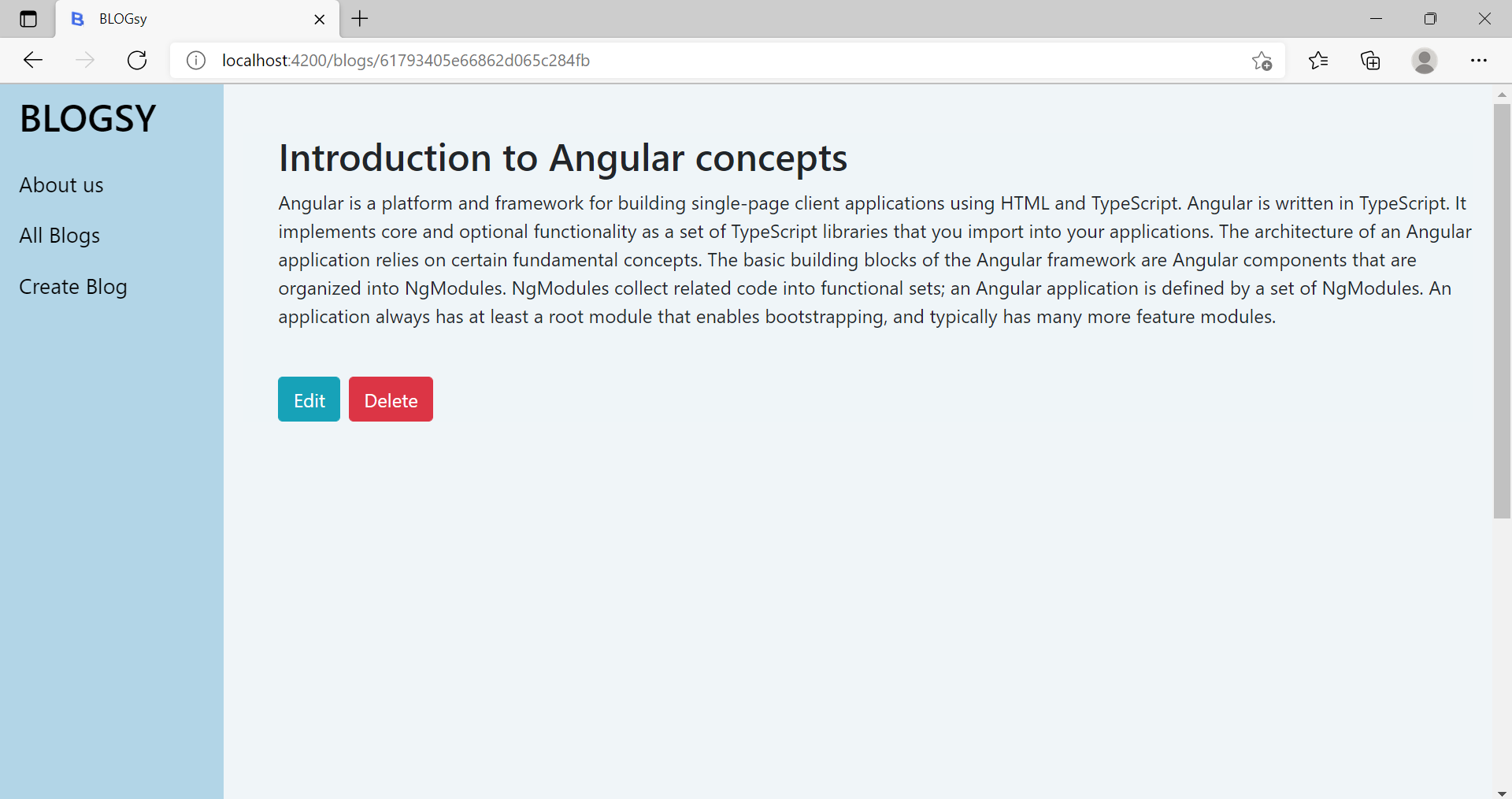
## View Blog post page