https://github.com/asyylz/final_project
Welcome to Worksheet Generator Application. This application automates worksheet generation, saving both time and effort while ensuring high-quality, customizable content.
https://github.com/asyylz/final_project
css docker fxml java javafx-desktop-apps
Last synced: 3 months ago
JSON representation
Welcome to Worksheet Generator Application. This application automates worksheet generation, saving both time and effort while ensuring high-quality, customizable content.
- Host: GitHub
- URL: https://github.com/asyylz/final_project
- Owner: asyylz
- License: mit
- Created: 2024-11-25T09:40:35.000Z (about 1 year ago)
- Default Branch: main
- Last Pushed: 2025-02-28T00:05:13.000Z (11 months ago)
- Last Synced: 2025-06-13T21:06:14.215Z (7 months ago)
- Topics: css, docker, fxml, java, javafx-desktop-apps
- Language: Java
- Homepage:
- Size: 5.92 MB
- Stars: 0
- Watchers: 2
- Forks: 0
- Open Issues: 6
-
Metadata Files:
- Readme: README.md
- License: LICENSE
Awesome Lists containing this project
README
    Worksheet Generator Application

    The application is designed to assist parents and tutors in preparing

        students for the 11+ GL exam by generating tailored practice worksheets.

    Table of Contents
- Features
- Technologies
- Development Tools
- Getting Started
- Introductory Video
- Application
- Documentation
- Contributing
- License
1-Features
Key features covered in this repository:
-
User Authentication: Secure login and registration system for users, ensuring that only
authorized users can access the platform.
-
Main Subject and Sub Subject Selection: Allows users to choose from a variety of main
subjects and their corresponding sub-subjects for customized content generation or activities.
-
Difficulty Level of Sheets: Users can select the difficulty level of worksheets to match
their skill and experience, providing a personalized challenge.
-
Interactive Answer and Score Check: Provides instant feedback on user answers, with a score
check display.
-
Locking Answers with Pin: Adds a layer of security by allowing users to lock their answers
with a pin code and set a timer for completing tasks, creating a controlled environment for assessments or
exercises.
-
Setting Timer: Setting a timer for completing tasks, creating a controlled environment for
assessments or exercises.
-
Responsive Design: Ensures a seamless and optimized user experience. -
Singleton (UI Layer) Ensures that only one instance of a UI manager (or a similar component) exists throughout the application's lifecycle. Helps in managing global UI state efficiently. -
Observer (UI Notifications) Implements a publisher-subscriber model to notify the UI of state changes dynamically. Ensures decoupling between data sources and UI components, improving responsiveness
2-Technologies
-
JavaFX: A framework for building rich desktop applications using Java. Provides tools for
creating user interfaces with modern graphics, animations, and more.
-
OpenAI API (gpt-3.5-turbo): Used to generate worksheet content dynamically, create tailored
questions, answers, and explanations based on the selected subjects and difficulty levels.
-
MS SQL Server: A relational database management system used for storing and managing
application data, ensuring efficient data storage and retrieval.
3-Development Tools
-
IntelliJ IDEA: A powerful Integrated Development Environment (IDE) for Java and other
languages, used for efficient coding, debugging, and project management.
-
Mockito: A popular testing framework for Java that allows for easy creation of mock objects
in unit tests, making it simpler to isolate and test specific parts of the application.
4-Getting Started
To get started with the repository, follow these steps:
Installation
-
Clone
Clone the repository to your local machine using the following command: -
Environment Variables
Set up your environment variables: Create a `.env` file at the root level (same level as the `src`
directory) and add the following variables:
- API_KEY -> Should be created
- API_URL -> https://api.openai.com/v1/chat/completions
- SQLSERVER_URL_DB -> jdbc:sqlserver://localhost;database=WorksheetGeneratorApp
- SQLSERVER_USER -> SA
- SQLSERVER_PASSWORD -> Should be created
-
Docker Setup for Development & Deployment
This section explains how to set up your environment using Docker for both development and deployment (EXE mode). Docker is used to create isolated environments,
which makes it easy to run the application and its dependencies consistently.
-
First, ensure that you're in the correct directory, where the docker-compose.yml and related files are located:
cd WorksheetGenerator
-
To create the Docker image and start the related containers, run the following command. This will build the Docker image and start the
containers in detached mode (-d):
docker-compose up --build -d
-
Once the containers are up and running, you can verify that the WorksheetGeneratorApp database has been created inside the container.
To do this, execute the following command. This will open an interactive shell inside the container.docker exec -it wgapp-database-container bash
-
Now, you are inside the container. Run the following command to list all databases:
/opt/mssql-tools18/bin/sqlcmd -S localhost -U SA -P "${SQLSERVER_PASSWORD}" -Q "SELECT name FROM sys.databases" -C
-
You exit from container by typing container's bash exit:
exit -
To stop container:
docker stop wgapp-database-containerTo start again container:
docker start wgapp-database-container -
Run application with App.java file.
You should see a list of databases, and WorksheetGeneratorApp should be present in the list of databases.
name

-------------------------------

master

tempdb

model

WorksheetGeneratorApp
-
git clone https://github.com/asyylz/Final_Project
5-Introductory Video
Link: Watch Video
6-Application
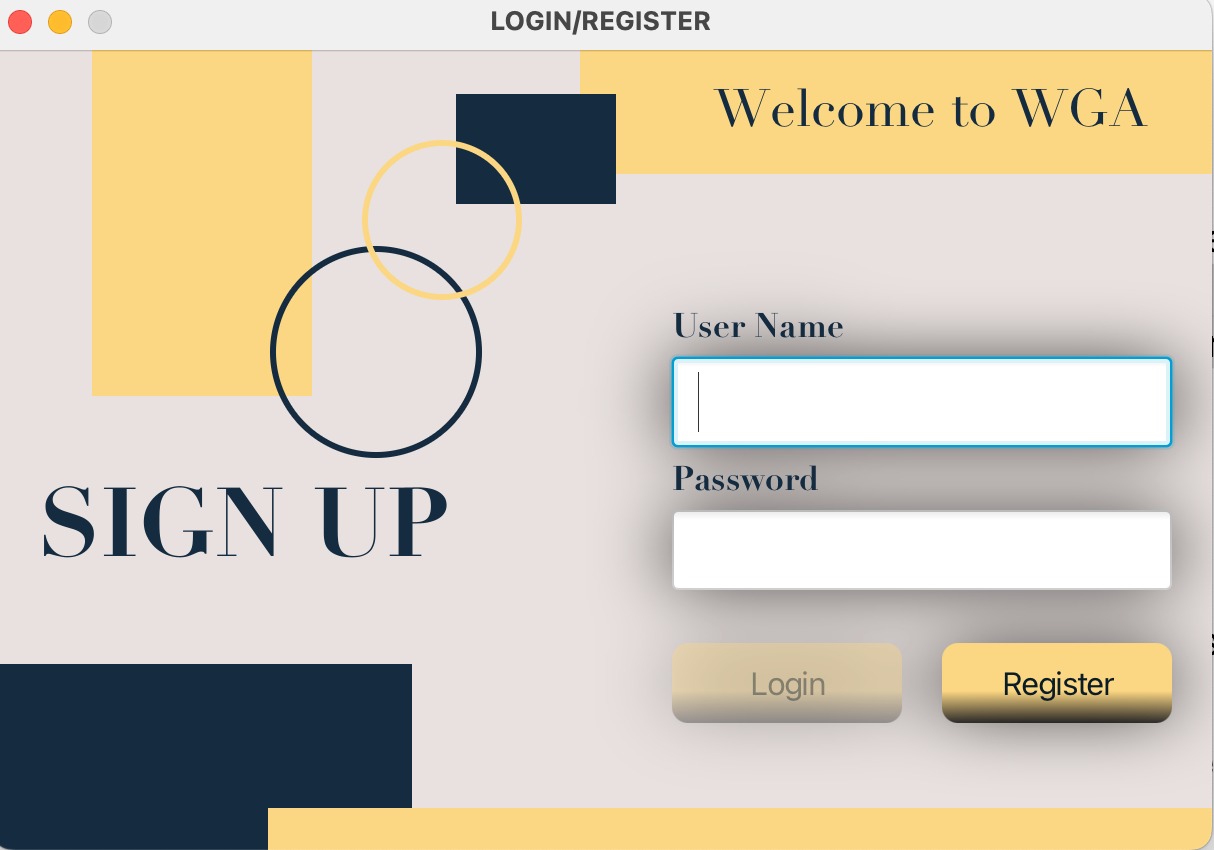
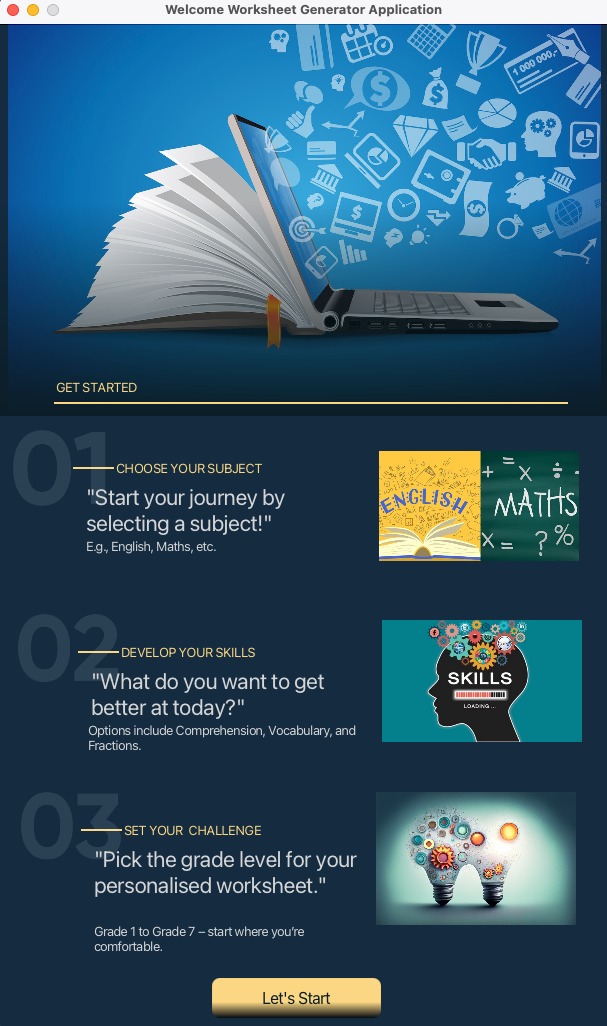
6.1. Upon launching the application, you will be greeted with the login window.Login Credentials for testing.
After clicking Let's start button user will be directed main window with generation content.
username: testUser
password: passW@rd
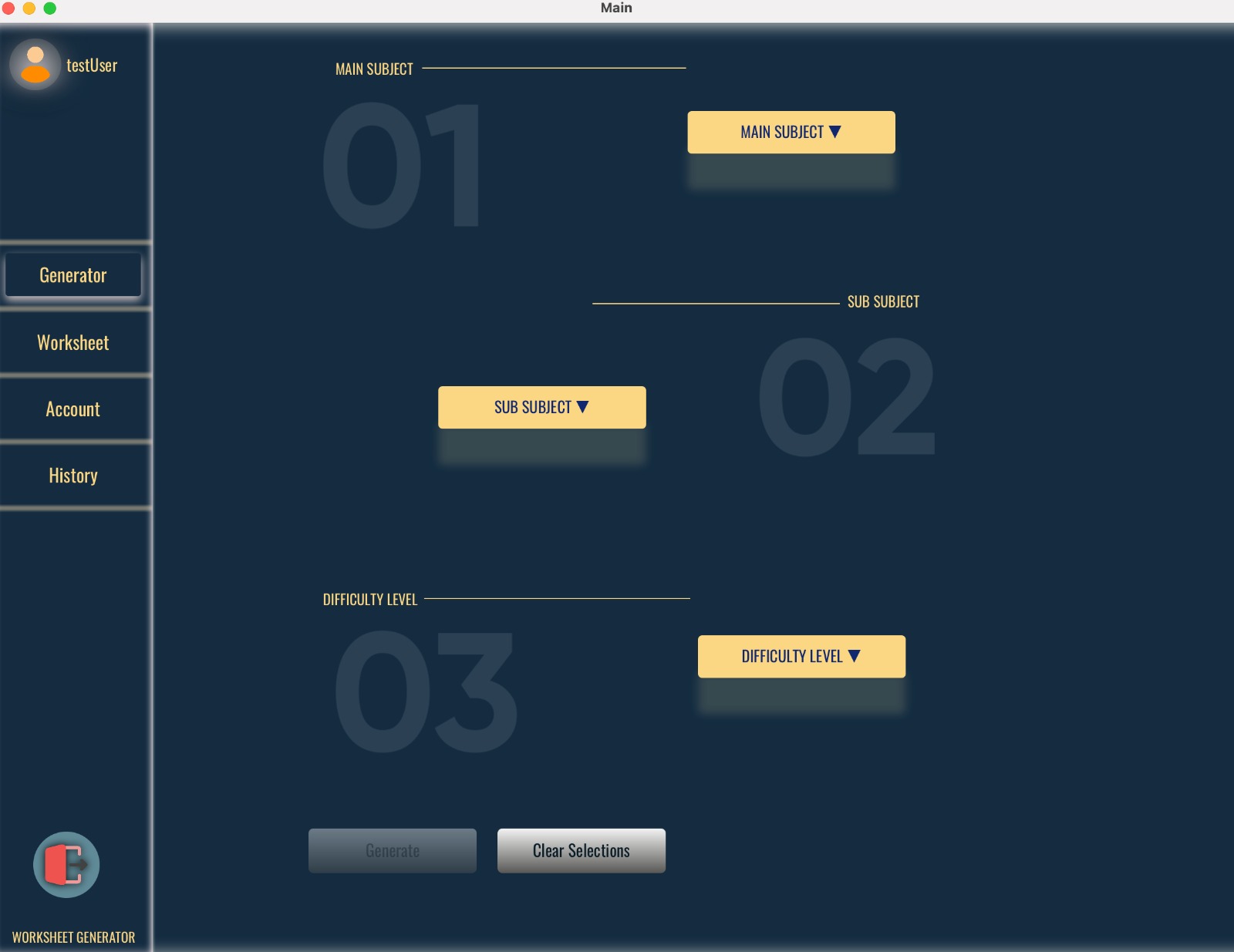
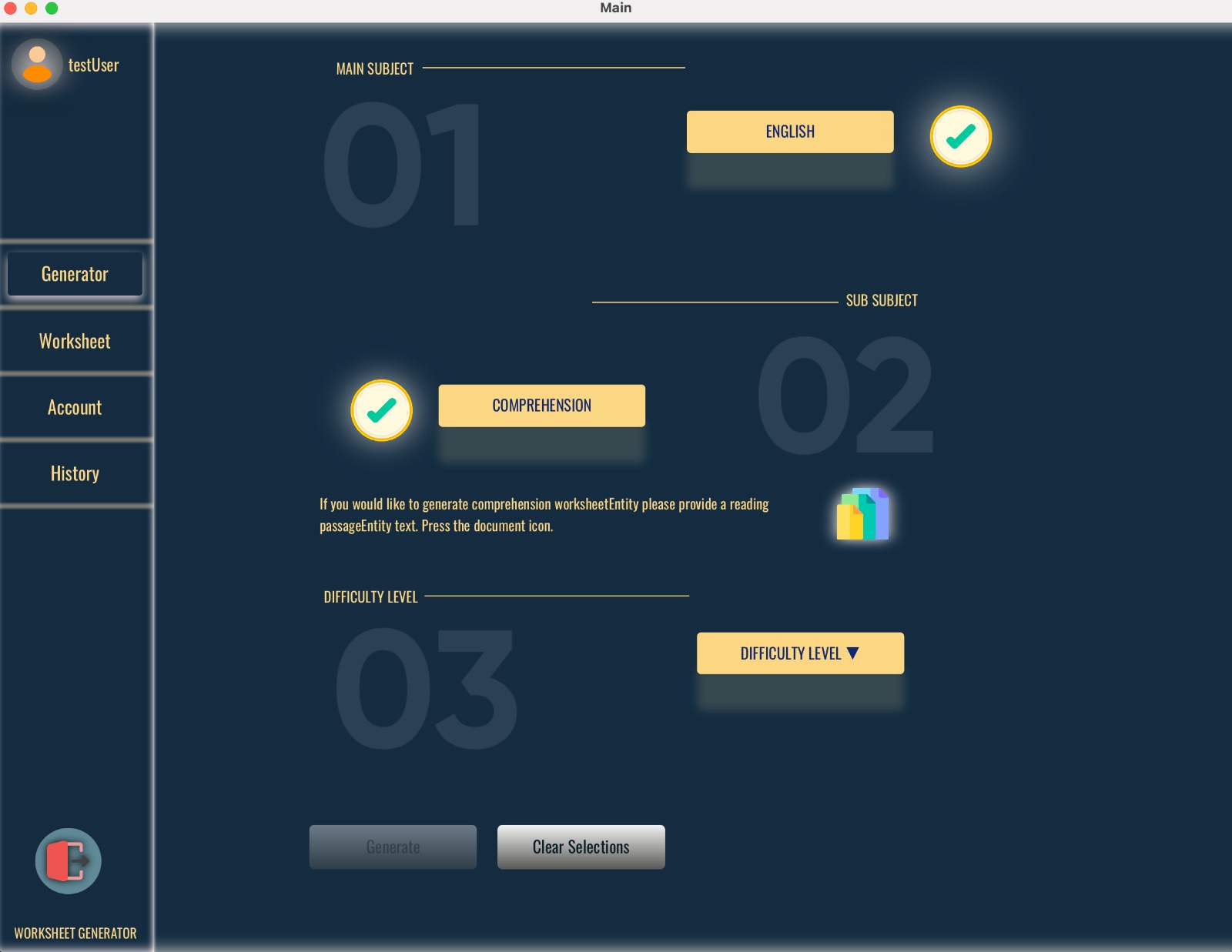
6.2. User can start worksheet generation on generation section on main window by selecting all necessary fields.Once all necessary fields selected generation button will be activated. If user chooses english paper with comprehension (spag, vocabulary,cloze etc) as sub topic passage addition button will appear. User should add a passage and a title for passage. You can clear out all selections by clicking clear selection button and start a new one.
6.3. Once generation is complete, the worksheet section will appear, and the UI will update with the newly generated worksheet. Users can interact with the worksheet in this section, including deleting it, setting a timer, or searching by passage title. However, the search feature is not available for math papers. The 'Show Answers' button will also be activated, but it requires unlocking with a PIN.
User also can download worksheet in PDF format by clicking download button. Exit from program clicking on red exit button.
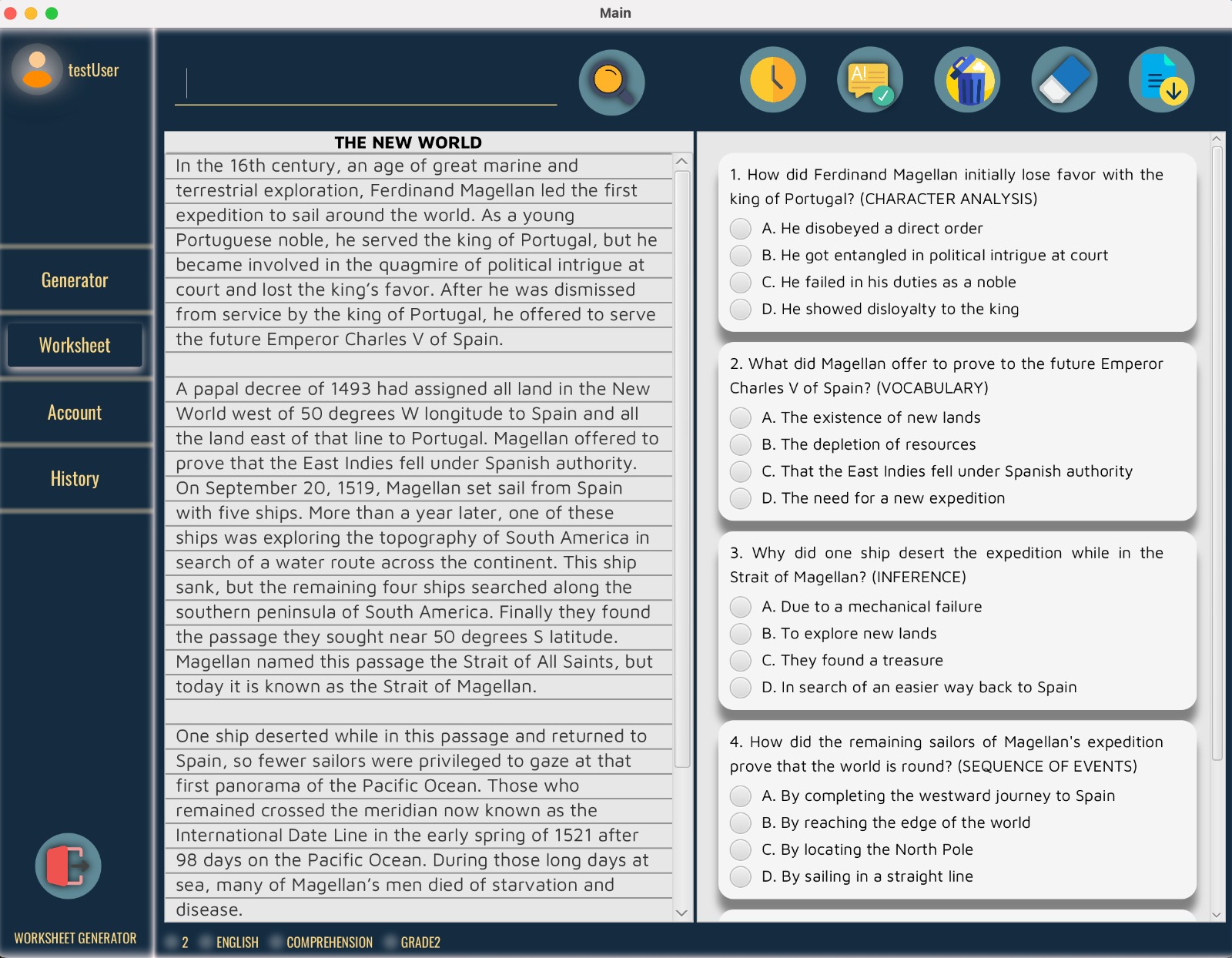          
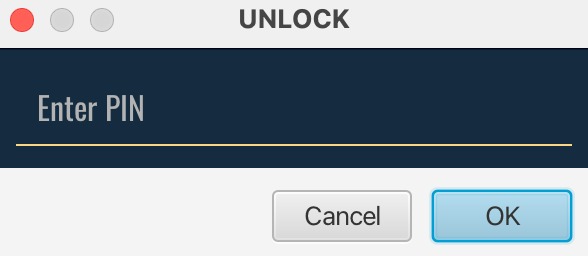
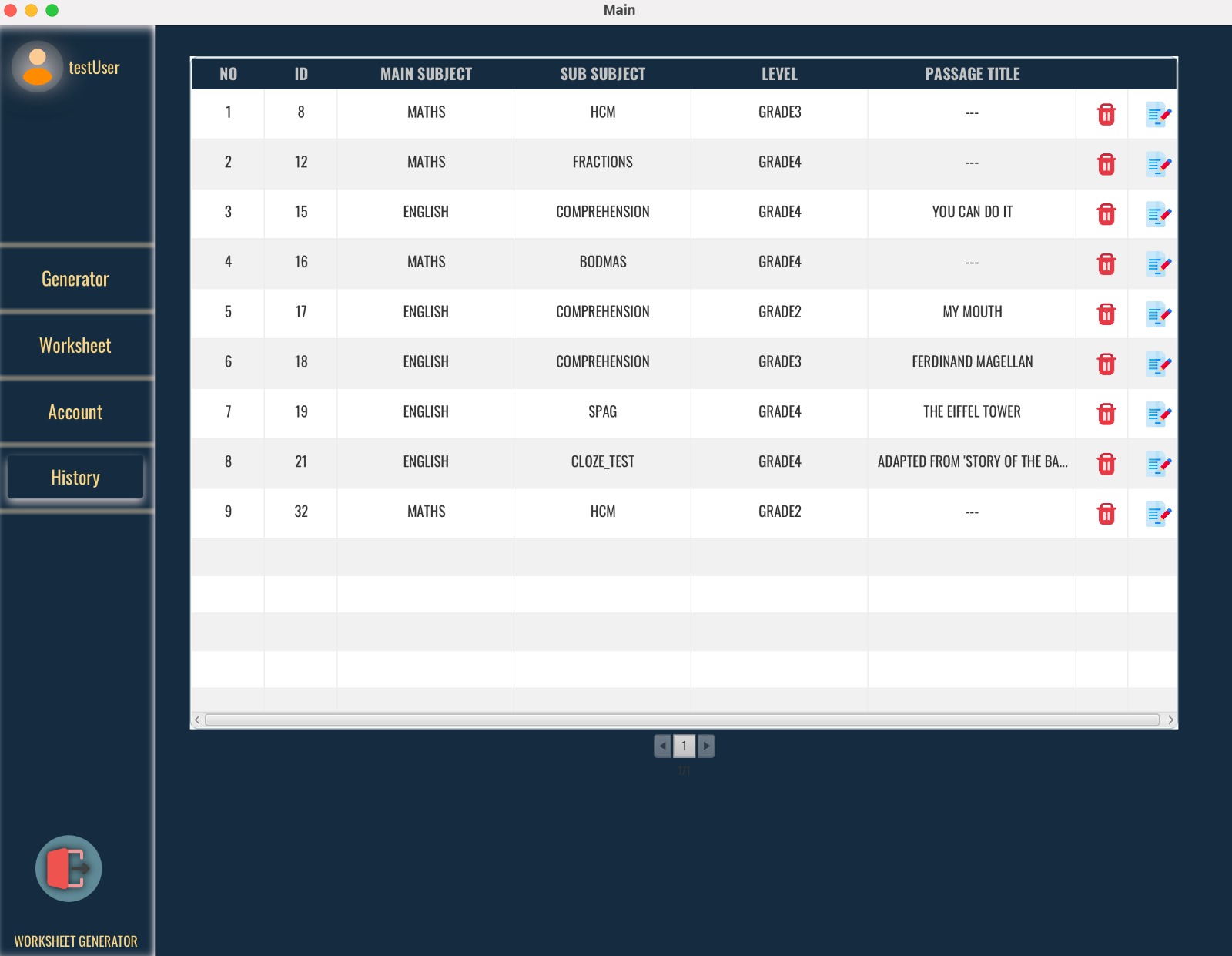
6.4. Users can view a list of worksheets they previously generated in the history section. Here, they can delete a worksheet or open and view it in the worksheet section.
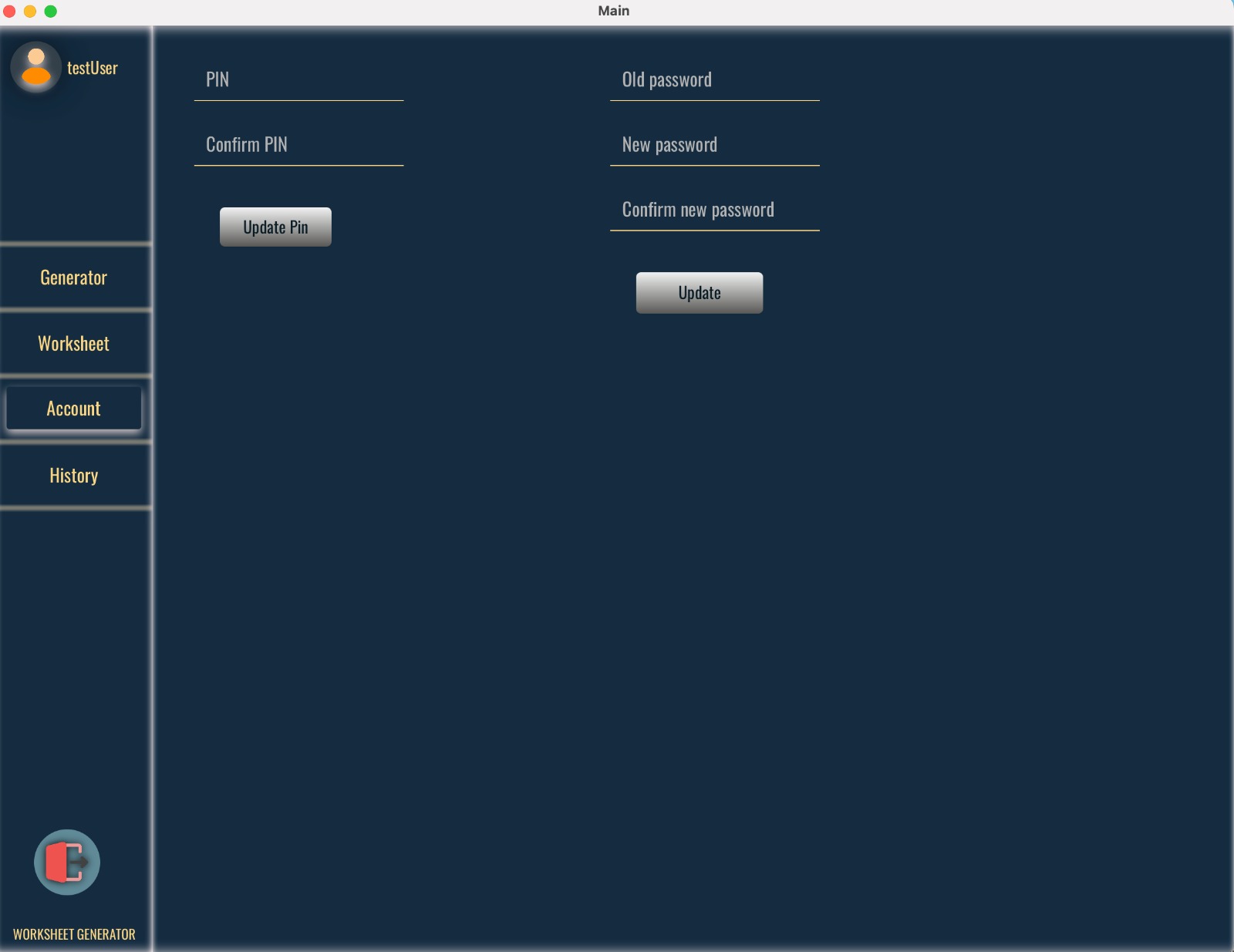
In the account section, users can update their password and PIN. By default, all registered users have a PIN set to (0000).
7-Documentation
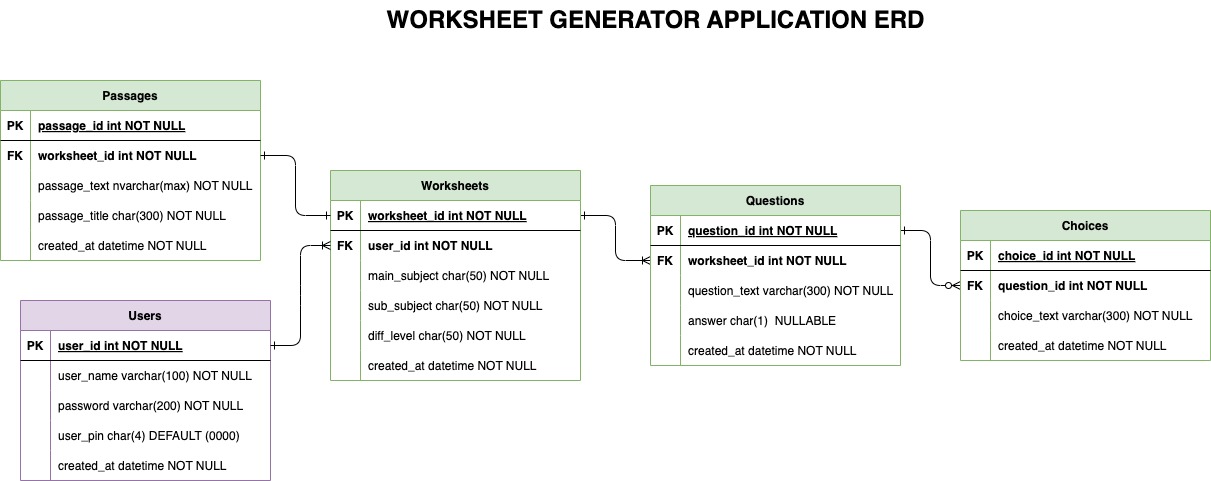
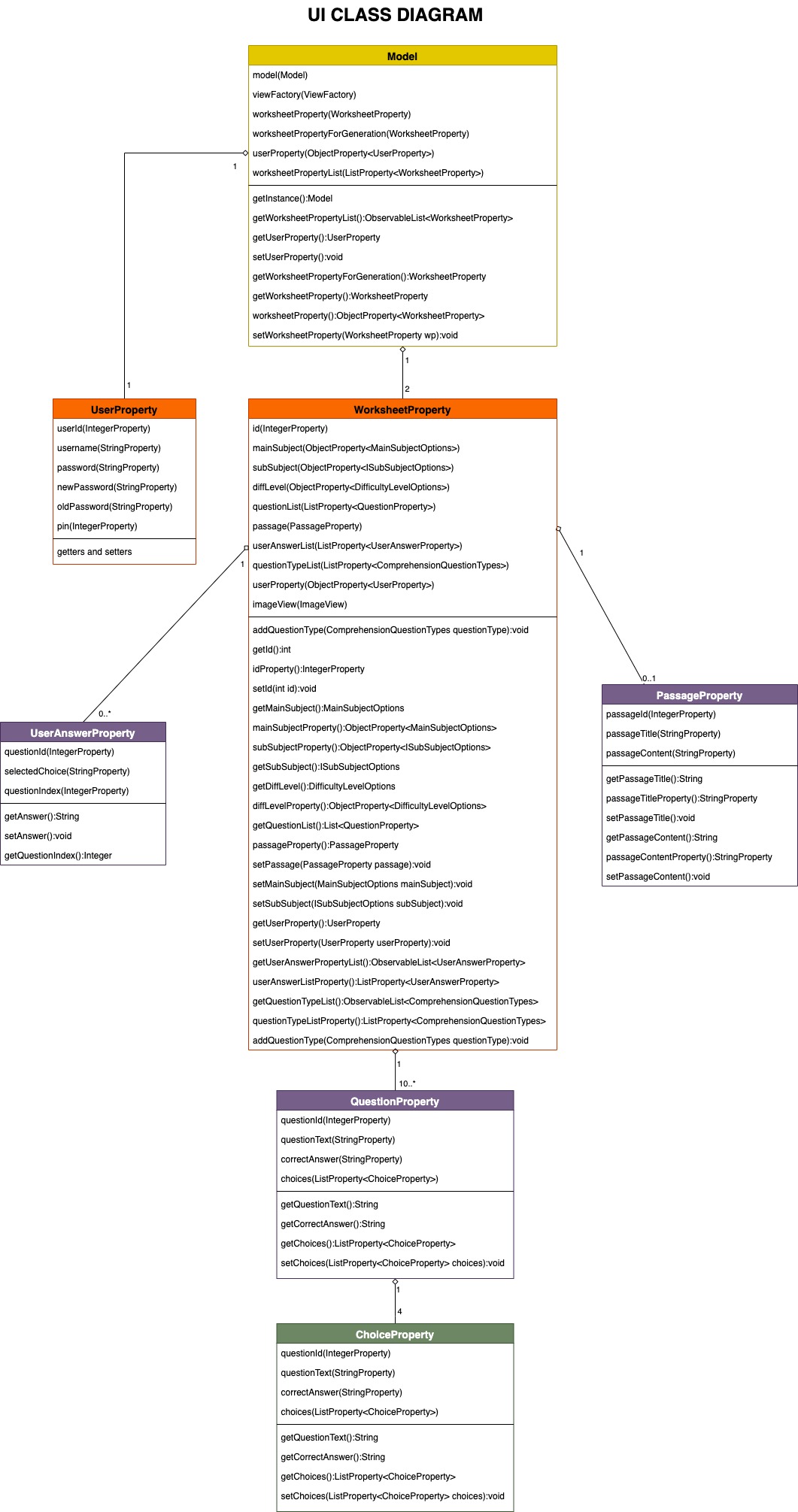
8-Contributing
Contributions to the project are welcome! If you find any issues or have suggestions for improvements, please
feel free to open an issue or submit a pull request.
9-License
This project is licensed under the MIT License.