https://github.com/baairon/soundcli
Own your music. Download your YouTube, SoundCloud, and Spotify libraries to your computer and play them offline, all from your terminal.
https://github.com/baairon/soundcli
cli music-downloader music-player offline soundcloud spotify terminal tui youtube
Last synced: 23 days ago
JSON representation
Own your music. Download your YouTube, SoundCloud, and Spotify libraries to your computer and play them offline, all from your terminal.
- Host: GitHub
- URL: https://github.com/baairon/soundcli
- Owner: baairon
- License: mit
- Created: 2026-05-02T03:28:24.000Z (3 months ago)
- Default Branch: main
- Last Pushed: 2026-06-30T01:37:33.000Z (25 days ago)
- Last Synced: 2026-06-30T03:08:12.736Z (25 days ago)
- Topics: cli, music-downloader, music-player, offline, soundcloud, spotify, terminal, tui, youtube
- Language: TypeScript
- Homepage: https://www.npmjs.com/package/sndcli
- Size: 168 KB
- Stars: 361
- Watchers: 3
- Forks: 32
- Open Issues: 2
-
Metadata Files:
- Readme: README.md
- License: LICENSE
Awesome Lists containing this project
README

Own your music. soundcli downloads your YouTube, SoundCloud, and Spotify libraries to your computer and plays them offline, straight from your terminal. Every song lands on your own drive as a real file, yours to keep and ready the moment you want it.
## Get started
You only have to do this once. soundcli handles the rest itself.
1. **Install Node.js** from [nodejs.org](https://nodejs.org): download the installer and click **Next** until it finishes. It's the one piece of software soundcli runs on.
2. **Open your terminal.** On **Windows**, press the Windows key, type `terminal`, and press Enter. On a **Mac**, press `Cmd + Space`, type `terminal`, and press Enter. A plain window opens, and that's all you need to get going.
3. **Start soundcli.** Copy the line below, paste it into the terminal, and press **Enter**:
```sh
npx sndcli
```
From there soundcli takes over, downloading the few tools it needs and setting everything up on its own.
## The first run
The first time it opens, soundcli shows you where your music will be saved: a dedicated folder inside your computer's Music folder, so you always know where your files are.
Then it asks where your music comes from. Pick **YouTube**, **SoundCloud**, or **Spotify**, then type your username or paste a link to a playlist, an album, or a single track. Downloading starts right away, and you can begin listening while the rest of your library finishes.

## Your library, kept in order
Every track downloads in its original quality, with album artwork and artist details included, and gets sorted into folders automatically so your collection stays organized. Almost any link works: playlists, albums, artist profiles, your likes, or a single song. Public Spotify playlists and albums work without signing in.
It never downloads the same song twice, and if you close it mid-download, it picks up where it left off next time. Once a track is saved, it's there for good.
## Playing it back
Everything runs from the keyboard, with controls that are quick to pick up. Press `?` anytime for the full list of keys. The bar along the bottom of the screen only shows the few that matter right now, so there's nothing to memorize.

## Contributing
Issues and pull requests are welcome. soundcli is TypeScript with an Ink
terminal UI, riding on yt-dlp and mpv.
Run it locally:
1. Clone the repo and open the folder.
2. Install dependencies (Node 22 or newer):
```sh
npm install
```
3. Start the dev build, which runs straight from source:
```sh
npm run dev
```
Or build it and run the bundled version:
```sh
npm run build
npm start
```
Before opening a pull request:
- Run the tests: `npm test`
- Check types: `npm run typecheck`
- Write commits in Conventional Commits style (`fix:`, `feat:`, `docs:`, `chore:`, `refactor:`)
- Keep the UI surface minimal: one contextual footer plus the `?` cheatsheet, never a wall of commands
Then open a PR against `main` with a short note on what changed and why.
## Privacy
soundcli runs on your computer and nowhere else. There are no accounts, no logins, and nothing tracking what you play. It connects to the internet for three reasons only: to download the music you ask for, to set itself up the first time, and to keep its own tools current so downloads keep working. Everything else stays with you.
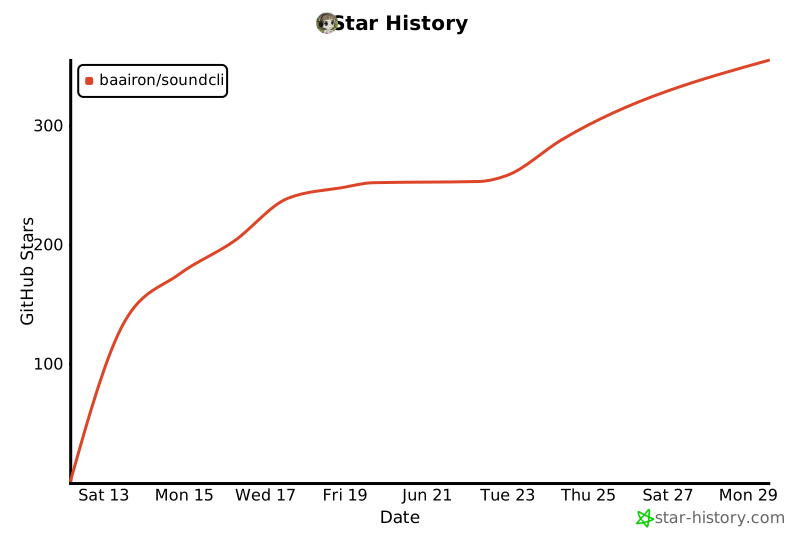
## Star History