https://github.com/baymac/command-keeper
A gnome shell extension that store your shell commands and code snippets
https://github.com/baymac/command-keeper
Last synced: 12 months ago
JSON representation
A gnome shell extension that store your shell commands and code snippets
- Host: GitHub
- URL: https://github.com/baymac/command-keeper
- Owner: baymac
- Created: 2019-04-09T09:31:06.000Z (about 7 years ago)
- Default Branch: master
- Last Pushed: 2019-06-15T20:10:12.000Z (about 7 years ago)
- Last Synced: 2025-04-07T15:52:47.364Z (about 1 year ago)
- Language: JavaScript
- Homepage:
- Size: 42 KB
- Stars: 4
- Watchers: 0
- Forks: 1
- Open Issues: 0
-
Metadata Files:
- Readme: README.md
Awesome Lists containing this project
README
# command-keeper
A gnome shell extension that store your shell commands and lets you copy to your clipboard. We use various commands frequently and it is sometimes difficult to remember the exact syntax. You can easily store your commands, scripts, snippets etc on this extension and copy it whenever you like. 😃
# Getting Started
There references to start with gnome extension development assuming zero
previous knowledge. Also has an example extension to get some inspiration. ☺
#### Gnome Extension Basics:
Generate a skeleton gnome extension which adds an ‘Hello World’ item on your
panel.
gnome-shell-extension-tool --create-extension
Follow screen instructions to provide details of extension such as name,
description, uuid etc. UUID should be a unique name, convention is to follow an
email address pattern e.g. *command-keeper@Baymax*
Below is the output of the above command, green underlines are the fields you
have to enter yourself.
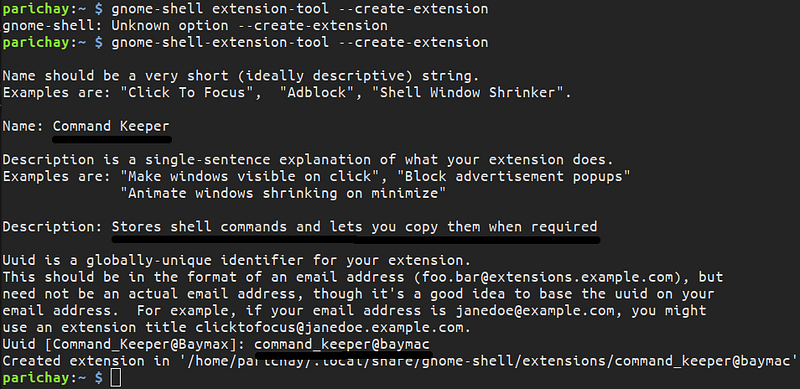
Generating skeleton extension
If you plan on to publish this extension to Gnome’s library you need to adhere
to their UUID schema. To verify UUID is correct, open a Python shell:
$ python
>> import re
>> re.match(‘[-a-zA-Z0–9@._]+$’, ‘extension-name@username.me’)
#### Extension files:
Gnome shell extensions are typically stored in following locations:
Local:
Systemwide:
When you open your hello-world extension folder you will find the following
files:
extension.js
metadata.json
stylesheet.css
The **extension.js** file is simply a JavaScript file; it must however have a
function called **init**, which will be invoked at most once directly after your
source JS file is loaded. You should modify all user interfaces in a separate
**enable** function, and remove all custom functionality in a **disable**
function.
You may optionally include a stylesheet file, **stylesheet.css**.
To understand the code refer to this
[gist](https://gist.github.com/baymac/9708f3af9e34cf5552aba433973c9cac) which
consists of well written comments for each function.
#### Extension Preferences:
To enable the generated extension run the following command inside your
extension directory
Extensions may be configured in a consistent manner using the
`gnome-shell-extension-prefs` tool. To hook into it, provide a simple javascript
file called **prefs.js**. It must contain a function labeled
**buildPrefsWidget**, which should return some sort of GTK+ widget. Whatever is
returned from there will be inserted into the Preferences widget screen. Beyond
that, a function named **init** may also be provided, and will be invoked after
the file is loaded but before **buildPrefsWidget** is invoked.
#### Development:
For more development setup and basics, see
[this](https://wiki.gnome.org/Projects/GnomeShell/Development).
Style Guide —
[https://wiki.gnome.org/Projects/GnomeShell/StyleGuide](https://wiki.gnome.org/Projects/GnomeShell/StyleGuide)
#### Gnome API:
For all the API references of various Gnome components see
[this](https://developer.gnome.org/references).
If need some inspiration from Gnome Source JavaScript Files, see
[this](https://github.com/julio641742/gnome-shell-extension-reference/blob/master/REFERENCE.md).
To start development just familiarise with these components:
* The [Clutter UI library](http://developer.gnome.org/clutter/)
(`imports.gi.Clutter`)
* The [GLib](http://developer.gnome.org/glib/)(`imports.gi.GLib`)
* The [Shell Toolkit](http://developer.gnome.org/st/) (`imports.gi.St`)
#### Debugging extensions:
On *systemd*-based systems (like Debian), you can see error and log output of
extensions using `journalctl /usr/bin/gnome-shell -f`. On other systems, logs
might be written to `~/.xsession-errors`.
You can log messages from an extension into this log for informational or
debugging purposes using `log(msg)`.
[Looking Glass](https://wiki.gnome.org/Projects/GnomeShell/LookingGlass) is
GNOME Shell’s integrated inspector tool and JavaScript console useful for
debugging. It can be run by typing ‘lg’ in the `Alt+F2` prompt.
### Command Keeper:
I frequently used complex terminal commands and I can’t write a script for each
one of them. So I need to keep them in a place where I can search, add, copy
from my commands list.
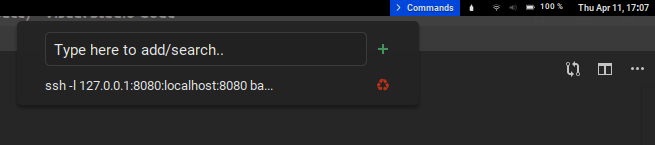
Command Keeper
This extension is a panel menu button with the following functionality:
1. **Add:** Type your command on the text box and add it to the `commands` table
1. **Search: **Search for your command by typing it to the text box
1. **Delete: **Delete a command from menu and also remove the row containing the
command from the `commands` table
1. **Copy: **Copy a command to your clipboard on selection
Initially, I planned on using a plain text file to store my commands but file
handling in this case got complicated once I started to do crazy things with the
items I was storing. Switching to a database helped me track the menuitems with
their ids with `autoincrement` so that I could query them with their ids. There
are of course other advantages of a database over a file system.
You can start with looking at the codebase of this extension, it has well
written comments. Find the code
[here](https://github.com/baymac/command-keeper). There are some UI issues that
I see.
For example,
1) The panel menu is not aligned properly and floats around
could be aligned with the right edge of the screen.
2) On entering a long
text (long enough to exceed the size of the text box) then the text pierces
out.
3) Cannot added multiline commands in one menuitem since during parsing
it is done using the newline spliting
If you want to improve the extension, your PRs will be most welcomed. If you
have any problems/confusion feel free to comment below.
This extension was heavily inspired from the
[clipboard-indicator-extension](https://github.com/Tudmotu/gnome-shell-extension-clipboard-indicator).
#### Using SQLite with Gda library:
To be able to use SQLite in gnome extension you need to install the GDA library.
You can find it [here](https://github.com/GNOME/libgda). On Ubuntu you can
install using:
sudo apt-get install libgdal-dev
Checkout the APIs here:
[http://library.gnome.org/devel/libgda/stable/](http://library.gnome.org/devel/libgda/stable/)
#### Known Issues:
Installing the library is a painstaking process in itself. Took me about half a
day to figure out to get it working. There are multiple dependencies that you
need to install. Listing below some possible errors and their workarounds.
#### Typelib file for namespace Gda not found:
Install this library:
And add the following to your `.bashrc`
export GI_TYPELIB_PATH=/usr/lib/x86_64-linux-gnu/girepository-1.0
#### Libpcre.pc not found:
Add the following contents in a file `libpcre.pc`:
# Package Information for pkg-config
prefix=/usr
exec_prefix=${prefix}
libdir=${prefix}/lib/x86_64-linux-gnu
includedir=${prefix}/include
Name: libpcre
Description: PCRE - Perl compatible regular expressions C library
Version: 8.12
Libs: -L${libdir} -lpcre
Cflags: -I${includedir}
And save it in the following path:
/usr/lib/x86_64-linux-gnu/pkgconfig/
Add the path to your `.bashrc` :
export PKG_CONFIG_PATH=/usr/lib/pkgconfig
#### References:
[Gnome Shell Extension Reference and
Tutorial](https://github.com/julio641742/gnome-shell-extension-reference)
[Example SQLite
Extension](https://developer.gnome.org/gnome-devel-demos/stable/record-collection.js.html.en)
**Aloha.**