https://github.com/bbengfort/ramble
A streaming gRPC point to point chat system
https://github.com/bbengfort/ramble
Last synced: 12 months ago
JSON representation
A streaming gRPC point to point chat system
- Host: GitHub
- URL: https://github.com/bbengfort/ramble
- Owner: bbengfort
- License: mit
- Created: 2018-07-18T20:06:53.000Z (almost 8 years ago)
- Default Branch: master
- Last Pushed: 2018-07-23T20:33:46.000Z (almost 8 years ago)
- Last Synced: 2025-04-03T03:28:57.243Z (over 1 year ago)
- Language: Go
- Size: 80.1 KB
- Stars: 2
- Watchers: 2
- Forks: 0
- Open Issues: 0
-
Metadata Files:
- Readme: README.md
- License: LICENSE
Awesome Lists containing this project
README
# Ramble
**A streaming gRPC point to point chat system.**
This app is a quick proof of concept for a bidirectional streaming service using gRPC. The app implements both a chat server and a chat client. Note that this really is only proof of concept code; if you're interested check out `ramble.go` and the protobuf definition in `pb/chat.proto`. Almost everything else is me fumbling around with making a terminal UI.
## Connecting to a Chat
To install ramble, first `go get` the project:
```
$ go get github.com/bbengfort/ramble/...
```
If you have placed `$GOPATH/bin` in your `$PATH` you should now be able to lookup `ramble` directly; otherwise, `cd $GOPATH/src/github.com/bbengfort/ramble` and run `make install`. Once ramble is connected to your path, you can enter the chat client as follows:
```
$ ramble chat -n username -a 192.168.1.1:3265
```
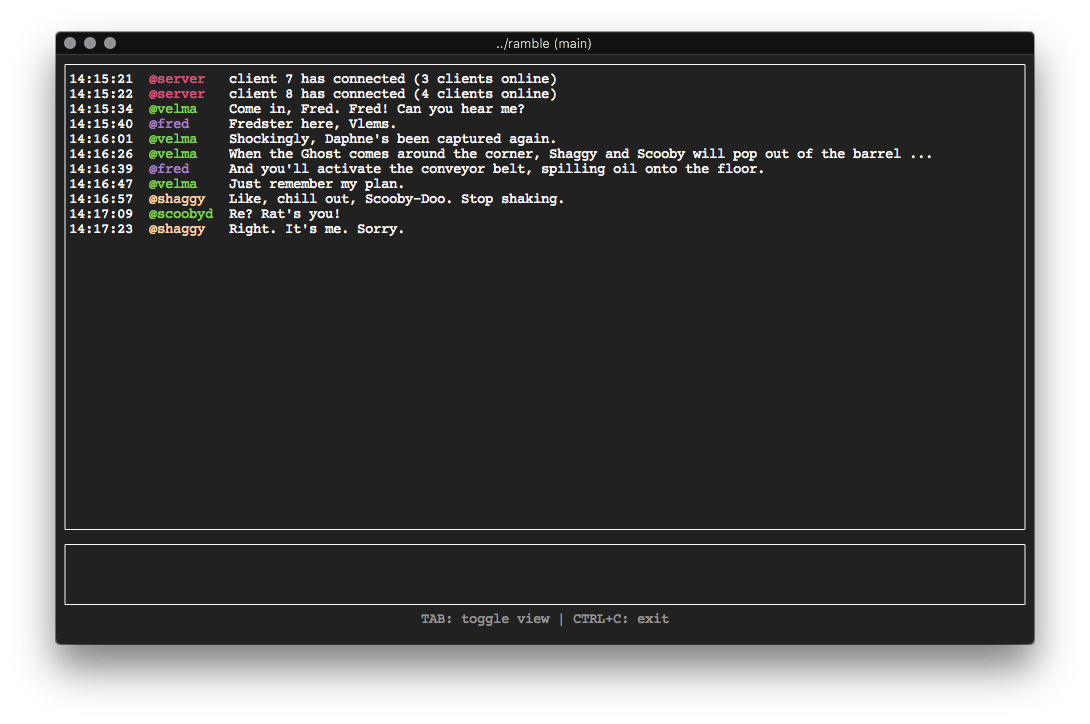
Replacing `username` with the name you wish to be identified as, and `192.168.1.1:3265` with the address of the chat server. You should now be connected to the chat and see a terminal UI.
In order to start chatting, press the `TAB` button to enter the chat window; you can then type your message and press `ENTER` to send it. If you hit tab again, you'll be taken to the message history window, which will allow you to scroll through messages. Note that the chat history only keeps 150 of the most recent messages in memory at a time. To quit, use `CTRL+C`.
## Benchmarks

Ran the benchmarks with N clients on my MacBook Pro sending 5000 messages to a chat server on Nevis - an Ubuntu server on the local area network. Throughput is defined as the total number of messages sent divided by the time it took all N clients to send all messages, which simultaneously receiving messages from the channel.
## Running a Server
Running the server is as simple as running:
```
$ ramble serve -p 3265
```
Replacing 3265 with the port you'd like the server to listen for chat messages on (the default is 3265).
Of course, things get more complicated when deploying a server to run as a long running-service. Instructions for deploying the chat server as a systemd service on Ubuntu follow.
### Ubuntu systemd service
Ramble is set up to use systemd, following the instructions from [_GoLang: Running a Go binary as a systemd service on Ubuntu 16.04_](https://fabianlee.org/2017/05/21/golang-running-a-go-binary-as-a-systemd-service-on-ubuntu-16-04/)
Clone the repository to your `$GOPATH` and change directories into the project directory. If you have already run `go get`, then make sure that the binary in `$GOPATH/bin` is symlinked to `/usr/local/bin/ramble`, otherwise run `make install` to build the binary in this location.
After installing ramble, create the ramble service user and move the systemd unit service file to the correct location:
```
$ sudo useradd ramble -s /sbin/nologin -M
$ sudo cp conf/ramble.service /lib/systemd/system/
$ sudo chmod 755 /lib/systemd/system/ramble.service
```
At this point you should be able to enable the service, start it, then monitor the logs using journalctl.
```
$ sudo systemctl enable ramble.service
```
To save the logs using syslog, writing to `/var/log/ramble/ramble.log`, we can configure rsyslog (for more see [_Ubuntu: Enabling syslog on Ubuntu and custom templates_](https://fabianlee.org/2017/05/24/ubuntu-enabling-syslog-on-ubuntu-hosts-and-custom-templates/)). First, edit `/etc/rsyslog.conf` and uncomment the lines below which tell the server to listen for syslog messages on port 514:
```
module(load="imtcp")
input(type="imtcp" port="514")
```
Then create `/etc/rsyslog.d/30-ramble.conf` with the following content:
```
if $programname == 'ramble' or $syslogtag == 'ramble' then /var/log/ramble/ramble.log
& stop
```
Restart the rsyslog service and the ramble service.
```
$ sudo systemctl restart rsyslog
$ sudo systemctl restart ramble
```
You should now see log messages appearing when chats are sent!