https://github.com/bdazl/note
Minimalistic terminal note taking
https://github.com/bdazl/note
Last synced: 6 months ago
JSON representation
Minimalistic terminal note taking
- Host: GitHub
- URL: https://github.com/bdazl/note
- Owner: bdazl
- License: mit
- Created: 2024-10-05T06:51:57.000Z (almost 2 years ago)
- Default Branch: main
- Last Pushed: 2024-11-03T16:55:08.000Z (over 1 year ago)
- Last Synced: 2025-11-22T04:02:49.427Z (8 months ago)
- Language: Go
- Homepage:
- Size: 978 KB
- Stars: 12
- Watchers: 1
- Forks: 0
- Open Issues: 1
-
Metadata Files:
- Readme: README.md
- License: LICENSE
Awesome Lists containing this project
- awesome-cli-apps-in-a-csv - note - Minimalistic note taking. (<a name="note-taking"></a>Note taking)
- awesome-cli-apps - note - Minimalistic note taking. (<a name="note-taking"></a>Note taking)
README
# `note`: Minimalistic Note Taking
`note` is designed to help you to quickly jot down text onto a space, similar to a bulletin
board; in your terminal. Notes are stored in a [sqlite](https://www.sqlite.org/) database
file and upon creation the note is assigned an *ID*.
In `note`, all notes are organized into *spaces*. A space is simply a category or label you
assign to your notes. The space can be any [UTF-8 encoded](https://en.wikipedia.org/wiki/UTF-8)
string and the only rule is that a space cannot include the comma character: `,`.
Space starting with the period, `.`, is considered a *hidden space*. Hidden spaces will not
be shown by default, when printing notes or spaces. Removal of a note is a move operation
to the *.trash* space, if permanent delete is not explicitly specified.
Besides the ID and space, notes contain only a limited set of metadata. Timestamps
for when the note was *created*, as well as *last updated*, as well as the *pin* field.
Pinned notes are organized together at the top or bottom, depending on the sort order, when
printed in table or list form.
Consider using this program if you vibe with some or all of these `note` features:
* Note taking in your terminal should be simple and without bloat.
* All notes are stored in _one database file_, your filesystem will not be cluttered.
* [The Unix philosophy](https://en.wikipedia.org/wiki/Unix_philosophy) of minimal scope and
composable programs - do one thing well.
## Why `note`
There are a couple of contenders to this program. Most alternatives to `note` store their
notes in text files in the filesystem, with various tricks of organization. The most feature
complete alternatives I found either [focuses on files](https://github.com/rhysd/notes-cli)
or had [too many off-topic features](https://github.com/xwmx/nb) like: git repository
synchronization, encryption, image storage and more.
The goal of `note` is to give you a simple and powerful interface to manage your notes, with
just enough built in to organize your notes the way you want to, but without the requirement
of a specific structure. If you want to, you (or your machine) can simply jot down some notes.
## Installation
You can download one of the pre-built binaries from the [releases](https://github.com/bdazl/note/releases) page.
At the time of writing, binaries are built for Linux and Windows targets. macOS will be built
soon.
### Source
This program is written in [Go](https://go.dev), which means building (reading and contributing)
the source code is simple.
To install this program you need the following pre-requisites:
1. [Go](https://go.dev/doc/install)
2. [GCC](https://gcc.gnu.org/wiki/InstallingGCC)
3. [go-sqlite3](https://github.com/mattn/go-sqlite3?tab=readme-ov-file#installation)
When you have installed Go and GCC, usually with your system package manager, the rest of
the installation can be done by running the commands below. `CGO_ENABLED=1` is specified
because go-sqlite3 requires GCC.
```bash
CGO_ENABLED=1 go install github.com/mattn/go-sqlite3
go install github.com/bdazl/note@latest
```
## Usage
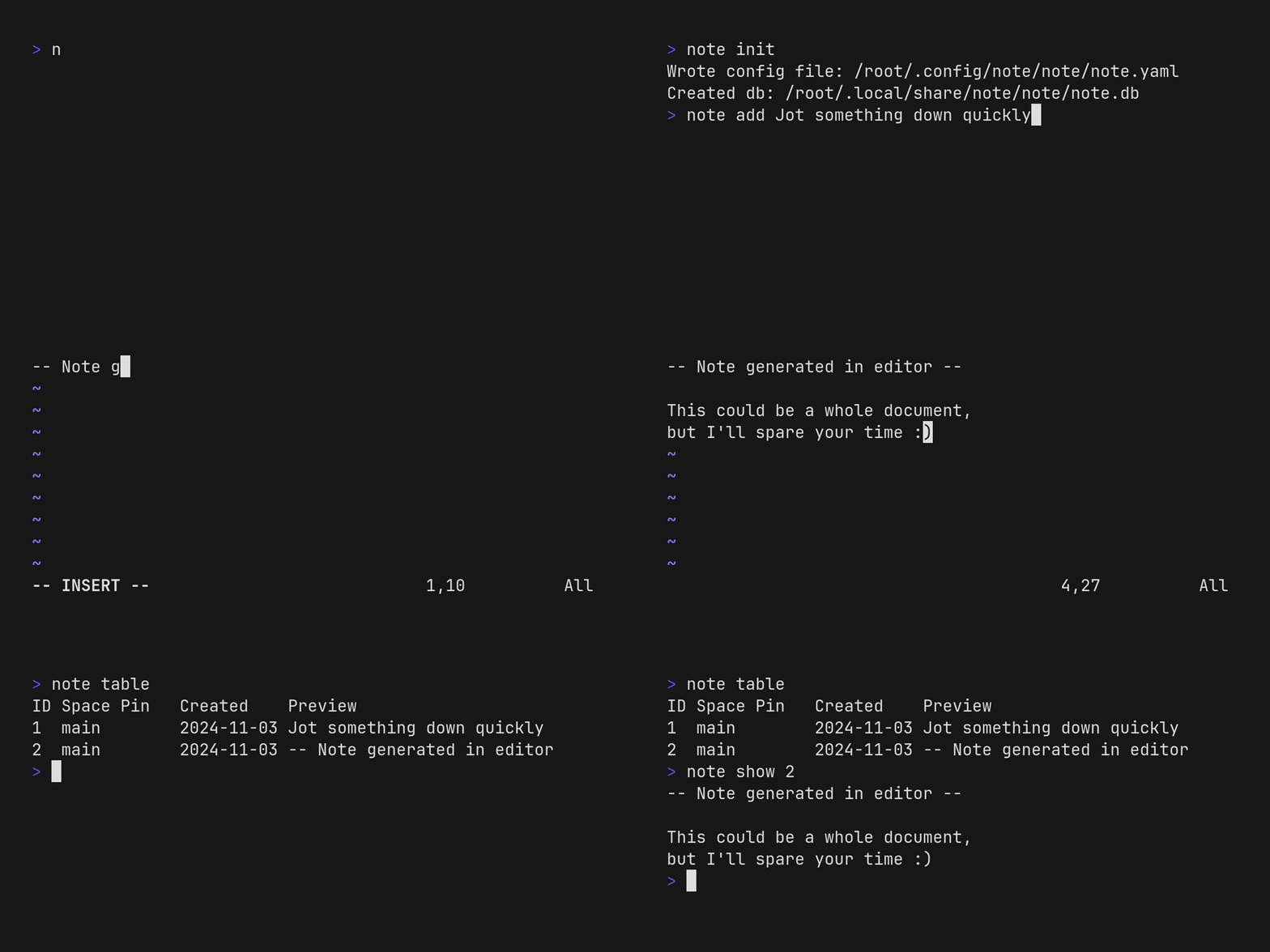
Below is a snippet output from `note help`, that should give you an overview of the available
operations that can be performed:
| Command | Description |
| ---------- | ----------- |
| init | Initialize note configuration and database |
| add | Add new note |
| show | Show content of specific note(s) |
| find | Find notes containing a pattern |
| edit | Edit content of note |
| pin | Pin note(s) to top |
| unpin | Unpin note(s) from top |
| move | Move note to another space |
| remove | Remove note(s) with id(s) |
| clean | Empty the .trash space |
| list | Lists notes from one or more spaces |
| table | Lists available notes in a table format |
| space | Lists all or some spaces |
| id | Lists all or some IDs |
| import | Import notes from JSON or YAML file |
| export | Export notes to JSON or YAML file |
| help | Help about any command |
| version | Version of this program |
| completion | Generate the autocompletion script for the specified shell |
### Init note
The first time you use `note` you need to initialize a configuration and a database. This is done by
calling the `init` sub-command:
```bash
note init
```
This will store a configuration and a database file. The locations of these files can
be modified by specifying `-c` and `--db` respectively. These arguments are global to all commands
and, if specified, will override the config initialized above. The configuration can be a
[wide array of formats](https://github.com/spf13/viper?tab=readme-ov-file#what-is-viper).
See the [Configuration section](#configuration) for a discussion on where the files are located,
if default values are used.
### Add note
There are three main methods of adding your note. The quickest way is to simply invoke `note` like this:
```bash
note add This is My First Note
note add "This is Another Note"
```
You can write a note with your default `$EDITOR`:
```bash
note add
```
If no such editor exist, a default has been chosen for you. It is possible to define the editor in the
configuration file.
A note can also be created by specifying a file that you want `note` to read:
```bash
note add -f some.txt
```
`note` can also read from standard input (`-`):
```bash
echo note made by other program | note add -f -
```
### Spaces
All notes belong to a space, which can be any string you define:
```bash
note add -s MySpace This is a Song
```
By default, your notes will fall into the `main` space. You can list all spaces occupied with one or
more notes, by running:
```bash
note space [id...]
```
If you specify one (or more) id:s in the above command, only spaces occupied by the notes you specify will
be shown. You can also use the alias `note spc [ids...]` which is equivalent to the previous statement.
To list IDs occupied by a space, you can use the following command, and similarly to the space command
above, if you specify one or more positional arguments - only ID's in those spaces will be shown
```bash
note id [space...]
```
### Content of notes
To get an overview of your notes, it's often useful to get a table. This can be done simply with:
```bash
note
```
If you want to have control over how many preview words will be shown, use the specific sub-command:
```bash
note table --preview 5 [space...]
```
To retrieve the content of specific note(s), invoke `get`:
```bash
note get id [id...]
```
To list the full content of your notes, invoke the `list` (or `ls`) command, you can specify any number
of space(s) as a filter. There are also a number of sorting, limiting and styling options to this command:
```bash
note ls [space...]
```
### Edit notes
Edit note in `$EDITOR`:
```bash
note edit id
```
Pin/unpin note(s) to the top:
```bash
note pin id [id...]
note unpin id [id...]
```
Move note to space:
```bash
note move space id [id...]
```
### Import/export
Notes can be exported and imported to [JSON](https://en.wikipedia.org/wiki/JSON) or
[YAML](https://en.wikipedia.org/wiki/YAML). By default the export is printed to standard output:
```bash
note export [file]
```
## Configuration
`note` uses the excellent libraries [cobra](https://github.com/spf13/cobra) and [viper](https://github.com/spf13/viper)
to handle command line arguments and the configuration file. This is an example of a configuration file:
```yaml
db: /home/user/.local/share/note/note.db
space: main
editor: vim
color: auto
style: light
```
When using Linux and macOS, the [Freedesktop XDG Base Directory Specification](https://specifications.freedesktop.org/basedir-spec/latest/)
is used to determine where the configuration and database files are stored, by default. Windows has
its own set of environment variables and fallback values.If the environment variable is not available
a fallback value will be used.
Below is a table that tries to illustrate how the different OS default directories are constructed,
where the `Data` directory is the base directory of the database and `Config` is the base directory
of the configuration file. Default values will then be `Data/note/note.db` and `Config/note/note.yaml`
respectively:
| OS | Directory | Environment Variable | Fallback |
| -- | --------- | -------------------- |--------- |
| Linux | Data | `$XDG_DATA_HOME` | `~/.local/share` |
| Linux | Config | `$XDG_CONFIG_HOME` | `~/.config` |
| macOS | Data | `$XDG_DATA_HOME` | `~/Library/Application Support` |
| macOS | Config | `$XDG_CONFIG_HOME` | `~/Library/Application Support` |
| Windows | Data | `%APPDATA%` | `%USERPROFILE%/AppData/Roaming` |
| Windows | Config | `%LOCALAPPDATA%` | `%USERPROFILE%/AppData/Local` |
### Environment variables
These environment variables can be used in all operating systems:
| Environment variable | Description |
| -------------------- | ----------- |
| `DB` | Database file to use |
| `EDITOR` | Editor program to use |
### Configuration file parameters
| Parameter | Description |
| ---------- | ----------- |
| db | Default database file |
| space | Place notes in this space, by default |
| editor | The editor program to open, when creating or editing new notes |
| color | Default color option, one of: `auto`, `no` or `never`, `yes` or `always` |
| style | Default style option, one of: `minimal`, `light` or `full` |
### Precedence
Some parameters can be specified in file, as environment variables and as command line arguments.
The precedence for these are in the (reverse) order you just read: if you supply the `DB` environment
and the `--db` command line parameter, the command line parameter will be used. This means that
running the following command will initialize a database file named `cmd.db`:
```
DB=env.db note init --db-only --db cmd.db
```
## License
MIT License