https://github.com/bdlucas1/diff3d
Fast visual 3d diff for STL, OBJ, 3MF, and STEP files
https://github.com/bdlucas1/diff3d
3d 3d-models 3d-printing 3mf build123d cad cadquery freecad obj onshape prusa prusaslicer python pyvista step stl vedo visualization
Last synced: 7 months ago
JSON representation
Fast visual 3d diff for STL, OBJ, 3MF, and STEP files
- Host: GitHub
- URL: https://github.com/bdlucas1/diff3d
- Owner: bdlucas1
- License: mit
- Created: 2024-12-11T04:59:55.000Z (over 1 year ago)
- Default Branch: master
- Last Pushed: 2024-12-24T12:33:29.000Z (over 1 year ago)
- Last Synced: 2025-09-14T04:41:29.716Z (11 months ago)
- Topics: 3d, 3d-models, 3d-printing, 3mf, build123d, cad, cadquery, freecad, obj, onshape, prusa, prusaslicer, python, pyvista, step, stl, vedo, visualization
- Language: Python
- Homepage:
- Size: 5.32 MB
- Stars: 44
- Watchers: 2
- Forks: 2
- Open Issues: 11
-
Metadata Files:
- Readme: README.md
- License: LICENSE
Awesome Lists containing this project
README
This Python program provides a simple, fast, and robust way to visually
compare 3d files such as STL, OBJ, 3MF, and STEP. The unchanged parts
of the objects are shown in gray, while the changed parts are shown in
contrasting colors that stand out, illustrated by the following
example.
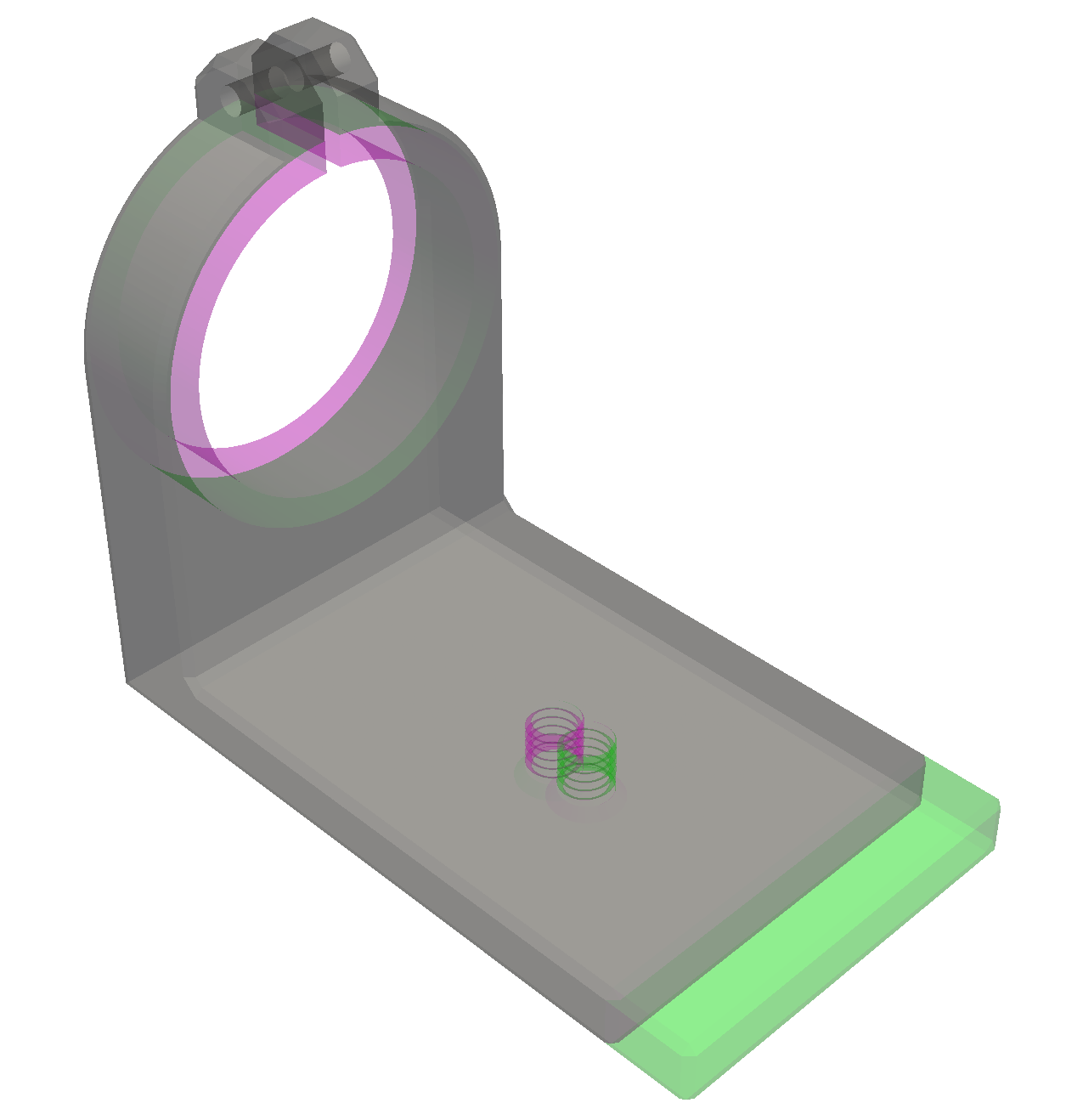
In this example most of the lens clamp is unchanged and is displayed
in gray, while the differing parts are displayed in red for one file
and green for the other file: in the red file the diameter is smaller,
while in the green file the base is longer, and the threaded hole has
moved.
### Quick start
You will need to have Python installed - see notes in the next section
on installing Python if you don't already have it. Python comes with a
program called `pip` for installing Python programs at the system
level. To install `diff3d` run this command:
pip install diff3d
(On some Linux systems you may need to use `pipx` instead of `pip`; see
next section.)
Then to test the installation download two test files
[lens-clamp-A.stl](https://raw.githubusercontent.com/bdlucas1/diff3d/refs/heads/master/examples/lens-clamp-A.stl)
and
[lens-clamp-B.stl](https://raw.githubusercontent.com/bdlucas1/diff3d/refs/heads/master/examples/lens-clamp-B.stl)
and run the command
diff3d lens-clamp-A.stl lens-clamp-B.stl
The first time you run the `diff3d` command it may take a little time
to start while it loads and compiles the supporting packages, but
after that the startup time will be very quick.
You can drag the displayed object to rotate it, use the mouse wheel to
zoom, and shift-drag to pan.
The second file is optional, in which case the first file will simply
be displayed without diffs. This allows the tool to be used as a
simple 3d file viewer in addition to its primary function.
### Supported platforms, file formats, and object types
I have tested on the following platforms:
* Windows 11, Python 3.13. Download and install from
[python.org](https://www.python.org/downloads/), and in the
installation program be sure to check the the box that says "Add
python.exe to PATH" which will make `pip` and `diff3d` available
from the command line. Then open a command prompt window and type
`pip install diff3d`.
* MacOS, Python 3.13 installed using `brew install python`, then `pip
install diff3d`.
* Linux Mint, Python 3.13 installed using `sudo apt install python
pipx`, then `pipx install diff3d` (instead of using `pip`).
Out of the box `diff3d` supports STL, OBJ, and 3MF files. Support for a
number of additional file types is available by installing `meshio`,
and support for STEP files can be enabled by installing `build123d`.
Unlike other tools that do 3d diffs by using 3d boolean operations
like intersection and difference, this tool is robust and is not
limited to manifold (closed surface) meshes, but can diff anything that
can be rendered, including open surfaces, curves, and points.
### Color animation
Small areas of difference may be difficult to spot under some
circumstances, especially for people with some form of
colorblindness. To help highlight areas of difference, you can press
the "a" key and the colored areas will flash briefly.
This feature was inspired by the much more sophisticated color
animations for enhancing color vision provided by
[ColorPhi](https://www.colorphi.com).
### Object alignment
In some cases two objects to be compared may be shifted relative to
each other in addition to other changes. This is illustrated by
example files
[lens-clamp-A.obj](https://raw.githubusercontent.com/bdlucas1/diff3d/refs/heads/master/examples/lens-clamp-A.obj)
and
[lens-clamp-C.obj](https://raw.githubusercontent.com/bdlucas1/diff3d/refs/heads/master/examples/lens-clamp-C.obj)
in the images below.
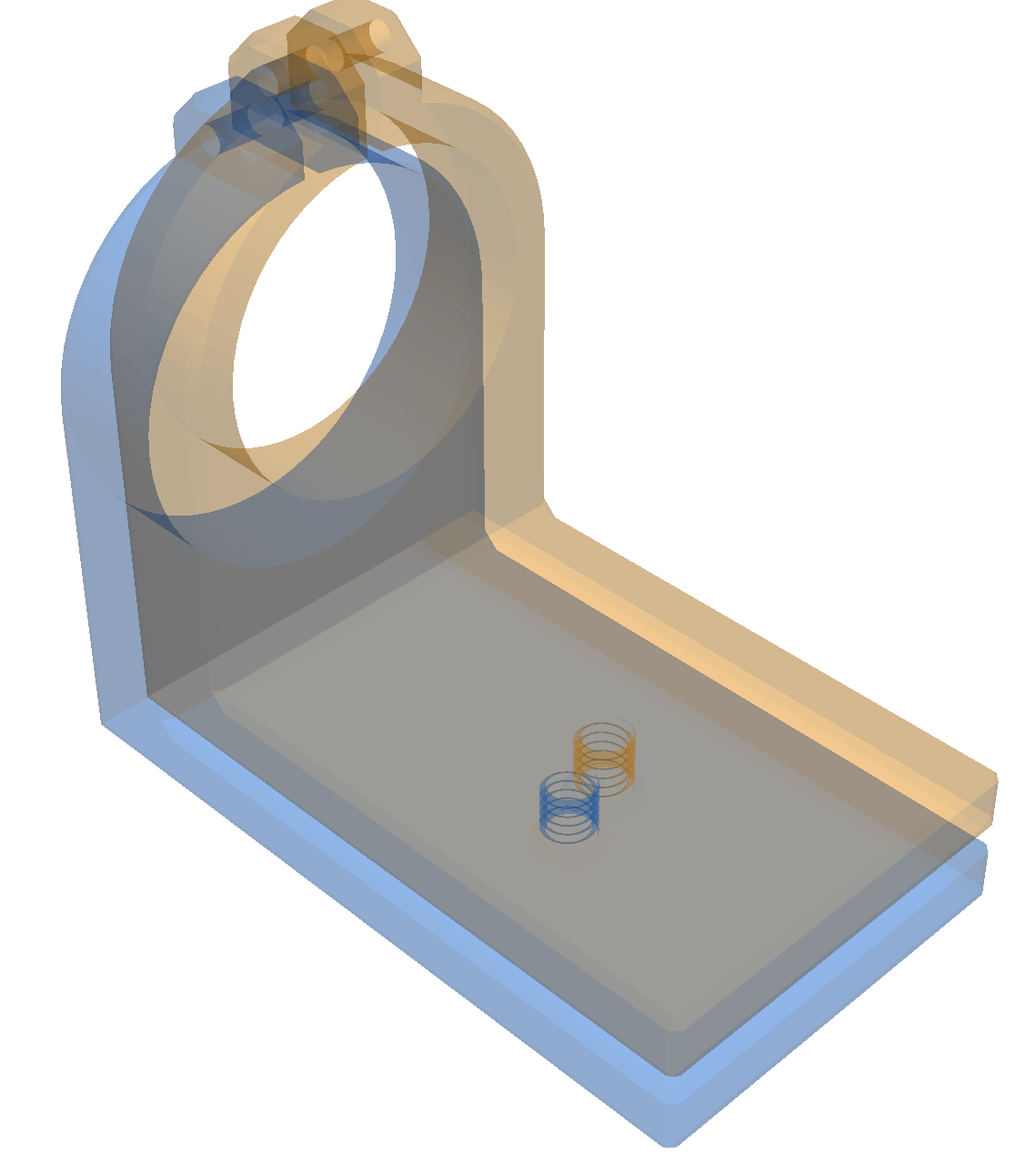
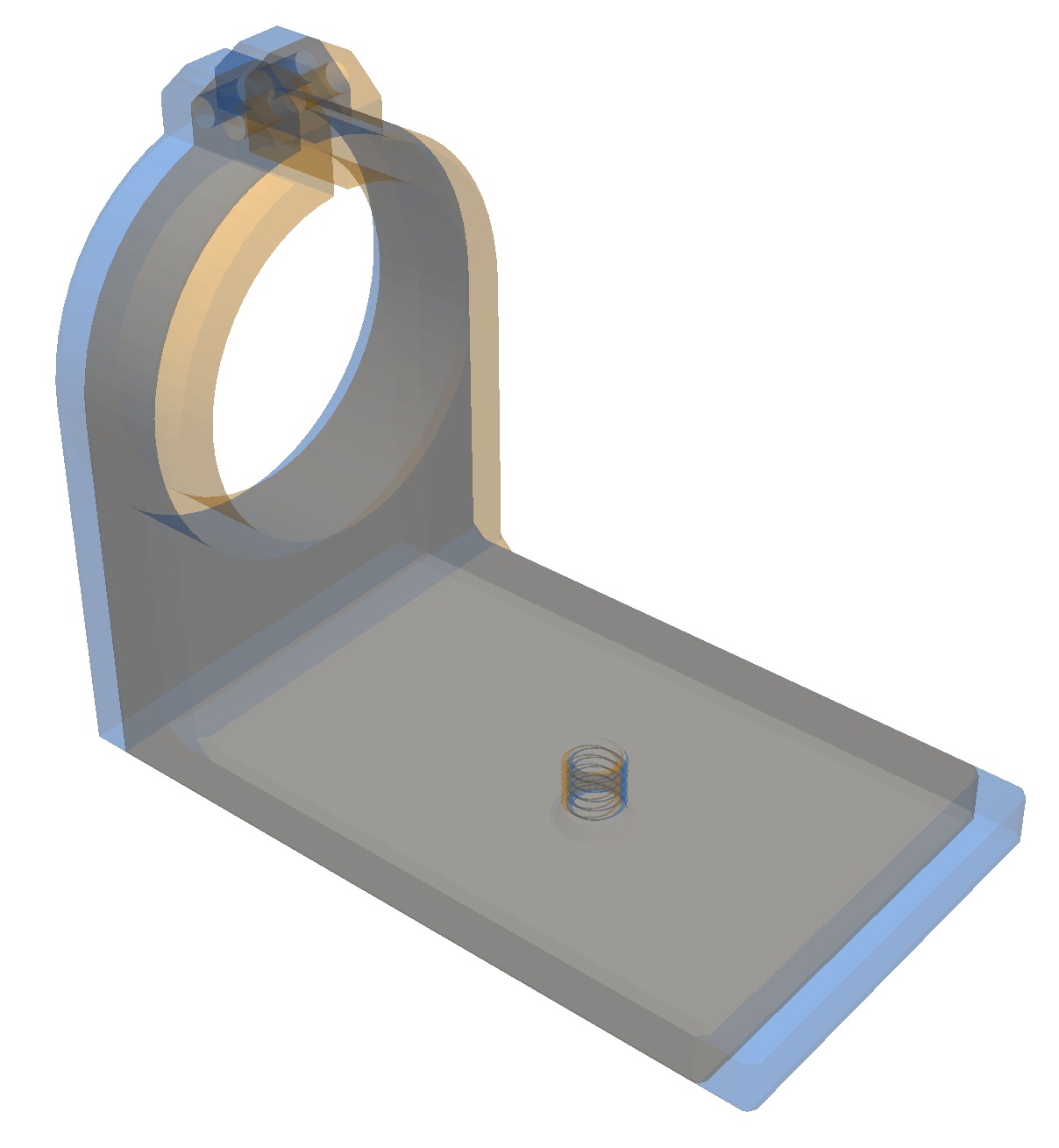
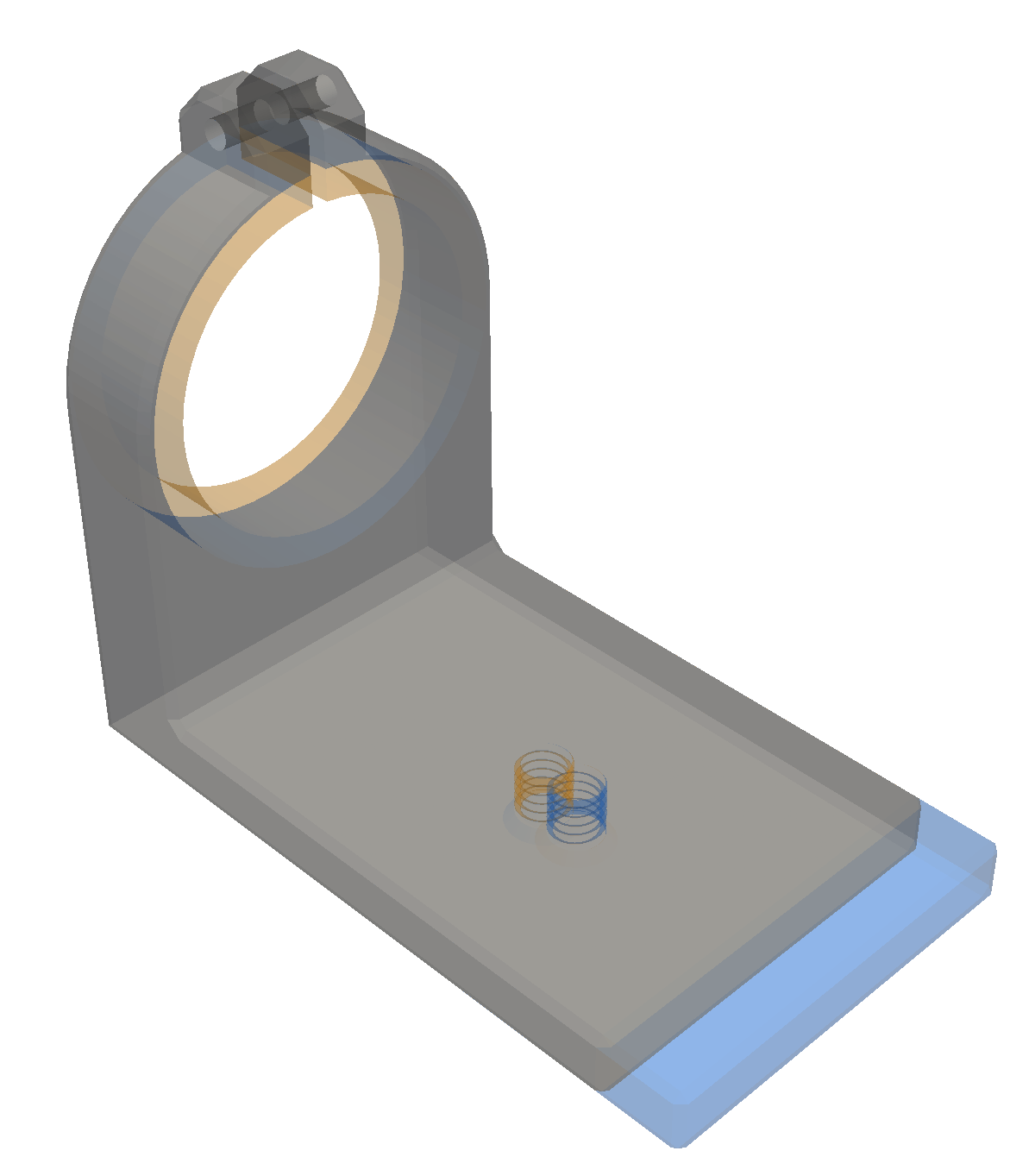
The first image is produced by just comparing the two files as-is
without any attempt to align them:
diff3d lens-clamp-A.obj lens-clamp-C.obj
The misalignment obscures the relevant changes.
The second image was produced by aligning the centroids of the two
objects. This is better, but it is still difficult to see the
interesting changes.
Instead `diff3d` provides an alignment method that attempts to align
the objects such that major features that they have in common are
aligned, thus displaying a minimal set of differences between the
objects. This is illustrated by the third image above, produced using
the `--align` flag:
diff3d --align lens-clamp-A.obj lens-clamp-C.obj
This is not the default because it's not always necessary and it may
take a bit of time to do the alignment. The first time you use the
`--align` option it may take a little time to start while it loads and
compiles the supporting packages, but after that the startup time will
be very quick.
### Color schemes
Three color schemes designed to be colorblind-friendly are
provided. (This is based on information from
https://davidmathlogic.com/colorblind, and I have not verified
this. If you have information to add please contact me by opening an
issue on github.)
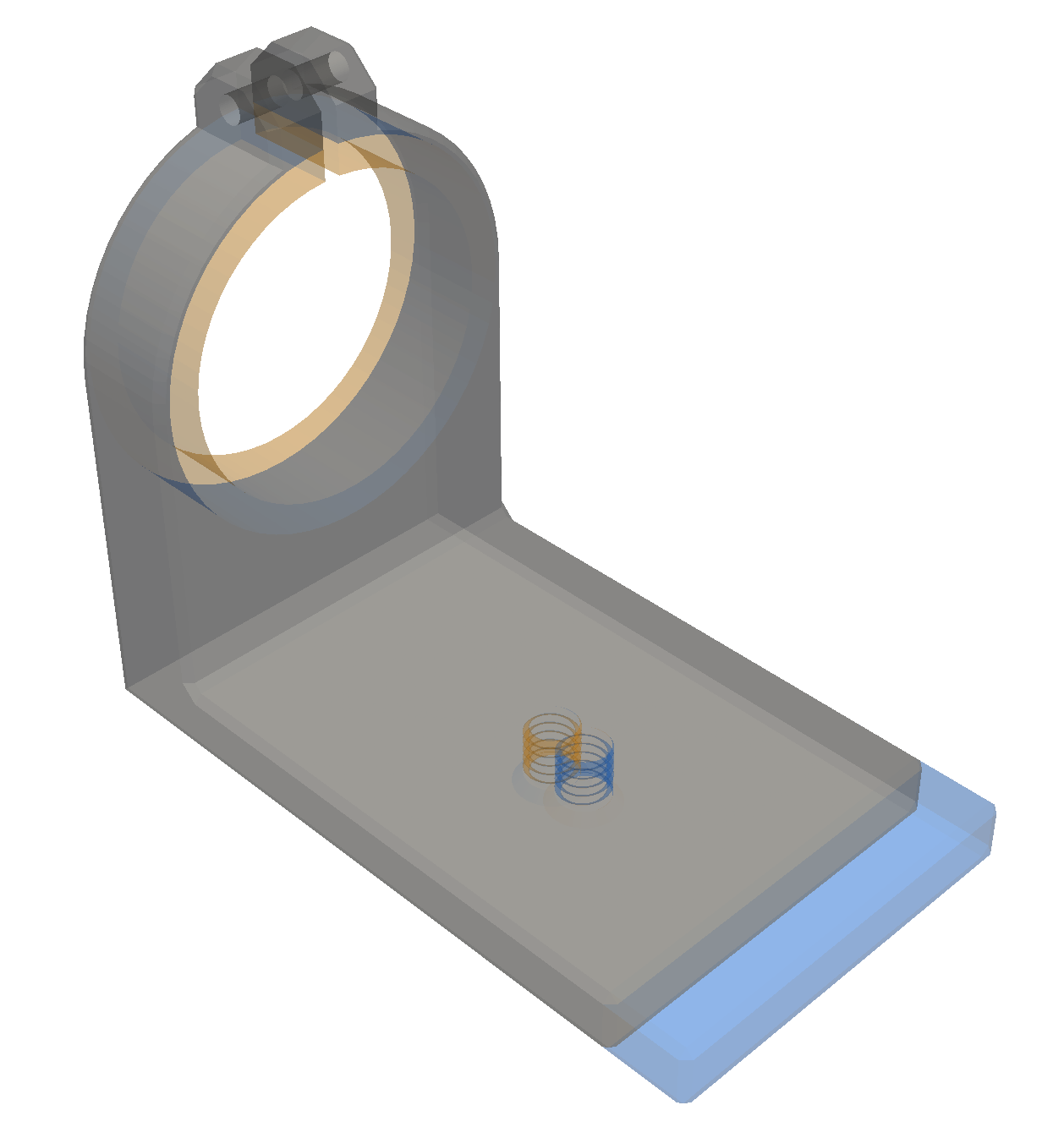
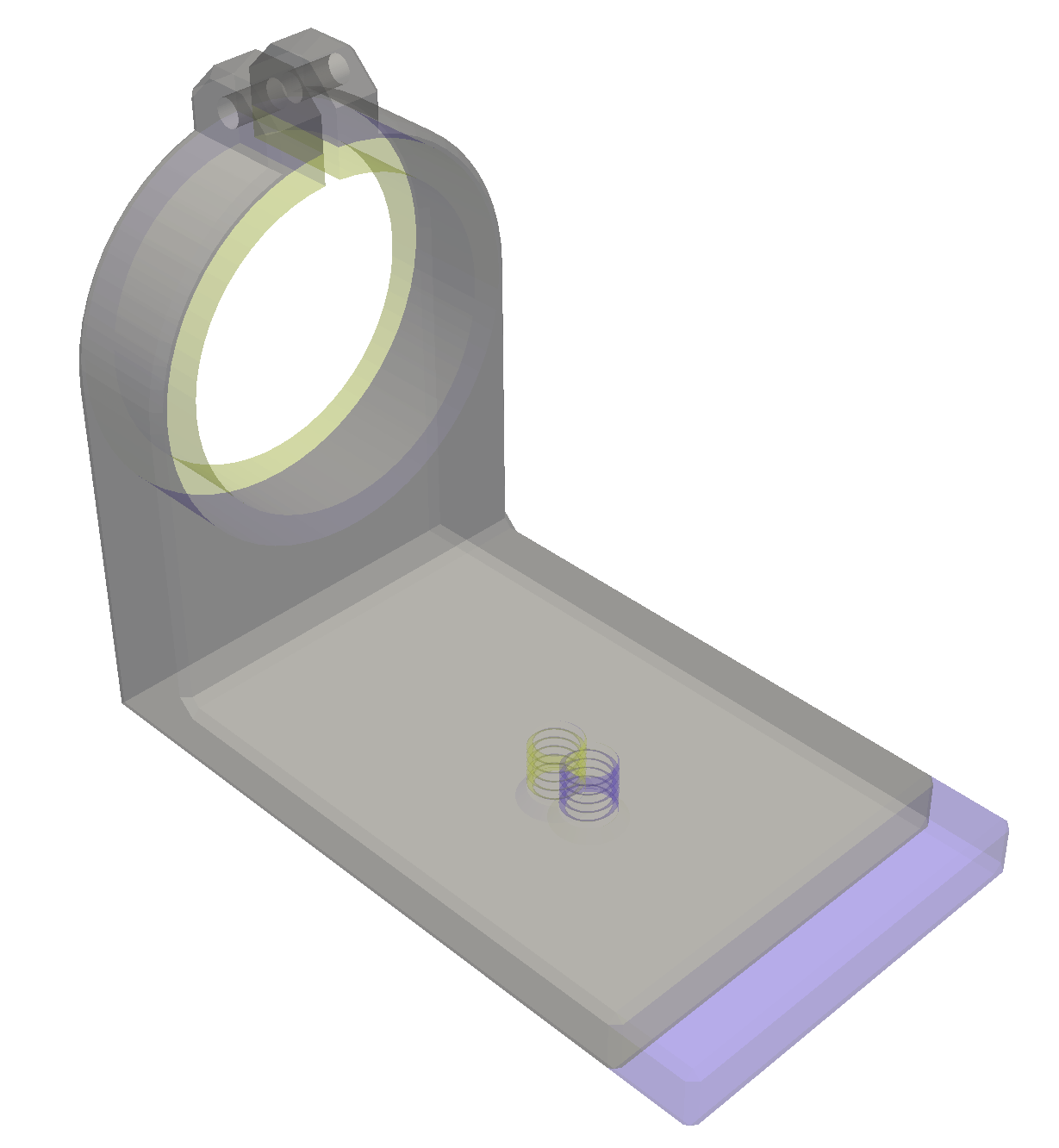
You can choose a scheme using the `-s` or `--scheme` option. The
above schemes are named "1", "2", and "3" respectively.
### API
The `diff3d` module provides a simple API if you want to integrate it
into your own program. As this is an early version of the program,
I'll try to maintain the stability of these APIs, but I can't
guarantee it. See the code for details.
* `diff3d.from_files` opens a window displaying the diff between two files
* `diff3d.diff` opens a window displaying the diff between two pyvista objects.
* If you are using a different mesh or CAD package, if you can obtain
point and triangle arrays, you can convert them to pyvista objects
using `pyvista.PolyData.from_regular_faces`
* You can align two meshes without displaying them using `diff3d.align3d`.
### Discussions and Issues
If you would like to report an issue, ask a question, or make a
suggestion you do so through the
[Discussions](https://github.com/bdlucas1/diff3d/discussions) and
[Issues](https://github.com/bdlucas1/diff3d/issues) pages.