https://github.com/bduggan/termie
A console for your console
https://github.com/bduggan/termie
expect tmux
Last synced: 4 months ago
JSON representation
A console for your console
- Host: GitHub
- URL: https://github.com/bduggan/termie
- Owner: bduggan
- License: mit
- Created: 2019-08-08T14:18:11.000Z (almost 7 years ago)
- Default Branch: master
- Last Pushed: 2025-01-12T15:27:47.000Z (over 1 year ago)
- Last Synced: 2025-04-05T23:25:22.005Z (about 1 year ago)
- Topics: expect, tmux
- Language: Raku
- Homepage:
- Size: 184 KB
- Stars: 33
- Watchers: 5
- Forks: 6
- Open Issues: 0
-
Metadata Files:
- Readme: README.md
- Changelog: Changes
- License: LICENSE
Awesome Lists containing this project
README
# termie
A console for your console
[](https://ci.sparrowhub.io)
## Description
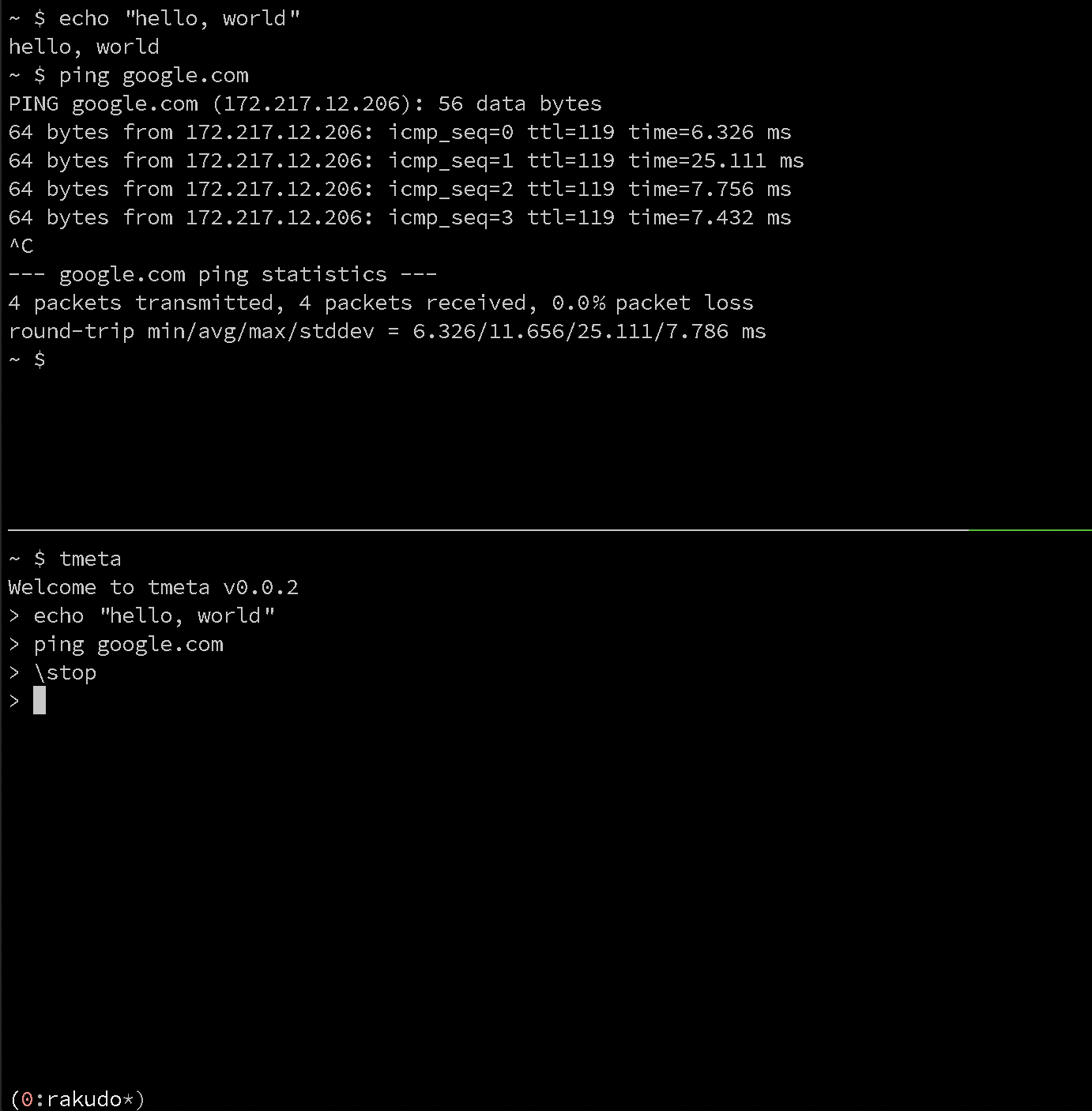
termie (formerly tmeta) is a wrapper for tmux that supports
sending and receiving data to/from tmux panes.
Anything typed into the bottom pane is sent to the top one, but
lines that start with a backslash are commands for `termie`.
You can type `\help` to see all possible commands.
(To send a literal leading backslash, either start with a
space or start with a double backslash.)
## Why
Because you get:
- an uncluttered view of your commands separate from the output
- a local history for commands that are run remotely
- readline interface independent of the remote console
- scripting support for programs that require a TTY
- macros
- the ability to monitor or capture output
- other `expect`-like functionality
- controlled copy-and-paste operations into remote sessions
## Quick start
See below for installation.
There are a few different ways to start `termie`.
1. Start `tmux` yourself, then have `termie` split a window and
start up in its own pane:
```
$ tmux
$ termie
```
2. Let `termie` start tmux for you:
```
$ termie
```
3. Run a termie script. This will split and run in another pane.
```
$ tmux
$ termie script.termie
```
I use the `.termie` suffix for my `termie` scripts. If you do too, you
might like this [vim syntax file](syntax/termie.vim).
## What do I use it with
termie plays well with REPLs, or any console based
application that uses a tty. For instance, docker, rails
console, interactive ruby shell, the python debugger, the
jupyter console, psql, mysql, regular ssh sessions, local
terminal sessions, whatever
## More documentation
Please see the [documentation](https://github.com/bduggan/tmeta/blob/master/doc.md) for a complete list of commands.
## Examples
Show a list of commands.
```
> \help
```
Run `date` every 5 seconds until the output contains `02`
```
> date
> \repeat
> \await 02
```
Within a debugger session, send `next` every 2 seconds.
```
> next
> \repeat 2
```
Search the command history for the last occurrence of 'User' using [fzf](https://github.com/junegunn/fzf)
(readline command history works too)
```
> \find User
```
Search the output for "http"
```
> \grep http
```
Send a local file named `bigfile.rb` to a remote rails console
```
> \send bigfile.rb
```
Same thing, but throttle the copy-paste operation, sending 1 line per second:
```
> \delay 1
> \send bigfile.rb
```
Similar, but send it to an ssh console by first tarring and base64 encoding
and not echoing stdout, and note that 'something' can also be a directory:
```
> \xfer something
```
Run a command locally, sending each line of output to the remote console:
```
> \do echo date
```
Run a shell snippet locally, sending each line of output to the remote console:
```
> \dosh for i in `seq 5`; do echo "ping host-$i"; done
```
Start printing the numbers 1 through 100, one per second, but send a ctrl-c
when the number 10 is printed:
```
> \enq \stop
queue is now : \stop
> for i in `seq 100`; do echo $i; sleep 1; done
# .. starts running in other pane ...
> \await 10
Waiting for "10"
Then I will send:
\stop
Done: saw "10"
starting enqueued command: \stop
```
Add an alias `cat` which cats a local file
```
\alias cat \shell cat
```
Show a local file (do not send it to the other pane) using the above alias
```
\cat myfile
```
Edit a file named session.rb, in ~/.termie/scripts
```
\edit session.rb
```
After running the above, add this to session.rb:
```
irb
\expect irb(main):001:0>
"hello world"
\expect irb(main):002:0>
exit
```
Now running
```
\run session.rb
```
will start the interactive ruby console (irb) and the following
session should take place on the top panel:
```
$ irb
irb(main):001:0> "hello world"
=> "hello world"
irb(main):002:0> exit
$
```
## Installation
Prerequisites: fzf, tmux, libreadline, raku and a few modules
1. Install a recent version of Raku. The recommended way is to use [rakubrew](https://rakubrew.org).
2. Also install `zef`, the Raku package manager (`rakubrew build-zef`)
3. Install [fzf](https://github.com/junegunn/fzf) and [tmux](https://github.com/tmux/tmux/wiki).
(e.g. `brew install fzf tmux` on os/x)
4. zef install https://github.com/bduggan/termie.git
## See also
* The [documentation](https://github.com/bduggan/termie/blob/master/doc.md), with links to the source
* The same [documentation](https://github.com/bduggan/termie/blob/master/help.md) as shown by the `\help` command
* This blog article: [https://blog.matatu.org/raku-tmeta](https://blog.matatu.org/raku-tmeta)