https://github.com/belltown/violetbug
Roku Debugger Graphical Interface
https://github.com/belltown/violetbug
debugger roku roku-development
Last synced: 11 months ago
JSON representation
Roku Debugger Graphical Interface
- Host: GitHub
- URL: https://github.com/belltown/violetbug
- Owner: belltown
- License: mit
- Created: 2017-02-19T02:06:38.000Z (over 9 years ago)
- Default Branch: master
- Last Pushed: 2023-03-24T19:42:14.000Z (about 3 years ago)
- Last Synced: 2024-11-25T17:46:29.687Z (over 1 year ago)
- Topics: debugger, roku, roku-development
- Language: JavaScript
- Size: 4.11 MB
- Stars: 22
- Watchers: 5
- Forks: 5
- Open Issues: 1
-
Metadata Files:
- Readme: README.md
- License: LICENSE.md
Awesome Lists containing this project
README
#  VioletBug — Roku Debugger Graphical Interface
## Windows — macOS — linux
VioletBug is a cross-platform desktop application providing a graphical interface to the Roku Debugger as an alternative to Telnet. It is similar to PurpleBug, https://belltown-roku.tk/PurpleBug, which is still supported; however, PurpleBug only runs on Windows PCs, and is closed-source. VioletBug, in contrast, is open-source running under [Electron](http://electron.atom.io/) and [Node.js](https://nodejs.org), written entirely in HTML, CSS and JavaScript. The source code can be found on [GitHub](https://github.com/belltown/violetbug).
## Features
* Runs under Windows (7+), macOS (10.9+), and linux
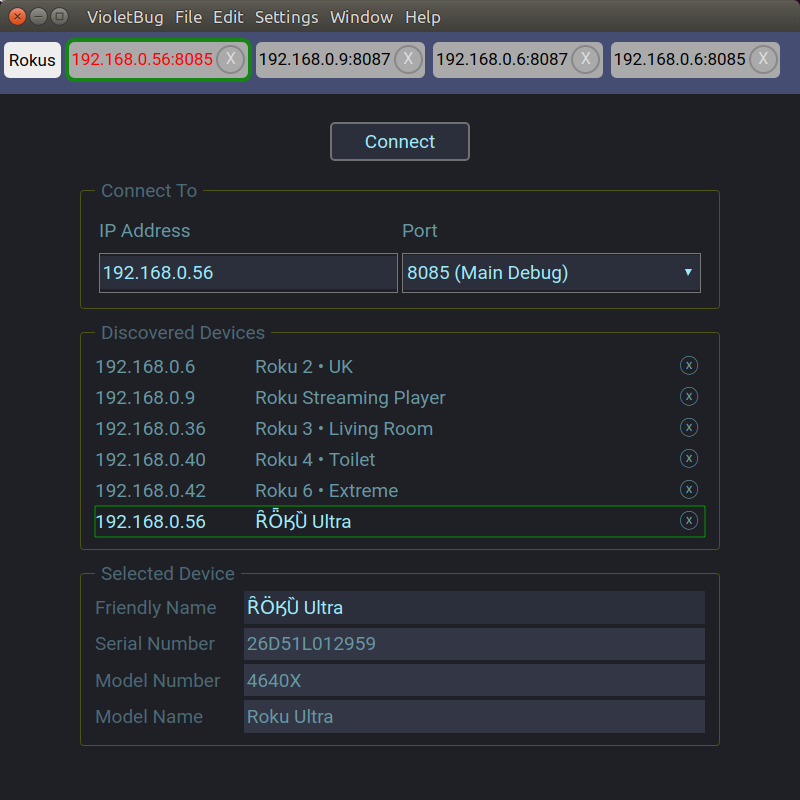
* Automatic discovery of Rokus on the local network
* Manual input of IP address or host name for undiscovered devices
* A drop-down menu of well-known Roku ports (other ports can be added in the Settings menu)
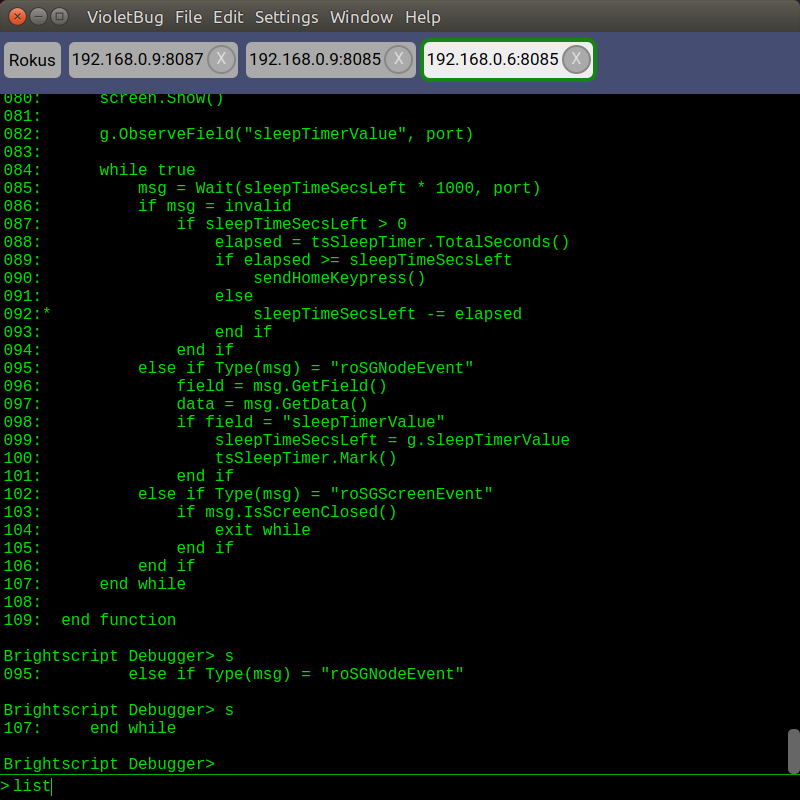
* Separate tabs for each Roku/port connection
* Floating tabs (right-click the tab header)
* Session logging for each tab
* Clear screen/clear line/cut/copy/paste/find
* Configurable foreground/background colors
* Configurable font settings (9 monospace fonts included)
* Auto scroll, auto wrap
* Really large window buffers
* Really large command history buffer
* Command-line editing using arrow and paging keys
* Command-line completion (tab and shift-tab)
* User-configurable shortcut keys
## Installation
### macOS Installation
* Download `violetbug-mac.zip` from https://github.com/belltown/violetbug/releases/latest
* Click the downloaded file to unzip
* Move it anywhere; click to run
* You may receive an *unidentified developer* warning. Open the file anyway (you may need to right-click the app, then select Open). For further information, click on the question-mark in the dialog box for Apple's help, or consult https://support.apple.com/kb/PH21769?locale=en_US
### Windows Installation
VioletBug can be downloaded on Windows using either an automatic "One-Click" NSIS installer, or by manual installation. If one method doesn't work, try the other.
###### Automatic Installation
* Download `VioletBug.Setup.x.y.z.exe` from https://github.com/belltown/violetbug/releases/latest
* Run the downloaded file to install VioletBug. It may appear as if nothing's happening for a minute or so, depending on how your computer is configured. Be patient and the installation should complete, then VioletBug will launch
* Pin the VioletBug icon to the Taskbar for convenient access, or use the desktop shortcut icon
* You may have to disable your anti-virus protection (unless using only Windows Defender), before downloading and running the installer
* If Windows *SmartScreen* appears (twice), click `More info`, then `Run anyway`
###### Manual Installation
* Download `violetbug-win.zip` from https://github.com/belltown/violetbug/releases/latest
* Extract `violetbug-win-zip` to `C:\Program Files` (Explorer, right-click, Extract All ...)
* Click on the `violetbug.exe` executable in `C:\Program Files\violetbug-win32-x64` to run VioletBug
* Click `Allow access` if prompted to allow firewall access
* Pin the icon to the Taskbar for convenience, or update the Path variable to run from the command line
### Linux Installation
Compiled binaries and installers for various linux distributions are provided at https://github.com/belltown/violetbug/releases/latest
###### To download compiled binaries for most linux distributions
Download `violetbug-linux.zip` from https://github.com/belltown/violetbug/releases/latest, e.g:
```
cd ~/Downloads
wget https://github.com/belltown/violetbug/releases/download/vx.y.z/violetbug-linux.zip
```
Unzip to the appropriate directory, e.g. `/opt`
```
sudo unzip -o -q violetbug-linux.zip -d /opt
```
Run the application:
```
/opt/violetbug-linux-x64/violetbug
```
Attach to the Launcher for convenience. If you don't see the application icon, try copying the file `/opt/violetbug-linux-x64/resources/app/violetbug.desktop` to `~/.local/share/applications/violetbug.desktop`, editing it if necessary for the correct path name/icon file, etc.
###### To download installers for specific linux distributions
Download one of the following installers:
- deb package (Ubuntu/Mint/Debian, etc)
- rpm package (Fedora/CentOS/Red Hat, etc)
- AppImage package file (multiple linux distributions)
AppImage files should run on any linux distribution that supports [AppImage](http://appimage.org/):
* First, download the .AppImage file into any directory from which you can execute applications
* Next, **set the file to be executable**, e.g: `chmod u+x violetbug*.AppImage`, or set executable file property in File Manager GUI
* Finally, run the file, e.g: `./violetbug*.AppImage`
* All required dependencies and resources are contained in the `.AppImage` file. Nothing else gets installed. Run the file from any location; delete it to uninstall.
BSD variants, such as FreeBSD, are not supported.
###### Linux dependency issues
If you get this error on linux: **error while loading shared libraries: libXss.so.1: cannot open shared object file: No such file or directory**, then install libXScrnSaver, e.g: `sudo yum install libXScrnSaver`.
### Firewall Configuration
You may need to configure your firewall for automatic device discovery, particularly when using linux. VioletBug listens for SSDP M-SEARCH and NOTIFY responses.
On Fedora or CentOS, for example, use the following commands to configure the firewall:
```
sudo firewall-cmd --permanent --add-port=1900/udp
sudo firewall-cmd --permanent --add-port=32768-61000/udp
sudo firewall-cmd --reload
```
On Ubuntu, the firewall is typically disabled by default. However, if enabled then all, some, or none, of the following incoming and/or outgoing rules may be required depending on how the firewall is set up:
```
### Incoming rules
# SSDP NOTIFY responses
sudo ufw allow in from 192.168.0.0/24 to any port 1900 proto udp
# SSDP M-SEARCH responses
sudo ufw allow in from 192.168.0.0/24 port 1900 proto udp
# ECP & Debug responses
sudo ufw allow in from 192.168.0.0/24 port 8060:8093 proto tcp
### Outgoing Rules
# SSDP M-SEARCH requests
sudo ufw allow out to 239.255.255.250 port 1900 proto udp
# ECP & Debug requests
sudo ufw allow out to 192.168.0.0/24 port 8060:8093 proto tcp
### Reload the new firewall configuration
sudo ufw reload
```
## Updates
Automatic updates are not supported. Check the project's Releases page, https://github.com/belltown/violetbug/releases for updates.
Install a new update just like you did the original. All configuration settings should be saved.
## Build Instructions
To build your own version of VioletBug from the source code, see [Build Instructions](https://github.com/belltown/violetbug/blob/master/doc/BUILD.md).
## Support
Contact [belltown](https://forums.roku.com/ucp.php?i=pm&mode=compose&u=37784) through the [Roku Forums](https://forums.roku.com/viewforum.php?f=34)
File a GitHub issue at https://github.com/belltown/violetbug/issues
## Screenshots