https://github.com/bindreams/ssh-tunnel-windows
Easy SSH tunneling for Windows hosts
https://github.com/bindreams/ssh-tunnel-windows
openssh ssh-tunnel windows
Last synced: over 1 year ago
JSON representation
Easy SSH tunneling for Windows hosts
- Host: GitHub
- URL: https://github.com/bindreams/ssh-tunnel-windows
- Owner: bindreams
- License: gpl-3.0
- Created: 2023-06-24T18:42:43.000Z (about 3 years ago)
- Default Branch: main
- Last Pushed: 2025-03-07T15:38:05.000Z (over 1 year ago)
- Last Synced: 2025-03-07T16:33:17.262Z (over 1 year ago)
- Topics: openssh, ssh-tunnel, windows
- Language: Python
- Homepage:
- Size: 125 KB
- Stars: 10
- Watchers: 1
- Forks: 2
- Open Issues: 0
-
Metadata Files:
- Readme: README.md
- License: LICENSE.md
Awesome Lists containing this project
README
# SSH Reverse Tunnel Scripts (Windows)
This repository contains everything you need to create self-restarting, fault-tolerant reverse SSH tunnels from Windows machines. If you have a Windows machine in a protected network or under NAT, and you'd like to reach it from the internet using a proxy, this repository will enable you to do just that.
For Linux-based or otherwise `systemd`-enabled servers, check out our sister reporitory [andreasxp/ssh-tunnel-systemd](https://github.com/andreasxp/ssh-tunnel-systemd).
## Install your first reverse tunnel
After completing this tutorial, you will have a self-restarting SSH reverse tunnel service, controlled by the following files in `%ProgramData%/SshReverseTunnel`:
- `config.d/.conf`: SSH configuration file;
- `services/.yml`: YAML configuration file with service properties (restart policy, log rotation, etc.);
- `services/.exe`: Executable shim that launches the SSH tunnel, based on [WinSW](https://github.com/winsw/winsw);
- `logs/.out.log`: `stdout` for the SSH process (usually empty);
- `logs/.err.log`: `stderr` for the SSH process;
- `logs/.wrapper.log`: log for the shim executable above.
> **Note**
> Every console command in this file is written for PowerShell, not `cmd`. This means that environment variables, such as `PROGRAMDATA` are written in powershell syntax (`${env:ProgramData}`). When referencing paths outside of console, the percent syntax (`%ProgramData%`) is used instead so that you may paste this path directly into an explorer window.
### 1. Bootstrap sshrt.py
Clone this repository or download a zip file. You may delete the folder when you finish installing the service. Open a powershell terminal in the downloaded folder and run the following commands to bootstrap sshrt.py script:
```powershell
python -m venv .venv # Create a python isolated environment
.\.venv\scripts\Activate.ps1 # Activate the environment
pip install -r requirements.txt # Install required packages
python -m sshrt bootstrap
```
The last command will do the following important things:
1. Enable Windows built-in components for OpenSSH Server and Client;
2. Add a firewall rule so that said components may work;
3. Create necessary directories and files for SSH Server and the reverse tunnels.
Verify that the SSH Server was succesfully installed by running:
```powershell
Get-Service sshd
```
### 2. Configure public-key based SSH access from A to B
Generate an RSA key pair on machine A. This key will be used to establish an SSH tunnel, but you will need to test your connection first so place it in your user directory for now. The key should be passwordless, because the reverse tunnel start up automatically and there is no way to enter a password. The following command is an example of how to create a passwordless RSA key and store it in `%USERPROFILE%/.ssh/`:
```powershell
# System PowerShell 5.x and old PowerShell Core (https://github.com/PowerShell/PowerShell/issues/6280)
ssh-keygen -f "$HOME/.ssh/MachineB.id" -N '""' -t rsa
# Up-to-date PowerShell Core
ssh-keygen -f "$HOME/.ssh/MachineB.id" -N "" -t rsa
```
After running `ssh-keygen` you will have two key files, with one ending in `.pub`. This is your public key, which you need to append to the end of the `authorized_keys` file on machine B. This file is probably in the following directories:
| | Login as: admin | Login as: user |
| ----------- | -------------------------------------------------- | -------------------------------------- |
| OS: Linux | `/root/.ssh/authorized_keys` | `/home//.ssh/authorized_keys` |
| OS: Windows | `%ProgramData%/ssh/administrators_authorized_keys` | `C:/Users//.ssh/authorized_keys` |
Once this is done, add a temporary entry in your SSH config file at `%USERPROFILE%/.ssh/config` (create a new text file if it does not exist):
```
Host MachineB
HostName
Port # Port where machine B receives SSH connections; likely 22
User
IdentityFile # Such as: ~/.ssh/MachineB.id
IdentitiesOnly yes
```
And connect to machine B manually:
```sh
ssh MachineB
```
### 3. Move created config to deployment directories
Now that a key pair and a config entry have been created, you can proceed with creating the actual tunnel service.
First, you will need to **move** (not copy) your key files and config entry from your local ssh folder to their permanent place. Note that after doing this, you will no longer be able to connect to machine B manually using this key pair. If you need to, create a separate key pair for this.
Move your key files (named `MachineB.id` and `MachineB.id.pub` in this guide) to one of these two directories:
- `%ProgramData%/SshReverseTunnel/` - if it's going to be used for the reverse tunneling only;
- `%ProgramData%/ssh/` - if it's going to be used as a general admin key for accessing machine B.
Move the entry you made in `%USERPROFILE%/.ssh/config` to:
- `%ProgramData%/SshReverseTunnel/config.d/` (recommended) - if you want to keep configs in separate files;
- `%ProgramData%/SshReverseTunnel/config` - if you only have one tunnel, or plan to keep all configs together in one file. Note that `config` is protected from editing by regular users so to open it you will need to run `notepad %ProgramData%/SshReverseTunnel/config` from an admin terminal.
You will also need to do some adjustments to the config entry. First, update it with the new location of the key. To reference the `C:/ProgramData` folder use the replacement string `__PROGRAMDATA__`, for example:
```
Host MachineB
...
IdentityFile __PROGRAMDATA__/SshReverseTunnel/MachineB.id
...
```
Second, add the following line to turn this config into an actual reverse tunnel:
```
Host MachineB
...
RemoteForward localhost:
```
Explanation:
- Tunnel port: the port on machine B which clients will connect to to reach machine A (go through the tunnel). Ports above 10000 are generally available; consult [Wikipedia port number list](https://en.wikipedia.org/wiki/List_of_TCP_and_UDP_port_numbers) for more information.
- Local port: the port on machine A which clients will connect to when they exit the tunnel. If you plan to use the tunnel to SSH from machine B to machine A then this port is 22. If you want to reverse-forward something else, such as a website running on machine A, this port is 80 or 443.
If you'd like, here you can also configure the frequency of heartbeat packets that are sent through the tunnel to determine if the connection between machine A and machine B was severed. Heartbeat packets are controlled by three settings:
- `ServerAliveInterval` (default 10): How often (in seconds) SSH will send a packet to check whether the connection is working. Never disable this by setting it to 0: without this config option the tunnel will never restart.
- `ServerAliveCountMax` (default 3): How many packets need to fail before the tunnel is considered dead and the process terminates (or, in our case, restarts).
- `TCPKeepAlive` (default yes): A secondary method of checking the connection. See [`man ssh_config`](https://linux.die.net/man/5/ssh_config) for more information.
By default, machine A sends a packet every 10 seconds and restarts after 3 failed packets, so the maximum amount of time between a connection failure and restart is 10*3=30 seconds.
> **Warning**
> If you indeed use your tunnel for SSH connections, you may need to update some settings for SSH Server as well. See [troubleshooting/ssh connection hangs](#ssh-connection-hangs-with-no-output--error-remote-port-forwarding-failed-for-listen-port-port) for more information.
Since the config file will be used by a system user called `NT AUTHORITY\NETWORK SERVICE`, you need to make sure that the config file has correct permissions for this. `sshrt` has a subcommand `fix-permissions` for this. For example:
```powershell
python -m sshrt fix-permissions "${env:ProgramData}/SshReverseTunnel/config.d/MachineB.conf"
```
Same goes for the key file as well, for example:
```powershell
python -m sshrt fix-permissions "${env:ProgramData}/SshReverseTunnel/MachineB.id"
```
> **Note**
> Although the extension of the config file does not matter, we prefer to append `.conf` so that it can be configured to be opened as a text file.
Additionally, while you have already connected to this host as your own user, NetworkService account does not know the remote host and will fail unless you add your IP address to the list of known hosts:
```powershell
ssh-keyscan -t rsa >> "${env:ProgramData}/ssh/ssh_known_hosts"
```
### 4. Create the tunnel service
Finally, now that every piece is in place, you may create the reverse tunnel service. This service is created using a tool called [WinSW](https://github.com/winsw/winsw) from a YAML template file called `service-template.yml` in this project's root directory. You can modify this template if you wish to change some internal service settings like the path to logs (default is `%ProgramData%/SshReverseTunnel/logs`), log rotation settings, or how the service behaves when the SSH tunnel fails (by default it restarts the tunnel immediately, unless the tunnel fails to connect, in which case it waits 30 seconds before restarting).
Anyway, run the `install` command to create your tunnel service. `install` accepts a positional argument `tunnel_name` which should be identical to the `Host` field in your `config` file:
```powershell
python -m sshrt install MachineB
```
This command will first perform a test connection to check that everything is configured and works. If you receive the message `Service test failed` in console, consult the [troubleshooting section](#failing-ssh-service-test).
When the command succeds, it will create the service you requested with the id of `SshReverseTunnel-`, where the `` is the same string as `tunnel_name` in the install command and `Host` field in the config file. You may check the status of the service with `Get-Service`, for example:
```
Get-Service SshReverseTunnel-MachineB
```
You will notice that that the service was not started automatically. You can start it right away by calling `Start-Service`, or it will start automatically with system reboot. It's recommended that you start the service immediately to test for possible problems. If you receive a message `Start-Service: Failed to start service`, check for possible causes in `%ProgramData%/SshReverseTunnel/logs` and `Windows Logs/Application` in the Event Viewer.
### 5. Connect using the SSH tunnel
The most basic way to check that the SSH tunnel is working is to connect through it via SSH. This is not the same as what was done in step 2: we are now connecting in reverse from machine B to machine A, using the newly established tunnel. Since your tunnel connects `localhost` to Machine A using a port you picked as `` in your config, the `ssh` command will look something like this:
```sh
ssh @localhost -p
```
When connecting via SSH to a Windows machine you will likely need to specify a username of the Windows account you are connecting as. If your account has spaces in it you will need to enquote it, both in terminal and in the `config` file:
```sh
ssh "John Doe@localhost" -p
```
```
# ~/.ssh/config on Machine B
Host MachineA
HostName localhost
Port
User "John Doe"
```
## Troubleshooting
### Failing ssh service test
When the SSH service test fails, you need to look through the script output to figure out what the problem is. The important message is most often at the bottom of the log. Some known problems are listed below.
#### ssh: Could not resolve hostname `hostname`: No such host is known.
SSH could not find your config entry or you have misspelled it. Check the following things:
1. The `tunnel_name` argument and the `Host` field in your config entry are the same (case-sensitive).
2. If your config entry is in `config.d` folder and not in `config`, check that `config` includes the line:
```
Include __PROGRAMDATA__/SshReverseTunnel/config.d/*
```
#### ssh: connect to `hostname` port `port`: Connection refused
Your remote server is not running `sshd` or is running it on a different port. You can check what ports the host is listening on (if any) by running:
```sh
netstat -plunt
```
or, on Windows remote machines:
```powershell
Get-NetTCPConnection -State Listen | Select Local*,Remote*,OwningProcess,@{Name="OwningProcessName";Expression={(Get-Process -Id $_.OwningProcess).ProcessName}} | Format-Table
```
#### Can't open user config file ...: Permission denied
You need to fix permissions on the file in question so it's accessible by the user that runs the remote tunnels, known as `NT AUTHORITY\NETWORK SERVICE`. You can either do this manually with `icacls`, or by running
```powershell
python -m sshrt fix-permissions
```
#### hostkeys_find_by_key_hostfile: hostkeys_foreach failed for `__PROGRAMDATA__/ssh/ssh_known_hosts`: Permission denied
You need to fix permissions on `%ProgramData%/ssh/ssh_known_hosts`:
```powershell
python -m sshrt fix-permissions ${env:ProgramData}/ssh/ssh_known_hosts
```
#### Host key verification failed.
SSH refuses to connect to a host whose host key is not in `%ProgramData%/ssh/ssh_known_hosts`. If you trust that the IP is correct, you may add the host manually by running this command (from an admin powershell):
```powershell
ssh-keyscan -t rsa >> ${env:ProgramData}/ssh/ssh_known_hosts
```
#### Bad owner or permissions on `your-keyfile` / no such identity: `your-keyfile`: Permission denied
You need to grant permissions to your keyfile to `NT AUTHORITY\NETWORK SERVICE` or run:
```powershell
python -m sshrt fix-permissions
```
#### `user@hostname`: Permission denied (publickey,...).
SSH server on the remote machine did not accept your key. You may need to look higher in the log to find out why. Best approach is to Ctrl+F for your key file. Reasons could be different depending on what you find:
- `no such identity: : No such file or directory`: your key file does not exist or the path you provided in your ssh config is wrong;
- `offering public key: `, `receive packet: type 51`: sshd server does not authorize this key. You need to add your public key to your remote server's `authorized_keys` file (`~/.ssh/authorized_keys` on POSIX, `%ProgramData%/ssh/administrators_authorized_keys` on Windows).
- `Load key "": Permission denied`: you need to grant permissions to your keyfile to `NT AUTHORITY\NETWORK SERVICE` or run:
```powershell
python -m sshrt fix-permissions
```
### Failing after the service is installed
#### SSH connection hangs with no output / Error: remote port forwarding failed for listen port `port`
When using an SSH tunnel to make SSH connection from machine B to machine A, it's important to configure the SSH Server on machine A so that machine B terminates "zombie" connections when machine A was disconnected without telling (such as during a sudden power loss).
Restart your ssh connection with `-vvv` and verify that it hangs on these console messages:
```
debug1: Connection established.
debug1: identity file /root/.ssh/temp.id type 0
debug1: identity file /root/.ssh/temp.id-cert type -1
debug1: Local version string ...
```
If yes, it means the connection is a zombie connection. The tunnel was created, but there's no one on the other side.
You need to add settings that will make SSHD send heartbeat packets, similar to `ServerAliveInterval` but the going the opposite direction. Add the following lines to `%ProgramData%/ssh/sshd_config` on machine A:
```
ClientAliveInterval 10
ClientAliveCountMax 3
TCPKeepAlive yes
```
The first two entries directly mirror `ServerAliveInterval` and `ServerAliveCountMax`, so in this case the delay between a dead connection and a killed off process is 10*3=30 seconds. The latter, `TCPKeepAlive` uses a different mechanism that can be omitted if you'd like. Consult [`man sshd_config`](https://linux.die.net/man/5/sshd_config) for more information.
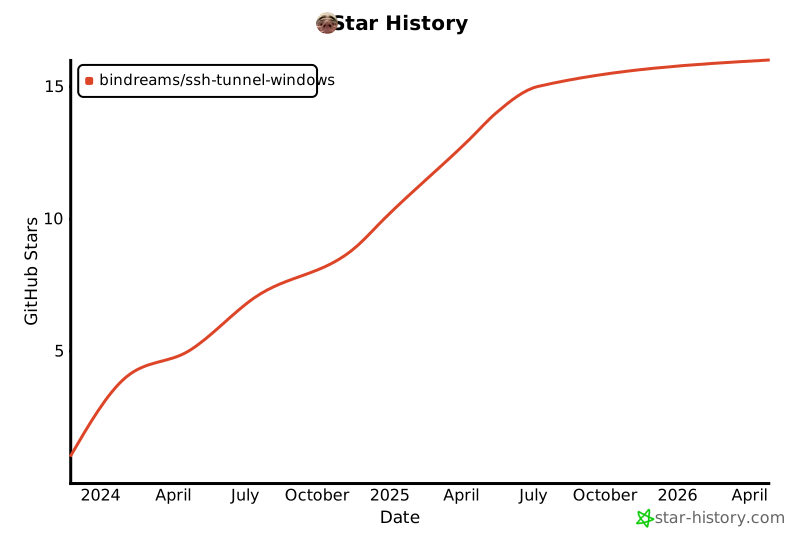
## Star History
## License

Copyright 2023-2024, Anna Zhukova
This project is licensed under the [GNU GPL version 3.0](/LICENSE.md), which means it is free for you to use. You have no requirements to open-source anything if you use these scripts, not your ansible configs, not your Dockerfiles, unless:
1. You modify these scripts;
2. You distribute these scripts.
If this license prevents you from using these scripts in your environment, please open up an issue and we will figure it out.