https://github.com/blindsidenetworks/mattermost-plugin-bigbluebutton
BigBlueButton plugin for Mattermost :electric_plug:
https://github.com/blindsidenetworks/mattermost-plugin-bigbluebutton
hacktoberfest
Last synced: 7 months ago
JSON representation
BigBlueButton plugin for Mattermost :electric_plug:
- Host: GitHub
- URL: https://github.com/blindsidenetworks/mattermost-plugin-bigbluebutton
- Owner: blindsidenetworks
- License: apache-2.0
- Created: 2018-07-03T18:21:59.000Z (about 8 years ago)
- Default Branch: master
- Last Pushed: 2023-03-02T02:45:47.000Z (over 3 years ago)
- Last Synced: 2024-06-20T03:55:49.784Z (about 2 years ago)
- Topics: hacktoberfest
- Language: Go
- Homepage:
- Size: 2.45 MB
- Stars: 88
- Watchers: 19
- Forks: 43
- Open Issues: 37
-
Metadata Files:
- Readme: README.md
- License: LICENSE
Awesome Lists containing this project
- awesome-bigbluebutton - Mattermost BBB Plugin - 2.0` (Integrations / Collaboration)
README
# Note
We have updated the Mattermost plugin. Only versions 2.1.0 and above will work with the default BigBlueButton server credentials.
Older versions will, however, continue to work when configured with your own BigBlueButton server.
# BigBlueButton Plugin for Mattermost
BigBlueButton is an open source web conferencing system for online learning. Teams can create, join and manage their BigBlueButton meetings from inside Mattermost.
Jump to:
- [Installation and Setup](#installation-and-setup)
- [Usage](#usage)
- [Contributing](#contributing)
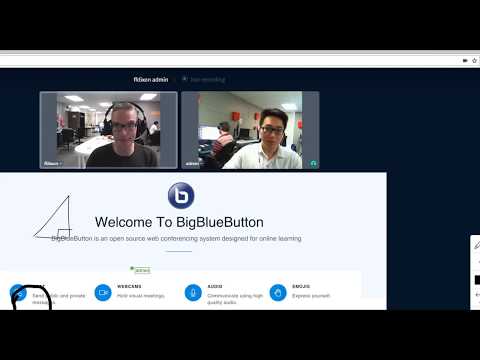
Want to see how the BigBlueButton integration with Mattermost works? Checkout the video below.
[](https://www.youtube.com/watch?v=gg7J9B4wGa4)
## Installation and Setup
1. Go to: https://github.com/blindsidenetworks/mattermost-plugin-bigbluebutton/releases
2. Download the `tar.gz` file corresponding to your server platform. You do not need to extract the tar file once you download it.
3. Inside Mattermost, go to **System Console > Integrations > Integration Management**. Make sure the following are turned to true:
- `Enable Incoming Webhooks`
- `Enable Outgoing Webhooks`
- `Enable Custom Slash Commands`
- `Enable integrations to override usernames`
- `Enable integrations to override profile picture icons`
4. Next you must enable Plugins. Go to **System Console > Plugin Management > Configuration** and set `Enable Plugins` to true. 
Depending on your Mattermost version, an additional step may be required to enable uploading plugins in your Mattermost **config.json** file:
- `vi /opt/mattermost/config/config.json`
- Under `PluginSettings`, make sure `Enable` and `Enable Uploads` are both set to `true`
- Restart your Mattermost with `sudo systemctl restart mattermost` assuming you used *systemd* for Mattermost services
5. Go to **System Console > Plugins > Management** and upload your `bigbluebutton__amd64.tar.gz`. The BigBlueButton Plugin should appear under **Installed Plugins**. 
6. Before activating the plugin, you must configure the plugin settings. By default, you are given a BigBlueButton test server to try it out. However, you have options. Like Mattermost, BigBlueButton is open source. You are (more than) welcome to [setup your own BigBlueButton server](http://docs.bigbluebutton.org/install/install.html#Install_). If you do, the command `sudo bbb-conf --secret` will print out the server's URL and secret key for configuration with Mattermost. Alternatively, you can [contact](https://blindsidenetworks.com/contact/) Blindside Networks for [hosting options](https://blindsidenetworks.com/services/).

7. Next, go back to **System Console > Plugins > Management** and `Activate` the plugin. 
## Usage
#### Create a BigBlueButton meeting in any channel
You can create a meeting that all channel participants can join.

Clicking the **Join Meeting** button immediately loads the BigBlueButton HTML5 client.

#### Plugin provides live meeting details during and after the meeting has ended
After the meeting ends, you see the **Date**, **Meeting Length**, and **Attendees**.

#### You can search for past BigBlueButton recordings
Using the drop-down menu you can easily search a channel for all past recordings.

#### Directly meeting with any user
You can click on any user's name and choose **Start BigBlueButton Meeting**.

When you invite a user to a meeting, they will get a pop-up notification to **Join Meeting**.

You can type `/bbb` in any channel to create a meeting. When

## Setting up your own BigBlueButton server
Using the [bbb-install.sh](https://github.com/bigbluebutton/bbb-install) script you can setup your own BigBlueButton server in about 15 minutes. If your interested in going through the steps in detail, see [BigBlueButton install guide](http://docs.bigbluebutton.org/install/install.html).
## Contributing
Plugin is written in Golang for server side and Javascript and React for client side. Use `make build` to build the plugin. You can also use `make quickbuild` following first build for faster builds.
The dependencies are managed with Glide for Go and NPM for javascript.
The plugin should be placed in a directory such as `~/go/src/github.com/blindsidenetworks/mattermost-plugin-bigbluebutton`
To download a local version: `mkdir -p ~/go/src/github.com/blindsidenetworks` and `git clone https://github.com/blindsidenetworks/mattermost-plugin-bigbluebutton.git`
Mattermost plugin development guides available here: https://developers.mattermost.com/extend/plugins/
BigBlueButton API available here: http://docs.bigbluebutton.org/dev/api.html