https://github.com/boldare/xsolve-tv-control
https://github.com/boldare/xsolve-tv-control
Last synced: about 1 year ago
JSON representation
- Host: GitHub
- URL: https://github.com/boldare/xsolve-tv-control
- Owner: boldare
- License: mit
- Created: 2018-02-21T13:34:24.000Z (over 8 years ago)
- Default Branch: master
- Last Pushed: 2018-03-26T09:12:00.000Z (over 8 years ago)
- Last Synced: 2025-04-06T21:08:52.623Z (over 1 year ago)
- Language: JavaScript
- Size: 97.7 KB
- Stars: 8
- Watchers: 49
- Forks: 0
- Open Issues: 1
-
Metadata Files:
- Readme: README.md
- License: LICENSE
Awesome Lists containing this project
README
# About
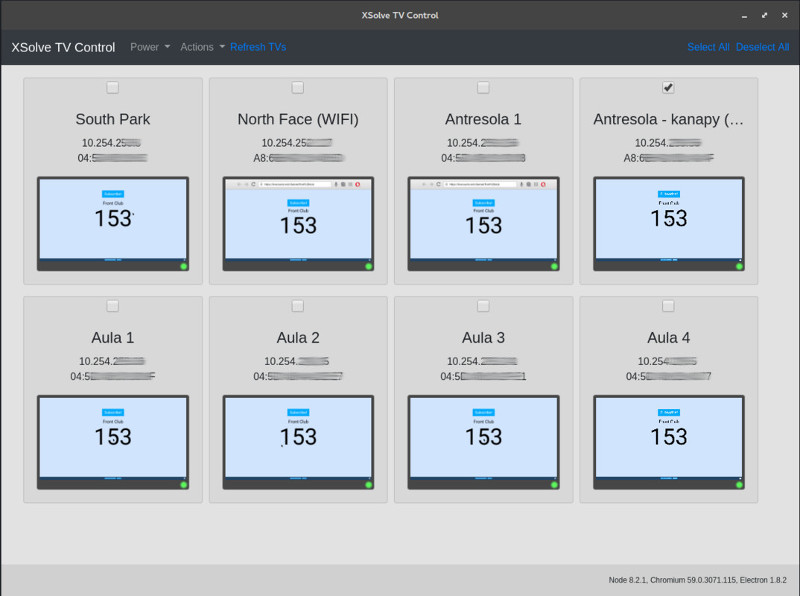
XSolve TV Control is an application that allows to control multiple TVs at the same time.
## Features
Actions may be executed for one, few or all TVs. Currently implemented features:
- Turning TVs On / Off
- Volume control
- Running websites
- Running Youtube videos
- Running applications
- Killing applications
- Getting screenshots (only GUI version)
## Versions
There are two ways of using XSolve TV Control - with GUI or CLI. With GUI you can control TVs in the easy way. CLI version may be useful for automating tasks for example to run TVs on specific hour etc.
## Supported TVs
Currently only Sony Bravia TVs with Android TV are supported. Support for most Android TV devices may be added soon.
# Requirements
## Node 8.X
Node 8.X is needed to run script. In case of Ubuntu you can install it using:
`curl -sL https://deb.nodesource.com/setup_8.x | sudo -E bash -`
`sudo apt-get install -y nodejs`
## ADB
ADB is needed to execute ADB actions. In case of Ubuntu you can install it using:
`sudo apt-get install adb`
## TV
### Visibility
TV must be visible (pingable) from the PC.
`ping some_tv_ip`
### Remote control
Remote control must be enabled on the TV and key must be set.
Go to `Settings` -> `Network` -> `Home network setup` -> `IP control`.
Set `Authentication` to `Normal and Pre-Shared Key` and set `Pre-Shared Key`.
Enable `Simple IP control` (not verified if it's needed too).
### ADB debugging
ADB debugging must be enabled.
Open `Settings` -> `About` and click multiple times on `Build informations` in .
Go to `Settings` -> `Developer options` and enable `ADB debugging`.
# Configuration
## TV list
TVs must be configured in `tvconfig.json` file - dist config `tvconfig-dist.json` is available.
## Application config
Applications must be configured in `appconfig.json` file - dist config `appconfig-dist.json` is available.
# Building / running
Just install dependencies:
`npm install`
You can now run CLI version using: `node tv-cli.js` or GUI version: `npx electron .`
# Usage (CLI)
## Help
Help may be displayed using `--help` option.
`node tv-cli.js --help`
## List TVs
Displays available TVs (set in tvconfig.json).
`node tv-cli.js --list`
## Select TV
It's possible to select specific TV or TVs using `--tv` option.
`node tv-cli.js --tv "tv name 1"`
`node tv-cli.js --tv "tv name 1" "tv name 2"`
To select all TVs `--all` option may be used.
`node tv-cli.js --all"`
## Turn on
You can turn on selected TV/TVs using `--poweron` option.
`node tv-cli.js --tv "tv name 1" --poweron`
## Turn off
You can turn off selected TV/TVs using `--poweroff` option.
`node tv-cli.js --tv "tv name 1" --poweroff`
## Power state
You can check current power state (on/off) using `--state` option.
`node tv-cli.js --tv "tv name 1" --state`
## Run application
You can run specified application using --run option.
If application is added to `appconfig.js` application name may be used:
`node tv-cli.js --tv "tv name 1" "tv name 4" --run opera`
It's also possible to run applicaiton using package name:
`node tv-cli.js --tv "tv name 1" "tv name 4" --run com.opera.sdk.example`
## View page
You can view webpage using `--viewpage` option. Full url (with `http://` or `https://` must be used). Default browser will be used.
`node tv-cli.js --tv "tv name 1" "tv name 4" --viewpage "https://google.com/"`
### Browser
You may also specify specific browser using `--browser` option:
`node tv-cli.js --tv "tv name 1" "tv name 4" --viewpage "https://google.com/" --browser chrome`
## Run Youtube URL
You can play youtube url using `--yt` command:
`node tv-cli.js --all --yt "https://www.youtube.com/watch?v=G1IbRujko-A"`