https://github.com/boltex/leointeg
Leo Editor Integration with VS Code
https://github.com/boltex/leointeg
leo-editor literate-programming outline-editor vscode
Last synced: 8 months ago
JSON representation
Leo Editor Integration with VS Code
- Host: GitHub
- URL: https://github.com/boltex/leointeg
- Owner: boltex
- License: mit
- Created: 2019-08-14T01:14:31.000Z (almost 7 years ago)
- Default Branch: master
- Last Pushed: 2025-10-15T01:48:05.000Z (8 months ago)
- Last Synced: 2025-10-15T05:28:07.581Z (8 months ago)
- Topics: leo-editor, literate-programming, outline-editor, vscode
- Language: Leo
- Homepage: https://marketplace.visualstudio.com/items?itemName=boltex.leointeg
- Size: 13.5 MB
- Stars: 82
- Watchers: 6
- Forks: 6
- Open Issues: 23
-
Metadata Files:
- Readme: README.md
- Changelog: CHANGELOG.md
- Contributing: CONTRIBUTING.md
- Funding: .github/FUNDING.yml
- License: LICENSE
Awesome Lists containing this project
README
#  Leo for Visual Studio Code
_If you find LeoInteg useful, please consider [**sponsoring**](https://boltex.github.io/) it. Also please [write a review](https://marketplace.visualstudio.com/items?itemName=boltex.leointeg#review-details "Write a review") or [star it on GitHub](https://github.com/boltex/leointeg "Star it on GitHub"). (For a JavaScript implementation of the Leo Editor that runs in both VSCode and VSCode for the web, see the [**LeoJS**](https://github.com/boltex/leojs) extension)_
## Literate Programming with _Directed Acyclic Graphs_ ([dag](https://en.wikipedia.org/wiki/Directed_acyclic_graph))
### Break down your code into a structured outline that generates or parses back your source files
> Leo is a fundamentally different way of using and organizing data, programs and scripts. [📺 Introduction Video](https://www.youtube.com/watch?v=SYwlfdEukD4)
See Leo, the Literate Editor with Outline, at [leo-editor.github.io/leo-editor](https://leo-editor.github.io/leo-editor/)
or on [github](https://github.com/leo-editor/leo-editor), and VS Code at [code.visualstudio.com](https://code.visualstudio.com/).
## Requirements
- Leo Editor 6.8.6 or later\
_Install with :_ `pip install leo`\
_Or with git._ (See [Installing Leo with git](https://leo-editor.github.io/leo-editor/installing.html#installing-leo-with-git))
- Websocket Python Library\
_Should be already installed if Leo was installed with pip_\
_Install with :_ `pip install websockets`\
(See [websockets.readthedocs.io/](https://websockets.readthedocs.io/))
## Python virtual environment (venv)
If you installed Leo in a Python virtual environment (venv), fill up the **Python venv Path** option instead of the **Leo Editor Path** option in LeoInteg's [Extension Settings](#extension-settings) shown below.
## Features
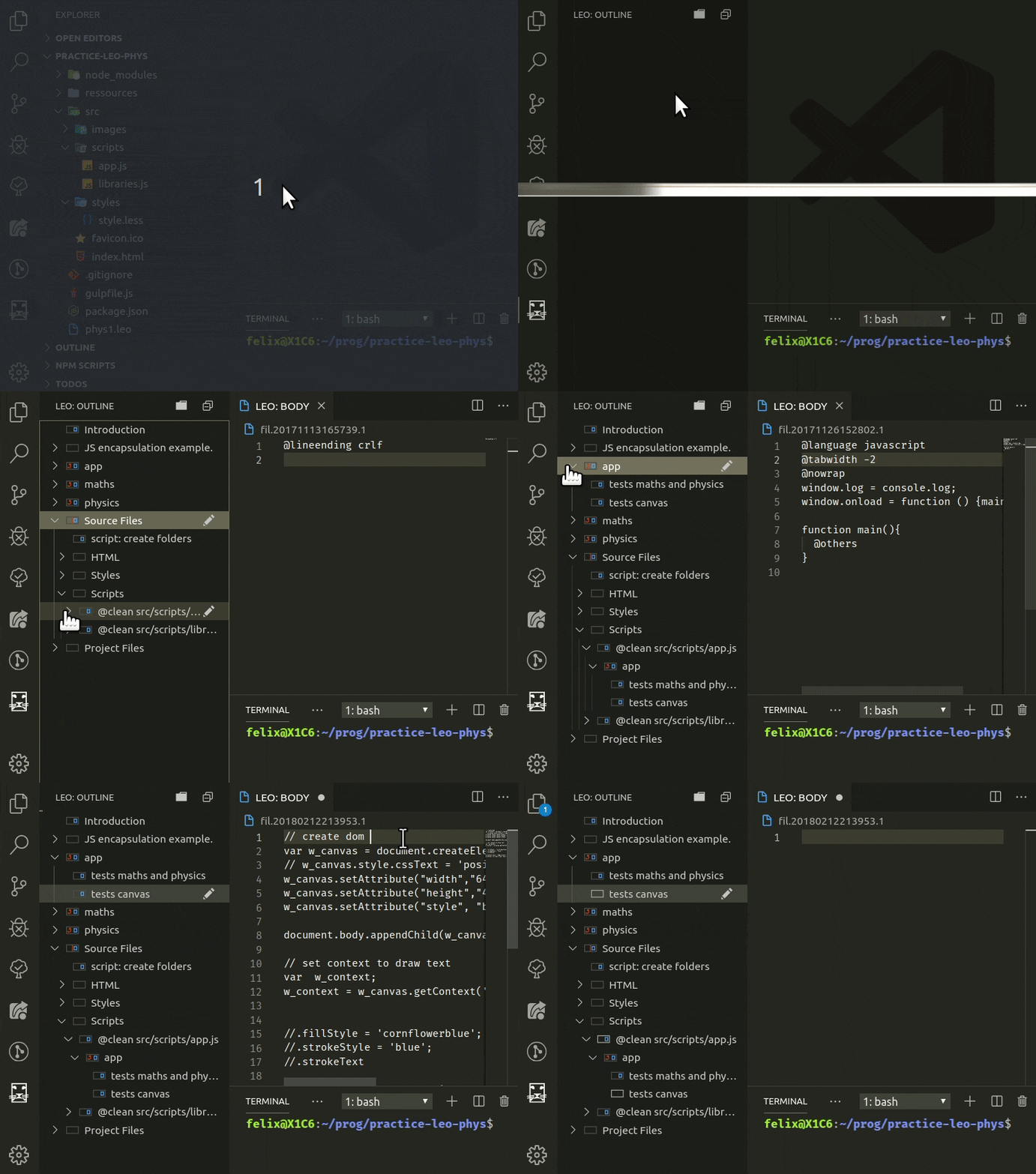
- UI controls such as a **Leo Outline** in the explorer view, and as a standalone sidebar, **body pane**, **opened documents selector** along with a **Log Window** [output channel](https://code.visualstudio.com/api/extension-capabilities/common-capabilities#output-channel).
- **Detached Body Panes**, independent of the selected node can be opened with the 'Open Aside' command.
- Keybindings that match those of the Leo editor, including arrow keys behavior for outline keyboard navigation. (Can be turned off with the **'Leo Tree Browsing'** option setting)
- **Derived files change detection**. See [External Files](#derive-external-files) below for more details
- **'@button' panel** for [creating your own commands with @buttons](https://leo-editor.github.io/leo-editor/tutorial-tips.html#use-button-nodes)
- **Find panel** that reacts to Leo's typical keybindings, Ctrl+F, F2, F3... when focus is in the outline or body pane
- **Nav and Tag panel** controls are integrated in the Find panel
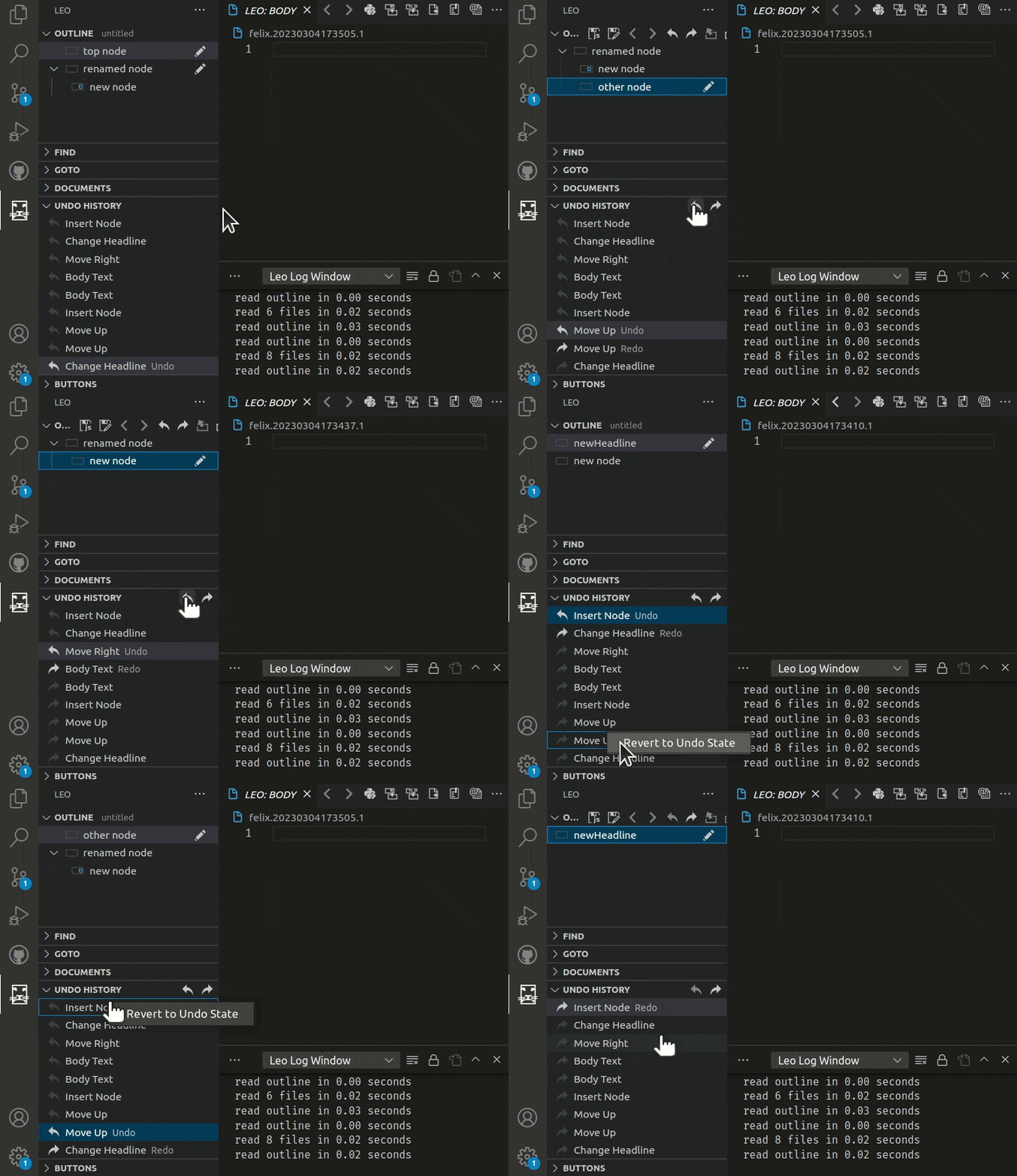
- **Undo History panel**, showing all actions and allowing going back, or forward, to any undo states.
## Leo Commands
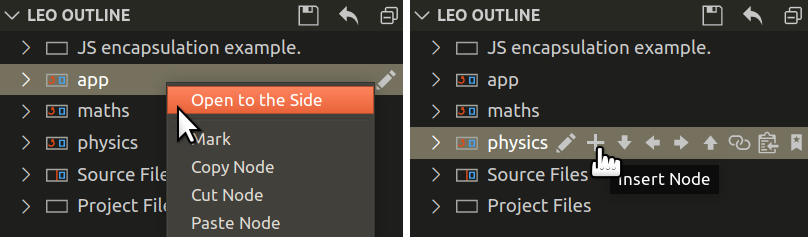
LeoInteg offers an extensive set of integrated commands, accessible through a variety of interfaces — toolbar buttons, dedicated menus, and intuitive keybindings. Those commands are also discoverable via the Visual Studio Code Command Palette. (accessible through F1 or Ctrl+Shift+P)
### Context-Aware Keybindings
The keybinding architecture is designed to be context-aware. When your focus is within the LeoInteg Body or Outline pane, LeoInteg-specific keybindings take precedence. Shift your focus outside these panes, and Visual Studio Code's native keybindings resume control.
### The Minibuffer
For those familiar with Leo, the 'minibuffer' serves as the nerve center for command execution. Access it through Alt+X and use the complete set of Leo's commands!
## Keybindings
Listed here are the most useful commands and their keyboard shortcuts.
| Outline Commands | |
| :--------------- | :--------------------------------------------------------------- |
| Undo / Redo | `Ctrl + Z` / `Ctrl + Shift + Z` |
| Insert Node | `Ctrl + I` _or_ `Shift + Insert` |
| Insert Child | `Ctrl + Insert` |
| Edit Headline | `Ctrl + H` |
| Mark / Unmark | `Ctrl + M` |
| Copy Node | `Ctrl + Shift + C` |
| Cut Node | `Ctrl + Shift + X` |
| Paste Node | `Ctrl + Shift + V` |
| Delete Node | `Ctrl + Shift + Backspace` _or_ `Delete` |
| Clone Node | `Ctrl + Backquote` |
| Promote / Demote | `Ctrl + {` _and_ `Ctrl + }` |
| Moving Nodes | |
| :----------------- | :-------------------------------------------------------------- |
| Move Outline Up | `Ctrl + U` _or_ `Shift [+ Alt] + Up` |
| Move Outline Down | `Ctrl + D` _or_ `Shift [+ Alt] + Down` |
| Move Outline Left | `Ctrl + L` _or_ `Shift [+ Alt] + Left` |
| Move Outline Right | `Ctrl + R` _or_ `Shift [+ Alt] + Right` |
_Move-Outline commands need the `Alt` key modifier only when focus is on body pane._
| Changing Focus | |
| :------------------------------ | :------------------------------------------------ |
| Toggle Outline/Body | `Ctrl + T` |
| Focus on Outline | `Alt + T` |
| Focus on Body (in any pane) | `Alt + D` _or_ `Ctrl + G` |
| Focus on Body (in Outline pane) | `Tab` _or_ `Enter` |
| Common Operations | |
| :------------------ | :----------------- |
| Contract All | `Alt + -` |
| Sort Siblings | `Alt + A` |
| Start Search | `Ctrl + F` |
| Quick Find Selected | `Ctrl + Shift + F` |
| Find Next | `F3` |
| Find Previous | `F2` |
| Replace | `Ctrl + =` |
| Replace then Find | `Ctrl + -` |
| Extract | `Ctrl + Shift + D` |
| Extract Names | `Ctrl + Shift + N` |
| Execute Script | `Ctrl + B` |
| Minibuffer Palette | `Alt + X` |
| Tree Navigation | |
| :----------------------- | :----------------------------------------------------------- |
| Show the LeoInteg View | `Ctrl+Shift+L` |
| Go Anywhere | `Ctrl+P` |
| Go To First Visible Node | `Home` _or_ `Alt + Home` |
| Go To Last Visible Node | `End` _or_ `Alt + End` |
| Tree page up/down | `PgUp / pgDn` |
| Go To Next Clone | `Alt + N` |
| Browse Tree | `Arrow Keys` _or_ `Alt + Arrow Keys` |
| Go To Global Line | `Alt + G` |
_With the **'Leo Tree Browsing'** setting enabled by default, the arrows, home, end, pageUp/Down keys will change the outline's selection directly. Using tree navigation shortcuts from the body pane (with the `Alt` key modifier) will place focus in the outline._
| File Commands | |
| :------------------ | :----------------- |
| Save Leo Document | `Ctrl + S` |
| New Leo Document | `Ctrl + N` |
| Open Leo Document | `Ctrl + O` |
| Cycle Next Document | `Ctrl + Tab` |
| Write File Nodes | `Ctrl + Shift + W` |
| Write Dirty Files | `Ctrl + Shift + Q` |
---
## Derive External Files
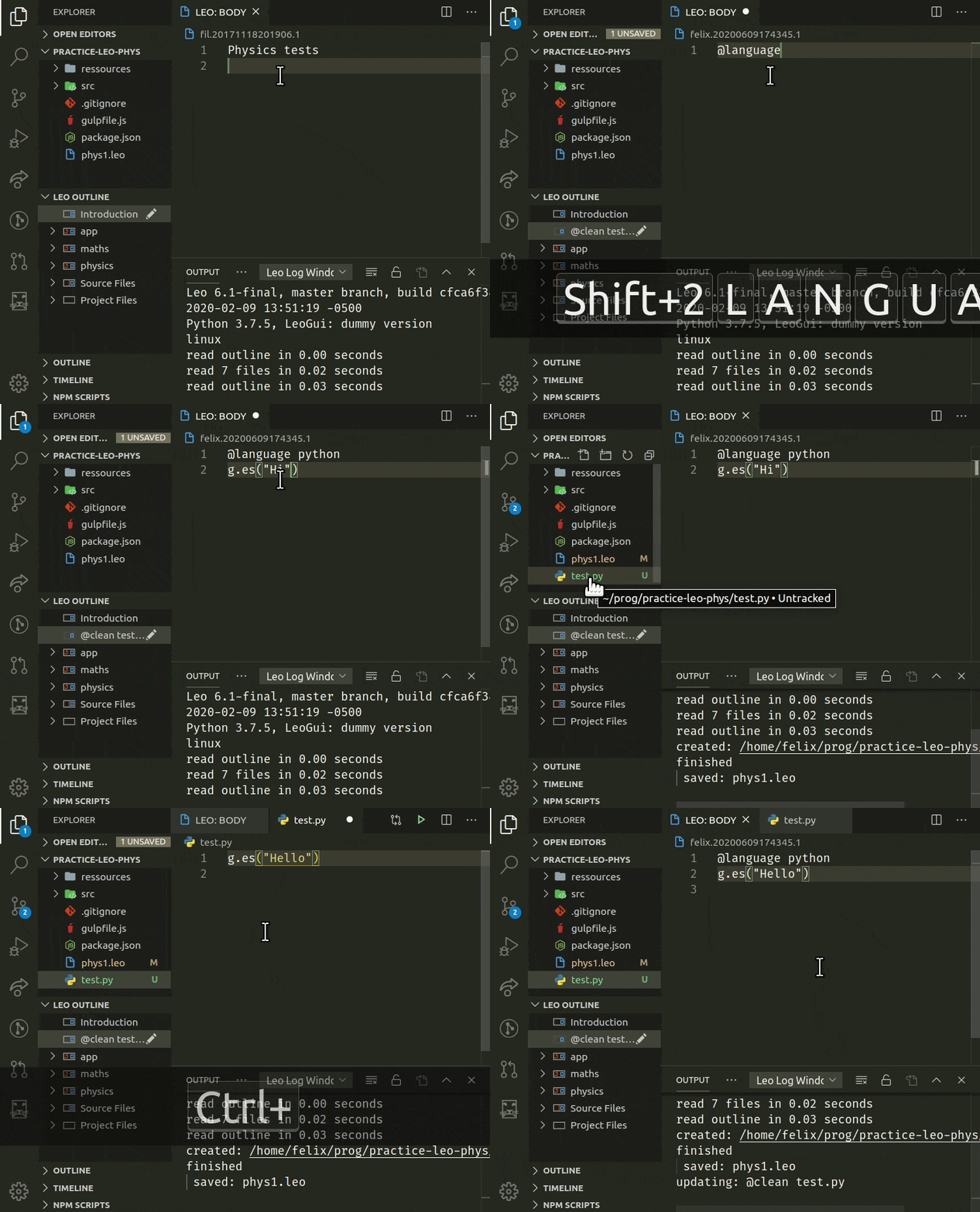
Use either of the **Save Leo Document**, **Write File Nodes** or **Write Dirty Files** commands to derive external files for any type of **@file** nodes.
| @\ Kind | Sentinels | @others | .leo Data | Write Only |
| :------------- | :-------: | :-----: | :-------: | :--------: |
| @asis | ❌ | ❌ | ✔️ | ✔️ |
| @auto | ❌ | ✔️ | ❌ | ❌ |
| @clean | ❌ | ✔️ | ✔️ | ❌ |
| @edit | ❌ | ❌ | ❌ | ❌ |
| @file | ✔️ | ✔️ | ❌ | ❌ |
| @nosent | ❌ | ✔️ | ✔️ | ✔️ |
You can also create most of those nodes by using the context menu in vscode's explorer or file editors, and choosing the **Import into Leo Outline** command.
The **Go to Line In Leo Outline** command is also available in the editor context menu to find a specific line in the outline. It will offer to import the file if no type of **@file** nodes are found in the outline for that file.
### File changes outside of Leo
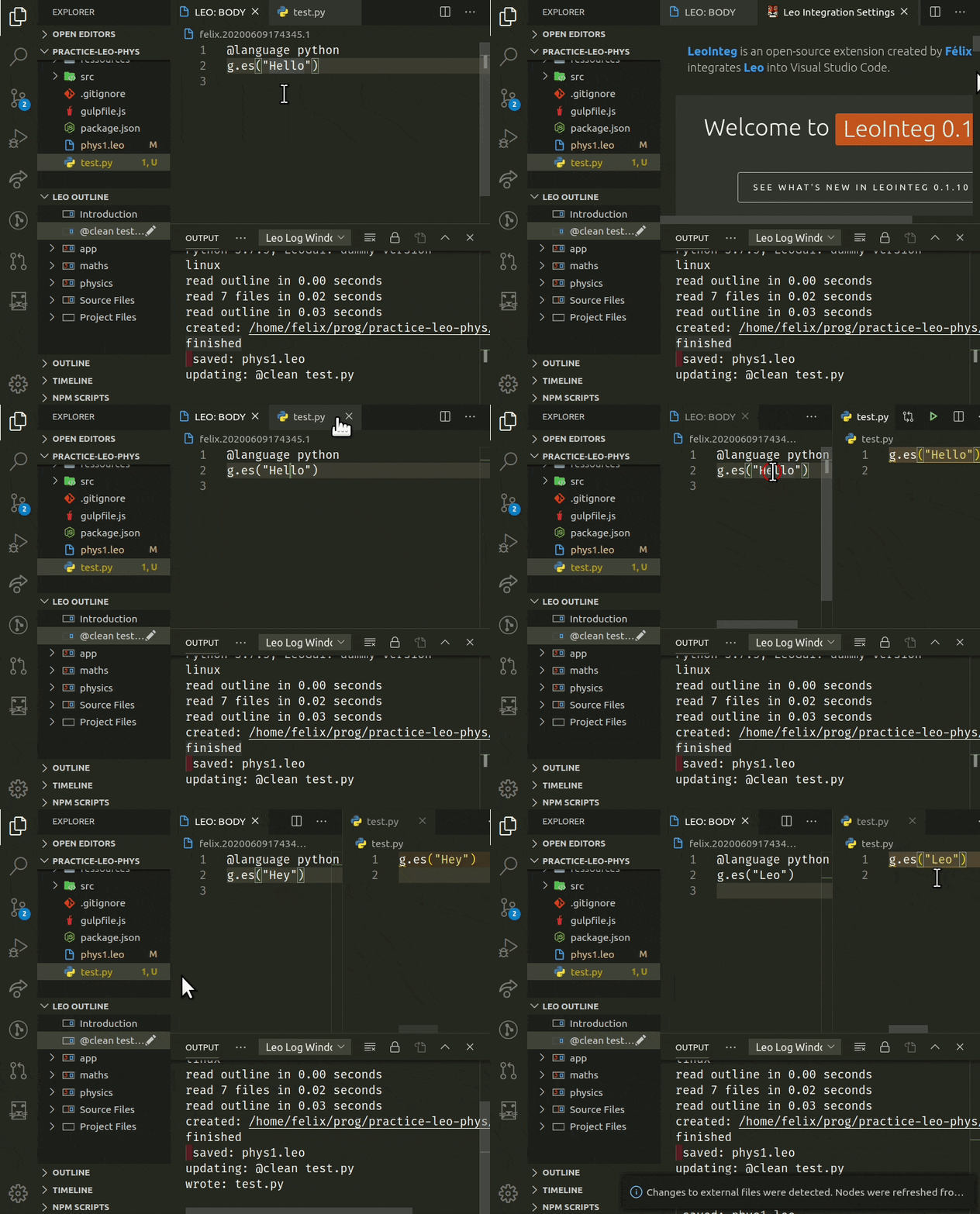
Leo will detect external file changes, and will ask to either **refresh from disk** or **ignore the changes**.
## Automate External Files Synchronization
The **change detection** process can be automated to always refresh, or ignore file changes:
A **notification** will inform you of the action taken instead.
## Extension Settings
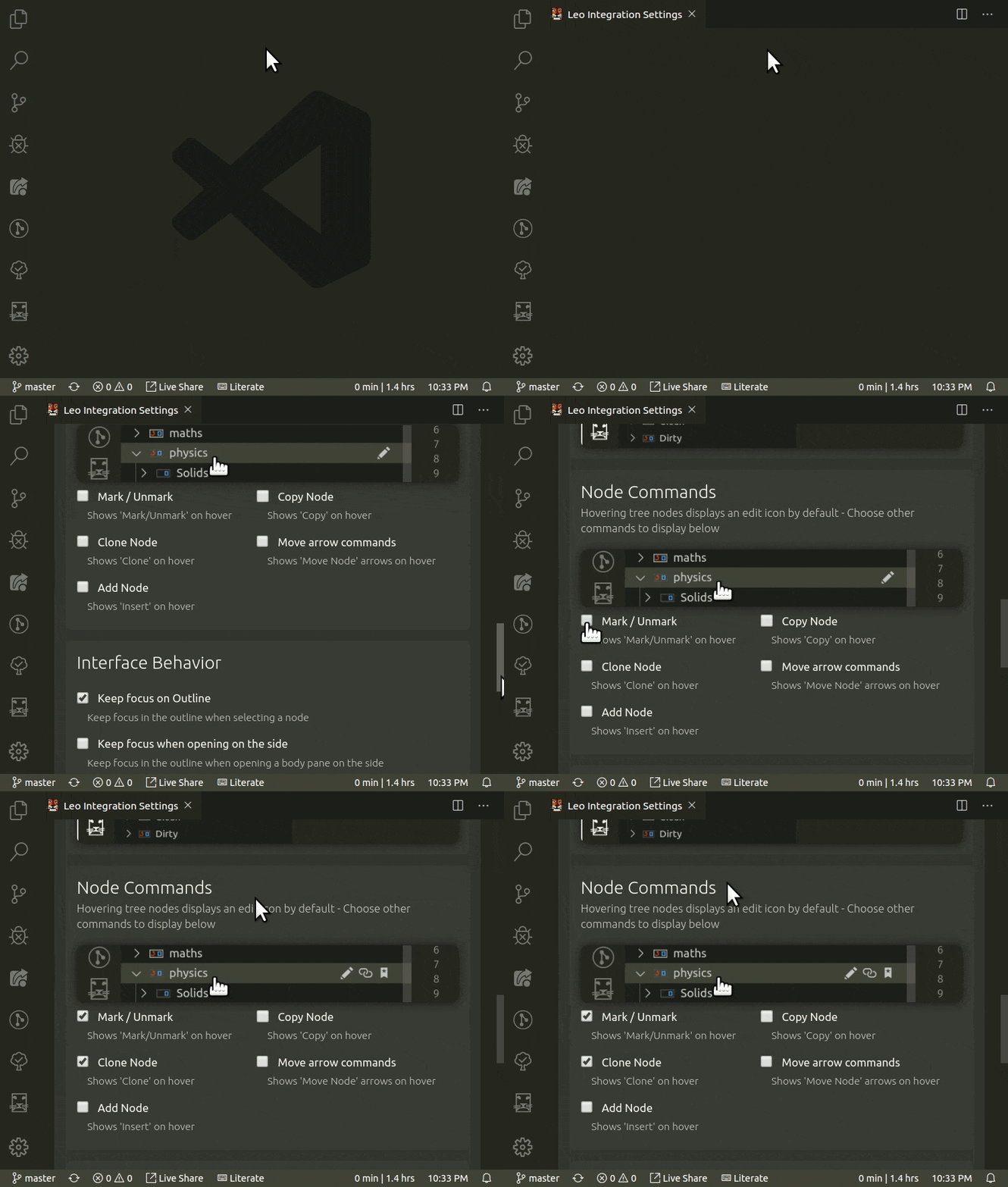
### Open the command palette `Ctrl+Shift+P` and start typing `leo settings` to access its _welcome & settings_ screen
> _(Changes are auto-saved to the user's profile after 0.5 seconds)_
- Control the visibility of the outline pane in the explorer view.
- Decide how and when to refresh and synchronize content when external files are modified.
- Show additional icons on outline nodes (Move, delete, mark, copy, paste...)
- Choose to either focus on the body pane, or keep focus in the outline when a node is selected.
- Hide or show the "Open on the side" command in the context menu to open a node beside the active editor
- Set preferences for setting the address and port, and for automatically starting, and/or connecting to a Leo server.
## Server Settings
Although the Leo integration has one instance of the leoserver script per vscode 'project'
window by default, the server settings also has features that allows you to use the same instance
of Leo in multiple client (vscode) windows simultaneously, with real-time updates and interaction.
(See [Multiple concurrent connections](https://leo-editor.github.io/leo-editor/leoserver.html#multiple-concurrent-connections))
### Auto Start
**When auto-start is set, a vscode window will start a new instance of Leo server for itself on the next available network port.**
If the connection limit is set to anything above the default of one (1),
then the auto-start logic will consider a port being in use as
being already started and will not start another one.
_(Letting you connect, or auto-connect to it from any additional opened vscode window.)_
The server, located in your Leo-Editor installation folder, also has other options unrelated to
LeoInteg that allows you to create a stand-alone internet server for other uses such as
multi-user interaction over a network/internet, and more.
Run the server directly with the '--help' argument to view all server options and capabilities:\
`.../leo-editor/leo/core/leoserver.py --help`
For more information about the Leo server see [Using leoserver.py](https://leo-editor.github.io/leo-editor/leoserver.html) from Leo's official documentation.
## Navigating a Leo Document
Arrow keys, home/end, page up/down are used for basic navigation. But in order to **find and goto specific nodes directly**, use the methods described below.
### Goto Anywhere Command
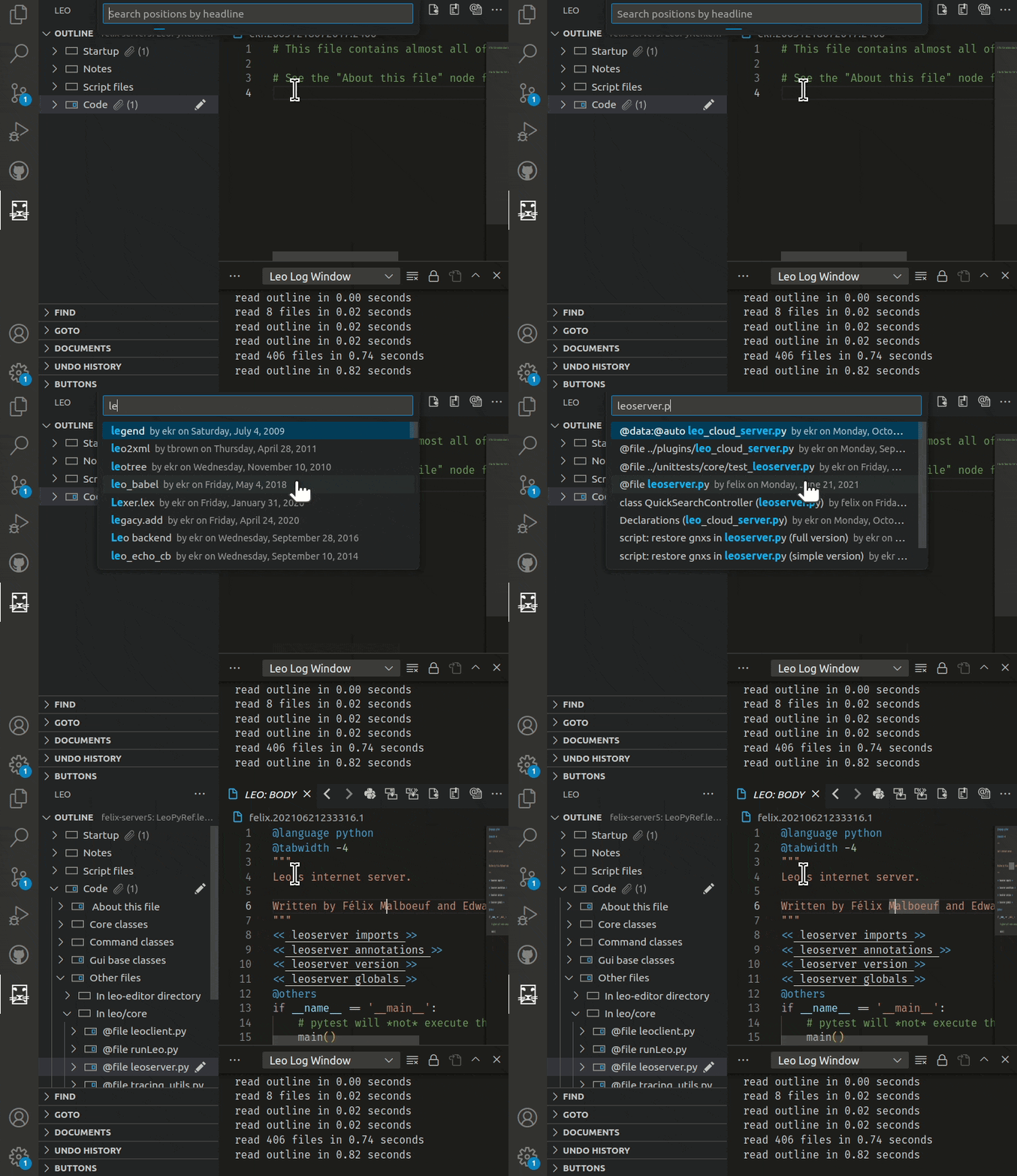
Normally in vscode, the the **`Ctrl+P`** shortcut allows you to switch to any project file, but when the focus is in one of Leo's panels, the **`Ctrl+P`** keybinding allows you to switch to a node directly by typing (part of) it's headline.
## Find Panel
With the focus in Leo's outline or body pane, Hit **`Ctrl+F`** to open the Find tab of the _find panel_.
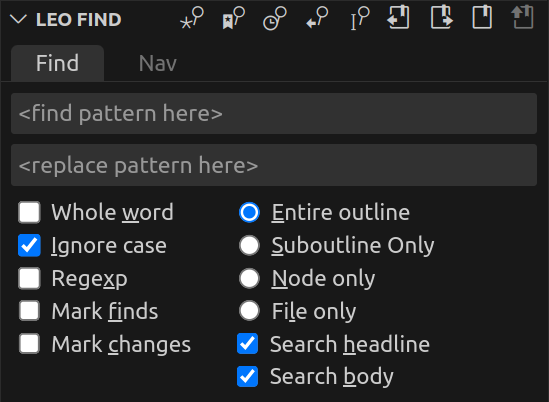
Enter your search pattern directly in the **\** field. Press **`Enter`** to find the first match starting from your current position.
Hitting **`F3`** repeatedly will find the subsequent matches. (**`F2`** for previous matches)
Using the Nav tab of the _find panel_, (**`Ctrl+Shift+F`** to accesss directly) you can type your search pattern in the **Nav** field instead to see all results appear below. This will show the headlines as you type.
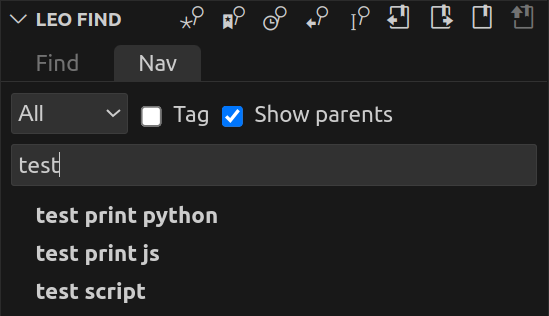
Press **`Enter`** to freeze the results and show results also found in **body text of any node**. This will add a snowflake icon ❄️ to the **Nav** field.
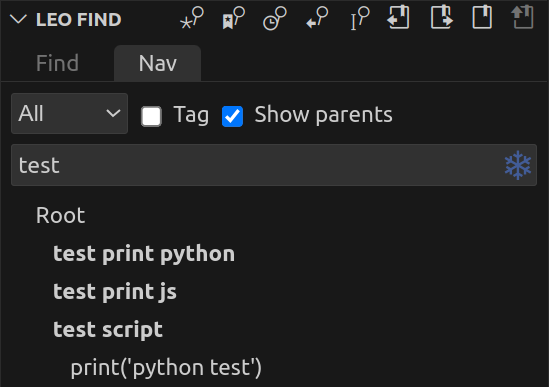
If you check the **Tag** option, the **Nav** field is then used to find nodes by their tag 🏷 _ua_ (user attribute).
## Undo Panel
> In LeoInteg, the undo functionality is a multi-tiered system that segregates structural outline changes from text changes within the body pane. The Undo Panel captures outline alterations as individual 'Undo Beads', independent from VS Code's native text undo states. When focus resides in the body pane, the Undo keybinding triggers VS Code's text-specific undo action. However, once the focus shifts, or a new node is selected, all concurrent text changes coalesce into a single 'Undo Bead' within the Undo Panel. These 'Undo Beads' can then be manipulated either through the Undo Panel or by keybindings, provided the focus is explicitly set on the outline pane. This dual-layer undo architecture enables precise control over both code and structural modifications.
Use the undo / redo icons above the outline or above the undo pane itself. You can also right-click on an undo step to directly switch to that specific state!
## Issues
Common issues are listed below. See the repository's [Issues Page](https://github.com/boltex/leointeg/issues) to submit issues.
### Linux Keybindings
If you're experiencing trouble with the keyboard shortcuts for
the 'Clone Node' or the 'Promote' and 'Demote' commands,
set **"keyboard.dispatch": "keyCode"** in your vscode settings and restart vscode.
See [Troubleshoot Linux Keybindings](https://github.com/microsoft/vscode/wiki/Keybinding-Issues#troubleshoot-linux-keybindings)
for more information.
### Keybindings Conflicts Resolution
If you have a keybinding conflict for a command that you would like **not** to be resolved by Leo when the focus is on the body pane,
add **`&& resourceScheme != 'leointeg'`** to the keybinding's "_when_" condition. (Use **`Ctrl+K Ctrl+S`** in vscode to open the Keyboards Shortcuts panel)
### Move Outline Keyboard Commands
For some users, the **`Alt+[Arrow Keys]`**, **`Ctrl+D`** and **`Ctrl+T`** keybinding are already assigned.
To help with this conflict, tree-browsing, outline-move keyboard commands, and switch focus command will only trigger
with the additional condition of having no text selection in the editor.
So select at least one character to use the previously assigned original keyboard commands, while focus is in the body pane.
> Refer to the [issue tracker](https://github.com/boltex/leointeg/issues) page to learn more about the known issues, or to contribute with additional information if you encounter some yourself.
## How It Works
Leo integration into VS Code is done by starting
a [python server script](https://github.com/leo-editor/leo-editor/blob/devel/leo/core/leoserver.py) and connecting to it via
a [websocket](https://websockets.readthedocs.io/en/stable/intro.html)
to exchange JSON data. The server script leverages [leoBridge](https://leo-editor.github.io/leo-editor/leoBridge.html)
and re-uses code from the [leoflexx.py plugin](https://github.com/leo-editor/leo-editor/blob/devel/leo/plugins/leoflexx.py#L893).
The outline pane is made by implementing a
[TreeDataProvider for vscode's TreeView API](https://code.visualstudio.com/api/extension-guides/tree-view#tree-view-api-basics),
while the body-pane's _virtual document_ is made by [implementing a filesystem provider](https://code.visualstudio.com/api/extension-guides/virtual-documents#file-system-api)
and using the outline's selected node 'gnx' as identifier.
---
## Acknowledgments
### _Thanks to_
- [Edward K. Ream](https://github.com/edreamleo) creator of the [Leo Editor](https://leo-editor.github.io/leo-editor/)
- [Eric Amodio](https://github.com/eamodio) for the [welcome screen templates](https://github.com/eamodio/vscode-gitlens/tree/master/src/webviews)
- [Vitalije Milošević](https://github.com/vitalije) for his contributions and support
- [Arjan Mossel](https://github.com/ar-jan) for his suggestions and ideas
- [Thomas Passin](https://github.com/tbpassin) for his contributions and support
- [Viktor](https://github.com/ranvik14) for his contributions and support
- [Gaurami](https://github.com/ATikhonov2) for his suggestions, bug reports and support
- [Kevin Henderson](https://github.com/kghenderson) for his suggestions and support
- [Ville M. Vainio](https://github.com/vivainio) for his Nav tab original concept
- [Jacob M. Peck](https://github.com/gatesphere) for his Tags tab original concept
- [Matt Wilkie](https://github.com/maphew) for his contributions and support
---
## 🤍 To sponsor, donate or contribute see my [user page 🦁](https://boltex.github.io/)