https://github.com/brenordv/rust-pad
Cross-platform Notepad inspired by Notepad++
https://github.com/brenordv/rust-pad
cross-platform gui linux macos notebook notepad notepad-plus-plus notes tools windows
Last synced: 27 days ago
JSON representation
Cross-platform Notepad inspired by Notepad++
- Host: GitHub
- URL: https://github.com/brenordv/rust-pad
- Owner: brenordv
- License: gpl-3.0
- Created: 2026-02-11T01:51:22.000Z (5 months ago)
- Default Branch: master
- Last Pushed: 2026-05-22T01:45:11.000Z (about 1 month ago)
- Last Synced: 2026-05-22T10:15:38.615Z (about 1 month ago)
- Topics: cross-platform, gui, linux, macos, notebook, notepad, notepad-plus-plus, notes, tools, windows
- Language: Rust
- Homepage:
- Size: 1.41 MB
- Stars: 0
- Watchers: 0
- Forks: 0
- Open Issues: 0
-
Metadata Files:
- Readme: README.md
- Changelog: CHANGELOG.md
- Contributing: CONTRIBUTING.md
- License: LICENSE.md
Awesome Lists containing this project
README

rust-pad
A cross-platform notepad application built using Rust, and inspired on Notepad++
---
[](https://github.com/brenordv/rust-pad/actions/workflows/release.yml)
[](https://github.com/brenordv/rust-pad/actions/workflows/vet.yml)
[](https://sonarcloud.io/summary/new_code?id=brenordv_rust-pad)
[](https://sonarcloud.io/summary/new_code?id=brenordv_rust-pad)
[](https://sonarcloud.io/summary/new_code?id=brenordv_rust-pad)
[](https://sonarcloud.io/summary/new_code?id=brenordv_rust-pad)
[](https://sonarcloud.io/summary/new_code?id=brenordv_rust-pad)
[](https://sonarcloud.io/summary/new_code?id=brenordv_rust-pad)
[](https://sonarcloud.io/summary/new_code?id=brenordv_rust-pad)
[](https://sonarcloud.io/summary/new_code?id=brenordv_rust-pad)
[](https://sonarcloud.io/summary/new_code?id=brenordv_rust-pad)
[](https://sonarcloud.io/summary/new_code?id=brenordv_rust-pad)
[](https://sonarcloud.io/summary/new_code?id=brenordv_rust-pad)
---
## Demo
[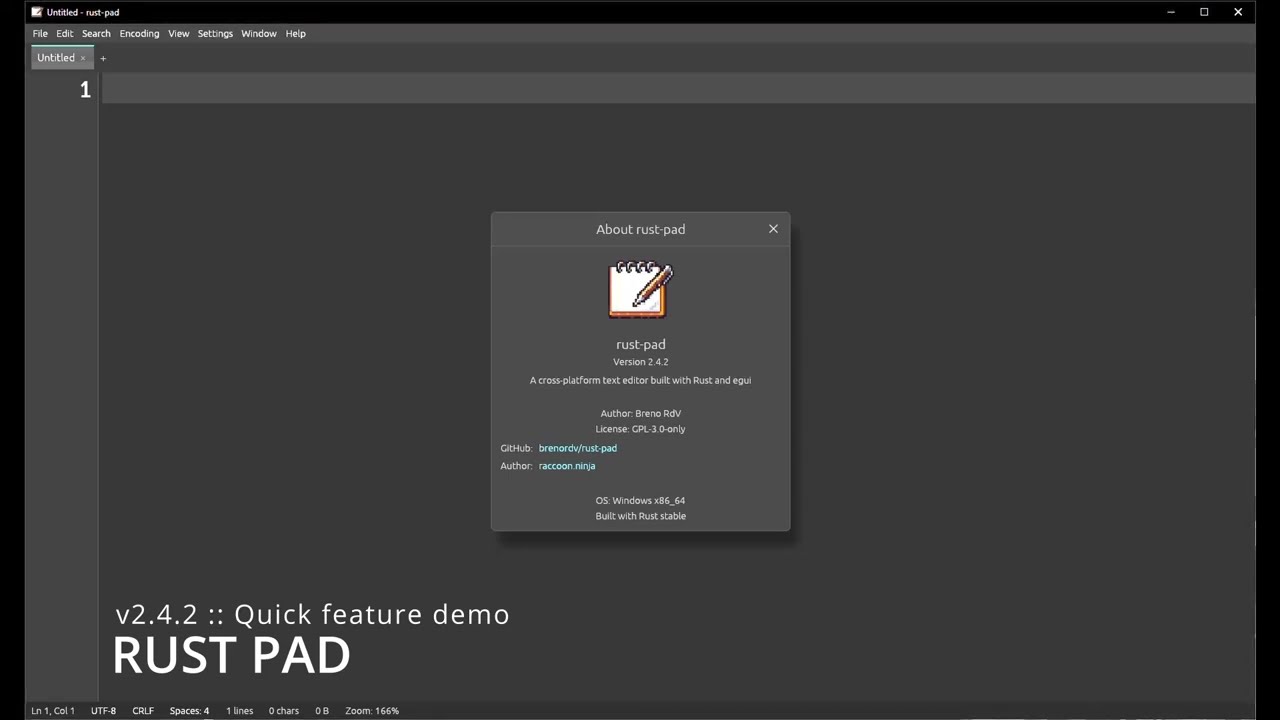](https://youtu.be/YiH3Qj-Bljc)
The app has even more features. :)
## Motivation
I absolutely love Notepad++, so whenever I consider moving away from Windows, I end up looking for a way to run it on Linux.
Since I prefer native applications, I decided to take the longer route and write my own text editor in Rust.
This isn’t a port of Notepad++, and it doesn’t include all of its features—nor am I trying to compete with it.
Instead, my goal is to build a cross-platform Notepad-like editor with a few neat features, keeping it as simple,
stable, and fast as possible.
## Features
### Editing
- **Multi-tab interface** with session restore (reopen files from last session) and horizontal tab scrolling when tabs overflow
- **Find/Replace** with regex support and search across all open tabs. Non-modal (keeps editing enabled, dims when it loses focus), auto-focuses the find field on open, pre-fills it with the current single-line selection, scrolls the viewport to the active match, and offers a session search-history dropdown
- **Multi-cursor editing**: `Ctrl+Click` to add cursors, `Alt+Shift+Arrow` to add the cursors above/below (with shrink support), `Alt+Shift+Period` to select next occurrence
- **Undo/Redo** with persistent history (survives application restart)
- **Auto-indent**: pressing Enter inherits the leading whitespace from the current line
- **Bracket matching**: highlights matching `()`, `[]`, `{}` pairs when the cursor is adjacent to a bracket
- **Bookmarks**: toggle (`Ctrl+F2`), navigate (`F2 / Shift+F2`), clear all. Bookmarked lines display a blue circle indicator in the gutter
- **Context menu**: right-click for clipboard actions, selection operations, case conversion, and line operations scoped to selection or entire document
- **Go to Line** dialog (`Ctrl+G`)
- **Delete current line** (`Ctrl+D`)
### Tab Management
- **Pin tabs**: right-click → "Pin Tab" to anchor important tabs to the left of the bar (marked with 📌). Pinned tabs are skipped by bulk close operations
- **Tab coloring**: right-click → "Set Tab Color" to assign one of 9 accent colors (Red, Orange, Yellow, Green, Cyan, Blue, Purple, Pink, Gray) for visual grouping. Persisted across restarts
- **Drag-and-drop reordering**: click and drag any tab horizontally to reorder it. A vertical accent indicator shows the drop target. `Escape` cancels an in-progress drag. Drags are clamped to the pinned/unpinned section
- **Bulk close operations**: "Close Unchanged Tabs", "Close Others", and "Close All" available from the File menu and tab context menu. All bulk operations skip pinned tabs and prompt for unsaved changes
- **Move to other pane**: right-click any tab to move it to the other pane while split view is active
### Line Operations
- Sort lines ascending/descending
- Remove duplicate lines
- Remove empty lines
- Move line up/down (Alt+Up / Alt+Down)
- Duplicate line
- Increase/Decrease indent (Tab / Shift+Tab) — applies to every line covered by a multi-line selection, preserving the selection
- **Join Lines**: collapse the selected lines into one, with exactly one space at each junction (whitespace at the joins is stripped)
- **Trim Whitespace**: trim trailing, leading, or both from every line in the selection (or the current line when there is no selection)
### Selection
- **Invert Selection**: toggles selection (no selection -> select all, full selection -> clear, partial -> invert to unselected regions)
### Case Conversion
- UPPERCASE
- lowercase
- Title Case
### Workspace Sidebar
- **Named workspaces** (`Ctrl+B` to toggle the sidebar): group project folders into named workspaces that persist across restarts in a dedicated database (`rust-pad-workspaces.redb`). Create, rename, switch, and delete workspaces
- **Folder management**: add folders via the menu or sidebar toolbar; duplicate and overlapping (parent/child) folders are rejected with a message. Remove folders without deleting them from disk
- **File tree**: collapsible, lazy-loaded folder tree (directories before files, sorted case-insensitively, large directories capped at 10,000 entries). Optionally include hidden folders
- **File operations from the sidebar**: double-click to open; right-click for New File, New Folder, Rename, and Delete (send to trash), with inline naming fields
- **Drag-and-drop folders**: drop folders onto the window to add them to the active workspace (a workspace is created automatically if none exists)
- **Real-time monitoring**: workspace directories are watched (via `notify`, 500ms debounce) and the tree updates incrementally without full re-scans
- **Inaccessible folders** (unmounted drives, deleted directories) are shown with a warning icon and "(unavailable)" label instead of crashing
### Diagnostics
- **Problems panel** (Help → Problems): lists application errors and warnings (newest first) in a crash-safe database (`rust-pad-problems.redb`) that survives unexpected termination. Mark entries read, copy a message, or clear the log. The Help menu shows a `⚠` indicator and unread count when there are unread entries. Captured failures include file open, auto-save, live reload, print/export, encoding, reload-from-disk, recovery, database open, session restore, and CLI open. Uncaught panics are also recorded via a custom panic hook so crash info survives a restart
### File Handling
- **Recent files**: quick reopen from the File > Open Recent submenu (configurable max count and cleanup strategy)
- **Live file monitoring** (`tail -f mode`): auto-refresh when file changes on disk
- **External change detection**: for any open document (not just live-monitored ones), a modification on disk prompts a dialog to reload or keep your version
- **Auto-save** for file-backed documents (configurable interval)
- **Async file I/O**: file dialogs, reads, and writes run on background threads with a status bar spinner, keeping the UI responsive
- **File size validation**: configurable size limit (default 512 MB) prevents out-of-memory crashes from opening very large files. Applied to all open paths (dialogs, recent files, CLI, session restore, live monitoring)
- **UTF-16 odd-byte validation**: truncated or malformed UTF-16 files are rejected with a clear error instead of silently dropping the last byte
- **Encoding support**: UTF-8, UTF-8 with BOM, UTF-16 LE, UTF-16 BE, ASCII
- **Line ending conversion**: LF (Unix), CRLF (Windows), CR (classic Mac)
- **Default line ending** for new documents: System (OS default), Unix (LF), or Windows (CRLF), set in Settings → Editor. Files opened from disk keep their detected line ending
- **Indent style**: spaces (2/4/8) or tabs, with auto-detection
- **Reload from Disk**: discard unsaved changes and reload the file from its on-disk state (with confirmation when modified)
- **Save a Copy As...**: save the current document to a different path without changing the active file's path or modified state
- **Print** (`Ctrl+P`): renders the active document to a temporary PDF and opens it in the system's default PDF viewer for printing
- **Export as PDF...**: writes the rendered PDF to a user-chosen path. A4 portrait, monospace (DejaVu Sans Mono, bundled), header with filename + path + timestamp, footer with `Page N of M`, optional line-number gutter. Runs on a dedicated background worker thread; the menu entries gate on in-flight state to prevent duplicate jobs. Stale temp PDFs older than 24 hours are cleaned up on startup
- **Drag and drop to open**: drop one or more files onto the editor window to open them (a translucent "Drop file(s) to open" overlay appears while hovering; duplicates switch to the existing tab)
- **Move to Recycle Bin** support via the `trash` crate
### View
- **Customizable themes**: Dark, Light, and custom themes via JSON
- **Settings dialog** with six tabs: General, Editor, File Dialogs, Auto-Save, History, Workspace
- **Status bar** displaying: cursor position, encoding, line ending, indent style, character count, file size, zoom level, last saved time, and PDF generation indicator
- **Split view**: divide the editor into two panes with a draggable divider, vertically (`Ctrl+Alt+V`) or horizontally (`Ctrl+Alt+H`). Each pane has its own tab strip and active tab. Double-click the divider to reset to 50/50. A 1px accent border highlights the focused pane. Layout (orientation, divider ratio, per-pane tab assignment, focused pane) is persisted across restarts. Use **View → Remove Split** to collapse back to a single pane
- **Synchronized scrolling** (`Ctrl+Alt+S`): mirror user-initiated scroll deltas between panes for side-by-side diffing. Programmatic jumps (Go to Line, Find/Replace, bookmarks) do not propagate. Configurable horizontal sync. Gated on split view being active
- **Word wrap** toggle. With wrap on, arrow Up/Down moves one *visual* (wrapped) line at a time with a sticky column, rather than skipping whole logical lines
- **Special character visualization** (whitespace, line endings)
- **Line number gutter** with change tracking (orange = unsaved changes, green = saved changes) and bookmark indicators
- **Zoom**: in (`Ctrl++`), out (`Ctrl+-`), reset (`Ctrl+0`): range 50% to 1500%
### Platform & CLI
- **Cross-platform**: Windows, macOS, Linux
- **CLI support**: open files from the command line, `--new-file` flag to create a tab with given text
- **Portable mode** (`--portable` flag): store all config and data next to the executable for USB/portable installs
- **Platform-standard directories**: config and data stored in OS-standard locations (`%APPDATA%`, `~/.config`, `~/Library/Application Support`) with automatic migration from older versions
- **Security hardening**: data directories (0700) and history/session database files (0600) use restrictive permissions on Unix; bounded bincode deserialization (50 MB per edit group, 1 KB metadata, 10 MB session) prevents OOM from corrupted redb databases — corrupted records are skipped with a warning instead of blocking startup
- **Reproducible builds**: Rust toolchain pinned via `rust-toolchain.toml` (1.93.1 + `rustfmt`/`clippy`); all third-party GitHub Actions in CI/release/SonarCloud workflows pinned to full commit SHAs
- **Release integrity**: SHA256 checksums (`SHA256SUMS.txt`) published alongside release binaries for download verification
- **Custom application icon**
---
## Keyboard Shortcuts
### File Operations
| Shortcut | Action |
|--------------|-------------------|
| Ctrl+N | New tab |
| Ctrl+O | Open file |
| Ctrl+S | Save |
| Ctrl+Shift+S | Save As |
| Ctrl+P | Print (PDF) |
| Ctrl+W | Close tab |
### Editing
| Shortcut | Action |
|-----------|------------------------|
| Ctrl+Z | Undo |
| Ctrl+Y | Redo |
| Ctrl+X | Cut |
| Ctrl+C | Copy |
| Ctrl+V | Paste |
| Ctrl+A | Select all |
| Ctrl+D | Duplicate current line |
| Tab | Increase indent |
| Shift+Tab | Decrease indent |
### Navigation & Search
| Shortcut | Action |
|----------|-------------------|
| Ctrl+F | Open Find/Replace |
| Ctrl+H | Open Find/Replace |
| Ctrl+G | Go to Line |
| Ctrl+F2 | Toggle bookmark |
| F2 | Next bookmark |
| Shift+F2 | Previous bookmark |
### Multi-Cursor
| Shortcut | Action |
|------------------|------------------------------|
| Ctrl+Click | Add cursor at click position |
| Alt+Shift+Up | Add cursor above |
| Alt+Shift+Down | Add cursor below |
| Alt+Shift+Period | Select next occurrence |
| Escape | Clear secondary cursors |
### Line Movement
| Shortcut | Action |
|----------|----------------|
| Alt+Up | Move line up |
| Alt+Down | Move line down |
### Tabs
| Shortcut | Action |
|----------------|--------------|
| Ctrl+Tab | Next tab |
| Ctrl+Shift+Tab | Previous tab |
### Workspace
| Shortcut | Action |
|----------|---------------------------|
| Ctrl+B | Toggle workspace sidebar |
### View
| Shortcut | Action |
|------------|-------------------------|
| Ctrl+Alt+V | Split vertically |
| Ctrl+Alt+H | Split horizontally |
| Ctrl+Alt+S | Synchronized scrolling |
### Zoom
| Shortcut | Action |
|----------|------------|
| Ctrl++ | Zoom in |
| Ctrl+- | Zoom out |
| Ctrl+0 | Reset zoom |
---
## Configuration
rust-pad stores its configuration in a `rust-pad.json` file in the platform-standard config directory:
| Platform | Config directory |
|----------|-------------------------------------------|
| Windows | `%APPDATA%\rust-pad\` |
| macOS | `~/Library/Application Support/rust-pad/` |
| Linux | `~/.config/rust-pad/` |
Data files (`history.redb`, `rust-pad-session.redb`, `rust-pad-workspaces.redb`, `rust-pad-problems.redb`) are stored in the platform-standard data directory (same as config on Windows/macOS; `~/.local/share/rust-pad/` on Linux).
When running with `--portable`, all files are stored next to the executable instead. See the [Environment Variables](#environment-variables) section below for variables that override these locations.
The config file is created automatically on the first launch with default values. If upgrading from an older version that stored files next to the executable, they are automatically migrated (copied) to the new location.
> **Note (upgrading from 1.x to 2.0.0):** the session store schema gained pin and color metadata, which is a breaking change to the bincode format. On the first launch after upgrading to v2.0.0, the previous session file will fail to deserialize, and the app will start with a fresh, empty session (a warning is logged). Open files will not be reopened automatically that one time. From v2.0.0 onward, the new fields are persisted and restored normally.
### Environment Variables
| Variable | Description |
|---------------------|----------------------------------------------------------------------------------------------------------------------|
| `RUST_PAD_DATA_DIR` | Overrides the history data directory location. Takes precedence over the platform-standard data directory and `--portable` mode. |
### Configuration Fields
| Field | Type | Default | Description |
|---------------------------|--------|-------------------------------|-----------------------------------------------------------------------------------------------------------------------|
| `auto_save_enabled` | bool | `false` | Enable periodic auto-save for file-backed documents. |
| `auto_save_interval_secs` | int | `30` | Seconds between auto-saves (minimum 5). |
| `current_theme` | string | `"System"` | Active theme name. `"System"` follows OS dark/light preference. Can be `"Dark"`, `"Light"`, or any custom theme name. |
| `current_zoom_level` | float | `1.0` | Current zoom multiplier (0.5 to `max_zoom_level`). |
| `default_extension` | string | `""` | Default file extension for new untitled tabs (e.g. `"txt"`, `"md"`). Empty means none. |
| `default_line_ending` | string | `"system"` | Line ending for new documents: `"system"` (OS default), `"lf"` (Unix), or `"crlf"` (Windows). Loaded files keep their detected ending. |
| `default_work_folder` | string | `""` | Default starting folder for file dialogs. Empty uses the user's home directory. |
| `font_size` | float | `16.0` | Base font size in points (6.0 to 72.0). |
| `last_used_folder` | string | `""` | Persisted last folder from open/save dialogs (managed automatically). |
| `max_file_size_mb` | int | `512` | Maximum file size in MB to open (0 = no limit, 1 to 10240). |
| `max_zoom_level` | float | `15.0` | Maximum allowed zoom level (minimum 1.0). Note: Values over 15 will start to degrade performance. |
| `print_show_line_numbers` | bool | `true` | Show the line-number gutter in PDFs generated by Print and Export as PDF. |
| `recent_files_cleanup` | string | `"OnStartup"` | When to remove non-existent files: `"OnStartup"`, `"OnMenuOpen"`, or `"Both"`. |
| `recent_files_enabled` | bool | `true` | Enable the recent files feature. |
| `recent_files_max_count` | int | `10` | Maximum number of recent files to remember (1 to 50). |
| `recent_files` | array | `[]` | Most-recently-opened file paths (managed automatically). |
| `remember_last_folder` | bool | `true` | Remember the last folder used in open/save dialogs. |
| `restore_open_files` | bool | `true` | Reopen files from the previous session on startup. |
| `session_content_max_kb` | int | `10240` | Maximum KB of unsaved content to persist per tab (0 = unlimited). Tabs exceeding this are restored empty. |
| `show_full_path_in_title` | bool | `true` | Show the full file path in the window title bar. |
| `show_hidden_files` | bool | `false` | Show hidden files/folders (names starting with `.`) in the workspace tree. |
| `show_line_numbers` | bool | `true` | Display the line number gutter. |
| `show_special_chars` | bool | `false` | Show whitespace and line-ending markers. |
| `sync_scroll_enabled` | bool | `false` | Mirror user-initiated scroll deltas between split-view panes. |
| `sync_scroll_horizontal` | bool | `true` | Mirror horizontal scrolling in addition to vertical when synchronized scrolling is enabled. |
| `themes` | array | (built-in Dark, Light, Wacky) | Array of theme definitions. See below. |
| `word_wrap` | bool | `false` | Whether long lines wrap at the view edge. |
| `workspace_sidebar_visible` | bool | `false` | Whether the workspace sidebar is shown on startup (restored from the last session). |
| `workspace_sidebar_width` | float | `250.0` | Workspace sidebar width in pixels (resizable 150–500). |
### Custom Themes
Themes are defined as JSON objects within the `themes` array. Each theme has a `name` and color definitions for the editor and UI elements. Built-in `Dark` and `Light` themes are always present; if removed from the config file they will be re-added automatically.
#### Syntax Theme
Each theme includes a `syntax_theme` field that controls the color scheme used for **syntax highlighting** (keywords, strings, comments, types, etc.). This is separate from the editor/UI colors which control backgrounds, gutters, and scrollbars.
The value must be one of the theme names bundled with [syntect](https://github.com/trishume/syntect). The default themes are:
| Value | Style |
|--------------------------|--------------------------------------------------------------------------|
| `"InspiredGitHub"` | Light palette based on GitHub's code rendering (default for Light theme) |
| `"Solarized (dark)"` | Ethan Schoonover's Solarized dark |
| `"Solarized (light)"` | Ethan Schoonover's Solarized light |
| `"base16-eighties.dark"` | Warm, muted dark palette (default for Dark theme) |
| `"base16-mocha.dark"` | Soft brown-tinted dark palette |
| `"base16-ocean.dark"` | Cool blue-tinted dark palette |
| `"base16-ocean.light"` | Cool blue-tinted light palette |
You can also load custom `.tmTheme` files (TextMate/Sublime Text theme format) by placing them alongside the executable. See the [syntect documentation](https://docs.rs/syntect/latest/syntect/highlighting/struct.ThemeSet.html) for details on loading additional themes.
#### Theme Colors
Theme colors are specified as hex strings (`"#RRGGBB"` or `"#RRGGBBAA"`) and cover:
- **Editor colors**: background, text, cursor, selection, line numbers, line number background, current line highlight, modified/saved line indicators, gutter separator, scrollbar (track, thumb idle/hover/active), occurrence highlight, matching bracket highlight, special character color
- **UI colors**: inherited from egui's built-in visuals, overridden per-theme
Example custom theme entry:
```json
{
"name": "My Theme",
"editor": {
"bg_color": "#1E1E1E",
"current_line_highlight": "#2D2D2D",
"cursor_color": "#FFFFFF",
"gutter_separator_color": "#3C3C3C",
"line_number_bg": "#252525",
"line_number_color": "#787878",
"matching_bracket_color": "#B4A03C5A",
"modified_line_color": "#E6961E",
"occurrence_highlight_color": "#64643250",
"saved_line_color": "#50B450",
"scrollbar_thumb_active": "#8C8C8C",
"scrollbar_thumb_hover": "#6E6E6E",
"scrollbar_thumb_idle": "#505050",
"scrollbar_track_color": "#232323",
"selection_color": "#326EC864",
"special_char_color": "#646464B4",
"text_color": "#D4D4D4"
}
}
```
## Installation
### Download from Releases
Pre-built binaries are available on the [Releases](https://github.com/brenordv/rust-pad/releases) page for Windows, macOS, and Linux.
1. Download the archive for your platform.
2. Extract it.
3. Run the `rust-pad` executable.
### Build from Source
Requirements:
- [Rust](https://www.rust-lang.org/tools/install) (stable toolchain)
- **Linux only**: a C compiler and system development libraries:
```bash
# Debian/Ubuntu
sudo apt-get install -y build-essential libxcb-render0-dev libxcb-shape0-dev \
libxcb-xfixes0-dev libxkbcommon-dev libssl-dev libgtk-3-dev
```
```bash
git clone https://github.com/brenordv/rust-pad.git
cd rust-pad
cargo build --release
```
The binary will be at `target/release/rust-pad` (or `rust-pad.exe` on Windows).
### CLI Usage
```bash
# Open files directly
rust-pad file1.txt file2.rs
# Create a new tab with initial text
rust-pad --new-file "Hello, world!"
# Portable mode: store config and data next to the executable
rust-pad --portable
```
## File Size Limits
By default, rust-pad refuses to open files larger than **512 MB** to prevent out-of-memory crashes. This limit is configurable via the `max_file_size_mb` setting (0 = no limit, max 10240 MB) or through the Settings dialog under the History tab.
Internally, rust-pad uses the **ropey** crate, which stores text in a B-tree of small chunks. This data structure provides:
- **O(log n)** random access to any character or line
- **O(log n)** insertions and deletions at any position
- **O(n)** memory usage where n is the text size
The practical limit beyond the configured cap is system memory. The rope data structure is far more efficient than a flat string buffer for large files, since edits do not require copying the entire document.
---
## Planned Features
The following features are planned for future releases, inspired by Notepad++ functionality:
### Editor
- [ ] Code folding (collapse/expand blocks by language rules)
- [ ] Auto-completion (keyword and word suggestions)
- [ ] Column editor (insert text/numbers into column selections)
- [ ] Smart backspace (remove full indent level)
- [ ] Edge/ruler line at a configurable column
- [ ] Syntax highlighting
### View
- [ ] Document map (minimap overview of the file)
- [ ] Function list panel (outline of functions/methods)
- [ ] Distraction-free mode (full-screen, no UI chrome)
- [ ] Always on top mode
- [ ] Hide lines (temporarily collapse lines without deleting)
### File
- [ ] Open containing folder / open in terminal
- [ ] Find in Files (search across files in a directory)
### Macro Support
- [ ] Record/playback macros (capture sequences of edits)
- [ ] Save macros with names and hotkeys
- [ ] Run macro multiple times / until end of file
### Plugin System
- [ ] Plugin architecture for extending functionality
- [ ] User-defined language definitions
### Other
- [ ] Clipboard history panel
- [ ] Character panel (insert special characters)
- [ ] Date/time insertion
- [ ] Run external commands with file path placeholders
- [ ] Shortcut mapper (customizable keybindings)
- [ ] Right-to-left text support
- [ ] Import/export settings (kind of already supported)
---
## Dependency audit notes
The CI runs [`safedep/vet`](https://github.com/safedep/vet) on every pull request. As of release `2.0.0`, the report originally flagged ~54 transitive crates under the *Popularity*, *Maintenance*, and *Security Posture* policies. In v2.1, 53 of those warnings were eliminated by replacing `printpdf` with `pdf-writer` (see below).
| Direct dependency | Flagged transitive crates | Status |
|-------------------|---------------------------|------------------------------------------------|
| `opener 0.8.4` | 1 (`normpath`) | Already on the latest published version |
### Why `opener 0.8.4` is kept
`opener` is used (with the `reveal` feature) to open files in the system default app and to "show in folder/Finder/Explorer" from inside the editor. It pulls in exactly one flagged crate, `normpath`: a small, stable Windows-path helper from the `dunce` family with no RustSec advisory.
The obvious alternative, the [`open` crate](https://crates.io/crates/open), does **not** ship a reveal-in-file-manager equivalent. Re-implementing it cross-platform would mean writing the D-Bus dance against `org.freedesktop.portal.OpenURI` and `org.freedesktop.FileManager1` ourselves (which is exactly what `opener` already does), pulling in a D-Bus client crate (`zbus` and its own dependency tree), and still degrading to a "open the parent folder" fallback on minimal Linux desktops where no compliant file manager is installed. The cost-to-benefit ratio for chasing a single popularity warning on a stable helper crate does not justify the swap.
**Decision: keep `opener 0.8.4` and accept the single `normpath` warning.**
### Re-evaluation triggers
The decisions above should be revisited if any of the following occur:
- A new `opener` release drops `normpath`.
- Any of the currently flagged crates picks up an actual RustSec advisory or CVE.
- `vet` reports a *Vulnerability*, *Malware*, or *License* finding (currently all green).
---
## License
This project is licensed under the [GNU General Public License v3.0](LICENSE.md).