https://github.com/c-ehrlich/hikaru-discord-bot
Discord Bot for the Hikaru Challenge
https://github.com/c-ehrlich/hikaru-discord-bot
Last synced: about 1 year ago
JSON representation
Discord Bot for the Hikaru Challenge
- Host: GitHub
- URL: https://github.com/c-ehrlich/hikaru-discord-bot
- Owner: c-ehrlich
- Created: 2022-03-10T18:12:13.000Z (over 4 years ago)
- Default Branch: main
- Last Pushed: 2022-03-24T14:23:42.000Z (over 4 years ago)
- Last Synced: 2024-10-05T14:42:13.170Z (over 1 year ago)
- Language: JavaScript
- Size: 58.6 KB
- Stars: 0
- Watchers: 1
- Forks: 0
- Open Issues: 0
-
Metadata Files:
- Readme: README.md
Awesome Lists containing this project
README
# Hikaru Challenge Discord Bot
## What is this
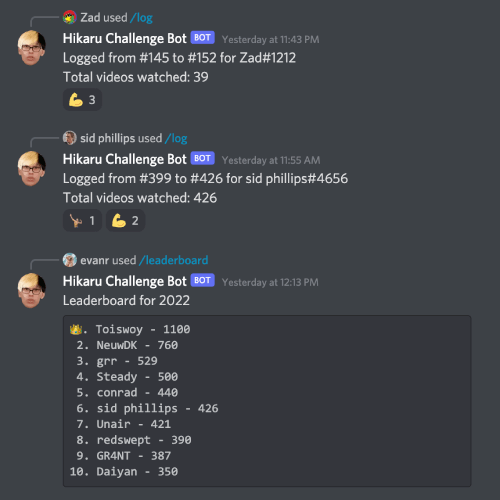
This is a Discord Bot for tracking progress for the Hikaru Challenge, an immersion challenge in the language learning community. With a bit of re-themeing, it could also be used to track just about anything else.
## Setup
- Deploy this repository. It should be able to run on any service that can run Node.js apps, but a `Procfile` is included specifically for Heroku. If deployed to Heroku, the Dyno type will need to be changed from the default `web` to `worker`. Please note that if using a free account, this bot will use up to 744 (31*24) of your 1000 free monthly hours as it needs to run 24/7.
- Create a MongoDB Database. A good free choice is the [MongoDB Atlas](https://www.mongodb.com/atlas/database) free tier. Note the URI to connect to the database.
- Go to the [Discord Developer Portal](https://discord.com/developers/applications) and create a new Bot. Give it a name, description, and avatar image. Make sure to note the bot's Discord Token and Client ID.
- Create your environent variables. Depending on how you are deploying, this will either mean creating a `.env` file based on the `sample.env` template, or changing the Config Vars in a web interface
- `DISCORD_TOKEN`: The Discord Token you got while creating the bot
- `CLIENT_ID`: The Client ID you got while creating the bot
- `MONGO_URI`: The URI to connect to your MongoDB Database
- `GUILD_ID`: The ID of the server you want to deploy the bot to. Activate developer mode in your Discord user settings and get the Guild ID of the server you wish to deploy the bot to by right clicking the server and selecting 'Copy ID' (this command will not be visible if you do not activate developer mode).
- `SUPERUSER_ID`: The ID of the user who should be able to use the superuser commands such as `!backlog`, `!deleteuser`, etc. You can get this by right clicking the user and clicking 'Copy ID'. Like the Guid ID, this requires your user account to be in developer mode.
- Create an invite link for your bot
- Go to your [Discord Applications](https://ptb.discord.com/developers/), click on your bot, then OAuth2 => URL Generator. Select the `bot` and `application.commends` options. Once you select the `bot` option, a list of permissions will appear, allowing you to configure the permissions your bot needs.
- From that second list of permissions, enable:
- General Permissions
- Read Messages / View Channels
- Text Permissions
- Send Messages
- Send Messages in Threads
- Read Message History
- Use Slash Commands
- Give the invite link to a moderator of the server, who needs to click it to allow the bot to enter the server.
- Once the bot is in the server, run `node src/deploy-commands.js` to deploy command documentation and auto-complete to the server.
- After deploying commands, restart the bot and it should now be ready to listen for commands.
## Considerations
This is a fairly simple bot, but I enjoyed making it as the server needed a bot and I had been wanting to learn how to create Discord bots or Chat Bots in general. There were a few considerations when making this bot.
- I decided to make the bot specific to one server/challenge, both in terms of pre-customizing the text messages etc, and in terms of only letting each deployment run on one server. The advantage of this is that it's absolutely zero-configuration for the server owner other than clicking on the invite link.
- Many Discord users still expect bots to use `!command` syntax. However I believe `/command` syntax to be the better solution as it's possible to register commands with the server and create documentation and autocomplete. The only exception I can see to this is perhaps a server that has a very large number of bots and commands which might make undocumented behaviour desireable. But in any other situation I believe that `/command` syntax is easily worth the additional work to get an improved user experience.
- While I generally prefer to work in TypeScript, I found the documentation and typing of the Discord.js library to be lacking for anything that goes beyond the 'Getting Started' guide, so I went with Vanilla JS for this project.
- The biggest challenge was saving all logs that had been made in the server as these at this point only existed as chat messages rather than entries in a database, had a variety of formats, and were interspersed with other messages (so it wasn't possible to for example just write a Regex that looks for any strings with numbers in them). The result was some work in `src/handleOldStyleCommands.js`, especially the `getStartAndEnd` function which gets the start and end variables from each message (or undefined if it's not a log) using a series of Regexes.
- Once I understood the principles of how Discord.js works, creating a bot was not too different from creating a server using Express or similar. Instead of the Request you have the Interaction, and instead of the Response you have a variety of actions that the bot can perform. The data structure is different, and Discord.js introduces some additional issues such as needing to worry about whether or not data is cached from a past interaction, but the basic premise of `data in => (do stuff here) => response out` is the same.