https://github.com/cdeck3r/incas
Images from Networked Camera System (INCAS)
https://github.com/cdeck3r/incas
ip-camera networked-cameras raspberry-pi-camera raspberry-pi-zero-w raspberrypi
Last synced: 3 months ago
JSON representation
Images from Networked Camera System (INCAS)
- Host: GitHub
- URL: https://github.com/cdeck3r/incas
- Owner: cdeck3r
- License: mit
- Created: 2021-07-28T08:26:34.000Z (almost 5 years ago)
- Default Branch: main
- Last Pushed: 2022-03-21T06:56:18.000Z (about 4 years ago)
- Last Synced: 2025-03-02T21:13:22.046Z (over 1 year ago)
- Topics: ip-camera, networked-cameras, raspberry-pi-camera, raspberry-pi-zero-w, raspberrypi
- Language: Shell
- Homepage:
- Size: 149 KB
- Stars: 0
- Watchers: 2
- Forks: 1
- Open Issues: 0
-
Metadata Files:
- Readme: README.md
- License: LICENSE
Awesome Lists containing this project
README
# Images from Networked Camera System (INCAS)
This project collects and stores images from multiple ONVIF compatible IP cameras.
These images serve as input to the [Social Reporter](https://github.com/cdeck3r/Social-Reporter) - an AI based image selection and composition system for generating social media content about lectures at the [HHZ](https://www.hhz.de/master/digital-business-engineering/).
The project is under development. See current activities on the its [Trello board](https://trello.com/b/AOATCM0o)
## Usage
INCAS is completely web-based. Point your browser to the URL of the INCAS server.
## Design
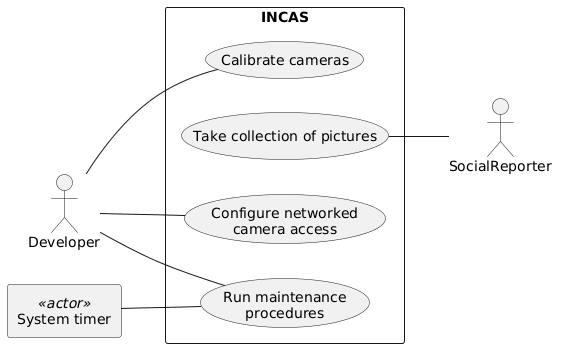
The following UML usecase diagram provides an impression on INCAS's main services. The [docs](docs/) directory contains the full documentation.
## Hardware
INCAS uses
* multiple IPC-G22 Wifi IP cameras
* Raspberry Pi Zero W
**Initial setup**
* [Headless Pi Zero W Wifi Setup (Windows)](https://desertbot.io/blog/headless-pi-zero-w-wifi-setup-windows)
* Access a brand-new IPC-G22 on http://192.168.1.108, configure an admin password and import the [default config file](install/defaultConfigFile.backup). It does not contain any network setup. You may want to configure your network settings.
* Configure `incas` user to take snapshots
* Create group `snapshot` with permissions
* Live
* Event
* Create user `incas` and assign to group `snapshot`
For the correct Raspi wifi setup, you may want to look at
* https://www.raspberrypi.org/documentation/configuration/wireless/headless.md
* https://www.raspberrypi.org/documentation/configuration/wireless/wireless-cli.md
The last link outline various methods to use the `wpa_passphrase` utility to generate an encrypted PSK. The [dev system](#dev-system) contains the `wpa_passphrase` utility.
## Software Setup
On the Raspi, login as regular user (i.e. not root) and run the command below. It will install the software in `$HOME/incas` on the Raspi:
```bash
bash <(curl -s https://raw.githubusercontent.com/cdeck3r/INCAS/main/install/install.sh)
```
**Note:** During the initial setup, if no `$HOME/incas/config.yml` was found, the script generates a random password for the `incas` user submitted to the IP camera when taking snapshots. You may want to take the generated password from the `config.yml` and set it as password for the `incas` user in the [hardware setup](#hardware).
If the `config.yml` exists, the password remains untouched.
Additionally, one may run [`install_config.sh`](install/install_config.sh) separately on the Raspi CLI and provide a password as argument. The script will update the password in the `config.yml`.
The raspi may report its IP address to an external webserver. This is helpful, if one expects a new IP lease in a DHCP controlled network. The [`install_callingHome.sh`](install/install_callingHome.sh) script installs a cronjob which issues an hourly http request. A developer may check the webserver's access log for the IP address.
The target webserver is expected to be defined in `/boot/incas.ini`. Format is by example:
```
#
# incas.ini
#
# This is a key/value file containing non-public information.
# It is separated from the incas installation and directory
# structure to avoid an unintended repo commit.
#
# Default: /boot/incas.ini
#
# Raspi discovery tracker
TRACKER_NWEB=""
```
## Dev system
**Setup:** Start in project's root dir and create a `.env` file with the content shown below.
```
# .env file
# In the container, this is the directory where the code is found
# Example:
APP_ROOT=/INCAS
# the HOST directory containing directories to be mounted into containers
# Example:
VOL_DIR=/home/myusername/INCAS
```
**Create** docker image. Please see [Dockerfiles/Dockerfile.incas-dev](Dockerfiles/Dockerfile.incas-dev) for details.
```bash
docker-compose build incas-dev
```
**Spin up** the container and get a shell from the container
```bash
docker-compose up -d incas-dev
docker exec -it incas-dev /bin/bash
```
## License
Information provided in the [LICENSE](LICENSE) file.