https://github.com/cerndb/spark-dashboard
Spark-Dashboard is an open-source monitoring solution for Apache Spark that provides real-time performance dashboards using containers and Kubernetes.
https://github.com/cerndb/spark-dashboard
docker grafana grafana-dashboard helm kubernetes monitoring spark
Last synced: 2 months ago
JSON representation
Spark-Dashboard is an open-source monitoring solution for Apache Spark that provides real-time performance dashboards using containers and Kubernetes.
- Host: GitHub
- URL: https://github.com/cerndb/spark-dashboard
- Owner: cerndb
- License: apache-2.0
- Created: 2019-10-02T14:55:25.000Z (almost 7 years ago)
- Default Branch: master
- Last Pushed: 2026-05-05T19:19:12.000Z (2 months ago)
- Last Synced: 2026-05-05T21:23:33.168Z (2 months ago)
- Topics: docker, grafana, grafana-dashboard, helm, kubernetes, monitoring, spark
- Language: Shell
- Homepage:
- Size: 1.96 MB
- Stars: 134
- Watchers: 9
- Forks: 20
- Open Issues: 1
-
Metadata Files:
- Readme: README.md
- License: LICENSE
Awesome Lists containing this project
README
# Spark Dashboard
**Real-time monitoring and performance troubleshooting for Apache Spark**
[](https://doi.org/10.5281/zenodo.14718682)
[](https://hub.docker.com/r/lucacanali/spark-dashboard)
---
## Key Features
- **Real-time monitoring**
Visualize Spark and system metrics in Grafana, including CPU, memory, active tasks, and I/O, to quickly spot trends and anomalies.
- **Easy deployment**
Run locally with a container or deploy on Kubernetes with Helm.
- **Broad compatibility**
Supports Apache Spark 3.x and 4.x across Hadoop, Kubernetes, and Spark Standalone environments.
---
## Contents
- [Architecture](#architecture)
- [Deploying Spark Dashboard v2](#deployment-options)
- [Run Spark Dashboard v2 in a container](#run-spark-dashboard-v2-in-a-container)
- [Run Spark Dashboard v2 on Kubernetes with Helm](#run-spark-dashboard-v2-on-kubernetes-with-helm)
- [Extended Spark Dashboard](#extended-spark-dashboard)
- [Notes on Spark Connect](#notes-on-spark-connect)
- [Examples and getting started](#examples-and-getting-started)
- [Start small with Spark local mode](#start-small-with-spark-local-mode)
- [Run TPC-DS on a Spark cluster](#run-tpc-ds-on-a-spark-cluster)
- [Legacy implementation (v1)](#legacy-implementation-v1)
---
## Resources
- [Watch the Spark Dashboard demo and tutorial](https://www.youtube.com/watch?v=sLjAyDwpg80)
- [Notes on Spark Dashboard](https://github.com/LucaCanali/Miscellaneous/tree/master/Spark_Dashboard)
- [Building an Apache Spark Performance Lab](https://db-blog.web.cern.ch/node/195)
- [Blog post on Spark Dashboard](https://db-blog.web.cern.ch/blog/luca-canali/2019-02-performance-dashboard-apache-spark)
- [Talk at Data + AI Summit 2021](https://databricks.com/session_na21/monitor-apache-spark-3-on-kubernetes-using-metrics-and-plugins), [slides](http://canali.web.cern.ch/docs/Monitor_Spark3_on_Kubernetes_DataAI2021_LucaCanali.pdf)
- [sparkMeasure](https://github.com/LucaCanali/sparkMeasure), a tool for troubleshooting Apache Spark workloads
- [TPCDS_PySpark](https://github.com/LucaCanali/Miscellaneous/tree/master/Performance_Testing/TPCDS_PySpark), a TPC-DS workload generator for Apache Spark
**Main author and contact:** Luca.Canali@cern.ch
---
## Architecture
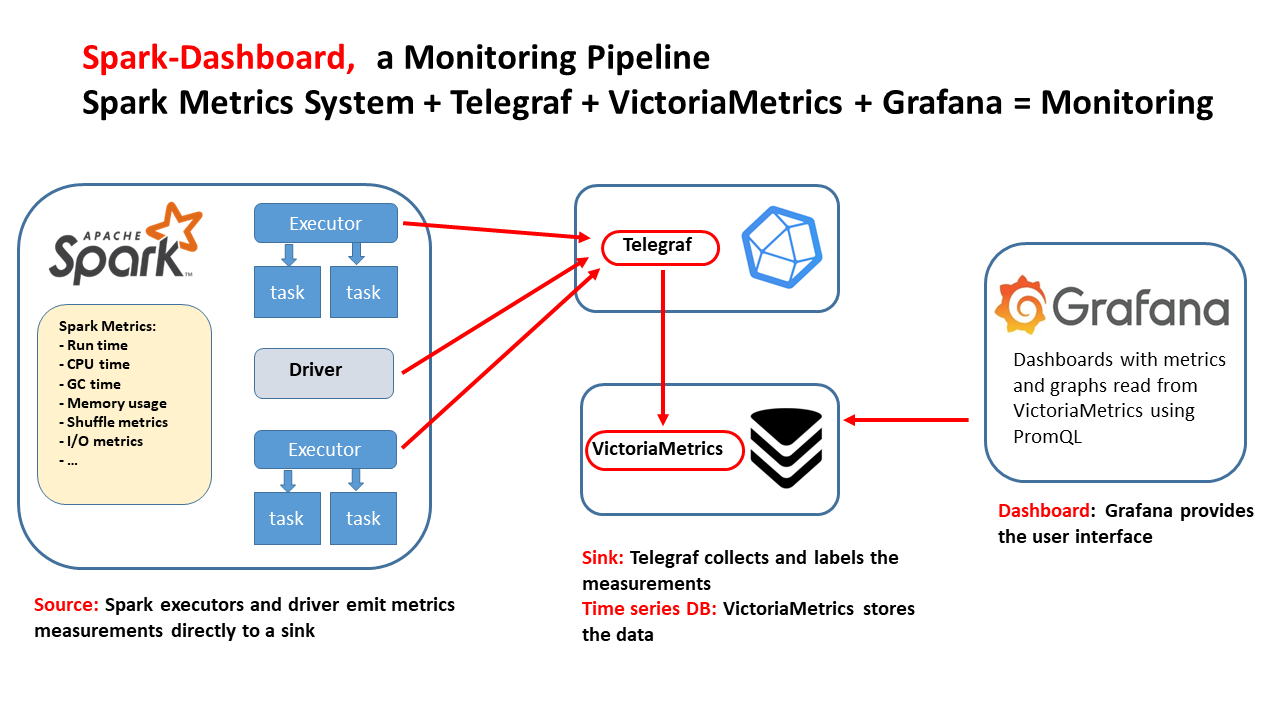
Spark Dashboard provides an end-to-end monitoring pipeline for Apache Spark using open-source components. It is designed to deliver real-time visibility into Spark cluster health and performance, from metric generation to visualization.
- **Apache Spark metrics**
Apache Spark generates detailed performance metrics through its [metrics system](https://spark.apache.org/docs/latest/monitoring.html#metrics). Both the driver and executors emit metrics such as runtime, CPU usage, garbage collection time, memory consumption, shuffle activity, and I/O statistics in Graphite format.
- **Telegraf**
Telegraf acts as the collection agent. It ingests Spark metrics, enriches them with labels and tags, and forwards them to the storage backend.
- **VictoriaMetrics**
VictoriaMetrics stores the collected metrics efficiently as time-series data, making it well suited for both real-time monitoring and historical analysis.
- **Grafana**
Grafana provides the visualization layer. It queries VictoriaMetrics using PromQL or MetricsQL and displays interactive dashboards for observing trends and identifying bottlenecks.
Together, these components provide a scalable monitoring solution for Apache Spark.
---
## Deployment options
This repository provides two main deployment options for Spark Dashboard v2:
- [Run Spark Dashboard v2 in a container with Docker or Podman](#run-spark-dashboard-v2-in-a-container)
- [Run Spark Dashboard v2 on a Kubernetes cluster with Helm](#run-spark-dashboard-v2-on-kubernetes-with-helm)
---
## Run Spark Dashboard v2 in a container
Follow these steps to deploy Spark Dashboard v2 with Docker or Podman.
### 1. Start the container
The container image includes VictoriaMetrics for metrics storage and Grafana for visualization.
**Using Docker**
```bash
docker run -p 3000:3000 -p 2003:2003 -d lucacanali/spark-dashboard
```
**Using Podman**
```bash
podman run -p 3000:3000 -p 2003:2003 -d lucacanali/spark-dashboard
```
### 2. Configure Apache Spark
To make Spark Dashboard receive metrics from your Spark application, configure Spark to send metrics to Telegraf.
You can do this in one of two ways (use one approach or the other, not both)
#### Option A: Configure `metrics.properties`
Edit the file `metrics.properties` in `$SPARK_CONF_DIR` and add:
```properties
# Configure Graphite sink for Spark metrics
*.sink.graphite.host=localhost
*.sink.graphite.port=2003
*.sink.graphite.period=10
*.sink.graphite.unit=seconds
*.sink.graphite.prefix=lucatest
# Enable JVM metrics collection
*.source.jvm.class=org.apache.spark.metrics.source.JvmSource
```
After saving `metrics.properties`, start Spark normally. Spark will load that file at startup and send metrics to Spark Dashboard automatically.
Optionally, enable additional Spark metric sources in `spark-defaults.conf` or your spark-submit launch command:
```bash
--conf spark.metrics.staticSources.enabled=true
--conf spark.metrics.appStatusSource.enabled=true
```
#### Option B: Configure Spark on the command line
Instead of editing `metrics.properties`, you can pass the configuration directly when starting Spark:
```bash
# We use Telegraf to collect metrics sent by Spark to the Graphite sink
TELEGRAF_ENDPOINT=$(hostname)
bin/spark-shell \
--conf "spark.metrics.conf.*.sink.graphite.class=org.apache.spark.metrics.sink.GraphiteSink" \
--conf "spark.metrics.conf.*.sink.graphite.host=${TELEGRAF_ENDPOINT}" \
--conf "spark.metrics.conf.*.sink.graphite.port=2003" \
--conf "spark.metrics.conf.*.sink.graphite.period=10" \
--conf "spark.metrics.conf.*.sink.graphite.unit=seconds" \
--conf "spark.metrics.conf.*.sink.graphite.prefix=mytest" \
--conf "spark.metrics.conf.*.source.jvm.class=org.apache.spark.metrics.source.JvmSource" \
--conf "spark.metrics.staticSources.enabled=true" \
--conf "spark.metrics.appStatusSource.enabled=true"
```
### 3. Visualize metrics in Grafana
Once the container is running and Spark is configured to export metrics:
- Open Grafana at `http://localhost:3000`
- Default credentials:
- **User:** `admin`
- **Password:** `admin`
To set a custom Grafana admin password when running with Docker, pass `GRAFANA_ADMIN_PASSWORD`:
```bash
docker run -p 3000:3000 -p 2003:2003 \
-e GRAFANA_ADMIN_PASSWORD='change-me' \
-d lucacanali/spark-dashboard:v02
```
`GF_SECURITY_ADMIN_PASSWORD` is also supported for compatibility with Grafana's native environment variable.
The bundled dashboard, **Spark_Perf_Dashboard_v04_promQL**, displays key Spark metrics such as runtime, CPU, I/O, shuffle activity, and task counts, along with detailed time-series graphs.
> Ensure that a Spark application is running and configured to send metrics, otherwise no data will appear in Grafana.
For test workloads, you can use [TPCDS_PySpark](https://github.com/LucaCanali/Miscellaneous/tree/master/Performance_Testing/TPCDS_PySpark).
### Optional: enable HTTPS for Grafana
For testing, `openssl` can be used to generate a self-signed certificate. Mount the certificate and key into the container, then enable HTTPS:
```bash
mkdir -p certs
openssl req -x509 -newkey rsa:4096 -nodes -days 365 \
-keyout certs/tls.key \
-out certs/tls.crt \
-subj "/CN=localhost" \
-addext "subjectAltName=DNS:localhost,IP:127.0.0.1"
docker run -p 3000:3000 -p 2003:2003 \
-v ./certs:/etc/grafana/certs:ro \
-e GRAFANA_HTTPS_ENABLED=true \
-d lucacanali/spark-dashboard:v02
```
Grafana will be available at:
```text
https://localhost:3000
```
By default, the container expects `tls.crt` and `tls.key` in `/etc/grafana/certs`. You can override the paths with `GRAFANA_CERT_FILE` and `GRAFANA_CERT_KEY`, and set `GRAFANA_ROOT_URL` when Grafana is served through a DNS name.
---
## Persisting VictoriaMetrics data across restarts
By default, VictoriaMetrics data is not preserved across container restarts. To keep historical metrics, mount a persistent volume.
Example using a local directory:
```bash
mkdir metrics_data
docker run --network=host \
-v ./metrics_data:/victoria-metrics-data \
-d lucacanali/spark-dashboard:v02
```
---
## Run Spark Dashboard v2 on Kubernetes with Helm
The `charts_v2/` directory contains the Helm chart for Spark Dashboard v2.
If your cluster does not provide a default storage class:
```bash
helm install spark-dashboard ./charts_v2 --set persistence.enabled=false
```
If your cluster provides a suitable storage class and you want persistence:
```bash
helm install spark-dashboard ./charts_v2 --set persistence.storageClass=
```
Check deployment status:
```bash
kubectl get pods -l app.kubernetes.io/name=spark-dashboard-v2
kubectl get svc spark-dashboard-v2
```
To expose the dashboard externally using a `LoadBalancer` service:
```bash
helm install spark-dashboard ./charts_v2 \
--set persistence.enabled=false \
--set service.type=LoadBalancer
```
This exposes:
- Grafana on port `3000`
- Telegraf on port `2003`
VictoriaMetrics port `8428` is not exposed on the load balancer by default.
To expose VictoriaMetrics as well:
```bash
helm install spark-dashboard ./charts_v2 \
--set persistence.enabled=false \
--set service.type=LoadBalancer \
--set service.victoriametrics.exposeOnLoadBalancer=true
```
If Spark runs inside the cluster, use the service DNS name as the Graphite endpoint:
```text
spark-dashboard-v2:2003
```
If Spark runs outside the cluster, wait for an external IP:
```bash
kubectl get svc spark-dashboard-v2 -w
```
Then use:
```text
:2003
```
Grafana will be available at:
```text
http://:3000
```
To set the Grafana admin password:
```bash
helm upgrade --install spark-dashboard ./charts_v2 \
--set grafana.adminPassword='change-me'
```
To use HTTPS for Grafana, first create a certificate. For testing, `openssl` can be used to generate a self-signed certificate:
```bash
openssl req -x509 -newkey rsa:4096 -nodes -days 365 \
-keyout tls.key \
-out tls.crt \
-subj "/CN=dashboard.example.com" \
-addext "subjectAltName=DNS:dashboard.example.com"
```
Then create a Kubernetes TLS secret and enable the chart option:
```bash
kubectl create secret tls spark-dashboard-grafana-tls \
--cert=./tls.crt \
--key=./tls.key
helm upgrade --install spark-dashboard ./charts_v2 \
--set persistence.enabled=false \
--set grafana.https.enabled=true \
--set grafana.https.secretName=spark-dashboard-grafana-tls
```
Grafana will then be available at:
```text
https://:3000
```
For testing, you can also use port-forwarding:
```bash
kubectl port-forward svc/spark-dashboard-v2 3000:3000 2003:2003
```
Then open:
```text
http://localhost:3000
```
If Spark runs on the same machine as the port-forward, use `localhost:2003` as the Telegraf/Graphite sink endpoint.
### Helm troubleshooting
If pods remain in `Pending`, check for storage issues:
```bash
kubectl get pvc
kubectl describe pod -l app.kubernetes.io/name=spark-dashboard-v2
kubectl get storageclass
```
If needed, reinstall without persistence:
```bash
helm uninstall spark-dashboard
helm install spark-dashboard ./charts_v2 --set persistence.enabled=false
```
If the service exists but external access fails, verify the in-cluster path first:
```bash
kubectl get endpoints spark-dashboard-v2
kubectl run netcheck --rm -it --image=busybox:1.36 --restart=Never -- sh
```
From the debug shell:
```sh
nc -vz spark-dashboard-v2 3000
nc -vz spark-dashboard-v2 2003
```
If those checks succeed, the chart is working and the remaining issue is external networking, firewall rules, or service exposure.
If `EXTERNAL-IP` stays pending for a `LoadBalancer` service, your cluster likely does not have load balancer integration configured. In that case, use `NodePort`, deploy a solution such as MetalLB, or use the external exposure mechanism supported by your Kubernetes environment.
---
## Extended Spark Dashboard
The Extended Spark Dashboard adds OS- and storage-level observability on top of standard Spark metrics. It uses [Spark Plugins](https://github.com/cerndb/SparkPlugins) to collect additional metrics and stores them in the same VictoriaMetrics backend.
### Additional dashboard features
The extended dashboard adds three groups of graphs:
- **CGroup metrics**
Useful for Spark running on Kubernetes.
- **Cloud storage metrics**
Covers storage backends such as S3A, GCS, WASB, and similar systems.
- **Advanced HDFS statistics**
Provides deeper visibility into HDFS activity and performance.
### Configuration
Add the following to your Spark configuration:
```bash
--conf spark.jars.packages=ch.cern.sparkmeasure:spark-plugins_2.13:0.4
--conf spark.plugins=ch.cern.HDFSMetrics,ch.cern.CgroupMetrics,ch.cern.CloudFSMetrics
```
### Using the extended dashboard
In Grafana, select:
- `Spark_Perf_Dashboard_v04_PromQL_with_SparkPlugins`
This dashboard includes additional graphs for OS and storage metrics.
---
## Notes on Spark Connect
[Spark Connect](https://spark.apache.org/docs/latest/spark-connect-overview.html) allows a lightweight Spark client to connect remotely to a Spark cluster.
When using Spark Connect, **Spark Dashboard must run on the Spark Connect server**, not on the client.
1. Start the Spark Dashboard container.
2. Edit the `metrics.properties` file in the Spark Connect `conf` directory as described above.
3. Start Spark Connect:
```bash
sbin/start-connect-server.sh
```
Metrics from Spark Connect will then be sent to Spark Dashboard and visualized in Grafana.
---
## Examples and getting started
See example graphs here:
- [Spark Dashboard example graphs](https://github.com/LucaCanali/Miscellaneous/tree/master/Spark_Dashboard#example-graphs)
### Start small with Spark local mode
You can use [TPCDS_PySpark](https://github.com/LucaCanali/Miscellaneous/tree/master/Performance_Testing/TPCDS_PySpark) to generate a TPC-DS workload and test the dashboard.
You can run this locally or in the cloud, for example with GitHub Codespaces:
- [Open in GitHub Codespaces](https://codespaces.new/cerndb/spark-dashboard)
```bash
# Install dependencies
pip install pyspark
pip install sparkmeasure
pip install tpcds_pyspark
# Download test data
wget https://sparkdltrigger.web.cern.ch/sparkdltrigger/TPCDS/tpcds_10.zip
unzip -q tpcds_10.zip
# 1. Run a minimal test
tpcds_pyspark_run.py -d tpcds_10 -n 1 -r 1 --queries q1,q2
# 2. Start the dashboard
docker run -p 2003:2003 -p 3000:3000 -d lucacanali/spark-dashboard
# 3. Run the workload and send metrics to the dashboard
TPCDS_PYSPARK=$(which tpcds_pyspark_run.py)
spark-submit --master local[*] \
--conf "spark.metrics.conf.*.sink.graphite.class=org.apache.spark.metrics.sink.GraphiteSink" \
--conf "spark.metrics.conf.*.sink.graphite.host=localhost" \
--conf "spark.metrics.conf.*.sink.graphite.port=2003" \
--conf "spark.metrics.conf.*.sink.graphite.period=10" \
--conf "spark.metrics.conf.*.sink.graphite.unit=seconds" \
--conf "spark.metrics.conf.*.sink.graphite.prefix=lucatest" \
--conf "spark.metrics.conf.*.source.jvm.class=org.apache.spark.metrics.source.JvmSource" \
--conf "spark.metrics.staticSources.enabled=true" \
--conf "spark.metrics.appStatusSource.enabled=true" \
--conf spark.driver.memory=4g \
--conf spark.log.level=error \
--packages ch.cern.sparkmeasure:spark-measure_2.13:0.27 \
$TPCDS_PYSPARK -d tpcds_10
```
Then:
- open `http://localhost:3000`
- log in with `admin` / `admin`
- optionally open the Spark UI at `http://localhost:4040`
> The dashboard is more informative when Spark runs on cluster resources rather than only in local mode.
### Run TPC-DS on a Spark cluster
Example on a YARN cluster:
```bash
TPCDS_PYSPARK=$(which tpcds_pyspark_run.py)
spark-submit --master yarn \
--conf spark.log.level=error \
--conf spark.executor.cores=8 \
--conf spark.executor.memory=64g \
--conf spark.driver.memory=16g \
--conf spark.driver.extraClassPath=tpcds_pyspark/spark-measure_2.13-0.27.jar \
--conf spark.dynamicAllocation.enabled=false \
--conf spark.executor.instances=32 \
--conf spark.sql.shuffle.partitions=512 \
$TPCDS_PYSPARK -d hdfs:///tpcds_10000_parquet_1.13.1
```
Example on Kubernetes with S3 storage and Spark plugins:
```bash
TPCDS_PYSPARK=$(which tpcds_pyspark_run.py)
spark-submit --master k8s://https://xxx.xxx.xxx.xxx:6443 \
--conf spark.kubernetes.container.image=apache/spark \
--conf spark.kubernetes.namespace=xxx \
--conf spark.eventLog.enabled=false \
--conf spark.task.maxDirectResultSize=2000000000 \
--conf spark.shuffle.service.enabled=false \
--conf spark.executor.cores=8 \
--conf spark.executor.memory=32g \
--conf spark.driver.memory=4g \
--packages org.apache.hadoop:hadoop-aws:3.4.3,ch.cern.sparkmeasure:spark-measure_2.13:0.27,ch.cern.sparkmeasure:spark-plugins_2.13:0.4 \
--conf spark.plugins=ch.cern.HDFSMetrics,ch.cern.CgroupMetrics,ch.cern.CloudFSMetrics \
--conf spark.cernSparkPlugin.cloudFsName=s3a \
--conf spark.dynamicAllocation.enabled=false \
--conf spark.executor.instances=4 \
--conf spark.hadoop.fs.s3a.secret.key=$SECRET_KEY \
--conf spark.hadoop.fs.s3a.access.key=$ACCESS_KEY \
--conf spark.hadoop.fs.s3a.endpoint="https://s3.cern.ch" \
--conf spark.hadoop.fs.s3a.impl="org.apache.hadoop.fs.s3AFileSystem" \
--conf spark.executor.metrics.fileSystemSchemes="file,hdfs,s3a" \
--conf spark.hadoop.fs.s3a.fast.upload=true \
--conf spark.hadoop.fs.s3a.path.style.access=true \
--conf spark.hadoop.fs.s3a.list.version=1 \
$TPCDS_PYSPARK -d s3a://luca/tpcds_100
```
---
## Legacy implementation (v1)
Spark Dashboard v1 is the original implementation and uses InfluxDB as the time-series backend.
Architecture reference:
- [spark-dashboard v1 architecture](https://raw.githubusercontent.com/LucaCanali/Miscellaneous/master/Spark_Dashboard/images/Spark_metrics_dashboard_arch.PNG)
Legacy assets are stored under:
- `legacy/dockerfiles_v1/`
- `legacy/charts_v1/`
See also:
- [legacy/README.md](legacy/README.md)
### Run Spark Dashboard v1 in a container
```bash
docker run -p 3000:3000 -p 2003:2003 -d lucacanali/spark-dashboard:v01
```
- Port `2003` is the Graphite ingestion endpoint
- Port `3000` is Grafana
More options, including persistence across restarts:
- [legacy/dockerfiles_v1](legacy/dockerfiles_v1)
### Run Spark Dashboard v1 on Kubernetes with Helm
```bash
helm install spark-dashboard https://github.com/cerndb/spark-dashboard/raw/master/charts/spark-dashboard-0.3.0.tgz
```
More details:
- [legacy/charts_v1](legacy/charts_v1)
- [legacy/charts_v1/README.md](legacy/charts_v1/README.md)
### Graph annotations
Optionally, you can add annotations for query, job, and stage start and end times in the v1 dashboard.
```bash
INFLUXDB_HTTP_ENDPOINT="http://$(hostname):8086"
--packages ch.cern.sparkmeasure:spark-measure_2.13:0.27 \
--conf spark.sparkmeasure.influxdbURL=$INFLUXDB_HTTP_ENDPOINT \
--conf spark.extraListeners=ch.cern.sparkmeasure.InfluxDBSink
```
### Notes
- More details and alternative configurations: [Spark Dashboard notes](https://github.com/LucaCanali/Miscellaneous/tree/master/Spark_Dashboard)
- The dashboard can be used with Spark on Kubernetes, YARN, Standalone, or local mode
### Docker / Podman
- Telegraf uses port `2003` for Graphite ingestion and port `8428` for VictoriaMetrics
- In v1, InfluxDB uses port `2003` for Graphite ingestion and port `8086` for HTTP access when using `--network=host`
- Ensure these endpoints are reachable from the Spark driver and executors
### Helm
Find the InfluxDB service IP with:
```bash
kubectl get service spark-dashboard-influx
```
Example service DNS name:
```text
spark-dashboard-influx.default.svc.cluster.local
```
### Custom dashboards
- The project includes example dashboards, but only a subset of available metrics is visualized by default
- For the full list of Spark metrics, see the [Spark metrics documentation](https://github.com/apache/spark/blob/master/docs/monitoring.md#metrics)
- To add new dashboards, place them in the appropriate `grafana_dashboards` folder and rebuild the container image or repackage the Helm chart
- With Helm, updating the chart is enough to load dashboards through ConfigMaps
- Automatic persistence of manual Grafana edits is not currently supported