https://github.com/cesarparra/visualforce-layout-manager
Create powerful UI layouts with Visualforce
https://github.com/cesarparra/visualforce-layout-manager
apex salesforce ui ui-components ui-design visualforce visualforce-component visualforce-page
Last synced: over 1 year ago
JSON representation
Create powerful UI layouts with Visualforce
- Host: GitHub
- URL: https://github.com/cesarparra/visualforce-layout-manager
- Owner: cesarParra
- License: mit
- Created: 2018-08-02T22:26:26.000Z (almost 8 years ago)
- Default Branch: master
- Last Pushed: 2018-08-05T15:25:46.000Z (almost 8 years ago)
- Last Synced: 2025-03-14T17:03:37.834Z (over 1 year ago)
- Topics: apex, salesforce, ui, ui-components, ui-design, visualforce, visualforce-component, visualforce-page
- Language: Apex
- Homepage:
- Size: 1.22 MB
- Stars: 4
- Watchers: 1
- Forks: 1
- Open Issues: 0
-
Metadata Files:
- Readme: README.md
- License: LICENSE
Awesome Lists containing this project
README
Control your Visualforce layouts through code.
# Usage
Deploy this repository to your scratch org using [Salesforce DX](https://developer.salesforce.com/docs/atlas.en-us.sfdx_dev.meta/sfdx_dev/sfdx_dev_develop.htm) or deploy the directories inside of [force-app/main/src](https://github.com/cesarParra/visualforce-layout-manager/tree/master/force-app/main/src) to your org.
## Getting Started
To create the layout of your page first create a VF Page or component and add the following to your controller
public View getView() {
...
// Build and return the layout for your page following the instructions below.
...
}
Then, in your VF Page or component add the following:
## Building your layout
### Views
The View interface is the basis for the entire layout. Everything that gets presented in the page is a View.
Creating a layout is all based on two different views: HorizontalView and VerticalView. These two views are container views that do not have any layout, but just control the flow of the layout.
As their name implies the HorizontalView is a view that can contain views that will be displayed horizontally, and the VerticalView is a view that can contain views that will be displayed vertically.
Here is an example of what you can do when combining different views to build your layout:
public View getView() {
ViewGroup horizontalViewGroup = new HorizontalView(3);
horizontalViewGroup.addChild(new CardView().setHeader('Hello World').setTitle('First child of horizontal view'));
ViewGroup verticalViewGroup = new VerticalView();
verticalViewGroup.addChild(new CardView().setTitle('First child of vertical view within horizontal view'));
ViewGroup horizontalGrandChild = new HorizontalView(2);
horizontalGrandChild.addChild(new CardView().setTitle('First child of horizontal view within vertical view within horizontal view'));
horizontalGrandChild.addChild(new CardView().setTitle('Second child of horizontal view within vertical view within horizontal view'));
verticalViewGroup.addChild(horizontalGrandChild);
verticalViewGroup.addChild(new SeparatorView());
verticalViewGroup.addChild(new CardView().setTitle('Fourth child of vertical view within horizontal view, the separator before me is the third'));
verticalViewGroup.addChild(new TextView('Im just a TextView and the last child of the vertical view within the horizontal view'));
horizontalViewGroup.addChild(verticalViewGroup);
ViewGroup horizontalChild = new HorizontalView(2);
horizontalChild.addChild(new CardView().setTitle('First child of horizontal view within horizontal view'));
horizontalChild.addChild(new CardView().setTitle('Second child of horiztontal view within horizontal view'));
horizontalViewGroup.addChild(horizontalChild);
return horizontalViewGroup;
}
Which results in a layout that looks like this:
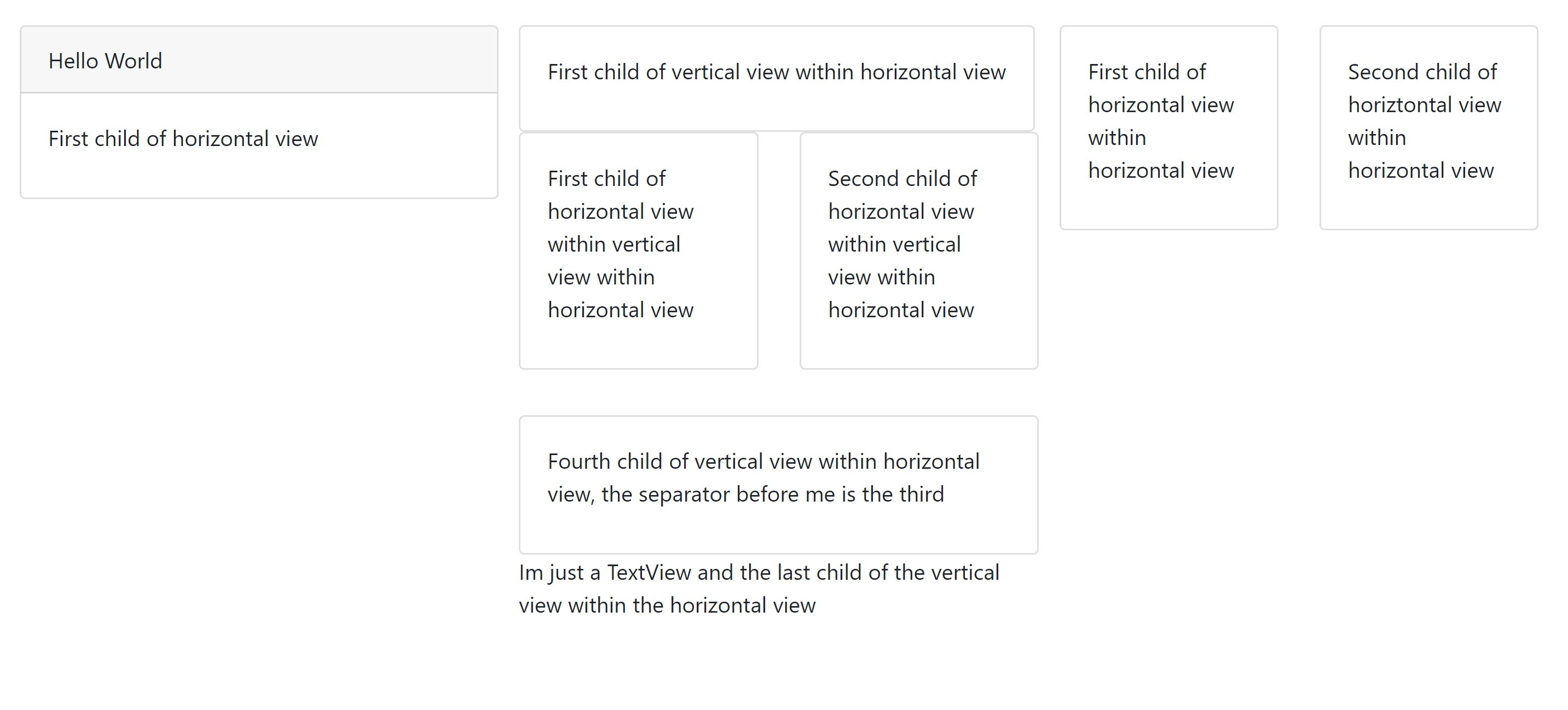
As you can see, you can use any combination of vertical and horizontal views with other types of views (like cards, separators, and text views) to create the desired layout.