https://github.com/chassis/xdebug
A Chassis extension to install and configure Xdebug on your server
https://github.com/chassis/xdebug
chassis chassis-extension wordpress xdebug
Last synced: about 1 year ago
JSON representation
A Chassis extension to install and configure Xdebug on your server
- Host: GitHub
- URL: https://github.com/chassis/xdebug
- Owner: Chassis
- Created: 2016-04-21T04:26:06.000Z (about 10 years ago)
- Default Branch: main
- Last Pushed: 2021-12-14T00:32:51.000Z (over 4 years ago)
- Last Synced: 2025-04-20T20:35:52.769Z (about 1 year ago)
- Topics: chassis, chassis-extension, wordpress, xdebug
- Language: Puppet
- Size: 56.6 KB
- Stars: 0
- Watchers: 2
- Forks: 8
- Open Issues: 1
-
Metadata Files:
- Readme: README.md
Awesome Lists containing this project
README
# Xdebug
A Chassis extension to install and configure Xdebug on your Chassis server.
## Global Installation
We recommend [installing this extension globally](http://docs.chassis.io/en/latest/extend/#globally-installing-extensions) to make it available on every Chassis box.
```
git clone https://github.com/Chassis/Xdebug ~/.chassis/extensions/xdebug
```
## Project Installation
1. Add this extension to your extensions directory `git clone git@github.com:Chassis/Xdebug.git extensions/xdebug` or alternatively add the following to one of your [`.yaml`](https://github.com/Chassis/Chassis/blob/master/config.yaml) files:
```
extensions:
- chassis/xdebug
```
2. Set your `config.local.yaml` PHP version to 5.6 or higher.
3. Run `vagrant provision`.
4. By default PHPSTORM is the default IDE. This can be overridden in your any of your [`.yaml`](https://github.com/Chassis/Chassis/blob/master/config.yaml#L6-#L9) files by adding in:
`ide: ATOM` and replacing ATOM with your IDE of choice. If you do this then please be sure to change your IDE Key in the Xdebug Helper extension mentioned below.
5. By default `9000` is the port for `xdebug.remote_port`. In some cases you may need to change this, depending on what other services are running on your machine. This can be overridden in your any of your [`.yaml`](https://github.com/Chassis/Chassis/blob/master/config.yaml#L6-#L9) files by adding in:
`port: 9001` and replacing 9001 with your port of choice. If you do this then please be sure to change the port your IDE is listening to for DBGP connections.
6. Here's an example `.yaml` file based on the above configuration:
```.yaml
ide: ATOM
port: 9001
```
7. Run `vagrant provision` so that the new values are set in your virtual machine.
8. Configure your browser and your IDE, set a breakpoint, and happy debugging!
## Browser Setup
### In Chrome
1. Install the [Xdebug Helper](https://chrome.google.com/webstore/detail/xdebug-helper/eadndfjplgieldjbigjakmdgkmoaaaoc).
2. Go to `Settings -> More Tools -> Extensions` in Google Chrome.
3. Scroll down to `Xdebug helper` and click Options.
4. Select your editor in the IDE key dropdown, or select "Other" and enter a custom key if your editor is not listed _e.g._

5. Enable Xdebug Helper. _e.g._
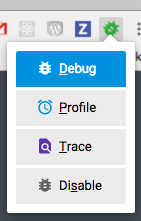
### In Firefox
1. Install the [Xdebug Helper](https://addons.mozilla.org/en-US/firefox/addon/xdebug-helper-for-firefox/).
2. Go to `Menu > Add Ons > Extensions` in Firefox.
3. Scroll to `Xdebug helper` and click Preferences.
4. Select your editor in the IDE key dropdown, or select "Other" and enter a custom key if your editor is not listed _e.g._
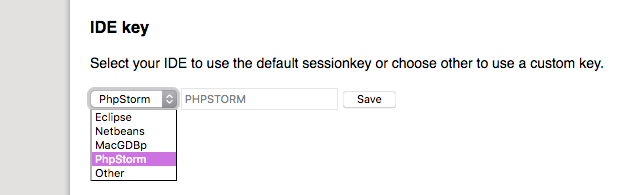
5. Enable Xdebug Helper. _e.g._
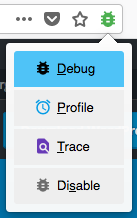
## Editor Setup
### In PHPStorm
6. Go to `Preferences -> Languages + Frameworks -> PHP -> Servers` and add a mapping for your website.
- `File/Directory` should be set to chassis folder (i.e. where the `Vagrantfile` is in).
- `Absolute path on the server` should be set to `/vagrant` or if you are using [paths](http://docs.chassis.io/en/latest/config/#paths) this will be `/chassis`.
_e.g._
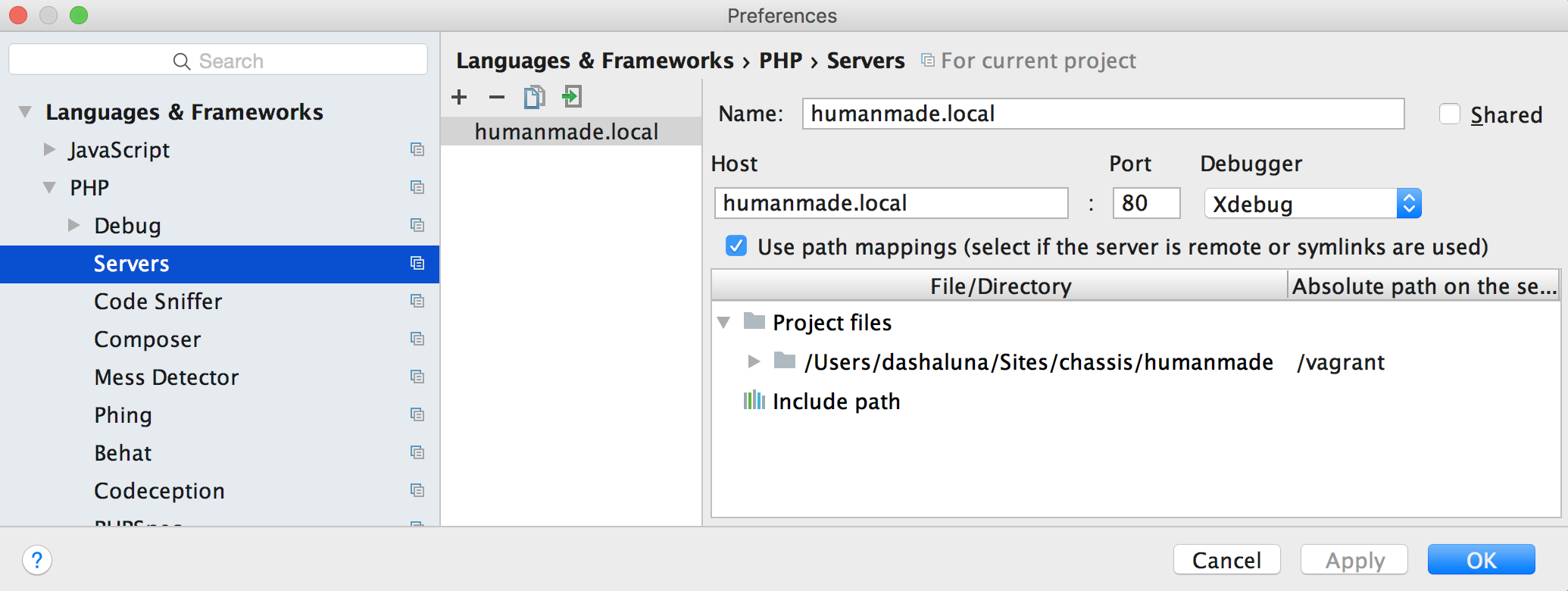
7. Enable `Start Listening for PHP Debug Connections` _e.g._

9. Set a breakpoint in PhpStorm, refresh the page you with to debug in the browser, and start debugging!
### VS Code
6. Go to the VS Code Extensions manager (or enter "Install Extensions" in the command palette) and install & activate the [PHP Debug](https://marketplace.visualstudio.com/items?itemName=felixfbecker.php-debug) extension.
7. Go to the Debug tab in the sidebar and click the small gear icon at the top of the left column; select "PHP" from the menu that will pop up to auto-create a `launch.json` PHP debugging configuration file in your project

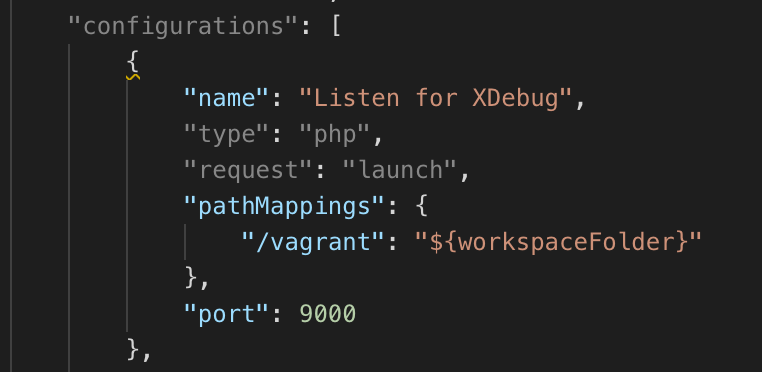
8. Add a "pathMappings" key to the "Listen for Xdebug" launch configuration to map the `${workspaceFolder}` to the `/vagrant` or `/chassis` (if you are using [paths](http://docs.chassis.io/en/latest/config/#paths)) directory within the virtual machine _e.g._
9. Click `Start Debugging` in the left column of the Debug tab _e.g._

10. Set a breakpoint in VS Code, refresh the page you with to debug in the browser, and start debugging!
### Eclipse
6. Go to Preferences -> PHP -> Debug -> Debuggers
7. Add Xdebug in the Supported PHP Debuggers section.
8. Change your settings to the following 
## Xdebug Profiling
If you'd like to enable Xdebug Profiling you can do so by doing either of the following:
1. Append `?XDEBUG_PROFILE=1` to a URL you'd like to profile.
2. Add `1` to the Xdebug Helper .
3. The profiling logs will be save on your Chassis VM under `/tmp`. You'll need to `vagrant ssh` then `cd /tmp` to view them.
## Troubleshooting
If you're having issues with XDebug not working then there is a chance that port 9000 is being used by some other software on your computer. To work around this change the [port number](https://github.com/Chassis/Xdebug/blob/master/modules/xdebug/templates/xdebug.ini.erb#L6) to another value. e.g. `9001` and run `vagrant provision`.
When using VS Code specifically, if the debug session immediately stops after clicking the "run" button next to your "Listen for XDebug" task you should try fully uninstalling and then reinstalling the PHP Debug extension.