https://github.com/chpock/hyprsnap
A feature-rich Wayland screenshot utility for Linux/Hyprland. Uses slurp, grim, and rofi to capture regions, windows, or full screens with an interactive UI.
https://github.com/chpock/hyprsnap
grim hyprland hyprsnap rofi screenshot slurp wayland
Last synced: about 1 month ago
JSON representation
A feature-rich Wayland screenshot utility for Linux/Hyprland. Uses slurp, grim, and rofi to capture regions, windows, or full screens with an interactive UI.
- Host: GitHub
- URL: https://github.com/chpock/hyprsnap
- Owner: chpock
- License: gpl-3.0
- Created: 2025-11-30T22:57:20.000Z (7 months ago)
- Default Branch: main
- Last Pushed: 2026-01-27T20:46:25.000Z (5 months ago)
- Last Synced: 2026-01-28T07:41:44.993Z (5 months ago)
- Topics: grim, hyprland, hyprsnap, rofi, screenshot, slurp, wayland
- Language: Shell
- Homepage:
- Size: 677 KB
- Stars: 8
- Watchers: 3
- Forks: 1
- Open Issues: 0
-
Metadata Files:
- Readme: README.md
- License: LICENSE
Awesome Lists containing this project
README
# hyprsnap
**hyprsnap** is a unified, script-based screenshot utility designed specifically for the **Wayland/Hyprland** environment.
It acts as a comprehensive wrapper around existing Wayland tools, providing a seamless workflow. Instead of remembering multiple keybindings or command-line flags for different screenshot modes (window, region, monitor), `hyprsnap` allows you to press a single key and handle everything through a unified GUI menu.
## Features
* **Unified Workflow:** Trigger one command for all use cases. No need for separate bindings for regions, windows, or full-screen captures.
* **Screen Freezing:** The screen is frozen immediately upon launch (using `hyprpicker`), allowing you to capture transient menus, popups, and video frames easily.
* **Post-Capture Actions:** extensive options after selecting a region:
* Copy to clipboard.
* Save to a default location (`~/Pictures/Screenshots/`).
* Save as... (custom filename).
* Annotate (using [satty](https://github.com/Satty-org/Satty)).
* Edit (using [pinta](https://www.pinta-project.com/)).
* **Smart Selection:** Easily switch between capturing a specific region, a window, the desktop (without panels), a single screen, or all monitors.
* **Zero Configuration:** A minimal, functional interface with no config files required. It just works.
## Dependencies
`hyprsnap` is a shell script that relies on the following tools. Ensure they are installed on your system:
* **Core/UI:**
* `rofi` (Menu interface)
* `jq` (JSON parsing for hyprctl)
* `imagemagick` (Image conversion)
* **Wayland Utils:**
* `hyprpicker` (Screen freezing)
* `grim` (Screenshot capture)
* `slurp` (Region selection)
* `wl-clipboard` (Clipboard management)
* **Editing/Annotation:**
* `pinta` (Image editor)
* `satty` (Annotation tool)
## Installation
### Arch Linux
You can install `hyprsnap` directly from the AUR:
```bash
yay -S hyprsnap
```
### Manual Installation
If you are not using Arch Linux, ensure all dependencies are installed, then simply download the script and place it in your `$PATH`:
```bash
chmod +x hyprsnap
sudo cp hyprsnap /usr/local/bin/
```
## Configuration
To use `hyprsnap` with Hyprland, add the following binding to your `hyprland.conf`:
```ini
bind = , Print, exec, hyprsnap
```
Once reloaded, simply press the `Print Screen` (PrtSc) key to start the utility.
## Usage
### 1. Capture & Freeze
When you press the hotkey, the screen will instantly freeze and dim. You will be prompted to select an initial region using your mouse.
### 2. Action Menu
Once a region is selected, the Main Menu appears, displaying a preview of the screenshot and a list of actions.
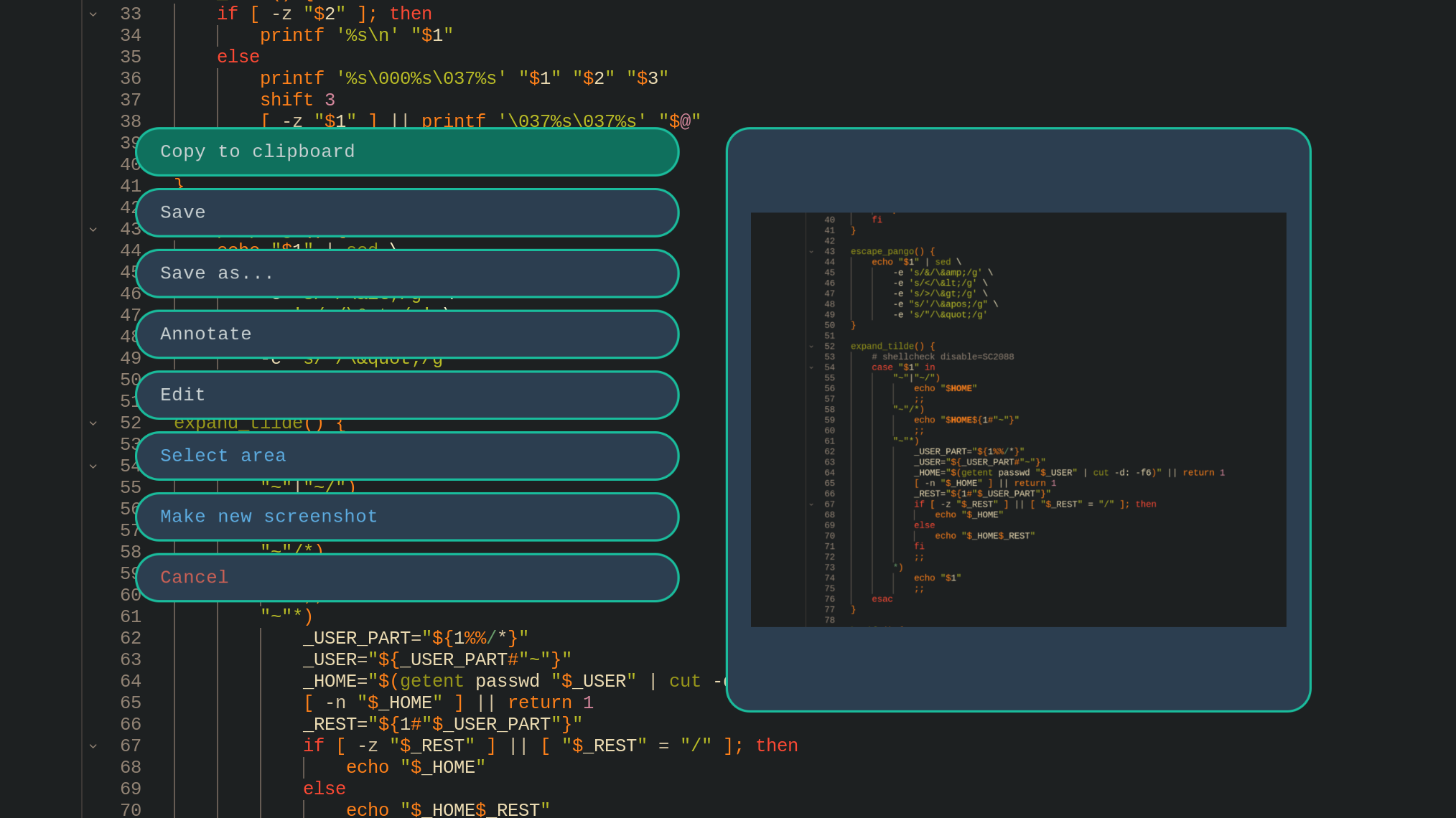
**Available Actions:**
* **Copy to clipboard:** Copies the image to your clipboard and exits.
* **Save:** Saves the image to `~/Pictures/Screenshots/` with a timestamped filename.
* **Save as...:** Prompts for a custom filename before saving.
* **Annotate:** Opens the screenshot in [satty](https://github.com/Satty-org/Satty) for drawing arrows, text, and blurring sensitive info.
* **Edit:** Opens the screenshot in [pinta](https://www.pinta-project.com/) for advanced editing.
* **Select area:** Opens the sub-menu to adjust exactly what you want to capture (see below).
* **Make new screenshot:** Discards the current selection and lets you redraw the region.
* **Cancel:** Exits without doing anything.
### 3. Area Selection
If you choose **Select area** from the main menu, you can refine your capture target without restarting the tool.
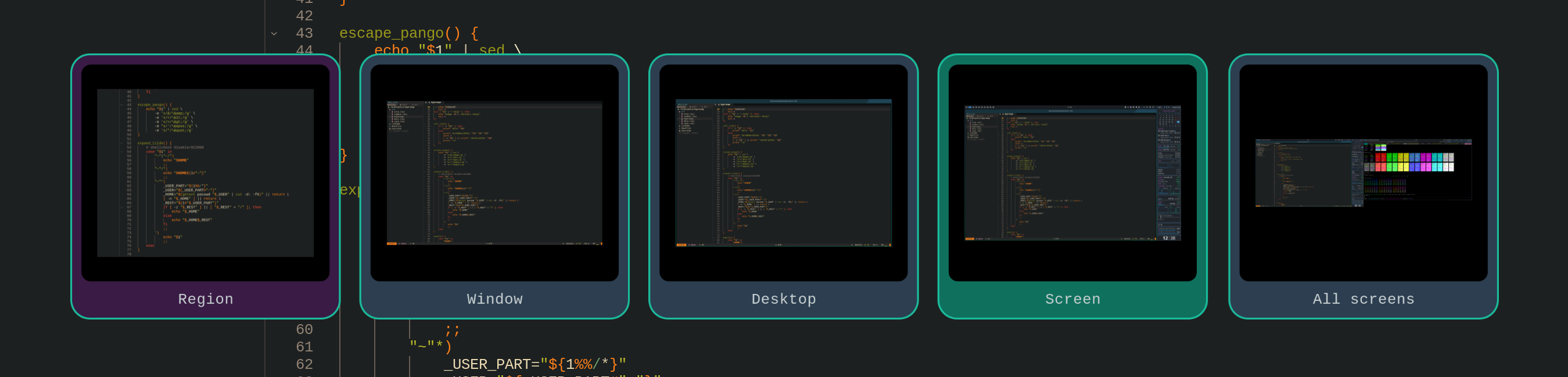
**Selection Modes:**
* **Region:** The custom rectangular area you selected.
* **Window:** Automatically detects the window best fitting your selection.
* **Desktop:** Captures the workspace background (excluding bars/panels).
* **Screen:** Captures the full output (including bars/panels).
* **All screens:** Captures the combined output of all monitors (only visible on multi-monitor setups).
### 4. Saving Files
When choosing **Save as...**, a simple input dialog allows you to name your file.
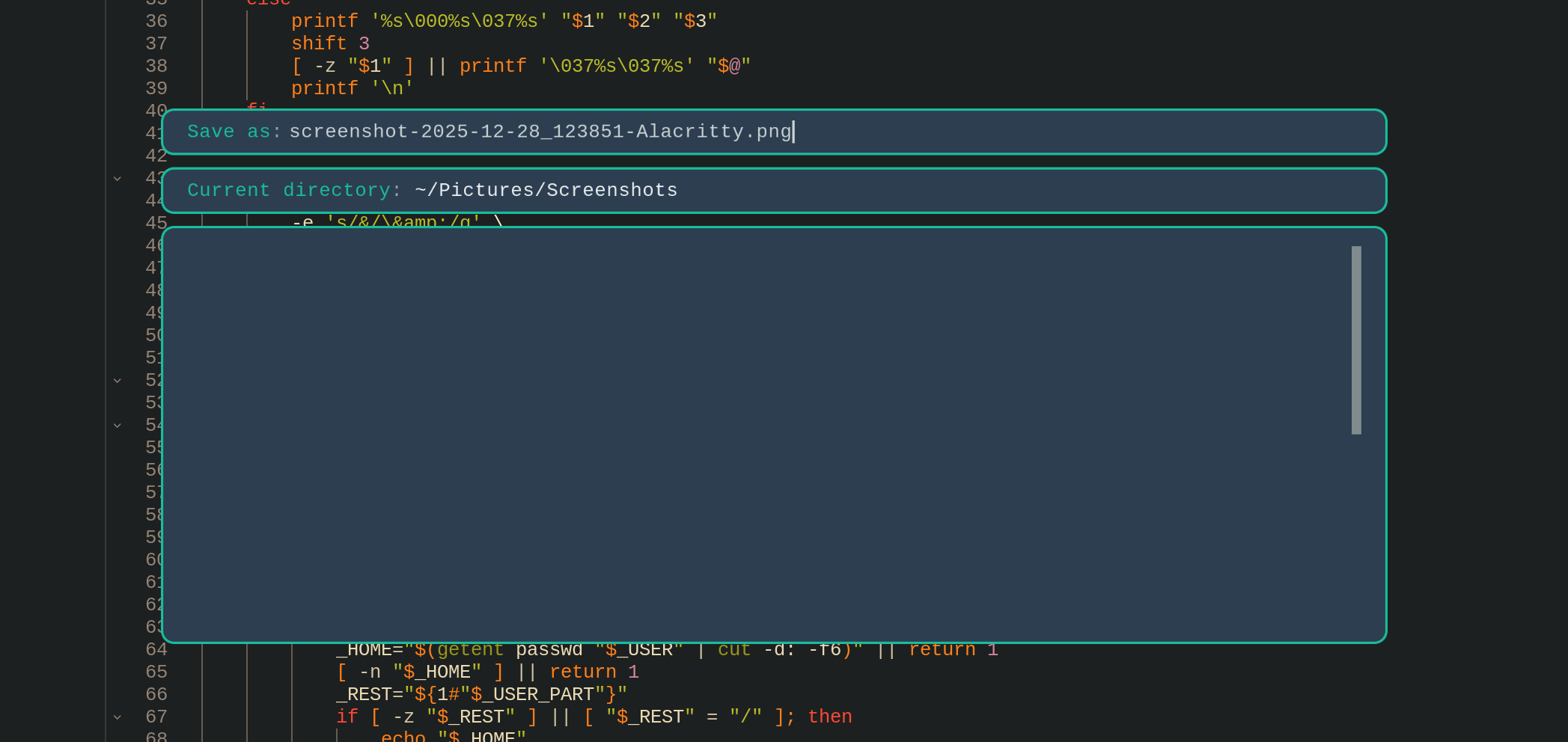
Press `Enter` to confirm and save the file to the default directory.
## Copyright
Copyright (C) 2025-2026 Kostiantyn Kushnir