https://github.com/ciderapp/cider-remote
Control your Cider client using only your iPhone or iPad using Cider Remote, designed by Cider Collective
https://github.com/ciderapp/cider-remote
Last synced: 5 months ago
JSON representation
Control your Cider client using only your iPhone or iPad using Cider Remote, designed by Cider Collective
- Host: GitHub
- URL: https://github.com/ciderapp/cider-remote
- Owner: ciderapp
- License: other
- Created: 2024-08-26T18:23:11.000Z (almost 2 years ago)
- Default Branch: main
- Last Pushed: 2025-08-03T13:04:41.000Z (12 months ago)
- Last Synced: 2025-09-01T07:09:53.141Z (11 months ago)
- Language: Swift
- Homepage: https://cider.sh/remote
- Size: 3.85 MB
- Stars: 15
- Watchers: 0
- Forks: 5
- Open Issues: 5
-
Metadata Files:
- Readme: README.md
- License: LICENSE
Awesome Lists containing this project
README
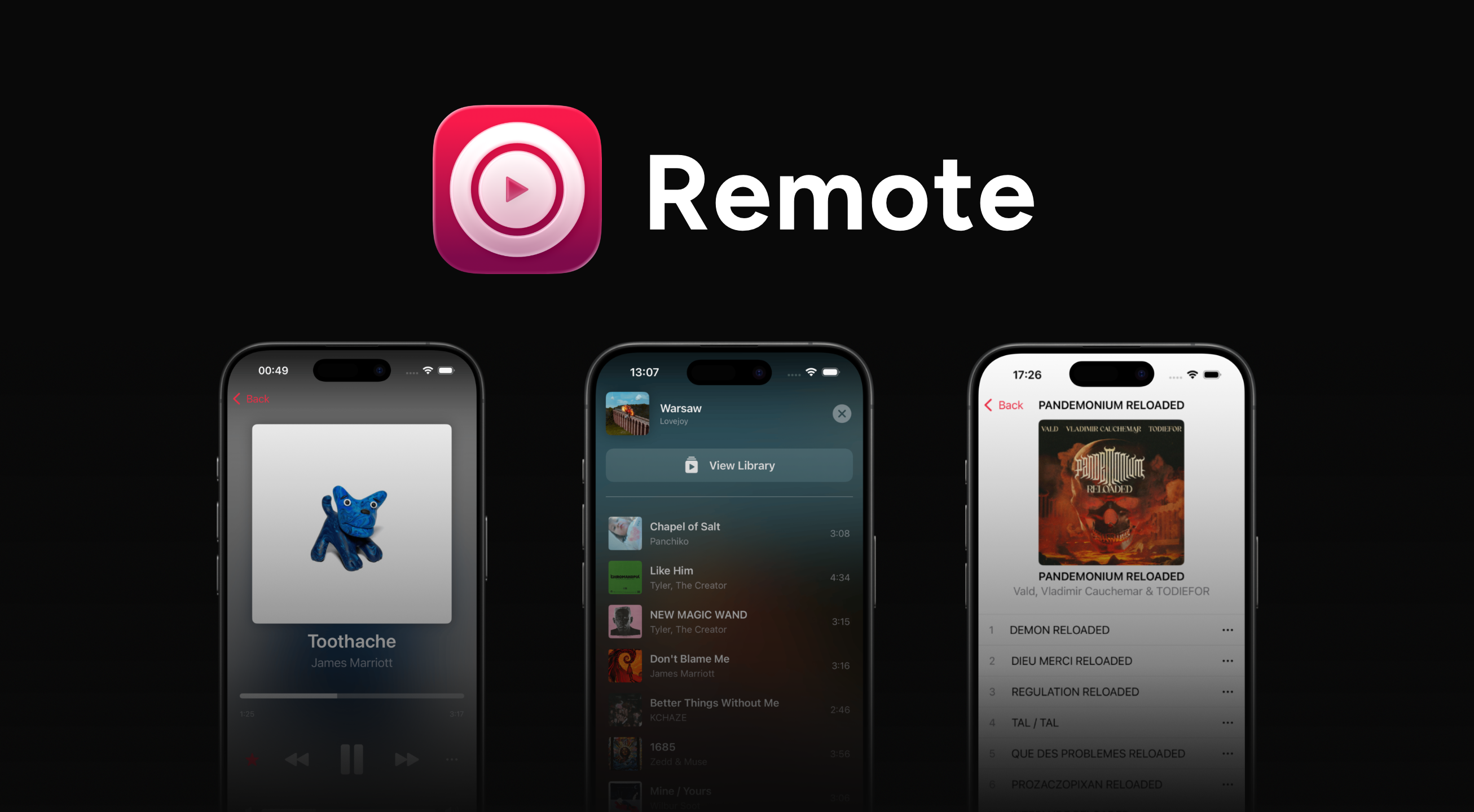

# About Remote

[Cider Remote](https://cider.sh/remote) is a native iOS app, built with [SwiftUI](https://developer.apple.com/swiftui/) and [Socket.io](https://socket.io/), that gives remote controls to [Cider](https://cider.sh/).

> [!NOTE]

> Cider Remote is also available on Android: [`ciderapp/Cider-Remote-RN`](https://github.com/ciderapp/Cider-Remote-RN)

[Cider Remote](https://cider.sh/remote) is the official [Cider](https://cider.sh/) remote control app on iPhone and iPad using iOS 17 or later, with these features:

- Seamless communications between [Remote](https://cider.sh/remote) and [Cider](https://cider.sh/)

- Live Activity with the playing track and quick actions ([ActivityKit](https://developer.apple.com/documentation/ActivityKit))

- Horizontal Layout (Landscape)

- Queue Management

- Apple Music & MusixMatch Lyrics (+ Immersive Lyrics in Horizontal Layout)

- Siri Shortcuts actions ([App Intents](https://developer.apple.com/documentation/appintents))

- Control Center actions ([WidgetKit](https://developer.apple.com/documentation/widgetkit/creating-controls-to-perform-actions-across-the-system#Add-a-control-toggle-to-your-app), iOS 18+)

- Liquid Glass design (iOS 26+)

# Feedback

To make a feedback about Cider Remote, you can do the following:

- You can [write a review](https://apps.apple.com/app/id6670149407?action=write-review) on the App Store.

- You can send a feedback on TestFlight with an attached screenshot or not. It is recommended to also share your email address with your TestFlight feedback, but not required.

- Send a message in [#cider-chat](https://discord.com/channels/843954443845238864/1254248941780729898) on the [Cider Discord](https://discord.gg/applemusic) server

- You can [create an issue](https://github.com/ciderapp/Cider-Remote/issues/new) on GitHub.

- If the beta app crashes, TestFlight will recommend you to send a feedback with the crash info.

# Connection Guide

This guide may help you through the connection of Cider Remote to Cider\

_This guide works for iPhones and iPads in iOS 17 or later_

### Prerequisites

- Ensure that Cider is installed with version v2.5.0 or later and is running on your computer (Windows, macOS, or Linux).

- For LAN mode, your iPhone should be connected to the same local network as Cider.

- For WAN mode, you can control Cider from anywhere, as long as both devices have internet access.

- Cider's RPC server should be enabled.

### Setting Up Cider Remote

#### LAN Mode (Local Area Network)

1. **Configure Cider to Pair with Your iPhone:**

   - On your computer, open Cider.

   - Navigate to **Settings > Help > Connect a Remote app**.

   - Click on the **Pair** button at the top of the alert.

   - Choose a name, your connection method, and optionally, a host address.

   - Click on **Create QR Code**.

2. **Connect Your iPhone to Cider (LAN Mode):**

   - Launch the Cider Remote app on your iPhone.

   - Tap on the "Add a New Cider Device" button. This will open a QR code scanner.

   - Scan the QR Code on Cider, then choose your device's name.

#### WAN Mode (Wide Area Network)

If you need to control Cider from a different network or while away from home, you can switch to WAN mode.

1. **Switch to WAN Mode:**

   - Follow steps 1 and 2 from LAN mode to add a new Cider device.

   - When prompted to select the connection method, choose **WAN** instead of **LAN**.

   - Continue pairing your iPhone with Cider by scanning the QR code as before.

   - Once paired, Cider Remote will allow you to control playback from anywhere with internet access (thanks to [localtunnel](https://theboroer.github.io/localtunnel-www/)), not just on the same local network.

## Important Notes

- **LAN Mode:** Cider Remote works over a local network, using the RPC server on port **10767**. Ensure that both your iPhone and Cider are on the same network.

- **WAN Mode:** Cider Remote in WAN mode allows for control from anywhere with internet access. Be sure that both devices have a stable internet connection.

- **Firewall Settings:** If Cider Remote cannot connect to Cider, you may need to allow Cider or port **10767** through your computer’s firewall.

- **Connectivity:** Both the Cider RPC server and WebSocket need to be enabled in settings for Cider Remote to function correctly.

## Troubleshooting

### Common Issues & Solutions

- **Cider Remote Cannot Find Cider (LAN):**

  - Ensure that both your iPhone and Cider client are connected to the same local network.

  - Check if the RPC server is running on Cider (port 10767).

  - Restart both your iPhone and the Cider client to refresh the connection.

  - **Solution:** If the LAN connection fails, try using **WAN mode** to control Cider over the internet.

- **Firewall Issues:**

  - If you're using a firewall, make sure that Cider or port **10767** is allowed through.

  - On Windows, go to **Control Panel > System and Security > Windows Defender Firewall > Allow an app or feature through Windows Defender Firewall**. Ensure that Cider is listed and allowed.

  - On macOS, go to **System Preferences > Network > Firewall > Options**, and add Cider to the list of allowed apps.

  - On Linux, use your distribution's firewall management tool to allow the necessary port.

- **QR Code Scanning Issues:**

  - Ensure that the QR code is clearly visible and well-lit when scanning with your iPhone.

  - If the scan fails, try moving your phone closer or further away from the screen.

By following these steps, you should be able to set up and use Cider Remote without any issues, whether on LAN or WAN.

# Beta of Cider Remote

> [!IMPORTANT]

> Cider Remote's beta allows users to test new features before they release on the App Store, which might use capabilities that will be available in iOS Beta versions, be careful though, bugs may occur more often in beta than in the [App Store](https://apps.apple.com/app/id6670149407) version. Make sure to report bugs and issues through [a feedback](#feedback).

Join the [TestFlight beta](https://testflight.apple.com/join/qTeV2T2w) here.

# License & Copyright

This project is licensed under the Attribution-NonCommercial-ShareAlike 4.0 International (CC BY-NC-SA 4.0) license. See the [LICENSE](./LICENSE) file for details.

© Cider Collective 2024-2025