https://github.com/cl4cnam/gimp_cartoon_plugin
Photo to cartoon
https://github.com/cl4cnam/gimp_cartoon_plugin
cartoonify cartoonization cartoonize cartoonizer gimp-plugin gmic-filter photo-to-cartoon photo-to-comic
Last synced: about 1 year ago
JSON representation
Photo to cartoon
- Host: GitHub
- URL: https://github.com/cl4cnam/gimp_cartoon_plugin
- Owner: cl4cnam
- License: gpl-3.0
- Created: 2021-03-09T23:38:20.000Z (over 5 years ago)
- Default Branch: main
- Last Pushed: 2024-01-10T12:43:05.000Z (over 2 years ago)
- Last Synced: 2025-04-01T14:38:34.834Z (over 1 year ago)
- Topics: cartoonify, cartoonization, cartoonize, cartoonizer, gimp-plugin, gmic-filter, photo-to-cartoon, photo-to-comic
- Language: Python
- Homepage:
- Size: 1.1 MB
- Stars: 17
- Watchers: 1
- Forks: 0
- Open Issues: 1
-
Metadata Files:
- Readme: README.md
- License: LICENSE
Awesome Lists containing this project
README
# gimp_cartoon_plugin
To turn a photo into a cartoon image.
## Note
For G'MIC 2.9.8 and later, don't use this but use "Filters -> G'MIC-Qt -> Artistic -> Comic Book" (You have to have updated G'MIC filters by "ctrl-R").
Video in [German](https://www.youtube.com/watch?v=YGjcfiL1WpY) (by Michael), in [French](https://www.youtube.com/watch?v=v9awRDuzDrk) (by Miguel Pineau), in [English](https://www.youtube.com/watch?v=s_wjVWi76Ow).
You can also use it to make [cartoon film](https://www.youtube.com/watch?v=NS5Ih8ywboI).
This plugin is discussed [here](http://gimpchat.com/viewtopic.php?f=11&t=19335).
## Prerequisite
- GIMP 2.8
- G'MIC 1.7.9
or
- GIMP 2.10
- G'MIC 2.9.7
## Install
For GIMP 2.8, copy "bede2.8.py" into ~/.gimp-2.8/plug-ins/.
For GIMP 2.10, copy "bede2.10.py" into the folder indicated at "Edit->Preferences->Folders->Plug-ins".
For GIMP 2.10 and G'MIC 2.9.8 (or G'MIC 3.1.x), copy "bede2.10_GMIC2.9.8.py" into the folder indicated at "Edit->Preferences->Folders->Plug-ins".
***Warning*** : Do not forget to allow this file to be exexcuted as a program.
Restart GIMP, the plugin should appear as a menu "Filters->Artistic->Bédé..." or "Filters->Artistic->Simple Cartoon".
On Windows, if the plugin does not work, delete the first line of the file "bede2.x.py" ("#!/usr/bin/env python") ("new line" character included).
## Tips
- If black specks in outcome annoy, try "anti-parasites".
- If double lines in outcome annoy, try "luminosité" in "méthode de désaturation des bords" (and reduce "suppression traits parasites" slightly).
- If aliasing in outcome annoy, try "antialias à chaque applatissement" (and reduce "antialias" strongly).
- If you want computer style line, set "antialias" to 0.
- If you dislike color change, set "augmentation saturation" to 0.
- If some color bleeds onto places around them, try to reduce "aplatissement final".
## Examples
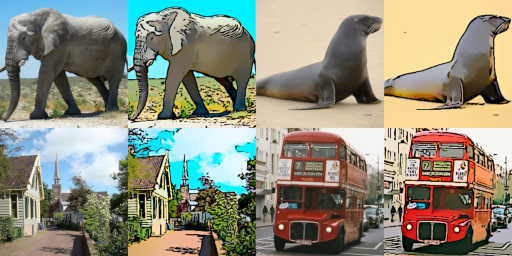
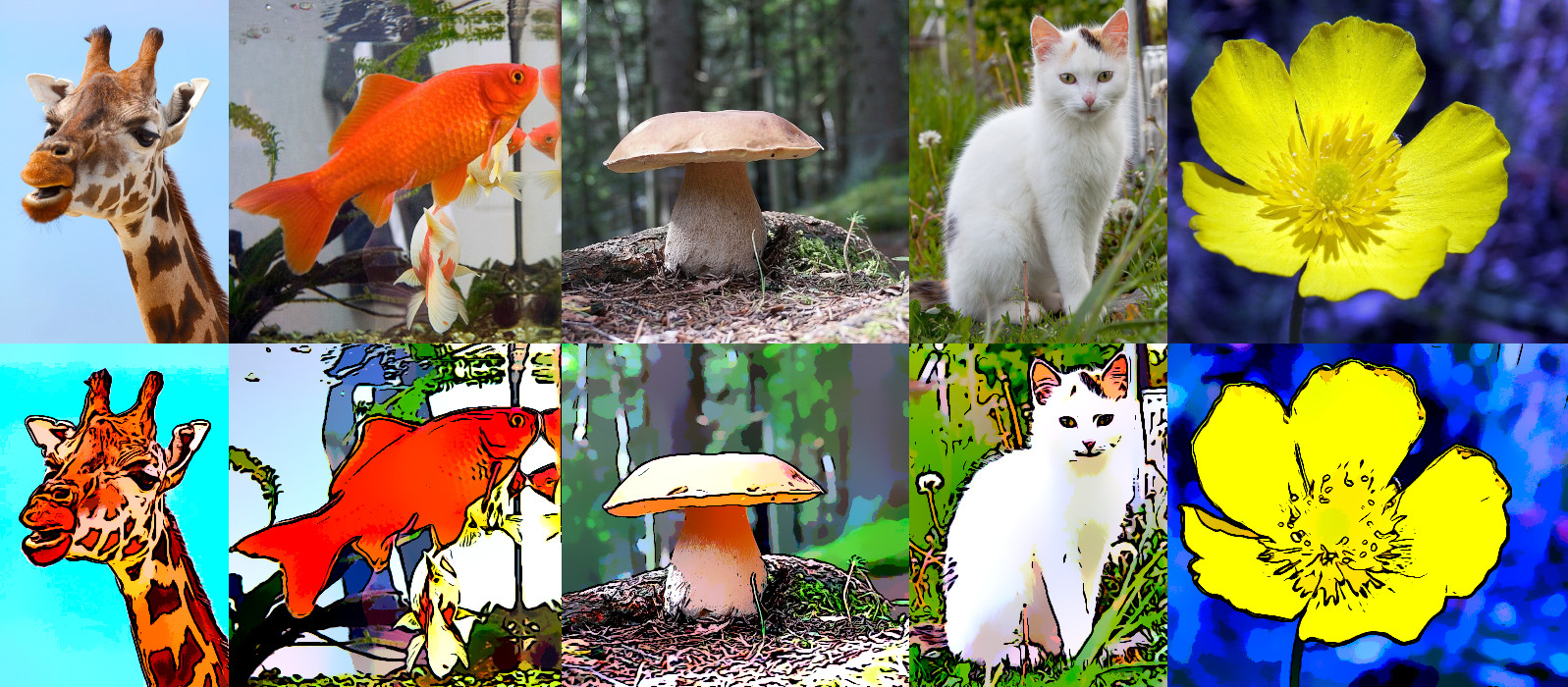
### Sources
All sources are public domain: [Elephant](https://fr.wikipedia.org/wiki/Fichier:Elephants_at_Etosha_National_Park03.JPG), [Sea lion](https://fr.wikipedia.org/wiki/Fichier:New_Zealand_Sea_Lion.jpg), [Broek in waterland](https://fr.wikipedia.org/wiki/Fichier:Broek_in_waterland_077.JPG), [Routemaster](https://fr.wikipedia.org/wiki/Fichier:Routemaster.JPG), [Giraffe](https://www.wpclipart.com/animals/G/giraffe/giraffe_photo.jpg.html), [Goldfish](https://www.wpclipart.com/animals/aquatic/fish/G/goldfish/Goldfish_photo_2.jpg.html), [King bolete](https://wpclipart.com/plants/mushroom/mushroom_photos/King_Boletus__Boletus_edulis.jpg.html), [Kitten](https://www.wpclipart.com/animals/cats/cat_photos/kitten_white_sitting.jpg.html), [Buttercup](https://www.wpclipart.com/plants/flowers/_B/buttercup/photos/Ranunculus_gramineus_blossom.jpg.html).
### How have I produced the first four examples :
- crop into a square shape,
- reduce to 256 by 256 pixels,
- apply "Bédé" filter with default parameters.
### How have I put the first four examples together :
- put them side by side,
- reduce the outcome by 50%.