https://github.com/classyid/helm-ai-webhook-spreadsheet
Google Apps Script yang menyediakan antarmuka pengguna lengkap di Google Sheets untuk menguji, memantau, dan mengelola integrasi webhook WhatsApp dengan HelmAI. Dilengkapi dengan pengiriman pesan, pencatatan aktivitas, laporan analitik
https://github.com/classyid/helm-ai-webhook-spreadsheet
helmai-by-classy webhook-helmai webhook-mpedia webhook-tester webhook-whatsapp
Last synced: over 1 year ago
JSON representation
Google Apps Script yang menyediakan antarmuka pengguna lengkap di Google Sheets untuk menguji, memantau, dan mengelola integrasi webhook WhatsApp dengan HelmAI. Dilengkapi dengan pengiriman pesan, pencatatan aktivitas, laporan analitik
- Host: GitHub
- URL: https://github.com/classyid/helm-ai-webhook-spreadsheet
- Owner: classyid
- Created: 2025-03-08T09:03:49.000Z (over 1 year ago)
- Default Branch: main
- Last Pushed: 2025-03-08T09:10:21.000Z (over 1 year ago)
- Last Synced: 2025-03-08T10:19:39.024Z (over 1 year ago)
- Topics: helmai-by-classy, webhook-helmai, webhook-mpedia, webhook-tester, webhook-whatsapp
- Language: JavaScript
- Homepage: https://s.id/JLw4K
- Size: 10.7 KB
- Stars: 0
- Watchers: 1
- Forks: 0
- Open Issues: 0
-
Metadata Files:
- Readme: README.md
Awesome Lists containing this project
README
# HelmAi-Webhook-Googlespreadsheet
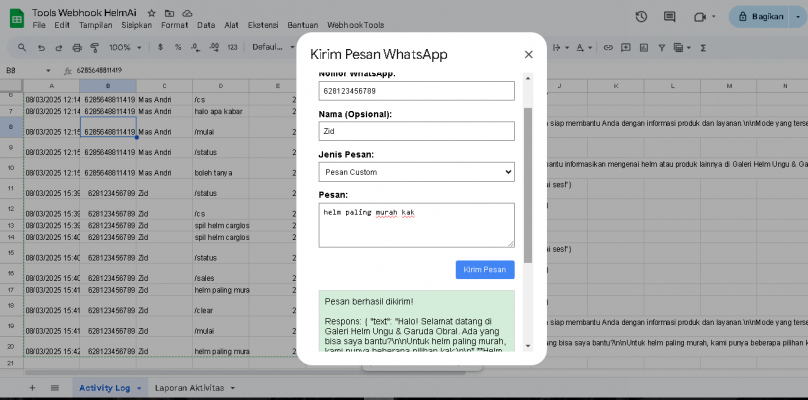
## 🌟 Fitur
- 📱 Kirim pesan ke Webhook HelmAi langsung dari Google Sheets
- 🧪 Test koneksi webhook
- 📝 Pencatatan otomatis aktivitas pengiriman
- 📈 Generate laporan aktivitas dengan grafik
## 📋 Prasyarat
- Akun Google dengan akses ke Google SpreadSheets dan Google Apps Script
- Server dengan endpoint webhook untuk HelmAi
## 🚀 Cara Menggunakan
### Setup Awal
1. Buat spreadsheet Google Sheets baru
2. Buka menu **Extensions > Apps Script**
3. Salin semua kode dari file `webhook-tools.gs` ke editor Apps Script
4. Perbarui variabel `WEBHOOK_CONFIG` dengan URL webhook WhatsApp Anda
5. Simpan project dan berikan nama (misalnya "WhatsApp Webhook Tools")
6. Kembali ke spreadsheet dan refresh halaman
### Mengirim Pesan WhatsApp
1. Di spreadsheet, Anda akan melihat menu baru **Webhook Tools**
2. Klik **Webhook Tools > Kirim Pesan WhatsApp**
3. Masukkan nomor WhatsApp, nama (opsional), dan pesan
4. Pilih jenis pesan dari dropdown atau gunakan pesan kustom
5. Klik **Kirim Pesan**
### Testing Webhook
1. Klik **Webhook Tools > Test Webhook**
2. Anda akan melihat dialog konfirmasi yang menunjukkan apakah server webhook merespons dengan benar
### Generate Laporan
1. Klik **Webhook Tools > Generate Laporan**
2. Sheet baru "Laporan Aktivitas" akan dibuat dengan statistik penggunaan dan grafik
## 📝 Detail Struktur Kode
### Fungsi Utama
- `onOpen()`: Membuat menu kustom di UI Google Sheets
- `showSendMessageDialog()`: Menampilkan dialog untuk mengirim pesan
- `sendWebhookMessage()`: Memformat dan mengirim pesan ke webhook
- `formatPhoneNumber()`: Memformat nomor telepon ke format yang benar
- `sendToWebhook()`: Mengirim permintaan HTTP ke endpoint webhook
- `logActivity()`: Mencatat aktivitas pengiriman ke sheet terpisah
- `testWebhook()`: Menguji koneksi ke endpoint webhook
- `generateReport()`: Membuat laporan aktivitas dengan statistik
- `batchSendMessages()`: Mengirim pesan ke banyak nomor sekaligus
- `createWhatsAppForm()`: Membuat form Google untuk integrasi WhatsApp
## 🔧 Kustomisasi
### Mengubah URL Webhook
Perbarui variabel `WEBHOOK_CONFIG` di awal kode:
```javascript
const WEBHOOK_CONFIG = {
url: "http://your-webhook-url.com/webhook/whatsapp",
timeout: 30000 // Timeout in milliseconds
};
```
### Format Pesan
Format pesan dapat disesuaikan dengan mengedit fungsi `sendToWebhook()`. Struktur payload default adalah:
```javascript
const payload = {
from: phoneNumber,
message: message,
name: name,
device: "Google Sheets App",
bufferImage: null
};
```
## 🔍 Pemecahan Masalah
### Webhook Tidak Merespons
- Pastikan URL webhook benar di konfigurasi
- Periksa apakah server webhook aktif dan berjalan
- Jalankan fungsi `testWebhook()` untuk melihat error spesifik
### Pesan Tidak Dikirim
- Periksa format nomor telepon (harus diawali dengan kode negara tanpa '+')
- Periksa Activity Log untuk melihat respons error dari webhook
- Pastikan permintaan tidak diblokir oleh firewall atau pembatasan jaringan
## 📜 Lisensi
MIT License
## 🤝 Kontribusi
Kontribusi, isu, dan permintaan fitur sangat diterima!
1. Fork repository
2. Buat branch fitur (`git checkout -b feature/amazing-feature`)
3. Commit perubahan Anda (`git commit -m 'Add some amazing feature'`)
4. Push ke branch (`git push origin feature/amazing-feature`)
5. Buka Pull Request