https://github.com/code-forge-temple/circuit-sketcher-obsidian-plugin
A plugin for Obsidian to draw circuits on a canvas.
https://github.com/code-forge-temple/circuit-sketcher-obsidian-plugin
circuit-design circuit-diagram circuit-diagrams circuit-sketcher electronics fortheloveofcode obsidian obsidian-community obsidian-community-plugin obsidian-md obsidian-plugin obsidian-plugins obsidianmd open-source productivity-tool typescript visual-editor
Last synced: 6 months ago
JSON representation
A plugin for Obsidian to draw circuits on a canvas.
- Host: GitHub
- URL: https://github.com/code-forge-temple/circuit-sketcher-obsidian-plugin
- Owner: code-forge-temple
- License: gpl-3.0
- Created: 2024-12-19T18:30:47.000Z (over 1 year ago)
- Default Branch: main
- Last Pushed: 2025-09-07T09:07:47.000Z (11 months ago)
- Last Synced: 2025-09-07T10:23:43.344Z (11 months ago)
- Topics: circuit-design, circuit-diagram, circuit-diagrams, circuit-sketcher, electronics, fortheloveofcode, obsidian, obsidian-community, obsidian-community-plugin, obsidian-md, obsidian-plugin, obsidian-plugins, obsidianmd, open-source, productivity-tool, typescript, visual-editor
- Language: TypeScript
- Homepage:
- Size: 92.8 KB
- Stars: 15
- Watchers: 1
- Forks: 0
- Open Issues: 1
-
Metadata Files:
- Readme: README.md
- Funding: .github/FUNDING.yml
- License: LICENSE
Awesome Lists containing this project
- awesome-github-repos - code-forge-temple/circuit-sketcher-obsidian-plugin - A plugin for Obsidian to draw circuits on a canvas. (TypeScript)
README
# Circuit Sketcher - Obsidian Plugin
**A plugin for Obsidian to draw circuits on a canvas. It is based on the [code-forge-temple/circuit-sketcher-core](https://github.com/code-forge-temple/circuit-sketcher-core).**
> ⭐️ **Love this project?** Please consider [starring the repository](https://github.com/code-forge-temple/circuit-sketcher-obsidian-plugin) on GitHub and [supporting development](https://github.com/sponsors/code-forge-temple) to help me continue building amazing features!
[](LICENSE)
[](https://www.typescriptlang.org/)
[](https://reactjs.org/)
[](https://docs.obsidian.md/)
[](https://webpack.js.org/)
[](https://sass-lang.com/)
[](https://eslint.org/)
[](https://github.com/features/actions)
[](https://www.obsidianstats.com/plugins/circuit-sketcher)
## Table of Contents
- [Features](#features)
- [Installation](#installation)
- [Usage](#usage)
- [Component Library](#component-library)
- [License](#license)
## Features
- Draw and edit circuit diagrams directly within Obsidian.
- Save and load circuit designs.
- Customizable library for circuit elements.
- Responsive design with automatic resizing.
- **Embed circuit diagrams in notes:** Reference `.circuit-sketcher` files in your notes (e.g., by dragging and dropping the file into a note). In read mode, an image of the circuit will be displayed automatically.
## Installation
1. Open [Obsidian](https://obsidian.md) and go to `Settings` ⇒ `Community Plugins` ⇒ `Browse`.
2. Search for `Circuit Sketcher`.
3. Select the `Circuit Sketcher` plugin and press `Install`, then press `Enable`.
or
1. Open [Community Plugins Page](https://obsidian.md/plugins?id=circuit-sketcher) in browser.
2. Select `Install`, then press `Enable`.
## Usage
1. Use the ribbon icon, command palette, or right-click on a target folder in the file explorer and select **Create new Circuit Sketcher file** to create a new circuit sketcher file.
2. Start drawing your circuit on the canvas:
- On the canvas, right-click to show the canvas menu, and select `Create Node`.
- Right-click on the node to show the node menu, select `Change Image`, and choose an image relevant to your circuit node.
- Right-click on the node to show the node menu, select `Add Port...`, and choose the port location and type.
- You can rename the circuit node label or port label by double-clicking on the label. The port or port label can also be deleted (right-click on the port to show the port menu and proceed from there).
- You can relocate ports, either to a different node side or rearrange the ports on the same side, by dragging and dropping the port to the desired location within the dotted blue area.
- After you are satisfied with your changes to the circuit node, and if you wish to save the circuit node to reuse it in the current or a different `.circuit-sketcher` file, you can right-click on the circuit node and press `Save Node to Library` (this will update the root Obsidian vault `circuit-sketcher.lib` file).
- You can reuse the node by right-clicking on the canvas and selecting `Library...` then selecting the desired node.
- Connections between circuit nodes can be made by dragging and dropping one port to the destination port (if it is a compatible port). You can delete a connection by selecting it and then pressing the Delete key.
- You can drag the entire circuit by holding the mouse scroll button and moving the mouse.
A short video tutorial on how to use the plugin:
[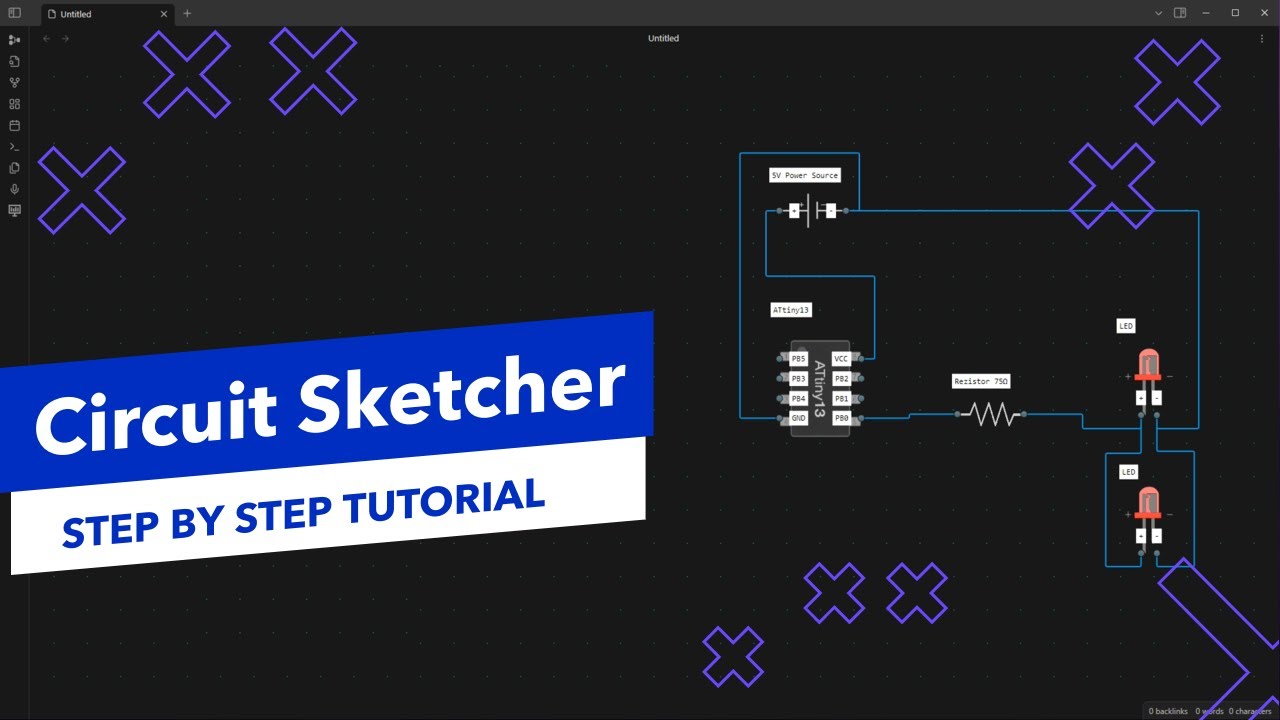 ](https://www.youtube.com/watch?v=S6ifgDb83Pg)
## Component Library
To help you get started with Circuit Sketcher, we provide a curated library of circuit components at [circuit-sketcher-lib](https://github.com/code-forge-temple/circuit-sketcher-lib).
### Quick Start with Pre-built Components
**Import the entire library:**
- Download the complete component library: [library.json](https://github.com/code-forge-temple/circuit-sketcher-lib/blob/main/assets/lib/library.json)
- Import it directly into Circuit Sketcher to get access to all available components (right click on canvas to show the menu, then `Library...` -> `Import Library`)
**Import individual components:**
- Browse individual components: [assets/nodes](https://github.com/code-forge-temple/circuit-sketcher-lib/tree/main/assets/nodes)
- Download specific `.json` files for the components you need
- Import them one by one into your Circuit Sketcher workspace (right click on canvas to show the menu, then `Import Node`)
## License
This project is licensed under the GNU General Public License v3.0. See the [LICENSE](LICENSE) file for more details.
## ✨ My Other Projects
✦ [**Agentic Signal**](https://github.com/code-forge-temple/agentic-signal) – Visual AI agent workflow automation platform with local LLM integration - build intelligent workflows using drag-and-drop interface, no cloud dependencies required.
✦ [**ScribePal**](https://github.com/code-forge-temple/scribe-pal) - An Open Source intelligent browser extension that leverages AI to empower your web experience by providing contextual insights, efficient content summarization, and seamless interaction while you browse.
✦ [**Local LLM NPC**](https://github.com/code-forge-temple/local-llm-npc) An interactive educational game built for the Google Gemma 3n Impact Challenge.