https://github.com/cognaque/setup-42-gnome
Fedora 42 Installation on Lenovo Ideapad Gaming 3 with NVIDIA
https://github.com/cognaque/setup-42-gnome
fedora-adjustment fedora-workstation gnome linux
Last synced: about 2 months ago
JSON representation
Fedora 42 Installation on Lenovo Ideapad Gaming 3 with NVIDIA
- Host: GitHub
- URL: https://github.com/cognaque/setup-42-gnome
- Owner: Cognaque
- License: mit
- Created: 2025-05-26T16:09:58.000Z (about 1 year ago)
- Default Branch: main
- Last Pushed: 2025-05-28T00:11:25.000Z (about 1 year ago)
- Last Synced: 2025-06-20T05:45:21.184Z (about 1 year ago)
- Topics: fedora-adjustment, fedora-workstation, gnome, linux
- Language: Shell
- Homepage:
- Size: 3.91 MB
- Stars: 8
- Watchers: 0
- Forks: 1
- Open Issues: 0
-
Metadata Files:
- Readme: README.md
- License: LICENSE
Awesome Lists containing this project
README


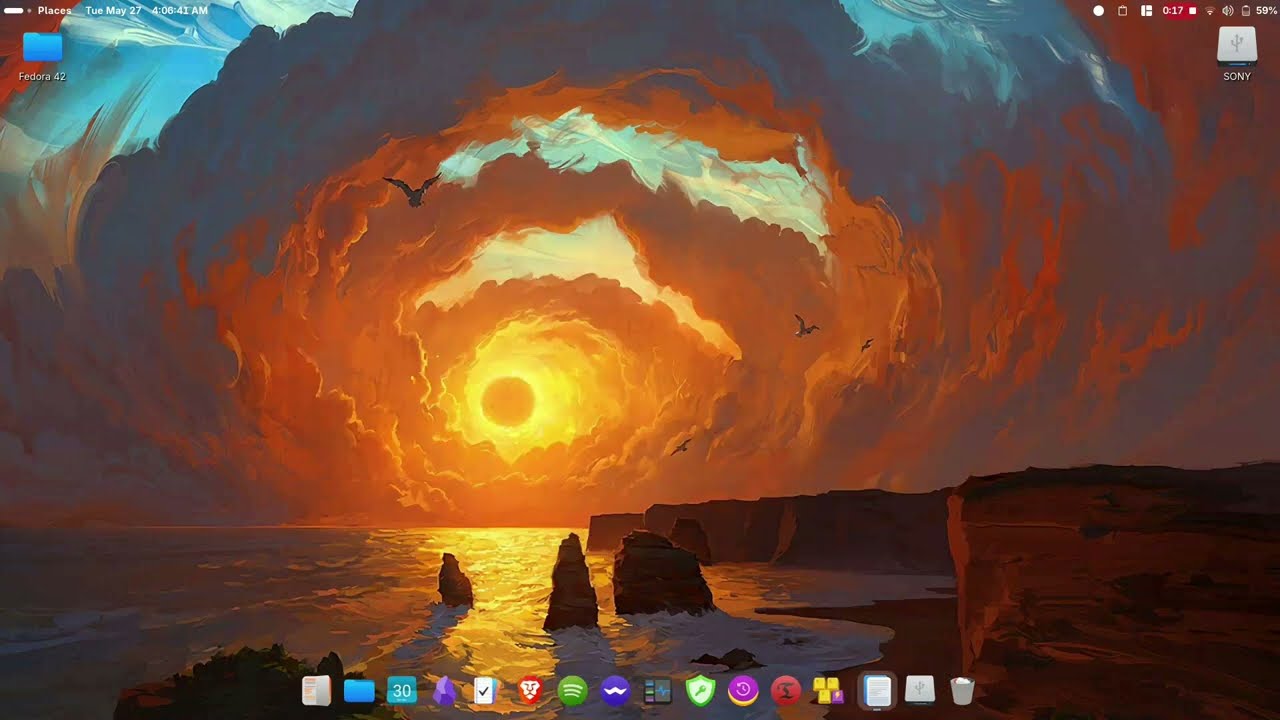
## Watch the Setup in Action on Youtube
[](https://youtu.be/wTj45232NoY?si=SS9glJRq8sN5I_6k)
---
They’ve got a new installer with Fedora 42 — and I’ve got to say, **this is hands down the best minimal OS installer I’ve seen so far**. I mean, it feels like you’re installing an OS the way you install apps on Windows — just clicking “Yes” all the way through. It’s _that_ smooth.
So I hope you won't have any problem with installing fedora.
## 🛠️ Post-Install Tweaks (Step-by-Step)
### ⧩ Note
**If your laptop can update firmware without Windows, definitely look into it.**
It’s one of those small things that makes your life easier in the long run.
> **Here is how to update firmware**
### ⧩ Note
**Before updating to new firmware**, check the discussion forums or blogs related to your specific laptop model.
If other users report that the **firmware update works without issues**, it’s generally safe to proceed.
**BIOS updates are especially critical**, so exercise extra caution.
**Make sure to research thoroughly online before installing any firmware updates.**
```
sudo dnf install fwupd
sudo fwupdmgr refresh
fwupdmgr get-devices
fwupdmgr get-updates
sudo fwupdmgr update
```
**Be very careful with the last command. Use the other commands to get your firmware and update details, always crosscheck them on your vendor’s official driver site, and also check forums to see if the updates are causing any issues.**
---
## Network Configuration
I’ve set up a **static IP for my laptop** on my home router using its hardware MAC address. Fedora, by default, uses randomized MACs — great for privacy, sure — but in my case, I have a Nextcloud server that only accepts connections from one static IP (this laptop), so I had to tweak that.
Here’s how you do it:
1. Click on your WiFi network.
2. Go to **Identity**, and from the MAC address dropdown, choose your actual hardware MAC.
3. Set the **Cloned Address** to **Permanent**.
4. Reconnect to your WiFi. Bam — static IP.
### Custom DNS
I use Google DNS — but you can set whatever you prefer.
Turn off automatic DNS for both IPv4 and IPv6 and enter these manually:
```
8.8.8.8, 8.8.4.4 (IPv4)
2001:4860:4860::8888, 2001:4860:4860::8844 (IPv6)
```
### Optional — Speed Up Boot
Run this to disable the network wait-on-boot delay:
```
sudo systemctl disable NetworkManager-wait-online.service
```
---
## Tweaking the DNF Package Manager
Open the DNF config:
```
sudo nano /etc/dnf/dnf.conf
```
Add these lines under `[main]`:
```
max_parallel_downloads=10
fastestmirror=1
```
Then press **Ctrl + X**, then **Y**, and hit **Enter** to save.
BTW, **dnf5** is also auto-installed now — you can use that too if you're curious.
---
## Set Your Hostname
Because seeing “localhost” in the terminal just sucks.
```
sudo hostnamectl set-hostname
```
Then log out and back in.
---
## Add Repositories
Hope you enabled **Third Party Repositories** during Fedora setup. If not, open **Software → Preferences**, and flip that switch.
Then run these to add **RPM Fusion** and **Flatpak** support:
```
sudo dnf config-manager setopt fedora-cisco-openh264.enabled=1
sudo dnf install https://mirrors.rpmfusion.org/free/fedora/rpmfusion-free-release-$(rpm -E %fedora).noarch.rpm \
https://mirrors.rpmfusion.org/nonfree/fedora/rpmfusion-nonfree-release-$(rpm -E %fedora).noarch.rpm
sudo dnf install rpmfusion-*-appstream-data
flatpak remote-add --if-not-exists flathub https://dl.flathub.org/repo/flathub.flatpakrepo
```
---
## Update the System
```
sudo dnf update
```
Then reboot. After logging back in, run:
```
sudo dnf autoremove
```
to clean up orphaned dependencies and software.
---
## Installing NVIDIA Drivers
### ⧩ Note
**Don’t just blindly upgrade drivers.** Check the version first — if it’s newer, go ahead. Don’t install random older ones unless you're trying to fix something.
```
sudo dnf install akmod-nvidia
```
**⚠️ Don’t reboot just yet.**
First, check if the drivers are properly loaded:
```
modinfo -F version nvidia
```
If it doesn't returns the NVIDIA driver version, **give it a couple of minutes** (max 5). Then try again:
```
modinfo -F version nvidia
```
Once you see the version info, **now you can reboot**.
After reboot, install the rest:
```
sudo dnf install nvidia-vaapi-driver libva-utils vdpauinfo libva-nvidia-driver xorg-x11-drv-nvidia-cuda
sudo dnf swap mesa-vdpau-drivers mesa-vdpau-drivers-freeworld
sudo dnf swap mesa-va-drivers mesa-va-drivers-freeworld
```
Check if **Nouveau** is disabled:
```
lsmod | grep nouveau
```
If you get nothing, you're good. If not, you'll need to blacklist it — but honestly, that’s rarely needed anymore.
---
## NVIDIA Prime Offload
First Check your Bios. Make sure **secure boot is disabled** and **Switchable graphics** is turned on. After logging in, open your terminal and run
```
/sbin/lspci | grep -e VGA
```
and
```
/sbin/lspci | grep -e 3D
```
If you found your NVIDIA card in the second command, then you are already on Hybrid Mode.
Run
```
switcherooctl
```
It will give you an output like this
```
Device: 0
Name: Advanced Micro Devices, Inc. [AMD®/ATI] Cezanne [Radeon Vega Series / Radeon Vega Mobile Series]
Default: yes
Environment: DRI_PRIME=pci-0000_05_00_0
Device: 1
Name: NVIDIA Corporation TU117M [GeForce GTX 1650 Mobile / Max-Q]
Default: no
Environment: __GLX_VENDOR_LIBRARY_NAME=nvidia __NV_PRIME_RENDER_OFFLOAD=1 __VK_LAYER_NV_optimus=NVIDIA_only
```
That `Default: no` confirms you are using Hybrid mode.
Now to run any software on NVIDIA just use the environment variable like this
```
env __GLX_VENDOR_LIBRARY_NAME=nvidia __NV_PRIME_RENDER_OFFLOAD=1 __VK_LAYER_NV_optimus=NVIDIA_only
```
For Flatpaks, Install Flatseal and look for the software that you want to run on NVIDIA.
I will take Obsidian for example.
```
1. Open Flatseal
2. Click on Obsidian
3. Under Device, make sure GPU acceleration is turned on.
4. Now scroll down and go to Environment section.
5. Add the Environment variables you found using switcherooctl by clicking the + icon.
6. Each Environment variable requires its own line, for example I have 3 so, I will click on + then paste __GLX_VENDOR_LIBRARY_NAME=nvidia
7. Again click on + and paste __NV_PRIME_RENDER_OFFLOAD=1
8. And finally add the last varibale i.e __VK_LAYER_NV_optimus=NVIDIA_only
```
Now Obsidian will run on NVIDIA. To verify run `nvidia-smi` or install `Nvidia System Monitor Qt` to check.
---
## Multimedia Codecs
```
sudo dnf group install multimedia
```
## Install Preload (For Snappy App Launches)
```
sudo dnf copr enable kylegospo/preload -y && sudo dnf install preload -y && sudo systemctl enable --now preload
```
---
## Installing Essential Software
I was genuinely surprised that **Perl** wasn't installed by default. Fedora really embraces the whole **"your laptop, your rules"** philosophy. Unlike Pop!_OS where everything's ready out of the box, here _you_ decide what goes in.
Here’s what I installed:
```
sudo dnf install unzip p7zip p7zip-plugins perl perl-Unicode-Normalize perl-Tk unrar foliate gnome-tweaks fastfetch wget git python3 python3-pip dnfdragora nnn neovim asciinema figlet cowsay hardinfo2 mpv vulkan-tools timeshift zathura zathura-pdf-mupdf
pip3 install --user pynvim
```
---
## Zathura + Neovim + LaTeX Fix
Copy this:
```
/usr/share/applications/org.pwmt.zathura.desktop
```
to:
```
~/.local/share/applications/
```
Then add this line inside the `.desktop` file for both:
```
Exec= env GDK_BACKEND=x11 /usr/bin/zathura %U
```
Without this, you'll get the "Zathura Window ID not found" error when using LaTeX + Neovim + Zathura together.
---
## Disable GNOME Software Auto-Start
Edit the desktop entry:
```
sudo nvim /usr/share/applications/org.gnome.Software.desktop
```
Change it to:
```
[Desktop Entry]
Type=Application
Name=GNOME Software
Exec=/usr/bin/gnome-software --gapplication-service
OnlyShowIn=GNOME;Unity;
NotShowIn=Budgie
NoDisplay=true
X-GNOME-Autostart-enabled=false
Hidden=true
```
Then:
```
mkdir -p ~/.config/autostart
cp /usr/share/applications/org.gnome.Software.desktop ~/.config/autostart/
```
---
## Power Management
### The good old `xset dpms force off`?
No it does not work on Wayland and for obvious reasons. I have given the script in `/.bin/screen` . Just bind it to a keyboard shortcut.
Fedora’s default GNOME power profiles are decent, but I prefer something more custom. I highly recommend [auto-cpufreq](https://github.com/AdnanHodzic/auto-cpufreq).
I’ve included a config file — tweak it however you like.
### ⧩ Note
The default **Power Profile Manager** has some issues that leads to **Washed out colors + Blurriness** and make it quite difficult to read text.
[auto-cpufreq](https://github.com/AdnanHodzic/auto-cpufreq) fixes this.
---
## Additional Software Recommendations
```
Calibre
Obsidian
Planify
Ferdium
Mission Center
KeePassXC
Pika Backup
Keypunch
Flatseal
Gear Lever
Kiwix
OnlyOffice
JamesDSP
Shortwave
Cosmic Store
Nvidia System Monitor Qt
Warehouse
GDM Settings
```
---
## More Awesome Tools
- [SpeedTest CLI](https://www.speedtest.net/apps/cli) — quick internet speed test
- [YT-DLP](https://github.com/yt-dlp/yt-dlp) — no description needed
- [Xtreme Download Manager](https://xtremedownloadmanager.com/) — fantastic for big files
- [TestDisk](https://www.cgsecurity.org/wiki/TestDisk_Download) — for serious data recovery
- [Starship](https://starship.rs/) — because terminals should look good too
📌 Put your custom scrips or programs like speedtest and yt-dlp in your ~/.bin folder, that way you can use them anywhere. The `.bashrc` took care of this.
## GNOME Extensions (Highly Recommended)
```
AppIndicator and KStatusNotifierItem Support
Auto Move Windows
Battery Health Charging
Blur my Shell
Clipboard Indicator
Dash to Dock
Dash to Panel
Fly-Pie
Gtk4 Desktop Icons NG (DING)
Hide Top Bar
Just Perfection
Lilypad
Media Controls
Status Area Horizontal Spacing
Tiling Shell
Vitals
Places Status Indicator
```
---
## Personalization
### Wallpapers
- [orangc's Collection](https://github.com/orangci/walls)
- [orangc's Catppuccin-themed Walls](https://github.com/orangci/walls-catppuccin-mocha)
- [Wallhaven](https://wallhaven.cc/)
### Icon Packs
- [Kora](https://www.gnome-look.org/p/1256209/)
- [Tela](https://www.gnome-look.org/p/1279924)
- [Fluent](https://www.gnome-look.org/p/1477945)
- [WhiteSur](https://www.gnome-look.org/p/1405756)
### GTK Themes
- [WhiteSur](https://www.gnome-look.org/p/1403328)
- [Graphite](https://www.gnome-look.org/p/1598493)
Also check out [Paul Sørensen’s blog](https://paulsorensen.io/fedora-kde-plasma-post-installation-guide/) — tons of great KDE stuff in there.
## Credits
- Huge respect to the developers and the open source community — seriously, life’s a lot easier because of you all.
#### 🖼 Wallpapers
- [@orangci](https://github.com/orangci) for their beautiful [Wallpaper Collections](https://github.com/orangci/walls) and the Catppuccin-Mocha variant
- [Wallhaven](https://wallhaven.cc/) for being the go-to source for high-quality wallpapers
#### 🎨 GTK Themes & Icons
- **[WhiteSur Theme](https://www.gnome-look.org/p/1403328)** by vinceliuice
- **[Graphite Theme](https://www.gnome-look.org/p/1598493)** by vinceliuice
- **[Tela Icons](https://www.gnome-look.org/p/1279924)** by vinceliuice
- **[Kora Icons](https://www.gnome-look.org/p/1256209)** by b00merang
- **[Fluent Icons](https://www.gnome-look.org/p/1477945)** by vinzv
#### 🧠 Special Mention
- [Adnan Hodzic](https://github.com/AdnanHodzic) for [auto-cpufreq](https://github.com/AdnanHodzic/auto-cpufreq) — a life-saver on laptops
- [Paul Sørensen](https://paulsorensen.io/who/) for the post-install guide and insights
---
> This setup is just a remix of great work done by others. Props to every developer, designer, and Linux user out there who made this possible. ✨