https://github.com/collab-uniba/lab-reti
Contains all the lab material for the Computer Networks course at Uniba
https://github.com/collab-uniba/lab-reti
computer-networking computer-networking-lab
Last synced: 8 months ago
JSON representation
Contains all the lab material for the Computer Networks course at Uniba
- Host: GitHub
- URL: https://github.com/collab-uniba/lab-reti
- Owner: collab-uniba
- License: mit
- Created: 2018-10-14T12:18:05.000Z (over 7 years ago)
- Default Branch: master
- Last Pushed: 2024-12-06T12:04:54.000Z (over 1 year ago)
- Last Synced: 2025-04-05T13:11:14.760Z (about 1 year ago)
- Topics: computer-networking, computer-networking-lab
- Language: C
- Homepage:
- Size: 3.66 MB
- Stars: 12
- Watchers: 6
- Forks: 8
- Open Issues: 0
-
Metadata Files:
- Readme: README.md
- License: LICENSE
Awesome Lists containing this project
README
# Lab package for Corso di Reti di Calcolatori
**Outline**
- [Development environment setup](#install-eclipse)
- [Socket API reference (cheat sheet)](socket_API_reference.pdf)
- [Client/server C source template](template.c)
- [Lab exercises](exercises/)
## Install Eclipse
Download _Eclipse IDE for C/C++ Developers_ from [http://www.eclipse.org/downloads/packages](http://www.eclipse.org/downloads/packages). Make sure to select the right package for your architecture and OS.
## Install GCC
The installation steps for the _GNU C Compiler (GCC)_ depend on your OS.
### Mac OS X
1. Install [Homebrew](https://brew.sh)
2. Install _Xcode Command Line tools_ (without _Xcode_). If you have _Xcode_ already installed, this step is likely unnecessary.
From the terminal, run the following and then select `Install`:
```bash
$ xcode-select --install
```
3. Double-check that everything works by running:
```bash
$ gcc --version
```
4. To configure the `lldb` debugger (_Xcode_ own debugger), first launch _Eclipse_; then:
1. Go to _Help > Install new Software_
2. Select the _CDT update site_ (9.5 or greater) from the dropdown list
3. Under _CDT Optional Features_, select **_C/C++ LLDB Debugger Integration_**
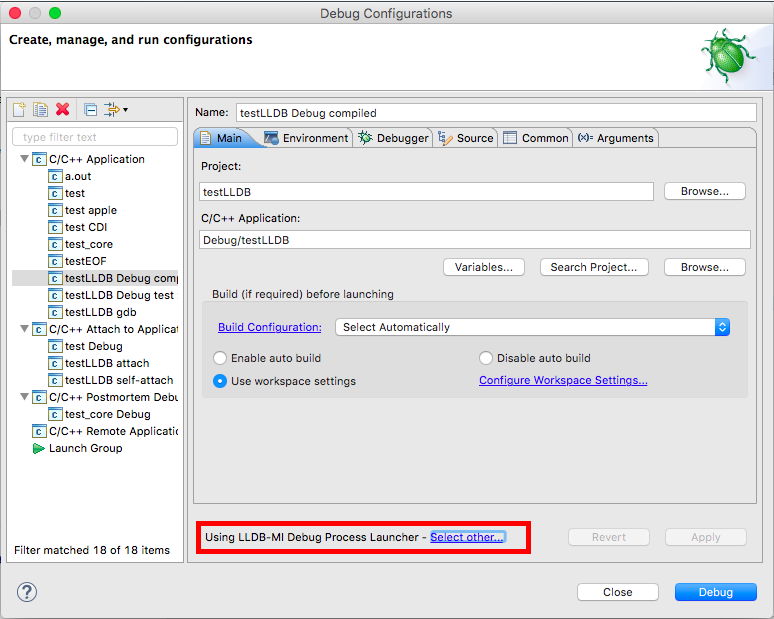
4. From now on, for each project, right-click to show the context menu and select _Debug as > Debug Configurations..._; then, change or update the debug configuration from _GDB_ to _LLDB_, as shown in the pic below.
5. For more information, see the [Official wiki support page](https://wiki.eclipse.org/CDT/User/FAQ#How_do_I_get_the_LLDB_debugger.3F).
### Linux (Debian derivative distros)
1. From the terminal, run:
```bash
$ apt install build-essential -y
```
2. Double-check that everything works by running:
```bash
$ gcc --version
```
### Windows
1. Install [chocolatey](https://chocolatey.org/install)
2. From the command line, run:
```bash
> choco install mingw -y
```
3. Double-check that everything works by running:
```bash
> refreshenv
> gcc --version
```
Those who might have issues in setting up _MinGW_ may instead install
the [Windows Subsystem for Linux (WSL)](https://docs.microsoft.com/en-us/windows/wsl/install-win10) and use `gcc` from the Bash shell, after also following the instructions above.