https://github.com/coloradostark/caddy-ssl-multisite
A simple example of a caddy web server running multiple sites over ssl running with docker.
https://github.com/coloradostark/caddy-ssl-multisite
Last synced: 11 months ago
JSON representation
A simple example of a caddy web server running multiple sites over ssl running with docker.
- Host: GitHub
- URL: https://github.com/coloradostark/caddy-ssl-multisite
- Owner: ColoradoStark
- License: apache-2.0
- Created: 2020-12-10T20:06:27.000Z (over 5 years ago)
- Default Branch: master
- Last Pushed: 2022-06-08T14:45:06.000Z (about 4 years ago)
- Last Synced: 2025-06-16T01:42:15.411Z (about 1 year ago)
- Language: Shell
- Size: 399 KB
- Stars: 3
- Watchers: 1
- Forks: 0
- Open Issues: 0
-
Metadata Files:
- Readme: README.md
- License: LICENSE
Awesome Lists containing this project
README
# caddy-ssl-multisite

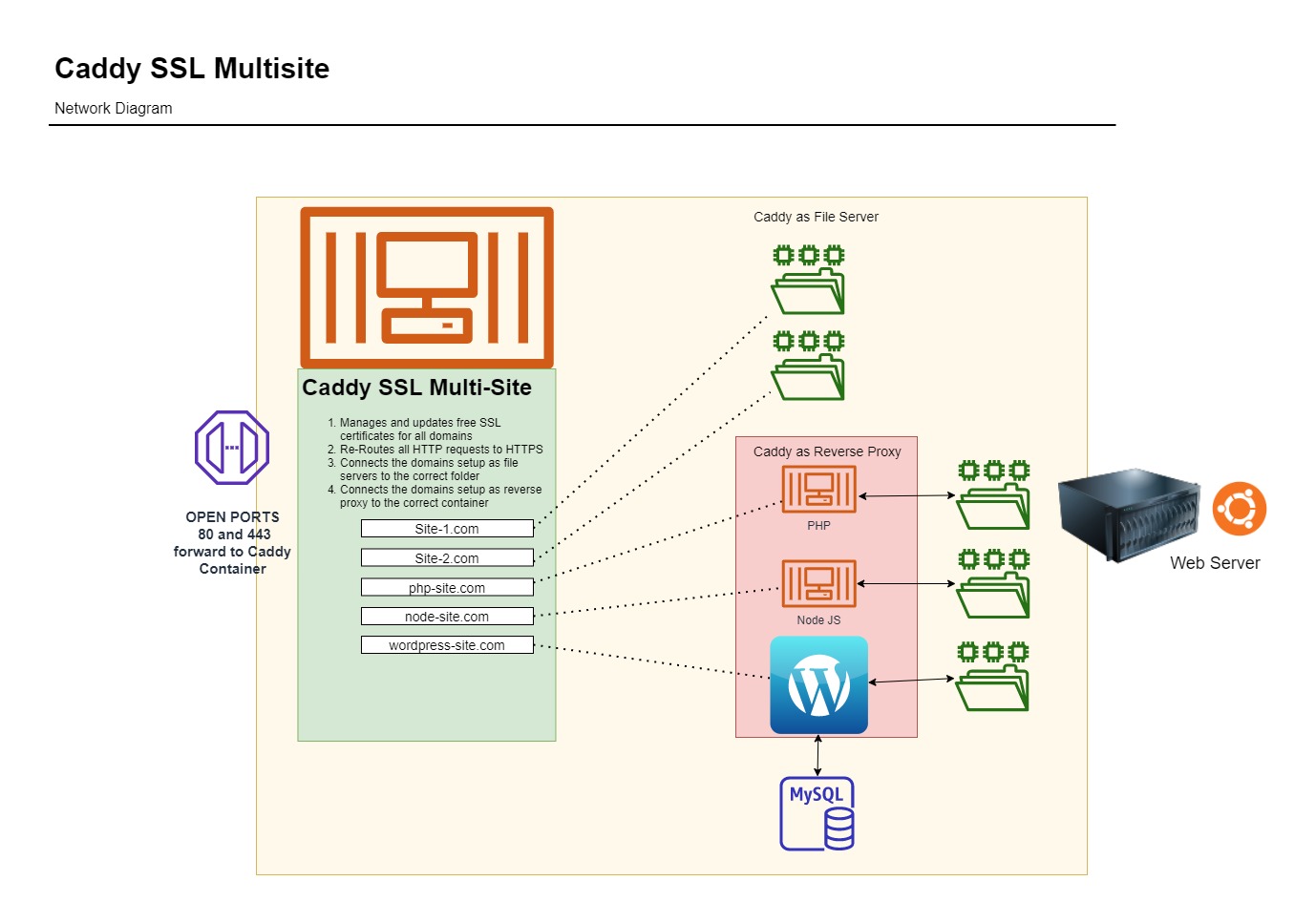
A web server that will run multiple web sites over ssl. It will automatically get Let's Encrypt free SSL certificates, and automatically update them for you. The default configuration will setup 5 websites: Wordpress, a blank NodeJS server, a blank PHP 7.4 server, and 2 file servers. But you can modify the config file to run as many websites as you want.
This repo also contains the source dockerfile used to build the docker container coloradostark/caddy-ssl-multisite, which is based on Caddy. Caddy is an open source web server with automatic HTTPS written in Go.
## Instructions
enter the following command
```wget -qO - https://raw.githubusercontent.com/ColoradoStark/caddy-ssl-multisite/main/caddy-setup.sh | bash```
when the script finishes executing enter:
```cd caddy```
you should now have some folders and two .env files in your current directory.
#### IMPORTANT!!! set the passwords in the two .env files.
#### NOTE: WORDPRESS_DB_PASSWORD and MYSQL_ROOT_PASSWORD must be the same password.
After the passwords have been set, enter the following command:
```docker-compose up -d```
That is all you need to do to get the server running. Now you will need to enter the container and edit the config file to match your site names. Type the following command:
```docker container exec -it caddy_caddy_1 sh```
```cd /etc/caddy```
```vi Caddyfile```
That will give you access to the config file using the vi editor. https://www.cs.colostate.edu/helpdocs/vi.html Change the name of the websites to your domains. Quit and save. and then type the following:
```caddy reload```
Your sites should now be working over HTTP. To switch to HTTPS just remove the http:// from the caddy config file, and reload again. When you do this Caddy will fetch free certs for you and manage HTTPS going forward. After reloading, it may take a few minutes for everything to be installed and verified by the CA.
Also, You will now have 2 folders in your directory which will sync to the path of /var/www on your caddy server. Because the directories are synced, you can upload your sites using FTP, SFTP, Bamboo, Jenkins or whatever method you prefer. Without needing to ever access the containers directly.
NOTE: If you plan to add a large number of domains, be mindful that Let's Encrypt has rate limits. For more info on Let's encrypt rate limits see the following:
https://letsencrypt.org/docs/rate-limits/
Project Based On Caddy
