https://github.com/creative-tutorials/react-modal-component
A react modal popup slide component
https://github.com/creative-tutorials/react-modal-component
component css daisyui modal modal-dialogs popups react slider tailwindcss
Last synced: 3 months ago
JSON representation
A react modal popup slide component
- Host: GitHub
- URL: https://github.com/creative-tutorials/react-modal-component
- Owner: creative-tutorials
- Created: 2023-06-01T20:42:20.000Z (about 3 years ago)
- Default Branch: master
- Last Pushed: 2023-06-02T10:18:05.000Z (about 3 years ago)
- Last Synced: 2025-05-29T22:45:54.004Z (about 1 year ago)
- Topics: component, css, daisyui, modal, modal-dialogs, popups, react, slider, tailwindcss
- Language: TypeScript
- Homepage: https://www.npmjs.com/package/devtreasure-react-modal-component
- Size: 27.3 KB
- Stars: 1
- Watchers: 1
- Forks: 0
- Open Issues: 0
-
Metadata Files:
- Readme: README.md
Awesome Lists containing this project
README
# react-modal-component
To begin using this package, follow these steps:
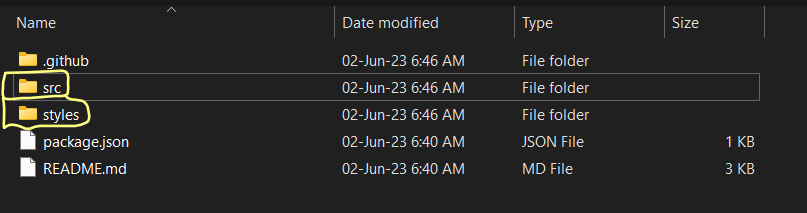
- Step1: Go to the `node_modules` folder in your project and locate the folder named `devtreasure-react-modal-component`. Inside that folder, copy the `modal.tsx` file from the src folder. For the styles, copy the `modal.module.css` file from the styles folder.
- Step2: Paste the `modal.tsx` file directly into your project's components folder.
- Step3: Paste the `modal.module.css` file into the styles folder of your project.
- Step4: Make sure you have the `react-lazy-load-image-component` package installed in your project.
- Step5: In the package's src folder, locate the `state.tsx` file. Copy the state properties used and paste them into your own codebase.
> **Note**: Only copy the state properties, not the entire function wrapper. The code should look something like this
```tsx
const [modalState, setModalState] = useState({ isModal: false, message: "" });
```
- Step6: Go to the function folder located at `node_modules/devtreasure-react-modal-component`. Copy the show and hide functions from that folder and paste them into your codebase where you imported the modal from.
- Step 7: Importing the style
No need to worry about this step as it's already done for you. Just make sure you change the path to match your project's file structure. For example, your style import could look something like this: `/styles/modal.module.css` or `/styles/animation/modal.module.css`.
Your full code should look something like this:
```tsx
import {
LazyLoadImage,
LazyLoadComponent,
} from "react-lazy-load-image-component";
import { useState, useEffect, MouseEventHandler, lazy } from "react";
const ReactModalComponent = lazy(
() => import("../../components/function/modal/ReactModalComponent")
);
function App() {
const [modalState, setModalState] = useState({ isModal: false, message: "" });
const showModal = () => {
setModalState((prevState) => {
return {
...prevState,
isModal: true,
};
});
};
const hideModal = () => {
setModalState((prevState) => {
return {
...prevState,
isModal: false,
};
});
};
return (
<>
>
);
}
export default App;
```
## How to show the modal
To display your modal, please copy the code snippet below. Note that it doesn't have to be a button; you can use any HTML tags in your codebase.
```tsx
Show Modal
```
## How to update Package
If you want to update the package simpley update using the following
| npm | yarn | pnpm |
| -------------------------------- | ---------------------------------- | ----------------------------- |
| `$ npm update react-modal-component` | `$ yarn upgrade react-modal-component` | `$ pnpm up react-modal-component` |
> **Note**: In case there are significant changes to the code, please make sure to copy the updated code into your codebase again.
.
> **Note**: You might see a function called `performTwoFunctions`. Please delete that. This was meant to pefrom two operations. When I was working on this.
>
> ..........................................................................................
.
> **Note**: Please note that your codebase may be different from the example provided. The key is to import the component, the style, and call the necessary functions accordingly.