https://github.com/cvera08/automationuiseleniumgriddocker
Selenium Grid + Docker
https://github.com/cvera08/automationuiseleniumgriddocker
docker selenium-grid
Last synced: about 2 months ago
JSON representation
Selenium Grid + Docker
- Host: GitHub
- URL: https://github.com/cvera08/automationuiseleniumgriddocker
- Owner: cvera08
- Created: 2020-09-24T23:32:10.000Z (almost 6 years ago)
- Default Branch: main
- Last Pushed: 2023-05-25T13:54:39.000Z (about 3 years ago)
- Last Synced: 2025-05-07T14:59:34.648Z (about 1 year ago)
- Topics: docker, selenium-grid
- Language: Java
- Homepage:
- Size: 14.6 KB
- Stars: 0
- Watchers: 1
- Forks: 0
- Open Issues: 0
-
Metadata Files:
- Readme: README.md
Awesome Lists containing this project
README
# AutomationUISeleniumGridDocker
This repository is intended to automate UI tests with multi-browser support using Selenium Grid and Docker
___
## Requisites:
##### 1- Install Git locally
You can follow one of these links:
Windows, Linux, Mac:
https://git-scm.com/book/en/v2/Getting-Started-Installing-Git
Homebrew:
https://www.atlassian.com/git/tutorials/install-git
##### 2- Install Docker locally (Docker desktop)
https://docs.docker.com/desktop/
Or on a supported Mac, if you have brew already installed, run:
```sh
brew install --cask docker
```
Then launch the Docker app. Click next. It will ask for privileged access. Confirm. A whale icon should appear in the top bar. Click it and wait for "Docker is running" to appear. You should be able to run docker commands now.
You can verify your installation with the following command:
```sh
docker --version
```
You should get something like this:
>Docker version 20.10.14, build a224086
##### 3- Clone this repository:
Open the terminal/console and run:
```sh
git clone https://github.com/cvera08/JMeterDocker.git
cd AutomationUISeleniumGridDocker
```
---
## Quick start
1. Start a Docker container with Firefox
```bash
docker run -d -p 4444:4444 -p 7900:7900 --shm-size="2g" selenium/standalone-firefox:4.1.4-20220427
```
2. Point your WebDriver tests to http://localhost:4444
3. That's it!
:point_up: When executing `docker run` for an image that contains a browser please use
the flag `--shm-size=2g` to use the host's shared memory.
//If your test execution fails or is taking too much time: try to stop the created container from Docker Desktop (UI) and run the above "docker run ... " command again
//You can check that is working in three ways: opening the container details/logs, checking from http://localhost:4444/ui that firefox is busy, or seeing your automation results
//Remember to stop selenium/standalone-firefox:4.1.4-20220427 Container if you want to continue further!!
___
# Full Project :point_down:
___
## Download Images and Run them as a Container:
//Remember to stop selenium/standalone-firefox:4.1.4-20220427 container if you followed the previous instructions, you can do it from Docker Desktop UI or by command line: 'docker ps' will provide you the docker name then execute 'docker stop '
Run this:
```sh
docker-compose -f docker-compose-v2.yml up
```
It will take a while until it finishes, meanwhile in your Docker desktop you may see progress like this:
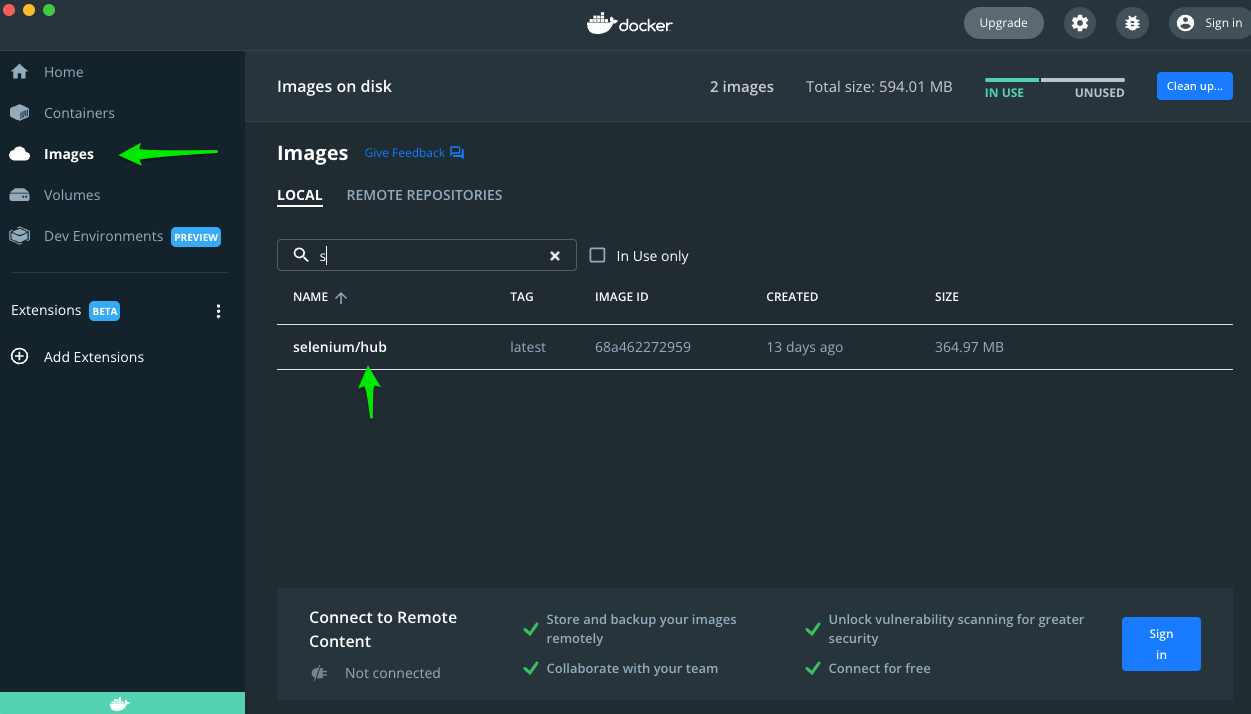
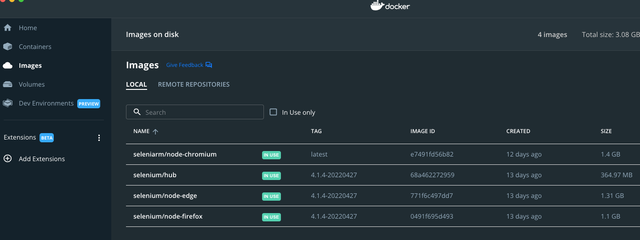
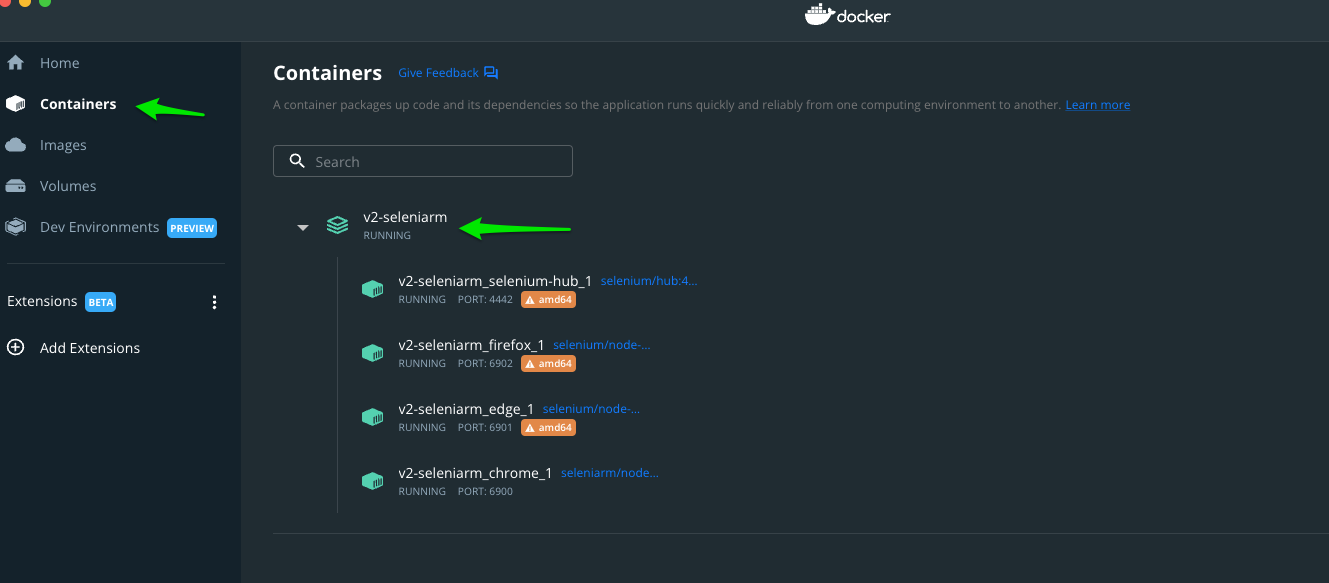
If you click on the Containers option you have a new container up and running:
Once it is done you can open your favorite browser and go to:
> http://localhost:4444/grid/console
(It can be redirected to http://localhost:4444/ui)
you will see something like this:
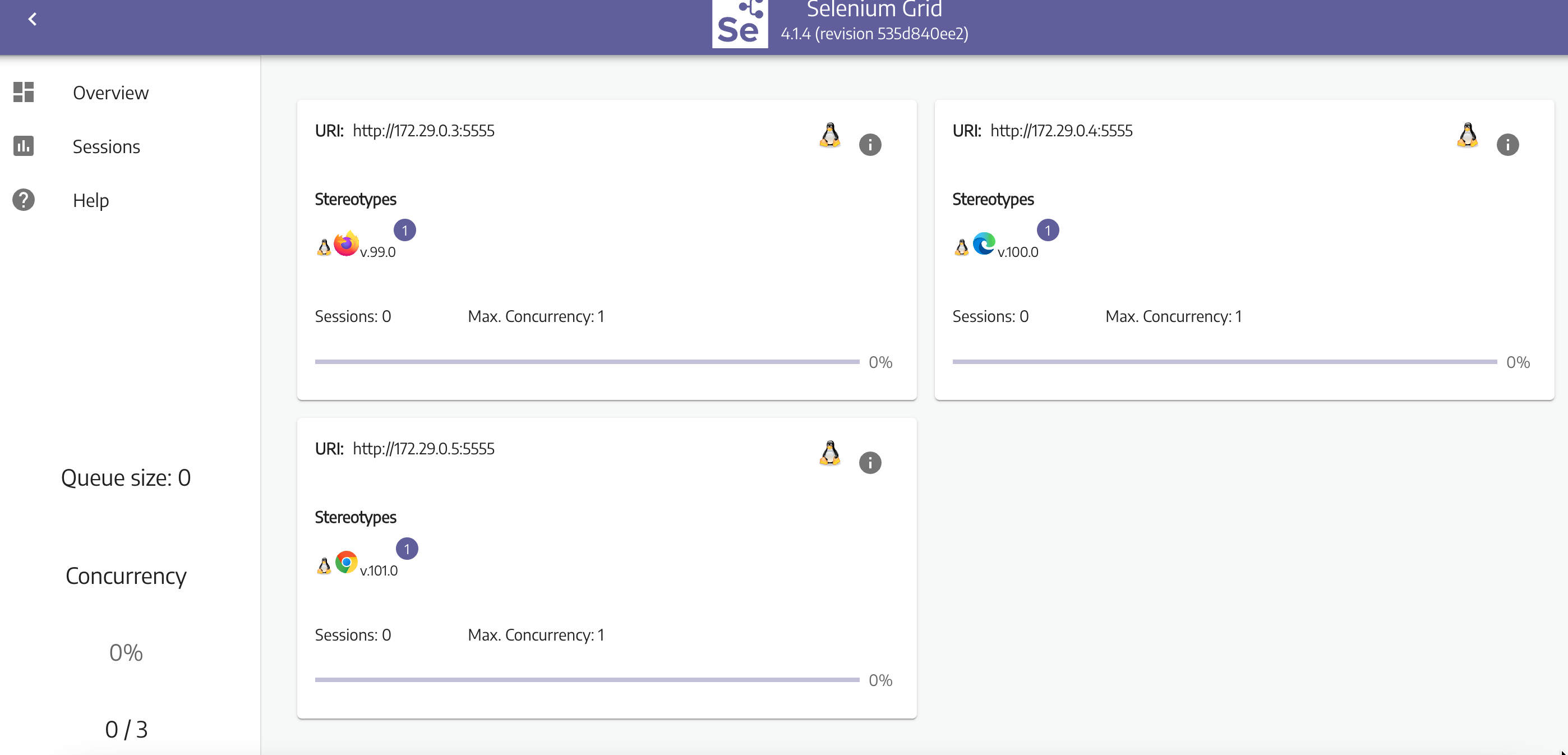
you are ready to go! (run your tests is the last step)
___
## How to run the tests:
If you have some IDE, like IntelliJ or Eclipse just:
- import the pom.xml file as a maven project,
- download the mvn dependencies
- Right-click ReadyToGo.java (src/test/java/ReadyToGo.java), "Run ReadyToGo" >> just a single test using Chrome browser
- or even more tests, Right-click TestNG.xml >> multiple tests using Firefox and Chrome browsers
If you want to run the tests by command line:
```sh
mvn clean test -Dsurefire.suiteXmlFiles=Testng.xml
```
if you face some failure, try this one:
> mvn clean test -DsuiteXmlFile=Testng.xml
if it is still not working, try this:
>mvn clean package -DskipTests=true -Dsuite=‘Testng.xml’
and run the test/s:
> mvn clean package -Dsuite=‘Testng.xml’ -DPort=9001
> mvn clean package -Dsuite=‘Testng.xml’ -Dbrowser='chrome'
//Remember that -DPort=9001 is any parameter if needed, like -Dbrowser=‘chrome’
___
## Visualize the tests in Selenium Grid (web):
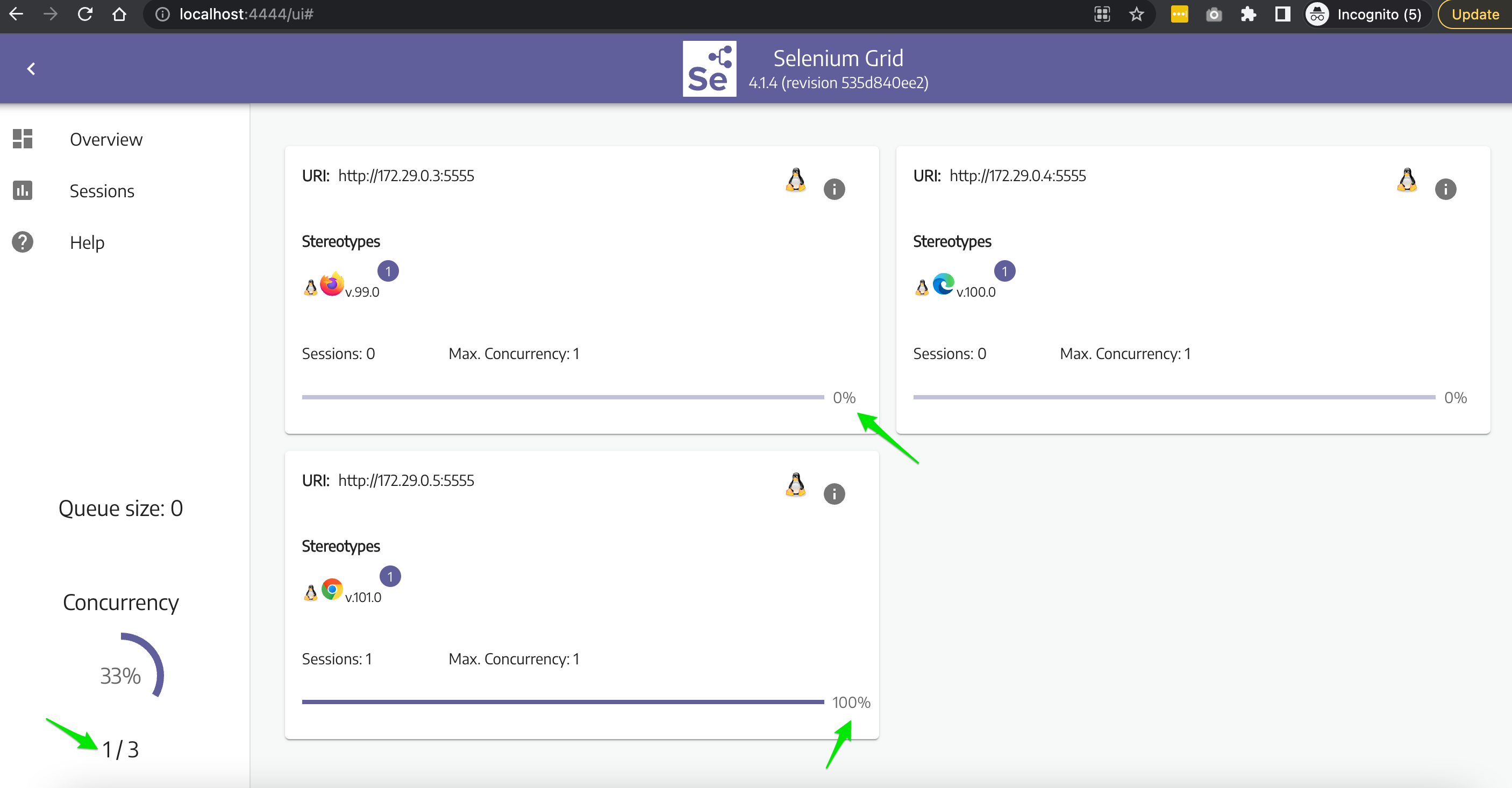
In your browser, http://localhost:4444/ui#, you can see as busy the browser you are running at this moment
for example:
___
## Visualize automation tests in real time:
Users can connect to the server in two ways:
### Using a VNC client
The VNC server is listening to the specified ports in 'docker-compose-v2.yml' file, you can use a VNC client and connect to it/them.
For example: To see the chrome tests you need to open your VNC and hit:
> 0.0.0.0:6900
If you get a prompt asking for a password, it is: `secret`.
(Edge: 6901, Firefox: 6902)
If it doesn't work, please re-check the ports in your Docker desktop:
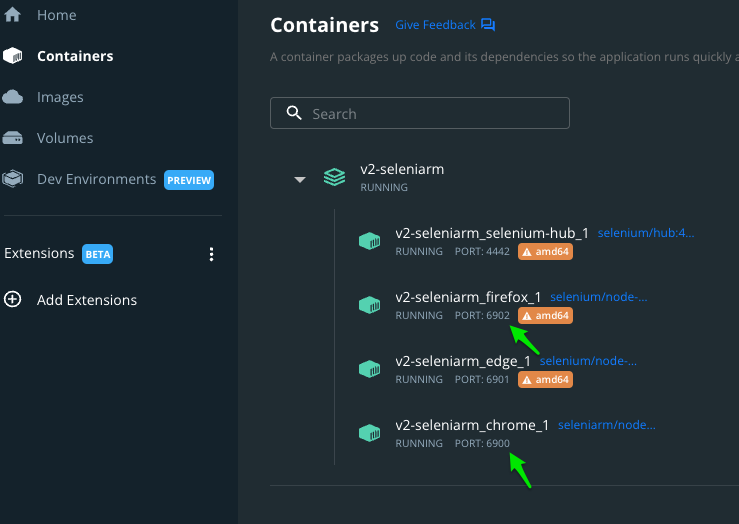
Here is an example with the standalone images, the same concept applies to the node images.
``` bash
$ docker run -d -p 4444:4444 -p 5900:5900 --shm-size="2g" selenium/standalone-chrome:4.1.4-20220427
$ docker run -d -p 4445:4444 -p 5901:5900 --shm-size="2g" selenium/standalone-edge:4.1.4-20220427
$ docker run -d -p 4446:4444 -p 5902:5900 --shm-size="2g" selenium/standalone-firefox:4.1.4-20220427
```
Then, you would use in your VNC client:
- Port 5900 to connect to the Chrome container
- Port 5901 to connect to the Edge container
- Port 5902 to connect to the Firefox container
If you get a prompt asking for a password, it is: `secret`.
### Using your browser (no VNC client is needed)
You can link this repository to [x11vnc](https://github.com/LibVNC/x11vnc) project as a VNC server to allow users to inspect what is happening
inside the container.
It uses [noVNC](https://github.com/novnc/noVNC) to allow users inspect visually container activity with
their browser. This might come handy if you cannot install a VNC client on your machine. Port 7900 is used to start
noVNC, so you will need to connect to that port with your browser.
Here is an example with the standalone images, the same concept applies to the node images.
``` bash
$ docker run -d -p 4444:4444 -p 7900:7900 --shm-size="2g" selenium/standalone-chrome:4.1.4-20220427
$ docker run -d -p 4445:4444 -p 7901:7900 --shm-size="2g" selenium/standalone-edge:4.1.4-20220427
$ docker run -d -p 4446:4444 -p 7902:7900 --shm-size="2g" selenium/standalone-firefox:4.1.4-20220427
```
Then, you would use in your browser:
- http://localhost:7900/ to connect to the Chrome container
- http://localhost:7901/ to connect to the Edge container
- http://localhost:7902/ to connect to the Firefox container
If you get a prompt asking for a password, it is: `secret`.
___
[comment]: <> (Original idea and Sources: https://github.com/SeleniumHQ/docker-selenium)