https://github.com/danailminchev/payload-clerk-example
Payload CMS and Clerk example
https://github.com/danailminchev/payload-clerk-example
clerk clerkjs payload payload-template payloadcms
Last synced: about 1 year ago
JSON representation
Payload CMS and Clerk example
- Host: GitHub
- URL: https://github.com/danailminchev/payload-clerk-example
- Owner: DanailMinchev
- Created: 2025-01-12T19:01:40.000Z (over 1 year ago)
- Default Branch: main
- Last Pushed: 2025-04-05T11:42:18.000Z (about 1 year ago)
- Last Synced: 2025-04-05T12:27:55.153Z (about 1 year ago)
- Topics: clerk, clerkjs, payload, payload-template, payloadcms
- Language: TypeScript
- Homepage: https://www.youtube.com/watch?v=egKaeOuddFA
- Size: 858 KB
- Stars: 7
- Watchers: 1
- Forks: 2
- Open Issues: 0
-
Metadata Files:
- Readme: README.md
Awesome Lists containing this project
README
## Payload and Clerk example
This is an example for Payload CMS and Clerk integration.
## Contents
- [YouTube videos](#youtube-videos)
- [Getting Started](#getting-started)
- [Webhooks](#webhooks)
- [E2E Testing](#e2e-testing)
## YouTube videos
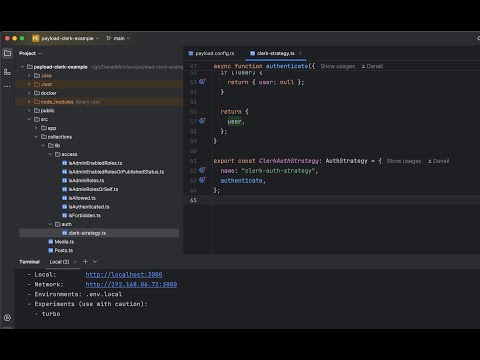
**Part 2 - Advanced integration**
[](https://www.youtube.com/watch?v=egKaeOuddFA)
[https://www.youtube.com/watch?v=egKaeOuddFA](https://www.youtube.com/watch?v=egKaeOuddFA)
Source code for the video is in the `part-2` branch: https://github.com/DanailMinchev/payload-clerk-example/tree/feat/part-2
**Part 1 - Basic integration**
[](https://www.youtube.com/watch?v=7PNGNqqFlu0)
[https://www.youtube.com/watch?v=7PNGNqqFlu0](https://www.youtube.com/watch?v=7PNGNqqFlu0)
Source code for the video is in the `part-1` branch: https://github.com/DanailMinchev/payload-clerk-example/tree/feat/part-1
## Getting Started
Install dependencies:
```shell
npm ci
```
1. Create a new Clerk application and configure:
Enable `Email` as `Sign in option`.
The setup is described in details in the videos above, but here are the settings for reference:
- [Test mode](https://clerk.com/docs/testing/test-emails-and-phones#setup-test-mode)

- [publicMetadata](https://clerk.com/docs/references/nextjs/basic-rbac)

```json
{
"metadata": "{{user.public_metadata}}"
}
```
2. Copy the `env.example` file into `.env.local` file.
3. Set Clerk environment variables [documentation](https://clerk.com/docs/deployments/clerk-environment-variables):
`NEXT_PUBLIC_CLERK_PUBLISHABLE_KEY`
Your Clerk app's Publishable Key, which you can find in the Clerk Dashboard. It will be prefixed with pk*test* in
development instances and pk*live* in production instances.
`CLERK_SECRET_KEY`
Your Clerk app's Secret Key, which you can find in the Clerk Dashboard. It will be prefixed with sk*test* in development
instances and sk*live* in production instances. Do not expose this on the frontend with a public environment variable.
`SIGNING_SECRET`
In case you are going to use [Webhooks](https://clerk.com/docs/webhooks/sync-data), you will need to set Signing Secret.
4. Set Payload environment variables [documentation](https://payloadcms.com/docs/getting-started/installation)
`PAYLOAD_SECRET`
This environmental variable acts as your secret key. It's paramount that you ensure its value is both secure and strong,
as it's integral to the encryption and decryption process.
`DATABASE_URI`
This is the database connection string. Uncomment `DATABASE_URI` for `SQLite` or `PostgreSQL`.
5. If you selected the `PostgreSQL` you can use Docker:
```shell
docker compose up
```
and edit the `src/payload.config.ts` file:
Uncomment:
```typescript
import { postgresAdapter } from "@payloadcms/db-postgres";
```
Comment / delete:
```typescript
import { sqliteAdapter } from "@payloadcms/db-sqlite";
```
Uncomment:
```typescript
// PostgreSQL
db: postgresAdapter({
pool: {
connectionString: process.env.DATABASE_URI || "",
},
}),
```
Comment / delete:
```typescript
// SQLite
db: sqliteAdapter({
client: {
url: process.env.DATABASE_URI || "",
},
}),
```
6. For testing and local development purposes following users are being used:
- all-roles-1+clerk_test@example.com
- super-admin-1+clerk_test@example.com
- admin-1+clerk_test@example.com
- editor-1+clerk_test@example.com
- user-1+clerk_test@example.com
Please set the environment variables accordingly with their passwords in your `.env.local` file:
```dotenv
E2E_CLERK_ALL_ROLES_USER_EMAIL=all-roles-1+clerk_test@example.com
E2E_CLERK_ALL_ROLES_USER_PASSWORD=
E2E_CLERK_ALL_ROLES_USER_PHONE=+19735550101
E2E_CLERK_SUPER_ADMIN_USER_EMAIL=super-admin-1+clerk_test@example.com
E2E_CLERK_SUPER_ADMIN_USER_PASSWORD=
E2E_CLERK_SUPER_ADMIN_USER_PHONE=+19735550102
E2E_CLERK_ADMIN_USER_EMAIL=admin-1+clerk_test@example.com
E2E_CLERK_ADMIN_USER_PASSWORD=
E2E_CLERK_ADMIN_USER_PHONE=+19735550103
E2E_CLERK_EDITOR_USER_EMAIL=editor-1+clerk_test@example.com
E2E_CLERK_EDITOR_USER_PASSWORD=
E2E_CLERK_EDITOR_USER_PHONE=+19735550104
E2E_CLERK_AUTHENTICATED_USER_EMAIL=user-1+clerk_test@example.com
E2E_CLERK_AUTHENTICATED_USER_PASSWORD=
E2E_CLERK_AUTHENTICATED_USER_PHONE=+19735550105
```
The above users are using test emails and test phone numbers as described in [Test emails and phones](https://clerk.com/docs/testing/test-emails-and-phones).
If you want to use phone numbers, you need to enable "Phone number" in the Clerk's dashboard, otherwise seed endpoint will not work.

Otherwise, leave the `E2E_CLERK_*_USER_PHONE` environment variables empty.
7. Register the `E2E` users.
You can register the `E2E` users from the above point manually or automatically using the `GET /api/app/seed` endpoint.
Run the application: `npm run dev`
**Registering automatically**
Invoke / navigate to [http://localhost:3000/api/app/seed](http://localhost:3000/api/app/seed) endpoint.
Observe the console for logs.
**WARNING: the endpoint will delete your existing data**
**Registering manually**
You should register your `super-admin-1+clerk_test@example.com` user in Clerk manually and set the `super-admin` role.
The `super-admin-1+clerk_test@example.com` user should have following [public metadata](https://clerk.com/docs/users/metadata#public-metadata):
```json
{
"roles": ["super-admin"]
}
```
and you should set the rest of the user roles via the [admin dashboard](http://localhost:3000/admin/clerk-users) as follows:
- all-roles-1+clerk_test@example.com (super-admin role, admin role, editor role)
- admin-1+clerk_test@example.com (admin role)
- editor-1+clerk_test@example.com (editor role)
- user-1+clerk_test@example.com (no role, no changes to user's metadata, used for simulating a website user / registered
user)
8. Run the development server (if not running already):
```shell
npm run dev
```
Open [http://localhost:3000](http://localhost:3000) with your browser to see the result.
## Webhooks
Please refer to the official documentation - [Sync Clerk data to your app with webhooks](https://clerk.com/docs/webhooks/sync-data).
The app exposes `POST /api/clerk/webhooks` endpoint which can be configured in
the [Clerk Dashboard](https://dashboard.clerk.com/last-active?path=webhooks).
Environment variables:
- `SIGNING_SECRET` : "Signing Secret" from the [Clerk Dashboard](https://dashboard.clerk.com/last-active?path=webhooks).
Currently, the webhooks endpoint is listening on the following events:
- `user.created`
- `user.updated`
- `user.deleted`
### Testing webhooks with ngrok
Please follow the official documentation - [Setup & Installation](https://dashboard.ngrok.com/get-started/setup)
To run ngrok in Docker (macOS):
```shell
docker run -it -e NGROK_AUTHTOKEN={NGROK_AUTHTOKEN} ngrok/ngrok:latest http host.docker.internal:3000 --url={NGROK_DOMAIN}
```
To run ngrok in Docker (other OS):
```shell
docker run -it -e NGROK_AUTHTOKEN={NGROK_AUTHTOKEN} ngrok/ngrok:latest http 3000 --url={NGROK_DOMAIN}
```
To run ngrok using native binary:
```shell
ngrok http 3000 --url={NGROK_DOMAIN}
```
Replace `{NGROK_AUTHTOKEN}` with [your authtoken](https://dashboard.ngrok.com/get-started/your-authtoken).
Replace `{NGROK_DOMAIN}` with [your free static domain](https://dashboard.ngrok.com/domains),
for example: `your-static-domain-here.ngrok-free.app`.
## E2E Testing
There are E2E tests implemented using [Playwright](https://playwright.dev/).
They are devided into two categories
- api-tests
Used to verify the access control.
- app-tests
Used to verify the app pages, including those behind authentication.
Before running the tests, you should install dependencies by executing:
```shell
npx playwright install
npx playwright install-deps
```
Then you can use following scripts:
- For UI mode:
```shell
npm run playwright:test:ui
```
- For command line mode with debugging:
```shell
npm run playwright:test:debug
```
- For command line mode (used for CI):
```shell
npm run playwright:test
```