https://github.com/dapplets/tipping-dapplet
Connect your Twitter profile with your NEAR crypto wallet and send donations to any other Twitter user
https://github.com/dapplets/tipping-dapplet
Last synced: over 1 year ago
JSON representation
Connect your Twitter profile with your NEAR crypto wallet and send donations to any other Twitter user
- Host: GitHub
- URL: https://github.com/dapplets/tipping-dapplet
- Owner: dapplets
- License: mit
- Created: 2021-11-15T08:34:53.000Z (over 4 years ago)
- Default Branch: master
- Last Pushed: 2024-01-09T21:16:50.000Z (over 2 years ago)
- Last Synced: 2024-04-15T13:44:16.695Z (about 2 years ago)
- Language: TypeScript
- Homepage:
- Size: 13.3 MB
- Stars: 63
- Watchers: 16
- Forks: 10
- Open Issues: 2
-
Metadata Files:
- Readme: README.md
- License: LICENSE
Awesome Lists containing this project
README

# Tipping NEAR Dapplet
**Tipping NEAR Dapplet** is a dapplet (an augmentation module for [Dapplets browser extension](https://github.com/dapplets/dapplet-extension/releases/latest)) that can connect your X and GitHub profiles with your NEAR crypto wallet and send donations to any other X and GitHub users. Your own tweets and comments can also receive donations from others.
This dapplet works as a tool for community managers, helping them to motivate and evolve community members. Useful or important tweets, pull requests and comments can now be rewarded financially.
# Disclaimer
Tipping dapplet allows you to donate NEAR tokens to X and GitHub users. It charges an extra fee of 3% on each donation and 0.002 NEAR as one time fee for linking an accounts.
Dapplet is designed to work in desktop Chromium browser. Working in the mobile browser is not guaranteed.
# Video Tutorial
[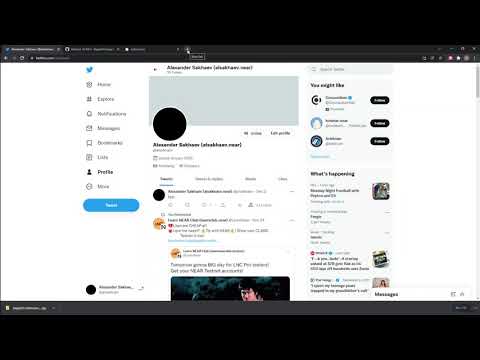](https://www.youtube.com/watch?v=pNCsSWvoqPE 'Click to play on YouTube')
# Browser extension installation guide
### For Microsoft Edge Browser
1. Extension can be found and installed through the extension store.

2. Search for 'Dapplets' or use this [link](https://microsoftedge.microsoft.com/addons/detail/dapplets/icpdagldaielgidgdiaanollkfgdclop?hl=en-GB)

For Google Chrome Browser
1. Open the **Google Chrome** browser.
2. Download the [**Dapplet Browser Extension**](https://github.com/dapplets/dapplet-extension/releases/latest).
3. Open **chrome://extensions** in a new tab.

4. Switch the Developer mode on and press F5 to refresh the page.

**P.S.** If you are using **Ubuntu** or possibly another **Linux OS** the Dapplets extension can disappear from the Chrome Extensions after restarting the PC. To avoid this **unzip** the archive and use the _Load unpacked_ button to add the extension.


# Run the Tipping Dapplet
_This is the workflow for X. The same for GitHub._
### Open the [X](https://x.com/home) page
This Dapplet is created especially for **x.com**. Please go to the X website and click on the extension icon to open the **Dapplets Extension**.
1. Click on the extension. Click mustache button to open the list of dapplets.

2. Find **Tipping NEAR Dapplet** in the list of dapplets.
3. Click on the switch to activate it.

Now the dapplet is turned on. You will see two new icons in your X profile.

**The first icon** shows the number of NEAR tokens that were donated to you, but which you have not received, as you have not yet connected your X account to NEAR. If you click on this icon you will see the following message: _«You must link NEAR account before continue»_. To link our account let’s go to the second icon.
**The second icon** shows if your X account is connected to NEAR. If you click on the icon you will see the following message:

This means that to connect your account you need to type _yourname.near_ next to your name.
## Yourname.near connection
Now we will connect your X profile to your NEAR account.
1. Click **Edit Profile** on your X profile page
2. Under _name_ add your _yourname.near_ profile. You will receive tokens to this address.

3. Click **Save**
4. Now that you’ve added your NEAR account name click **Link** (the second new icon in your X Profile). An overlay will open.

5. Now lets use NEAR Wallet you entered in profile earlier

6. A Near near wallet page will open. Press **Next** and **Connect** to proceed to transaction.


7. You will be asked to transfer **0.002 NEAR**. This amount is required as a GAS fee for the oracle. This is necessary for the connection to be successful. Click **Approve** to accept.

Go back to your X Profile page. There, the Link icon has changed to:

This is temporary, when the transaction is completed successfully the icon will change again:

Done, your X account is now linked to Yournamen.near account.
**⚠ Now you can delete the name of your NEAR wallet from X profile username.**
# Accepting donated tokens
If you already have tokens that were donated to you by other users, you can collect them by clicking:

The button will show how many tokens were donated to you at the moment, which you have not yet collected.
When you click on the button a new page will open.

Click **Allow** to accept the tokens donated to you.
After this tokens will be transfered to your account. **Claim** button will disappear and all new tips will automatically be sent to your linked account.
# Donating tokens to other users
Look at the new icon that is now displayed next to any post, yours, or any other user’s:

This icon has two functions:
1. Displaying the number of NEAR tokens you were given or that you yourself have donated.
2. Donating NEAR tokens to a post.
Every click on the button increases the total donation by 0.05 NEAR. The transaction has a delay, which allows you to click several times to increase the donation. You can try sending yourself some tokens to see how it works.
Choose one of your own tweets, and donate a few tokens to yourself. When you do this, a wallet page will open:

Click **Allow** and the tokens will be sent. The counter will increase by the number of tokens you have donated. The maximum amount you can donate in one transaction is equal to 1 token. The maximum per one post - 10 tokens.
# Increasing the default tipping amount
At this moment, one click, or as we call it - step, is equal to 0.05 tokens. For your convenience, we’ve added the ability to change this number, higher or lower.
To do this, please follow the instructions below:
1. Click on **Dapplets Extension**
2. Find **Tipping NEAR Dapplet**
3. Click on the _Gear Wheel_

4. Settings will open. Here you can change Donation increase step.

# Contacts
[Web](https://dapplets.org) [Docs](https://docs.dapplets.org) [GitHub](https://github.com/dapplets) [Discord](https://discord.gg/YcxbkcyjMV) [Telegram](t.me/dapplets)