https://github.com/daslearning-org/ai-indian-law
This AI ChatBot is designed to be private and can answer your queries on Indian Constitution & Indian Penal Code (IPC). This app is using Google ADK for the frontend & LiteLlm wrapper which is build with Ollama LLMs which are namely llama3.2 & mxbai-embed-large.
https://github.com/daslearning-org/ai-indian-law
Last synced: about 2 months ago
JSON representation
This AI ChatBot is designed to be private and can answer your queries on Indian Constitution & Indian Penal Code (IPC). This app is using Google ADK for the frontend & LiteLlm wrapper which is build with Ollama LLMs which are namely llama3.2 & mxbai-embed-large.
- Host: GitHub
- URL: https://github.com/daslearning-org/ai-indian-law
- Owner: daslearning-org
- License: mit
- Created: 2025-05-26T12:12:00.000Z (about 1 year ago)
- Default Branch: main
- Last Pushed: 2025-05-26T12:15:40.000Z (about 1 year ago)
- Last Synced: 2025-05-26T13:30:02.204Z (about 1 year ago)
- Language: Python
- Homepage:
- Size: 303 KB
- Stars: 0
- Watchers: 0
- Forks: 0
- Open Issues: 0
-
Metadata Files:
- Readme: README.md
- License: LICENSE
Awesome Lists containing this project
README
# ⚖️ Indian LAW AI-Agent
This AI ChatBot is designed to be **private** and can answer your queries on Indian Constitution & Indian Penal Code (IPC). This app is using Google ADK for the frontend & [LiteLlm](./backend/markDownRAG/) wrapper which is build with `Ollama` LLMs which are namely `llama3.2` & `mxbai-embed-large`.
## 📽️ Demo
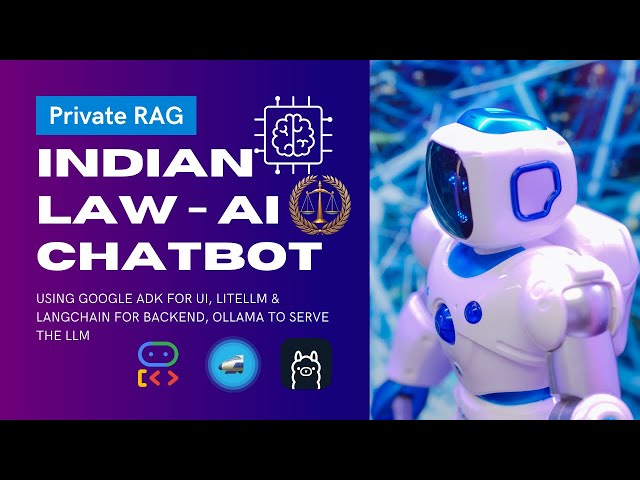
You can click on the below Image or this [Youtube Link](https://www.youtube.com/watch?v=gjEXywPBC0Q) to see the demo. Please let me know in the comments, how do you feel about this App.
[](https://www.youtube.com/watch?v=gjEXywPBC0Q)
## ⚠️ Disclaimer
This AI application is creating its own `RAG` database based on two markdown files: `Indian Constitution` & `Bharatiya Nyaya Sanhita (IPC)` locaded [here](./backend/markDownRAG/markdown_files/). This markdown files were generated using the [docling project](https://github.com/docling-project/docling) from the PDF files which are publicly available. The author is not responsible for any wrong information given by this AI Agent.
------------------
## 📦 Quickstart Guide
You can run it on [Google Colab](https://colab.research.google.com/) and you can run it on a `Free` GPU machine with the available [code](./colab/ai_law_ollama.ipynb). If you want to deploy this complete application on the Container World like Docker, Kubernetes etc. you may follow the next steps.
### 🚀 Run it on Google Colab
You can access [Google Colab](https://colab.research.google.com/) for free if you have a Google/Gmail account.
You can download the [code](./colab/ai_law_ollama.ipynb) & run it or you can directly open it with below option.
[](https://colab.research.google.com/github/daslearning-org/ai-indian-law/blob/main/colab/ai_law_ollama.ipynb)
### ☸️ Run it on Kubernetes (example is on GKE)
The example is on GKE, but you can replicate it on any K8S environment. You need to change (or remove) some parameters `tolerations`, `gke-accelerator`, `gke-spot` etc. in the YML files in [k8s](./k8s/) directory.
1. Get the `kubectl` setup for your GKE cluster (only for GKE)
```bash
# get the cluster context (only for GKE)
gcloud container clusters get-credentials ai-gke --region=asia-south1 --project=dl-k8s-dev1cade # update with your gke & project details
```
2. Run the `Ollama` backend
```bash
kubectl apply -f ./k8s/ollama-app.yml
```
3. Run `litellm` app
```bash
kubectl apply -f ./k8s/litellm-app.yml
```
4. Deploy the UI on K8S
```bash
# create namespace for adk (need to add the secret before we can deploy the yml)
kubectl create namespace "adk"
# create k8s secret for litellm api key
kubectl create secret generic litellm-api-key --from-literal=daslearning="YOUR_API_KEY" -n adk
# deploy the UI
kubectl apply -f ./k8s/adk-app.yml
```
5. **Then get your Load balancer IP address & access it from your browser.** Optionally you can map it with your domain.
### 🐋 Run using docker
1. Run the `Ollama` backend on a container and make sure [nvidia-container-toolkit](https://docs.nvidia.com/datacenter/cloud-native/container-toolkit/latest/install-guide.html#installation) is installed if you have Nvidia GPU. The below image will automatically download the required models during startup which may take some time to be ready, depending on internet speed.
```bash
docker pull sdas92/ollama-llama3.2-mxbai-embed:v1 # check for the latest version at docker hub
# for GPU machines
docker run -d --gpus=all -p 11434:11434 --name ollama sdas92/ollama-llama3.2-mxbai-embed:v1
# for CPU only machines
docker run -d -p 11434:11434 --name ollama sdas92/ollama-llama3.2-mxbai-embed:v1
```
2. Run the `LiteLlm` backend (which can also be accessed via API calls). In the Ollama URL, use the container IP, do not use `localhost` as it will try access the ollama within litellm container
```bash
docker pull sdas92/law-litellm:v1
docker run -d -p 4000:4000 -e OLLAMA_API_BASE="http://your-ollama-host:11434" --name litellm-rag sdas92/law-litellm:v1 # use the container IP
# You can test or use the API direcly with your application, sample format
curl -X POST http://localhost:4000/chat/completions -H 'Content-Type: application/json' -H 'Authorization: Bearer sk-1234' -d '{"model": "indian-law-llm", "messages": [{"role": "user", "content": "Punishment for money fraud?"}]}'
```
3. Run the UI & again use the contair IP `litellm-rag` in the OpenAI host URL insread of `localhost`
```bash
docker pull sdas92/law-ai-adk:v2
docker run -d -p 8000:8000 -e OPENAI_BASE_URL="http://your-litellm-host:4000" -e OPENAI_API_KEY="sk-1234" --name law-ui sdas92/law-ai-adk:v2 # use litellm container IP in the URL
```
4. Open your browser & type `http://localhost:8000` to chat with the AI Model.
------------------
## ⚒️ Manual execution on local system or Development / Update
### Prerequisites
#### Run Ollama Backend
1. Install Ollama on your system from the [official website](https://ollama.com/download)
2. Then Pull the required models
```bash
ollama pull llama3.2
ollama pull mxbai-embed-large
# Check the models
ollama list
```
### Backend Service
Use the backend service in separate terminal than the frontend
#### Set ENV vars
```bash
export OLLAMA_API_BASE="http://localhost:11434"
```
#### Run the backend service in separate terminal
```bash
cd ./backend/markDownRAG/
python -m venv .venv
source .venv/bin/activate # use .\venv\Scripts\activate on windows
pip install -r requirements.txt
# run the litellm service
litellm --config config.yaml
```
### Frontend Service
Run frontend in another terminal
#### Set ENV vars
```bash
export OPENAI_API_KEY="your-key" # create your key from litellm or use default 'sk-1234'
export OPENAI_BASE_URL="http://localhost:4000"
```
#### Run the frontend service
```bash
cd ./frontned
python -m venv .venv
source .venv/bin/activate # use .\venv\Scripts\activate on windows
pip install -r requirements.txt
# run the uvicorn service for ADK
sh -c "uvicorn main:app --host 0.0.0.0 --port 8000" # access the UI at localhost:8000
```
### Access the UI
Open browser & type `http://localhost:8000`
---------------------
## 🐋 Building the docker images & push
You may create your own images & store in your repo
### Ollama backend
```bash
cd ./backend/ollama/
export APP_VERSION="v1"
export IMAGE_URI="sdas92/ollama-llama3.2-mxbai-embed:${APP_VERSION}" # change to your repo URI
docker build -t ${IMAGE_URI} .
docker push "${IMAGE_URI}"
```
### LiteLlm backend
```bash
cd ./backend/markDownRAG/
export APP_VERSION="v1"
export IMAGE_URI="sdas92/law-litellm:${APP_VERSION}" # change to your repo URI
docker build -t ${IMAGE_URI} .
docker push "${IMAGE_URI}"
```
### Frontend UI
```bash
cd ./frontend/
export APP_VERSION="v1"
export IMAGE_URI="sdas92/law-ai-adk:${APP_VERSION}" # change to your repo name
docker build -t ${IMAGE_URI} .
docker push "${IMAGE_URI}"
```