https://github.com/datalust/seq-input-syslog
Ingest Syslog payloads into Seq
https://github.com/datalust/seq-input-syslog
logging seq syslog
Last synced: 10 months ago
JSON representation
Ingest Syslog payloads into Seq
- Host: GitHub
- URL: https://github.com/datalust/seq-input-syslog
- Owner: datalust
- License: apache-2.0
- Created: 2020-02-12T23:52:30.000Z (over 6 years ago)
- Default Branch: dev
- Last Pushed: 2024-08-16T05:41:39.000Z (almost 2 years ago)
- Last Synced: 2024-12-04T22:36:40.734Z (over 1 year ago)
- Topics: logging, seq, syslog
- Language: Rust
- Homepage: https://datalust.co/seq
- Size: 1.62 MB
- Stars: 8
- Watchers: 6
- Forks: 4
- Open Issues: 4
-
Metadata Files:
- Readme: README.md
- License: LICENSE.md
Awesome Lists containing this project
README
# `Seq.Input.Syslog` and `datalust/seq-input-syslog`
Ingest syslog [RFC 5424](https://tools.ietf.org/html/rfc5424) and [RFC 3164](https://tools.ietf.org/html/rfc3164) messages via UDP into [Seq](https://datalust.co/seq).
The app is packaged both as a plug-in [Seq App for all platforms](https://nuget.org/packages/seq.input.syslog), and as a standalone Docker container that forwards events to Seq via its HTTP API.
## Getting started on Windows (requires Seq 5.1+)
On Windows, the syslog input is installed into Seq as a [Seq App](https://docs.getseq.net/docs/installing-seq-apps).
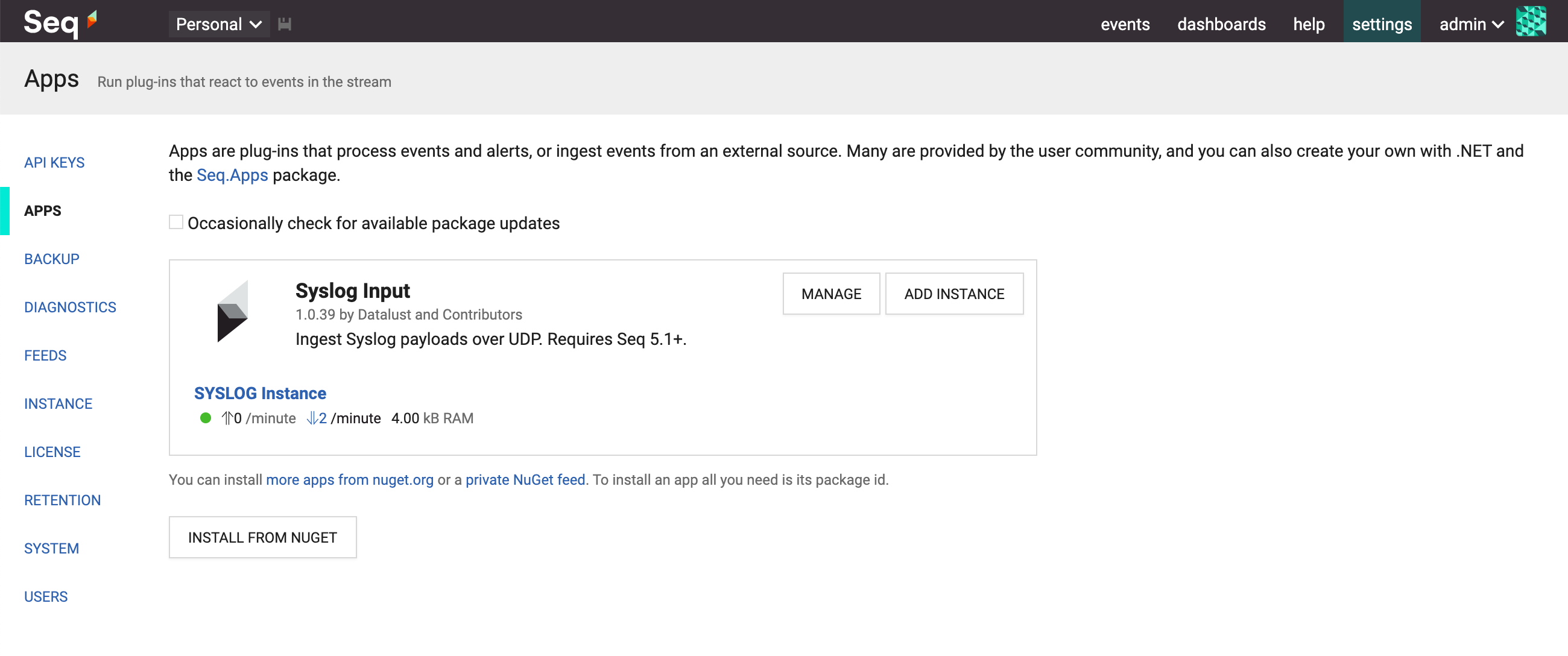
**1. Install the app package**
In _Settings_ > _Apps_, choose _Install from NuGet_. The app package id is [Seq.Input.Syslog](https://nuget.org/packages/Seq.Input.Syslog).
**2. Start an instance of the app**
From the apps screen, choose _Add Instance_ and give the new syslog input a name.
The default settings will cause the syslog input to listen on localhost port 514. Choose a different port if required.
Select _Save Changes_ to start the input.
**3. Configure Windows Firewall**
Ensure UDP port 514 (or the selected port, if you specified a different one), is allowed through Windows Firewall.
**4. Log some events!**
That's all there is to it. Events ingested through the input will appear in the _Events_ stream. If the input doesn't work, check for diagnostic events raised by the input app (there is some status information shown under the app instance name).
Events ingested by the input will be associated with the default _None_ [API key](https://docs.getseq.net/docs/api-keys), which can be used to attach properties, apply filters, or set a minimum level for the ingested events.
## Getting started with Docker (all versions)
For Docker, the app is deployed as a Docker container that is expected to run alongside the Seq container. The `datalust/seq-input-syslog` container accepts syslog messages (via UDP on port 514 by default), and forwards them to the Seq ingestion endpoint specified in the `SEQ_ADDRESS` environment variable.
To run the container:
```shell
$ docker run \
--rm \
-it \
-p 514:514/udp \
-e SEQ_ADDRESS=https://seq.example.com:5341 \
datalust/seq-input-syslog
```
The container is published on Docker Hub as [`datalust/seq-input-syslog`](https://hub.docker.com/r/datalust/seq-input-syslog), previously [`datalust/squiflog` (still updated, for backwards-compatibility)](https://hub.docker.com/r/datalust/squiflog).
### Container configuration
A `seq-input-syslog` container can be configured using the following environment variables:
| Variable | Description | Default |
| -------- | ----------- | ------- |
| `SEQ_ADDRESS`| The address of the Seq server to forward events to | `http://localhost:5341` |
| `SEQ_API_KEY` | The API key to use | - |
| `SYSLOG_ADDRESS` | The address to bind the syslog server to | `udp://0.0.0.0:514` |
| `SYSLOG_ENABLE_DIAGNOSTICS` | Whether to enable diagnostic logs and metrics (accepts `True` or `False`) | `False` |
### Collecting Docker container logs
The output from any Docker container can be collected by configuring its logging driver on startup:
```shell
$ docker run \
--rm \
-it \
--log-driver syslog \
--log-opt syslog-address=udp://seq-input-syslog.example.com:514 \
--log-opt syslog-format=rfc5424 \
my-app:latest
```
In this case the `syslog-address` option needs to resolve to the running `seq-input-syslog` container.
**Important note:** providing the `--log-opt syslog-format=rfc5424` enables the stricter and more informative RFC 5424 syslog format. Leaving this unset may default to the earlier RFC 3164 format.